
1. Introduction
Thank you for choosing the FIFINE AmpliGame A6T USB Gaming Microphone. This high-quality condenser microphone is designed for gaming, streaming, recording, and video conferencing, offering clear audio capture and user-friendly features. This manual provides detailed instructions for setting up, operating, and maintaining your microphone to ensure optimal performance.

Image: The FIFINE AmpliGame A6T USB Gaming Microphone, featuring its sleek design and included boom arm, recognized with an IF Design Award.
2. Package Contents
Please verify that all the following items are included in your package:
- FIFINE AmpliGame A6T USB Gaming Microphone
- Adjustable Boom Arm Stand
- Pop Filter
- USB-C to USB-A Cable (approximately 2 meters)
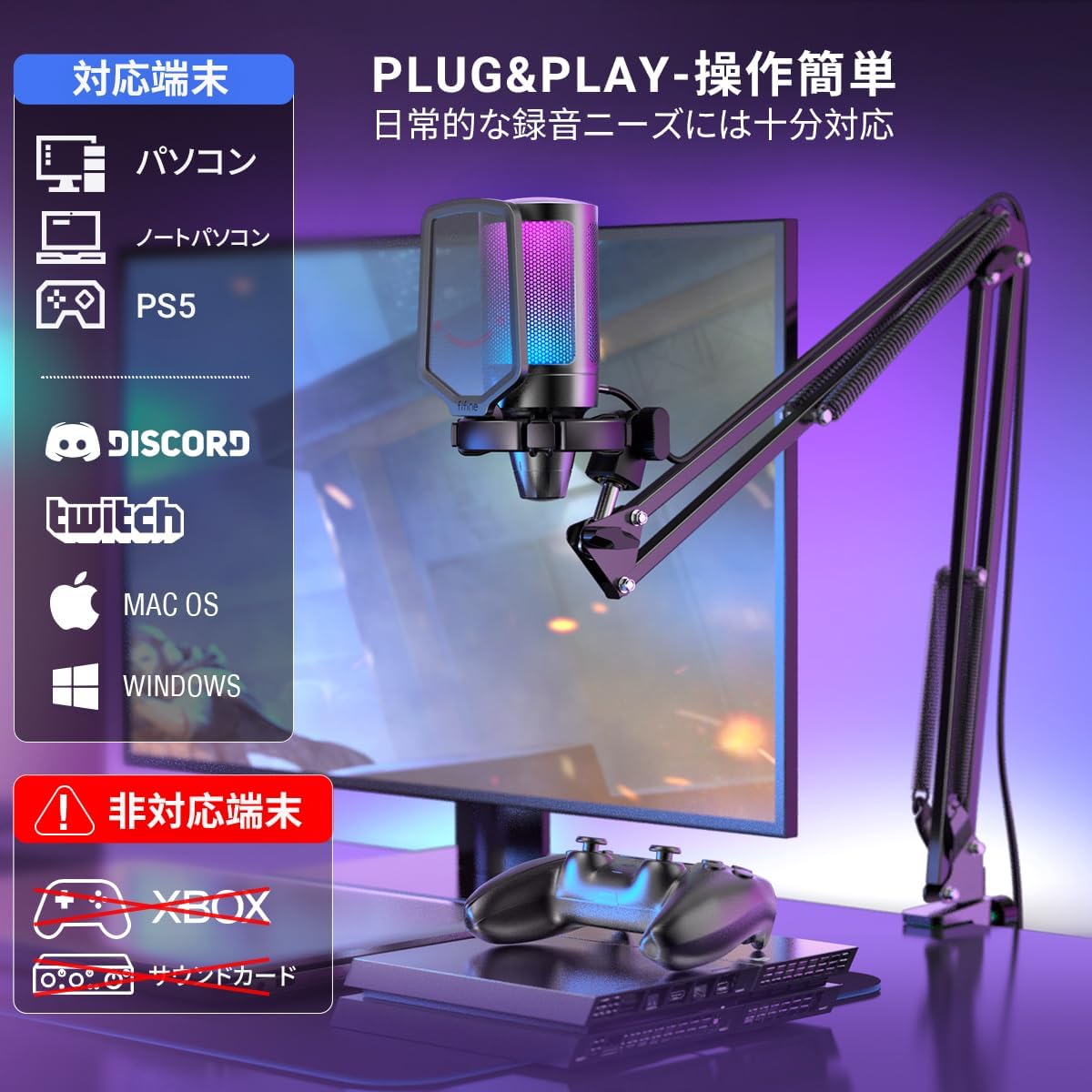
Image: All components included in the FIFINE AmpliGame A6T package, neatly arranged.
3. Setup Instructions
- Assemble the Boom Arm: Securely attach the boom arm to your desk using the clamp. Adjust the arm to your desired position. The arm offers a wide range of adjustment to optimize microphone placement and save desk space.
- Attach the Microphone: Mount the FIFINE A6T microphone onto the boom arm. Ensure it is securely fastened.
- Install Pop Filter: Attach the included pop filter to the microphone. This helps to reduce plosive sounds (P, B, T, K) for clearer audio.
- Connect to Device: Connect the USB-C end of the provided cable to the microphone and the USB-A end to an available USB port on your computer (PC/Mac), PlayStation (PS4/PS5), or other compatible device.
- System Recognition: Your operating system should automatically recognize the microphone. No additional drivers are typically required.
- Select as Input Device: In your device's sound settings or your application's audio settings, select "FIFINE AmpliGame A6T" as your primary audio input device.

Image: The adjustable boom arm, illustrating its range of motion and how it can be positioned for optimal use.

Image: The microphone connected to a setup, highlighting its plug-and-play compatibility with various platforms.
4. Operating Instructions
4.1. Mute Function
The microphone features a touch-sensitive mute button located on the top. Tap it to instantly mute or unmute the microphone. The RGB lighting indicates the microphone's status:
- RGB Lighting ON: Microphone is active and recording.
- RGB Lighting OFF: Microphone is muted.

Image: The touch-sensitive mute button, demonstrating the visual feedback provided by the RGB lighting.
4.2. Gain Control
A gain control knob is located at the bottom of the microphone. Rotate the knob to adjust the microphone's input sensitivity (gain). Turn clockwise to increase gain and counter-clockwise to decrease it. Adjust the gain to an appropriate level to avoid distortion or excessively low volume.

Image: The gain control knob, allowing for easy adjustment of microphone sensitivity directly on the device.
4.3. RGB Lighting
The microphone features dynamic RGB lighting with a 7-color gradient effect, enhancing your gaming or streaming setup. The lighting is active when the microphone is unmuted and turns off when muted.
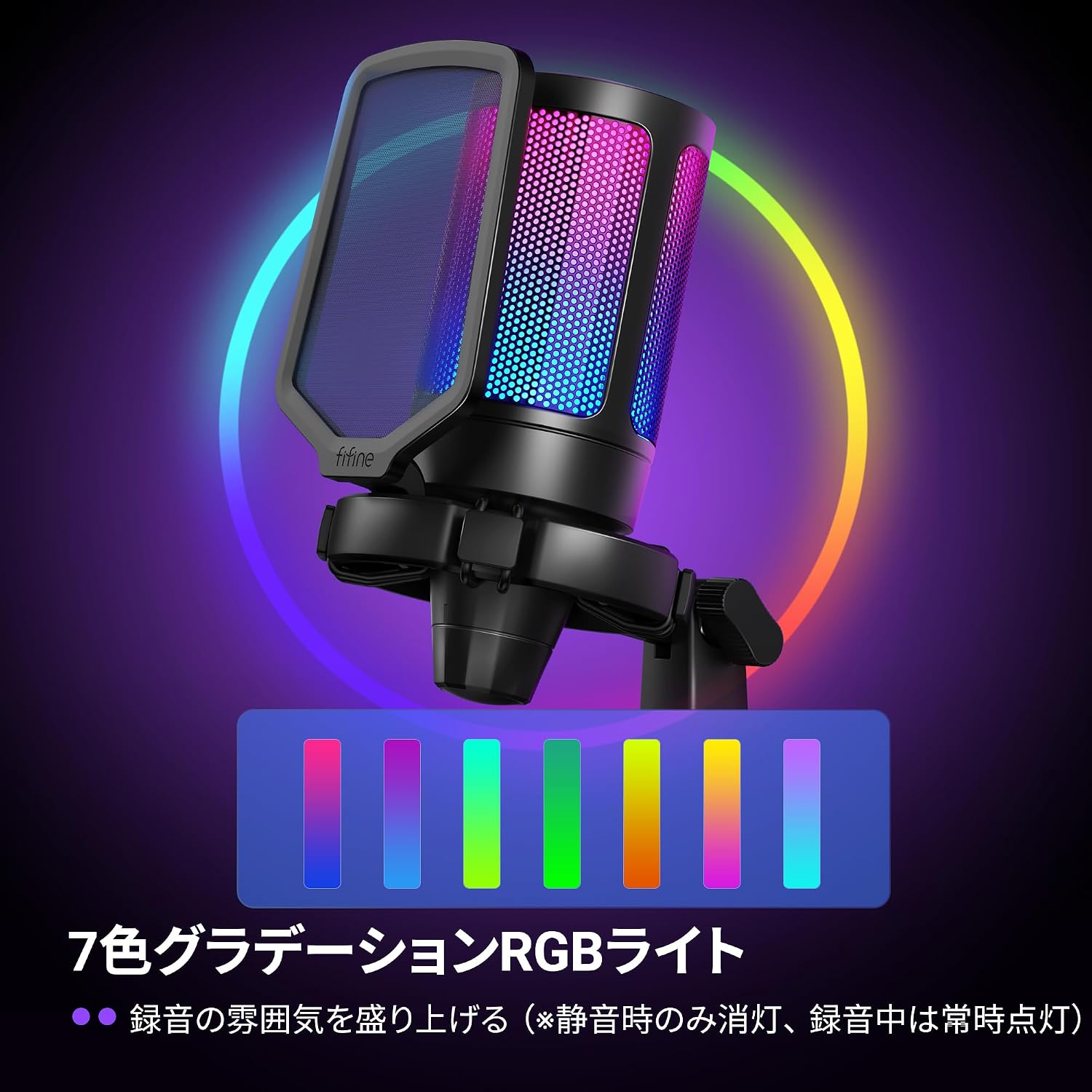
Image: The microphone illuminated with its vibrant 7-color RGB lighting.
4.4. Cardioid Polar Pattern
The A6T microphone utilizes a cardioid polar pattern, which primarily picks up sound from the front of the microphone while minimizing sound from the sides and rear. This design is ideal for capturing your voice clearly and reducing unwanted background noise.

Image: A visual representation of the cardioid pickup pattern, demonstrating how the microphone focuses on sound directly in front of it.
5. Maintenance
- Cleaning: Use a soft, dry cloth to clean the microphone body and stand. Avoid using harsh chemicals or abrasive materials.
- Storage: When not in use, store the microphone in a clean, dry place away from extreme temperatures and humidity.
- Cable Care: Avoid bending or twisting the USB cable excessively to prevent damage.
6. Troubleshooting
- No Sound Output:
- Ensure the microphone is properly connected to your device's USB port.
- Check if the microphone is muted (RGB lighting off). Tap the mute button to unmute.
- Verify that "FIFINE AmpliGame A6T" is selected as the input device in your operating system's sound settings and your application's audio settings.
- Adjust the gain control knob on the microphone.
- Try connecting the microphone to a different USB port or another device to rule out port or device issues.
- Poor Audio Quality / Distortion:
- Adjust the gain control knob. If the audio is distorted, decrease the gain. If it's too quiet, increase the gain.
- Ensure the pop filter is correctly positioned to reduce plosives.
- Speak directly into the front of the microphone, utilizing its cardioid pickup pattern.
- Minimize background noise in your environment.
- RGB Lighting Not Working:
- Ensure the microphone is unmuted. The RGB lighting is designed to turn off when muted.
- Check the USB connection.
7. Specifications
| Feature | Detail |
|---|---|
| Brand | FIFINE |
| Model Name | AmpliGame A6T |
| Connectivity Technology | USB (USB-A to Type-C) |
| Recommended Uses | Gaming, Streaming, Video Conferencing |
| Special Features | 192KHz Sampling Rate, RGB Light, Arm-type Stand, Mute Function |
| Compatible Devices | Game Consoles (PS4, PS5), Laptops, PCs |
| Color | Black (Arm Type) |
| Polar Pattern | Unidirectional (Cardioid) |
| Signal-to-Noise Ratio (S/N) | 70 dB |
| Frequency Response | 60Hz-18kHz |
| Power Source | Corded Electric (USB Powered) |
| Material | Acrylonitrile Butadiene Styrene, Metal |

Image: Key performance specifications of the microphone, including sensitivity, signal-to-noise ratio, and sampling rate.
8. Warranty Information
The FIFINE AmpliGame A6T USB Gaming Microphone comes with a 1-year manufacturer's warranty from the date of purchase. This warranty covers defects in materials and workmanship under normal use. Please retain your proof of purchase for warranty claims.
The warranty does not cover:
- Damage caused by accident, abuse, misuse, flood, fire, earthquake, or other external causes.
- Damage caused by operating the product outside the permitted or intended uses described by FIFINE.
- Damage caused by service (including upgrades and expansions) performed by anyone who is not a representative of FIFINE.
- Products or parts that have been modified to alter functionality or capability without the written permission of FIFINE.
9. Customer Support
For technical assistance, warranty claims, or any questions regarding your FIFINE AmpliGame A6T USB Gaming Microphone, please contact FIFINE customer support.
Contact Information:
- Online Support: Visit the official FIFINE website for FAQs, drivers, and support resources.
- Email Support: Refer to your product packaging or the official website for the appropriate support email address.
- Operating Hours (FIFINE Japan): Monday - Friday (excluding holidays), 10:00 - 19:00 JST.
When contacting support, please have your product model (A6T) and proof of purchase ready.

Image: Guide on how to contact FIFINE customer support, including steps to find seller information on Amazon.


