
1. Introduction
The symcode HX-6600 is an omnidirectional, hands-free 1D and 2D desktop barcode scanner designed for efficient and reliable barcode reading in various environments such as supermarkets, libraries, and retail stores. It features automatic sensing capabilities and can capture barcodes from mobile phone screens, making it a versatile tool for point-of-sale and inventory management.

Figure 1: symcode HX-6600 Desktop Barcode Scanner. This image shows the compact, black desktop barcode scanner with its adjustable stand, ready for use.
2. Setup
The HX-6600 barcode scanner is designed for simple plug-and-play operation, requiring no driver or software installation. Follow these steps to set up your scanner:
- Unpack the Scanner: Carefully remove the scanner and its USB cable from the packaging.
- Connect to Computer: Insert the USB cable into the designated port on the scanner and then connect the other end of the USB cable to an available USB port on your computer (laptop, PC, or POS system).
- System Recognition: The operating system (Windows XP/7/8/10, Mac OS, Linux) will automatically detect and configure the scanner. No additional drivers are needed.
- Ready for Use: Once recognized, the scanner is ready to begin scanning barcodes.

Figure 2: Connecting the scanner via USB. This image illustrates the simple USB cable connection from the scanner to a laptop, highlighting its plug-and-play functionality.
3. Operating Instructions
The symcode HX-6600 offers versatile scanning capabilities and modes for various operational needs.
3.1 Hands-Free and Auto-Sensing Operation
The scanner features a hands-free design, allowing for continuous operation without needing to hold the device. Its auto-sensing capability ensures efficient power management and quick scanning:
- When not in use, the scanner automatically enters a sleep mode to conserve energy.
- When a barcode is presented near the scan window, the scanner automatically wakes up and activates for immediate scanning.

Figure 3: Self-sensing multi-angle barcode reading. This image shows the scanner on a desk, indicating its ability to read barcodes from various angles automatically.
3.2 Scanning Modes
The HX-6600 supports two primary scanning modes:
- Key Trigger Mode: Scanning is initiated by pressing a physical button on the scanner.
- Self-sensing Mode: The scanner automatically detects and scans barcodes when they are placed within its scanning field.

Figure 4: Illustration of Key Trigger Mode and Self-sensing Mode. This image visually distinguishes between manual trigger scanning and automatic detection scanning.
3.3 Decoding Capabilities
This scanner boasts a super decoding ability, capable of reading a wide range of 1D and 2D barcodes, including those from mobile phone screens. It can effectively decode challenging barcodes such as:
- Blurring barcodes
- Damaged barcodes
- Distortion barcodes
- Colorful barcodes
- Reflective barcodes
Supported 1D barcode types include: UPC/EAN, Code39, Interleaved 2 of 5, Code93, Code 128, Codabar, etc.
Supported 2D barcode types include: QR, Datamatrix, PDF417, Aztec, etc.
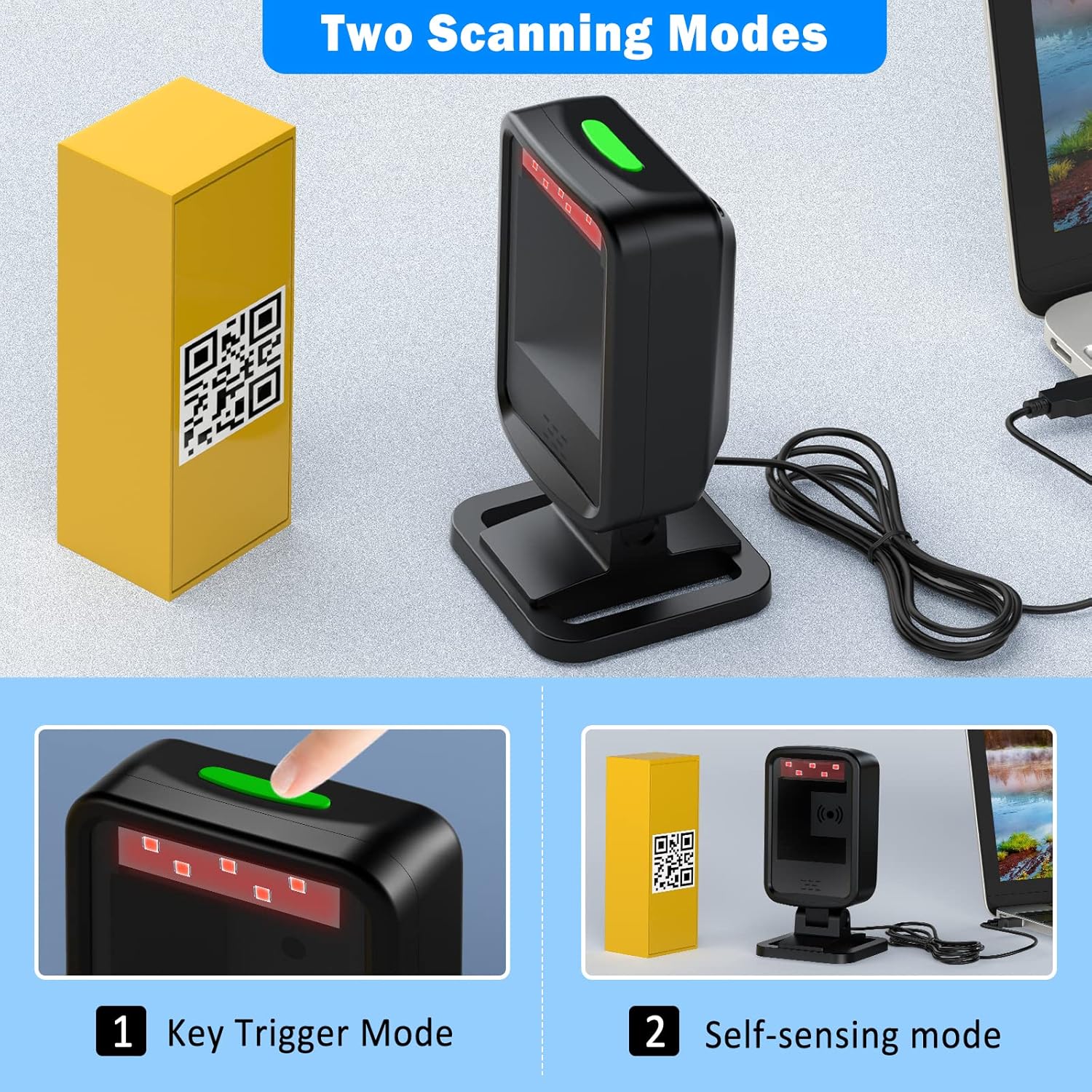
Figure 5: Examples of barcodes the scanner can decode. This image displays various barcode types like Data Matrix, QR Code, ITF, PDF417, and even damaged or colored barcodes, indicating the scanner's robust decoding capabilities.
3.4 Adjustable Head
The scanner features a 45° adjustable head, allowing users to easily find the optimal scanning angle for different items and setups, enhancing user comfort and scanning efficiency.

Figure 6: Scanner with 45° adjustable head. This image demonstrates the scanner's head tilting forward, illustrating its adjustable feature for ergonomic scanning.
3.5 Applicable Scenes
The symcode HX-6600 is suitable for a wide range of applications due to its versatile design and decoding capabilities. Common usage scenarios include:
- Supermarkets and Retail Stores: For quick and efficient checkout processes.
- Libraries: For cataloging and checking out books.
- Warehouses: For inventory management and tracking.
- Pharmacies: For managing pharmaceutical products.
- Offices: For document management and asset tracking.

Figure 7: Scanner in use at a retail counter. This image shows the scanner positioned on a checkout counter, demonstrating its practical application in a retail environment.

Figure 8: Various applicable scenes for the barcode scanner. This image displays the scanner being used in a library, supermarket, pharmacy, and airport, highlighting its versatility across different sectors.
4. Maintenance
Proper maintenance ensures the longevity and optimal performance of your symcode HX-6600 barcode scanner.
- Cleaning: Regularly wipe the scanner's exterior and scan window with a soft, dry, lint-free cloth. Avoid using abrasive cleaners or solvents that could damage the surface or optical components.
- Storage: Store the scanner in a cool, dry place away from direct sunlight and extreme temperatures when not in use.
- Cable Care: Avoid bending or twisting the USB cable excessively to prevent internal damage.
- Durability: The scanner features an anti-shock design, providing protection against accidental drops. It is designed to remain functional after multiple drops from a height of 5ft (1.5m) onto concrete.

Figure 9: Anti-shock design. This image visually represents the scanner's robust construction, indicating its resistance to drops and impacts.
5. Troubleshooting
This section addresses common issues you might encounter with your symcode HX-6600 barcode scanner.
- Scanner Not Responding:
- Ensure the USB cable is securely connected to both the scanner and the computer.
- Try connecting the scanner to a different USB port on your computer.
- Restart your computer and try again.
- Barcode Not Scanning:
- Ensure the barcode is clean, clear, and not excessively damaged or distorted.
- Adjust the distance and angle between the scanner and the barcode. The adjustable head can help find the optimal position.
- Verify that the barcode type is supported by the scanner (1D: UPC/EAN, Code39, etc.; 2D: QR, Datamatrix, PDF417, etc.).
- Check if the scanner is in the correct scanning mode (Key Trigger or Self-sensing).
- Scanning Too Quickly / Double Scans:
- The scanner may be configured for very rapid scanning. Refer to the included one-sheet manual for specific configuration barcodes to adjust scan speed or add delays.
- No Beep Sound:
- The scanner's buzzer might be disabled. Consult the product's configuration manual to enable the beep sound.
Important Note: Many advanced settings and configurations for this scanner are controlled by scanning specific barcodes found in the included physical manual. It is highly recommended to keep this manual for future reference.
6. Specifications
| Feature | Detail |
|---|---|
| Model | HX-6600 |
| Product Dimensions | 5.1 x 1.6 x 0.7 inches |
| Item Weight | 9.9 ounces |
| Batteries | 1 Lithium Polymer battery required |
| Compatible Devices | Laptop, PC, POS systems |
| Power Source | USB wired |
| Connectivity Technology | USB Cable |
| Manufacturer | Symcode |
| Country of Origin | China |
7. Warranty and Support
Specific warranty terms and conditions for the symcode HX-6600 barcode scanner are typically provided with the product packaging or can be found on the official symcode website. For technical support, troubleshooting assistance beyond this manual, or warranty claims, please refer to the contact information provided by the manufacturer at the time of purchase or visit the official symcode support portal.
