1. Product Overview
The PAPIFEED Automatic Cat Feeder, Model Cactus Style, is designed to provide scheduled meals for your pets. It features a 3.5L food tank, dual power supply options, and programmable feeding schedules to ensure your pet receives consistent nutrition.

Image 1: Front view of the PAPIFEED Automatic Cat Feeder, showing the transparent food tank, control panel, and stainless steel food bowl.
Key Features:
- Timed Food Dispensing: Program up to 4 meals per day with 1-6 portions per meal.
- Large Capacity: 3.5L (15 cups) food tank with desiccant to keep food fresh.
- Dual Power Supply: Operates via DC 5V power adapter or 4 AA batteries (not included) for uninterrupted feeding.
- Easy to Clean: Removable stainless steel bowl is dishwasher safe.
- Safety Lock: Prevents pets from accessing the food tank.
- Transparent Food Tank: Allows for easy monitoring of food levels.

Image 2: Visual summary of the feeder's main features, including its capacity, power options, and design elements.
2. Setup and Assembly
2.1 Package Contents
Before assembly, ensure all components are present:
- Feeder main unit with transparent food tank
- Stainless steel food bowl
- Plastic food bowl base
- Desiccant pack
- Safety lock strap
- DC 5V power adapter and USB cable
- Instruction Manual (this document)
2.2 Assembly Steps
- Install the Desiccant: Open the lid of the food tank. Locate the desiccant compartment on the underside of the lid. Insert the desiccant pack into this compartment. This helps keep the dry food fresh.

Image 3: A person installing the desiccant pack into the lid of the feeder.
- Install the Food Tank Lid: Securely place the lid with the desiccant compartment onto the transparent food tank.
- Attach the Safety Lock: Thread the safety lock strap through the designated slots on the feeder unit and the lid to prevent accidental opening by pets.

Image 4: The safety lock strap securing the feeder lid, demonstrating its function to prevent pet access.
- Assemble the Food Bowl: Place the stainless steel bowl into the plastic food bowl base. Then, attach the assembled food bowl to the main feeder unit.
2.3 Power Supply
The feeder supports dual power supply options:
- DC 5V Power Adapter: Connect the USB cable to the feeder's power port and plug the adapter into a wall outlet. This is the primary power source.
- 4 AA Batteries (Not Included): For backup power during outages or for cordless use, insert 4 AA batteries into the battery compartment located at the bottom of the feeder. Ensure correct polarity.
It is recommended to use both power sources simultaneously to ensure uninterrupted feeding in case of a power outage.

Image 5: Illustration of the dual power supply system, highlighting the use of both the power adapter and AA batteries.
3. Operating Instructions
The feeder's control panel allows you to set the current time and program feeding schedules.

Image 6: Detailed view of the control panel, indicating the function of each button and display area.
3.1 Setting the System Time
- Long press the "Setting Time / Save Data" button (upper right corner button) until the hour display starts blinking.
- Use the "+" (increase) and "-" (decrease) buttons to adjust the hour.
- Press the "Set Feeding Schedule / Data Switch" button (lower right corner button) to switch to minute setting.
- Use the "+" and "-" buttons to adjust the minutes.
- Long press the "Setting Time / Save Data" button again to save the current time.

Image 7: Step-by-step animation demonstrating how to set the system time on the feeder.
3.2 Setting the Feeding Schedule
The feeder allows for up to 4 meals per day, with 1 to 6 portions per meal.
- Press the "Set Feeding Schedule / Data Switch" button (lower right corner button) to enter the feeding schedule setting mode. The display will show "-01-" indicating the first meal.
- Press the "Set Feeding Schedule / Data Switch" button again to set the time for the first meal. Use "+" and "-" to adjust hours and minutes, switching between them with the "Set Feeding Schedule / Data Switch" button.
- After setting the time, press the "Set Feeding Schedule / Data Switch" button to set the portion size for the first meal. The display will show "P-00". Use "+" and "-" to adjust the number of portions (1-6).
- Repeat steps 1-3 for subsequent meals (up to 4 meals). The display will cycle through "-02-", "-03-", "-04-".
- To cancel a meal, set its portion size to "P-00".
- Once all desired meals are set, long press the "Setting Time / Save Data" button (upper right corner button) to save the schedule and exit the setting mode.

Image 8: Animation demonstrating how to set the number of meals per day.

Image 9: Animation demonstrating how to set the portion size for each meal.

Image 10: Animation demonstrating how to cancel a scheduled meal.
3.3 Manual Feeding
To dispense food manually, briefly press the "+" (increase) button. Each press will dispense one portion of food.

Image 11: The feeder dispensing food into the bowl for a cat, illustrating the automated feeding process.
3.4 Food Compatibility
The feeder is compatible with various types of dry food, including:
- Dry Kibble
- Mixed Food (dry kibble with small freeze-dried pieces)
- Air-Dried Food
- Freeze-Dried Food
The silicone shaft inside the feeder has good elasticity to accommodate kibble sizes between 5-10mm and prevent jamming.
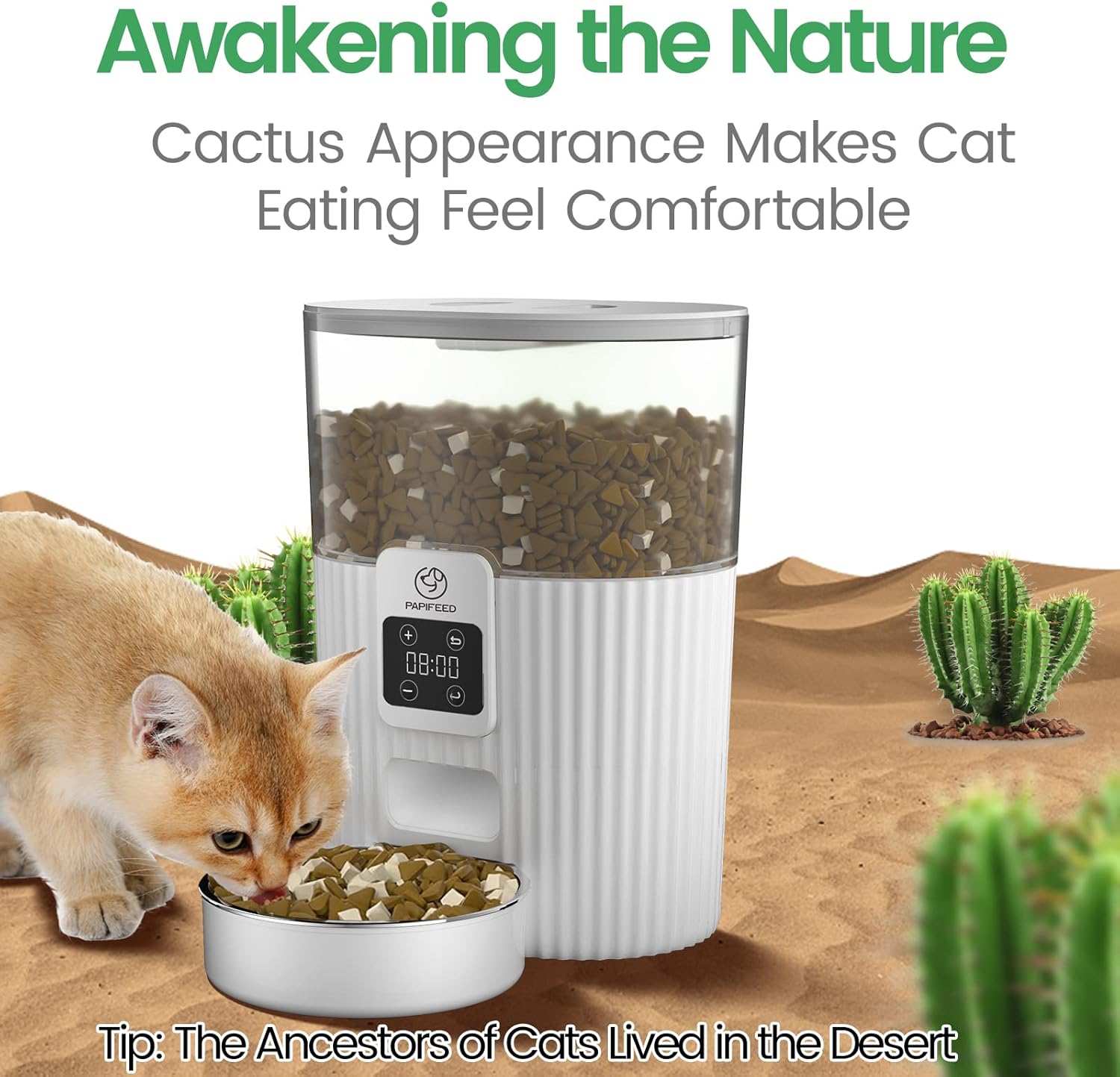
Image 12: Visual representation of the feeder's compatibility with different types and sizes of dry pet food.
4. Maintenance
4.1 Cleaning
Regular cleaning ensures hygiene and proper functioning of the feeder. It is recommended to wash the removable parts at least once a week.
- Disassembly: Remove the food tank lid, food tank, and the food bowl assembly from the main unit.
- Washing: The stainless steel food bowl is dishwasher safe. The plastic food tank and lid can be washed with mild soap and water. Ensure all parts are thoroughly rinsed.
- Drying: Allow all components to air dry completely before reassembly to prevent moisture from affecting the dry food or electronic components.
- Main Unit: Wipe the main unit with a damp cloth. Do not submerge the main unit in water.

Image 13: The stainless steel bowl being placed into a dishwasher, indicating its ease of cleaning.
4.2 Food Storage
The 3.5L food tank is designed to store dry pet food. Always ensure the desiccant pack is active and the lid is securely closed to maintain food freshness and prevent pests.

Image 14: Exploded view of the feeder components, detailing the safety lock, desiccant, transparent food tank, and stainless steel bowl.
5. Troubleshooting
| Problem | Possible Cause | Solution |
|---|---|---|
| Feeder not dispensing food. |
|
|
| Display not working. |
|
|
| Pet accessing food outside of schedule. |
|
|
| Food not staying fresh. |
|
|
6. Specifications
| Brand | PAPIFEED |
| Model Number | Cactus Style |
| Capacity | 3.5 Liters / 15 Cups |
| Product Dimensions | 20.78 x 14.78 x 27.69 cm (8.18 x 5.82 x 10.9 inches) |
| Item Weight | 1.2 kg (2.65 lbs) |
| Material | Stainless Steel (bowl), Plastic (main unit, tank) |
| Power Supply | DC 5V Adapter (included) or 4 AA Batteries (not included) |
| Feeding Schedule | Up to 4 meals per day |
| Portion Size | 1-6 portions per meal (approx. 1/8 cup or 10-20g per portion) |
| Kibble Size Compatibility | 5-10mm |
7. Warranty and Support
PAPIFEED provides a one-year free warranty for this product. For any questions, concerns, or support needs, please contact PAPIFEED customer service. Contact information can typically be found on the product packaging or the official PAPIFEED website.


