
1. Introduction
The DURGOD Taurus K320 is a Tenkeyless (TKL) 80% mechanical keyboard designed for both gaming and typing. It features an 87-key layout, USB-C wired connectivity, and durable doubleshot PBT keycaps. This manual provides instructions for setting up, operating, and maintaining your keyboard.
2. Package Contents
Please verify that all items are present in your package:
- DURGOD K320 Mechanical Keyboard
- Instruction Manual (English / Chinese)
- Dust Cover
- Type-C to Type-C USB Cable (3.3 ft / 1m)
- Type-C to Type-A USB Cable (5.9 ft / 1.8m)
- Logo Sticker
- Keycap Puller
3. Product Features
- Cherry MX Speed Silver Switches: Provides precise mechanical performance with a 50 million click life, suitable for fast typing and gaming.
- Tenkeyless (TKL) Design: Compact 80% layout saves desk space and offers flexibility for mouse positioning.
- Durable Construction: Sturdy case with adjustable feet for three typing angles, optimizing comfort and visibility.
- Doubleshot PBT Keycaps: Enhanced durability and resistance to wear.
- Full N-Key Rollover & Anti-Ghosting: Ensures every keystroke is registered accurately, even during rapid input.
- Programmable Keys: Supports macro creation and key remapping via DURGOD Zeus Engine software.
- Detachable USB-C Cables: Includes both Type-C to Type-C and Type-C to Type-A cables for versatile connectivity.
- Cable Management: Features 3-way cable routing options (left, center, right) on the underside of the keyboard.
- Compatibility: Works with Windows 10, 8, 7, Vista, XP, and Mac OS (some key remapping may be required for Mac via software).
4. Setup
Follow these steps to connect your DURGOD K320 keyboard:
- Select the appropriate USB cable (Type-C to Type-C or Type-C to Type-A) for your computer.
- Connect the Type-C end of the cable to the USB-C port on the back of the keyboard.
- Route the cable through one of the three channels on the underside of the keyboard for organized cable management.
- Connect the other end of the cable (Type-C or Type-A) to an available USB port on your computer.
- The keyboard is plug-and-play and should be recognized automatically by your operating system.
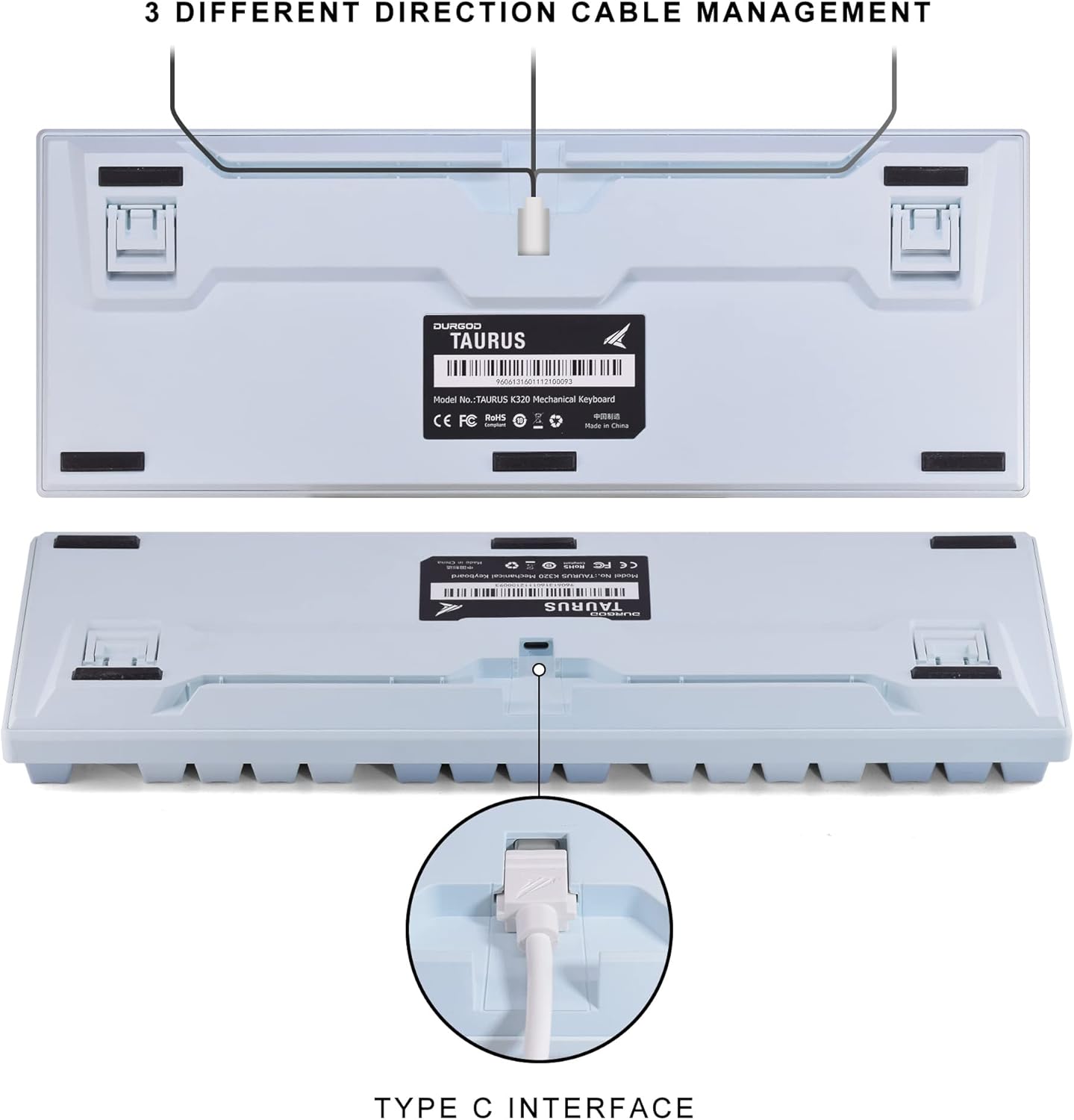
Image: The underside of the DURGOD K320 keyboard, illustrating the USB-C port and the three channels for cable management (left, center, right).
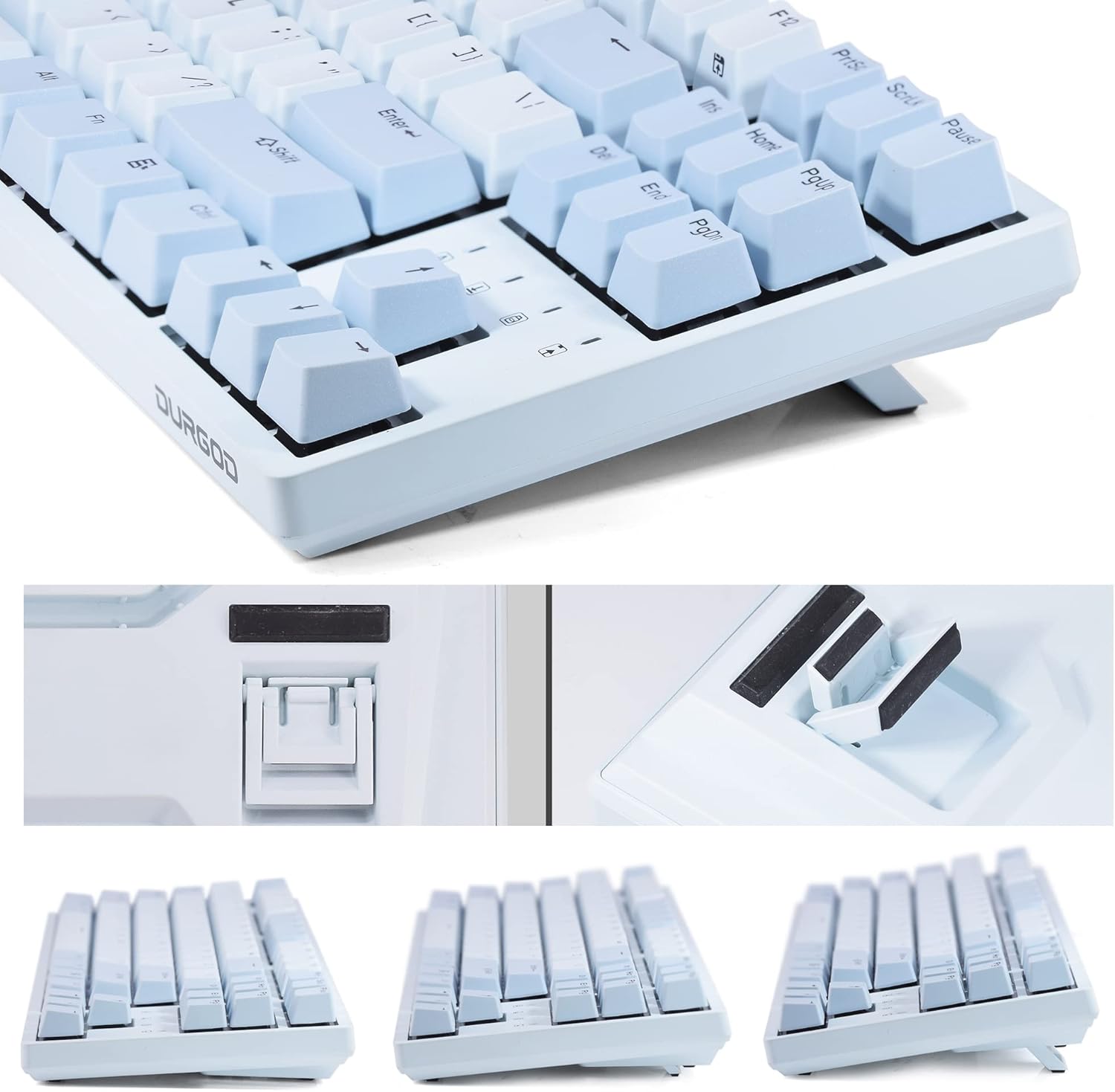
Image: Close-up view of the DURGOD K320 keyboard's adjustable feet, demonstrating the three possible typing angles for ergonomic comfort.
5. Operating Instructions
5.1. Function Key Combinations
The DURGOD K320 features various multimedia and system control functions accessible via the FN key in combination with the F-keys. All keys except the FN key are programmable.
| Combination | Function |
|---|---|
| FN + F1 | Play/Pause |
| FN + F2 | Stop |
| FN + F3 | Previous Track |
| FN + F4 | Next Track |
| FN + F5 | Mute |
| FN + F6 | Volume Down |
| FN + F7 | Volume Up |
| FN + F12 | Switch Customize Profile (MR Mode: Profiles can be customized via Durgod Zeus Engine software and swapped on the keyboard.) |
| FN + Left WIN | Windows Key Lock |

Image: The ANSI/QWERTY US International layout of the DURGOD K320 keyboard, with an overlay indicating the various FN key combinations and their corresponding functions.
5.2. DURGOD Zeus Engine Software
The DURGOD Zeus Engine software allows for advanced customization of your keyboard. With this software, you can:
- Upgrade keyboard firmware.
- Set up complex macros.
- Rebind keys.
- Create and manage independent profiles.
- Program Windows key lock functions.
Please visit the official DURGOD website to download the latest version of the Zeus Engine software.
6. Maintenance
To ensure the longevity and optimal performance of your DURGOD K320 keyboard, follow these maintenance guidelines:
- Cleaning: Use the included dust cover when the keyboard is not in use. For cleaning, disconnect the keyboard from your computer. Use a soft, dry cloth to wipe the surface. For deeper cleaning, use a keycap puller to remove keycaps and clean underneath with compressed air or a small brush.
- Avoid Liquids: Do not expose the keyboard to liquids. In case of accidental spills, immediately disconnect the keyboard and allow it to dry completely before reconnecting.
- Storage: Store the keyboard in a cool, dry place away from direct sunlight and extreme temperatures.
- Cable Care: Avoid bending or twisting the USB cables excessively to prevent damage.
7. Troubleshooting
If you encounter issues with your DURGOD K320 keyboard, refer to the following common problems and solutions:
- Keyboard Not Responding:
- Ensure the USB cable is securely connected to both the keyboard and the computer.
- Try connecting the keyboard to a different USB port on your computer.
- Test with the alternative USB cable provided.
- Restart your computer.
- Keys Not Registering / Ghosting:
- The keyboard features N-key rollover and anti-ghosting. If issues persist, ensure no debris is under the keycaps.
- Update keyboard firmware using the DURGOD Zeus Engine software.
- FN Key Functions Not Working:
- Ensure you are pressing the FN key simultaneously with the desired F-key.
- Check if any software conflicts are present.
- Windows Key Locked:
- Press FN + Left WIN to toggle the Windows key lock on or off.
- Software Issues (DURGOD Zeus Engine):
- Ensure you have the latest version of the software installed from the official DURGOD website.
- Run the software as an administrator.
8. Specifications
| Feature | Detail |
|---|---|
| Model Number | K320 |
| Layout | 87 Keys, Tenkeyless (TKL), ANSI - US International |
| Switches | Cherry MX Speed Silver |
| Keycaps | Doubleshot PBT |
| Connectivity | Wired, USB-C Interface |
| Anti-Ghosting | Full N-Key Rollover |
| Dimensions | 14.76 x 5.2 x 0.94 inches (37.5 x 13.2 x 2.4 cm) |
| Weight | 3.03 pounds (1.37 kg) |
| Compatible OS | Windows 10/8/7/Vista/XP, Mac OS |
| Manufacturer | DURGOD |

Image: A close-up view of the Cherry MX Speed Silver switches on the DURGOD K320 keyboard, with some keycaps removed to show the switch mechanism.

Image: The DURGOD K320 keyboard in use, demonstrating its versatility for both professional work environments and gaming setups.
9. Warranty and Support
DURGOD products are manufactured to high-quality standards. For warranty information, technical support, or service inquiries, please refer to the warranty card included in your package or visit the official DURGOD website. Keep your purchase receipt for warranty claims.


