
1. Introduction
This manual provides detailed instructions for the FUDONI P1 Projector. It covers essential information for safe and efficient use, including setup, operation, maintenance, and troubleshooting. Please read this manual thoroughly before using the projector and retain it for future reference.

Image 1.1: The FUDONI P1 Projector, showcasing its compact design and connectivity options.

Image 1.2: The FUDONI P1 Projector is suitable for home entertainment, creating an immersive viewing experience.
2. Safety Information
Observe the following safety precautions to prevent damage to the projector and ensure user safety:
- Do not block ventilation openings. Ensure adequate space around the projector for proper airflow.
- Do not expose the projector to rain, moisture, or extreme temperatures.
- Avoid looking directly into the projector lens when the lamp is on.
- Use only the power cord and accessories provided by the manufacturer.
- Disconnect the power cord during lightning storms or when unused for extended periods.
3. Package Contents
Verify that all items are present in the package:
- FUDONI P1 Projector
- HDMI Cable
- Power Cord
- AV Cable
- Remote Control
- Projector Lens Cover
- User Manual
4. Product Overview
Key Features
- Dual-band 5G+2.4G WiFi: Ensures stable and fast wireless streaming.
- Bluetooth 5.3: For connecting external audio devices like speakers or headphones.
- Native 1080P Resolution: Delivers clear and sharp images, with 4K decoding support via HDMI.
- High Brightness & Contrast: 14000L (manufacturer rating) and 10000:1 contrast ratio for vibrant visuals.
- Dual Stereo Speakers: Built-in 5W SRS surround sound speakers.
- Quiet Operation: Fan noise below 35dB for minimal distraction.
- Large Display Size: Projects screens from 33 to 300 inches.
- Zoom Function: Adjustable screen size from 100% to 50%.
- Long Lamp Life: Up to 100,000 hours.
- Eye Protection: Utilizes diffused light to reduce eye strain.
- Multiple Connectivity Ports: HDMI, USB, VGA for various devices.

Image 4.1: Visual comparison highlighting the FUDONI P1 Projector's superior resolution and brightness.

Image 4.2: The projector features integrated dual stereo speakers for audio output.

Image 4.3: The projector's diffused light technology is designed to protect viewers' eyes.

Image 4.4: The projector is equipped with a durable lamp designed for up to 100,000 hours of use.
5. Setup
5.1 Power Connection
- Connect the power cord to the projector's power input port.
- Plug the other end of the power cord into a standard electrical outlet.
5.2 Placement and Screen Size
Position the projector on a stable, flat surface. The projection distance determines the screen size. Adjust the distance to achieve your desired screen size, ranging from 33 to 300 inches.
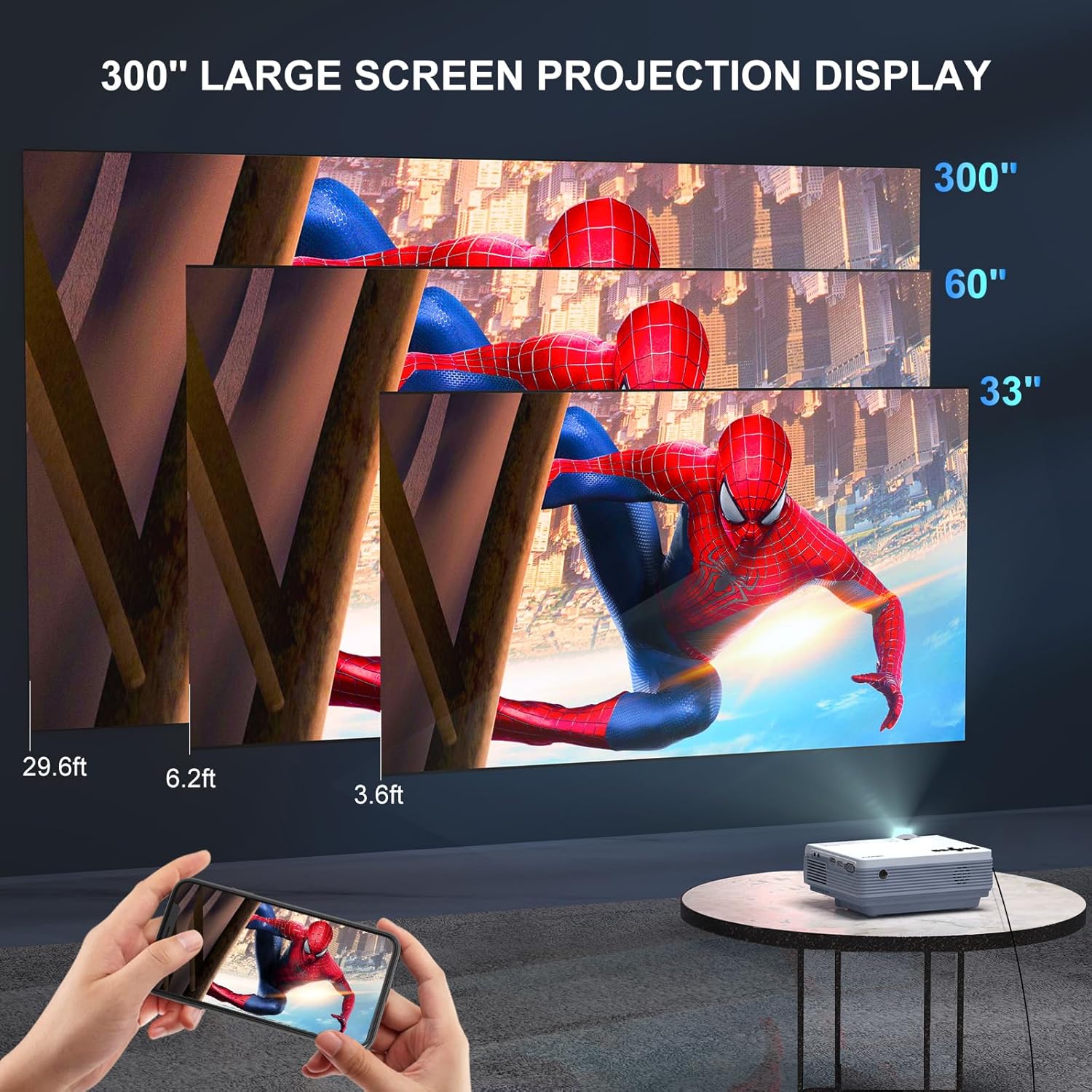
Image 5.1: The projector supports a large screen projection display, adaptable to various room sizes.
6. Connectivity
6.1 WiFi Connection (2.4G/5G)
The FUDONI P1 Projector supports dual-band 2.4G and 5G WiFi for wireless screen mirroring from compatible devices.
- Navigate to the projector's settings menu and select 'WiFi'.
- Enable WiFi and select your desired network (2.4G or 5G).
- Enter the WiFi password if prompted.
- Once connected, select the 'Screen Mirroring' or 'Wireless Projection' option on the projector.
- On your smartphone or tablet, enable screen mirroring (e.g., 'Screen Cast' for Android, 'AirPlay' for iOS) and select the projector from the list of available devices.

Image 6.1: The projector supports 2.4G and 5G WiFi for seamless wireless screening from iOS, Android, and Windows devices.
6.2 Bluetooth Connection
Connect external Bluetooth speakers or headphones for enhanced audio.
- Ensure your Bluetooth audio device is in pairing mode.
- On the projector, go to the settings menu and select 'Bluetooth'.
- Enable Bluetooth and scan for devices.
- Select your audio device from the list to pair.

Image 6.2: The projector can connect to external Bluetooth speakers or headphones for improved audio.

Image 6.3: Using Bluetooth to connect to external speakers enhances the audio experience for outdoor events.
6.3 Wired Connections (HDMI, USB, VGA)
The projector offers various wired input options for different devices.
- HDMI: Connect laptops, gaming consoles (PS5), TV sticks (Roku, Chromecast), and other HDMI-enabled devices.
- USB: Plug in USB drives for direct media playback.
- VGA: Connect older computers or devices with a VGA output.
- AV: Use the included AV cable for devices with composite video and stereo audio outputs.

Image 6.4: The projector is compatible with a wide range of devices via its multiple input ports.

Image 6.5: The projector supports both wired connections (HDMI) and wireless screen mirroring for various devices.
7. Operation
7.1 Power On/Off
- Power On: Press the power button on the projector or the remote control.
- Power Off: Press the power button again. The projector will enter standby mode.
7.2 Focus and Keystone Correction
- Focus: Rotate the focus ring on the projector lens until the image is clear.
- Keystone Correction: Use the keystone adjustment ring or menu option to correct trapezoidal distortion if the projector is not perfectly perpendicular to the screen.
7.3 Zoom Function
Adjust the screen size without moving the projector using the digital zoom function.
- Access the 'Picture' or 'Display' settings in the projector menu.
- Locate the 'Zoom' or 'Screen Size' option.
- Adjust the value to scale the image from 100% down to 50%.

Image 7.1: The projector features a 100%-50% zoom function for flexible screen sizing.
7.4 Audio Output
The projector has built-in speakers. For external audio, connect via Bluetooth (Section 6.2) or use the 3.5mm audio output jack to connect wired speakers or headphones.
8. Maintenance
8.1 Cleaning the Lens
Use a soft, lint-free cloth specifically designed for optical lenses to gently wipe the projector lens. Avoid using abrasive cleaners or excessive force.
8.2 Dustproof Design
The projector features a dustproof design to minimize internal dust accumulation, contributing to a longer lifespan and consistent image quality. Regular external cleaning is still recommended.

Image 8.1: The projector's dustproof design helps maintain performance over time.
8.3 Storage
When not in use, store the projector in a cool, dry place. Use the provided lens cover to protect the lens from dust and scratches.
9. Troubleshooting
If you encounter issues with your FUDONI P1 Projector, refer to the following common problems and solutions:
| Problem | Possible Cause | Solution |
|---|---|---|
| No image displayed | Power not connected; Input source incorrect; Cable loose | Check power connection; Select correct input source (HDMI, USB, etc.); Ensure cables are securely connected. |
| Image is blurry | Focus not adjusted; Projector too close/far | Adjust the focus ring; Adjust projection distance. |
| Image is trapezoidal | Keystone not adjusted | Adjust the keystone correction. |
| No sound | Volume too low; External audio not connected; Muted | Increase volume; Connect external speakers via Bluetooth or audio cable; Unmute the projector. |
| WiFi connection unstable | Distance from router; Interference | Move projector closer to router; Ensure no obstructions; Try 5G WiFi if available. |
| Cannot mirror streaming apps (Netflix, Hulu, etc.) | DRM protection | Due to copyright protection (DRM), some streaming services do not allow screen mirroring. Use an HDMI cable with a compatible streaming stick (e.g., Fire TV Stick, Roku) for these services. |
10. Technical Specifications
| Feature | Detail |
|---|---|
| Product Dimensions | 6 x 2 x 7 inches |
| Item Weight | 3.03 pounds |
| Item Model Number | P1 |
| Display Resolution | Native 1920 x 1080 (4K Supported via HDMI) |
| Connectivity Technology | WiFi (5G+2.4G), Bluetooth 5.3, HDMI, USB, VGA, AV |
| Recommended Uses | Indoor/Outdoor |
| Visible Screen Diagonal | 33" - 300" (508 cm max) |
| Special Features | 100%-50% Zoom, Auto sleep timer, Dustproof design |
11. Warranty and Support
11.1 Warranty Information
The FUDONI P1 Projector comes with a 3-year warranty that protects against manufacturing defects. This warranty ensures long-term reliability for frequent use in various environments.
11.2 Customer Support
For any questions, technical assistance, or warranty claims, please contact FUDONI customer support. We are committed to providing high-quality service and support.
- Lifetime Support: Ongoing assistance for your product.
- 24-Hour Service: Quick service via phone or email.
- 30-Day Return Policy: Hassle-free returns within 30 days of purchase.
- 36-Month Free Replacement: Replacement for eligible issues within 36 months.

Image 11.1: FUDONI is dedicated to providing comprehensive customer support.

Image 11.2: FUDONI offers extensive support and warranty coverage for its products.


