
1. Introduction
The NIIMBOT B21 Thermal Label Printer is a versatile and portable device designed for efficient labeling in various environments, including home organization, small businesses, offices, and retail. This manual provides detailed instructions for setting up, operating, maintaining, and troubleshooting your B21 label printer to ensure optimal performance and longevity.
2. Product Overview
The NIIMBOT B21 features a compact, retro-inspired design with a robust build. It utilizes thermal printing technology, eliminating the need for ink cartridges. The printer connects wirelessly via Bluetooth to your smartphone or PC, offering a seamless labeling experience through the dedicated NIIMBOT APP.

Figure 2.1: NIIMBOT B21 Label Printer with various label applications.
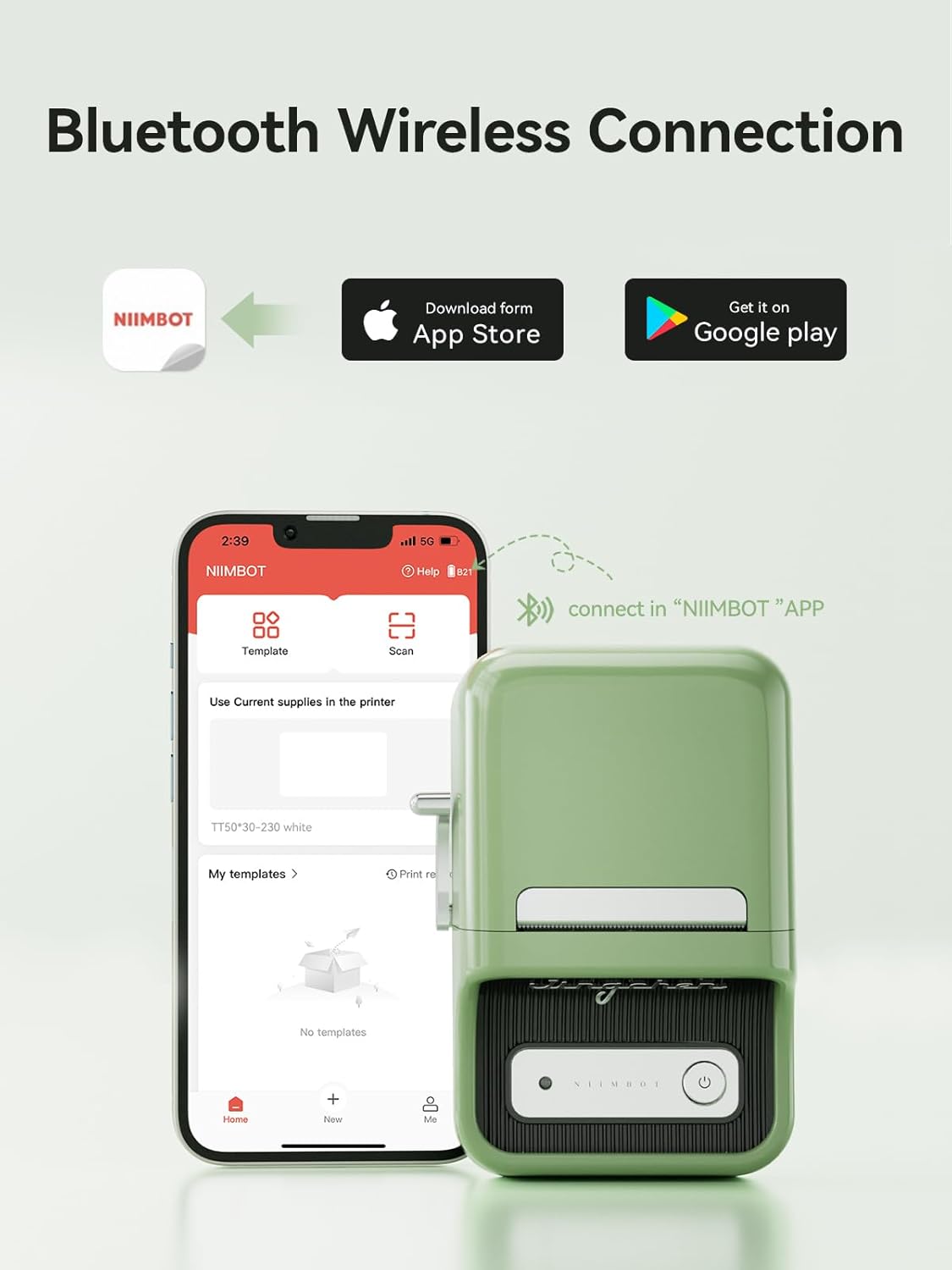
Figure 2.2: Bluetooth Wireless Connection capability of the B21 printer.

Figure 2.3: The B21 printer features a 1500mAh built-in rechargeable battery for portability.
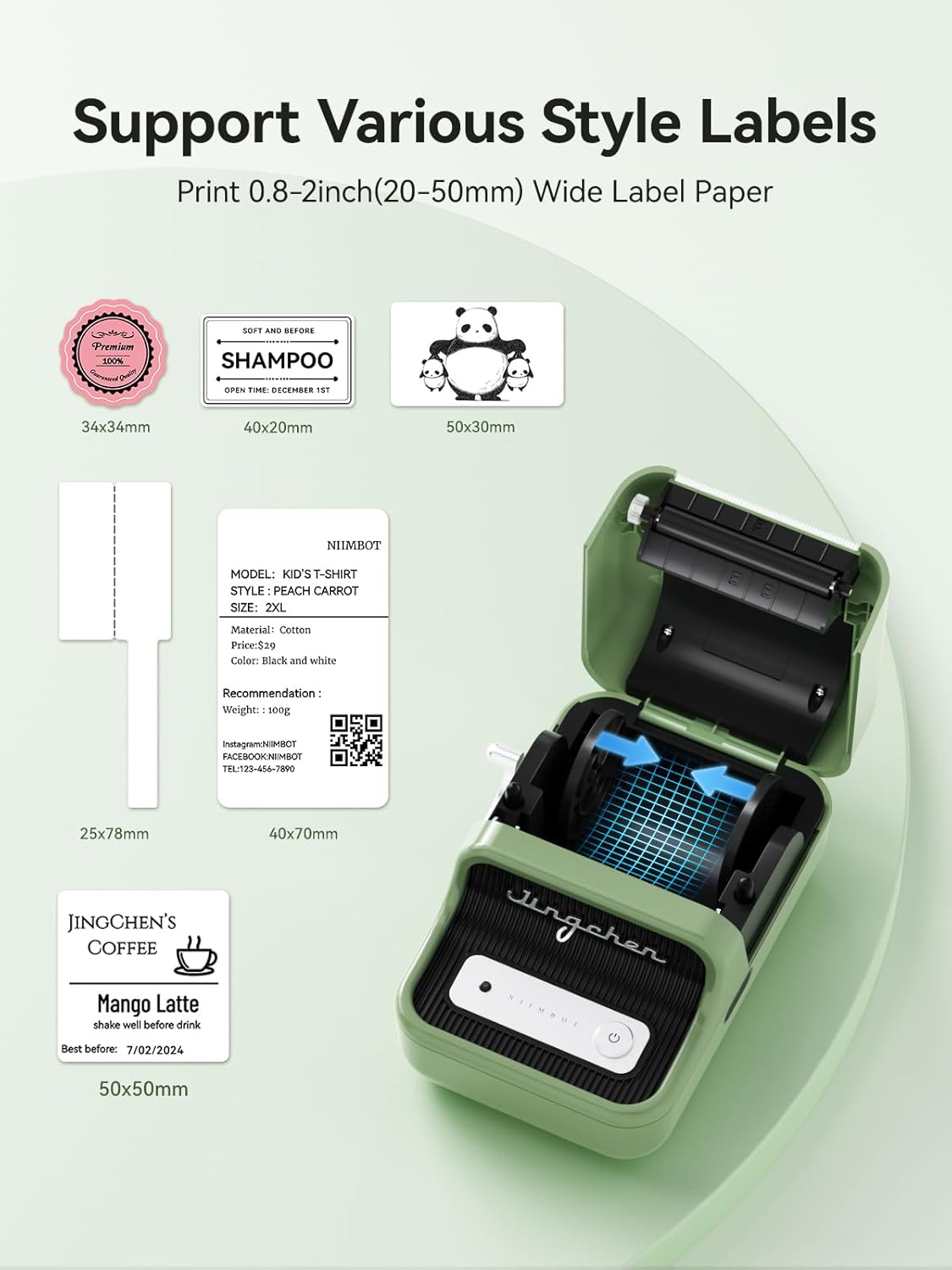
Figure 2.4: The B21 supports various label styles and sizes, from 20-50mm wide.

Figure 2.5: Automatic label size recognition simplifies the printing process.

Figure 2.6: High-quality printing results from the NIIMBOT APP.
3. Setup
3.1 Unboxing and Initial Charge
Upon unboxing, ensure all components are present: the B21 label maker, a 50x30mm roll of white labels, a Type-C charging cable, and the user manual. Fully charge the device before first use. A 4-hour charge can provide up to 2 weeks of work time.
3.2 App Download and Connection
Download the official NIIMBOT APP from your device's app store (compatible with Android and iOS). Turn on your phone's Bluetooth. Open the NIIMBOT APP and connect to the B21 printer via Bluetooth. For PC connection, download the NIIMBOT application on your computer and connect via USB cable.

Figure 3.1: Step-by-step guide for connecting and operating the NIIMBOT B21.
3.3 Loading Label Paper
Open the printer's lid using the side lever. Place the label sheet face down into the compartment. The printer will automatically recognize the label size. Close the lid securely.
Video 3.1: Demonstrates how to identify and use clear label paper with the NIIMBOT B21 printer. This is an official seller video.
4. Operating Instructions
4.1 Creating and Editing Labels
Within the NIIMBOT APP, you can create custom labels using various features:
- Text: Double-click the text box to edit content. Adjust font size, style, and alignment.
- Fonts & Borders: Access over 30 fonts and 100+ borders to personalize your labels.
- Symbols & Images: Choose from 1500+ symbols or import your own images for unique designs.
- Barcodes & QR Codes: Easily generate and print barcodes and QR codes for product management or information sharing.
- Batch Printing: Utilize the batch printing feature for efficient production of multiple identical labels.

Figure 4.1: The NIIMBOT APP offers numerous built-in templates and design options.
Video 4.1: A demonstration of writing and editing within the NIIMBOT APP for thermal printing. This is an official seller video.
4.2 Printing Your Labels
After designing your label, click the 'Print' button in the app. Confirm print settings such as print copy and density. The printer will quickly produce your labels with clear, sharp results.
Video 4.2: An overview of the NIIMBOT B21 Wireless Thermal Label Printer in action, demonstrating its printing capabilities. This is an official seller video.
Video 4.3: A short demonstration of the NIIMBOT B21 Label Printer's quick printing for various labels. This is an official seller video.
5. Maintenance
To ensure the longevity and optimal performance of your NIIMBOT B21 printer, follow these maintenance guidelines:
- Keep the printer clean and free from dust and debris.
- Use a soft, dry cloth to wipe the exterior.
- Avoid exposing the printer to extreme temperatures or direct sunlight.
- Store unused label rolls in a cool, dry place away from direct light to preserve their quality.

Figure 5.1: Understanding the layered structure of NIIMBOT label paper for optimal use.
6. Troubleshooting
If you encounter issues with your NIIMBOT B21 printer, refer to the following common troubleshooting tips:
- Connectivity Issues: Ensure Bluetooth is enabled on your device and the printer is within range. Restart both the printer and your device.
- Print Quality: Check if the label roll is inserted correctly and the paper is not jammed. Adjust print density settings in the app.
- Label Recognition: If the printer doesn't recognize the label paper, ensure it's a genuine NIIMBOT label roll with RFID. Try reinserting the roll.
- Printer Not Responding: Ensure the battery is charged. If the issue persists, try resetting the printer (refer to the full user manual for specific reset instructions).
Video 6.1: This video provides guidance on how to properly identify and use clear label paper, which can resolve certain printing issues. This is an official seller video.
7. Specifications
| Feature | Specification |
|---|---|
| Model Number | B21 |
| Connectivity Technology | Bluetooth |
| Printing Technology | Thermal |
| Printer Media Size Maximum | 3 x 5 inch (supports 20-50mm wide labels) |
| Maximum Black and White Print Resolution | 203 DPI |
| Battery | 1500mAh Lithium Ion (included) |
| Item Weight | 10.5 ounces (299 Grams) |
| Product Dimensions | 5.1"D x 3.7"W x 2.4"H (1.97 x 3.15 x 5.12 inches) |
| Compatible Devices | iOS, Android, PC (via USB) |
8. Warranty and Support
NIIMBOT provides 18-month warranty service for the B21 label printer. If your device is broken or fails to start, please contact customer service for assistance.
For more detailed information and support, you can refer to the official User Guide PDF: NIIMBOT B21 User Guide (PDF)


