
1. Introduction
This manual provides detailed instructions for the Infinix Smart 6 smartphone, model X657b. It covers essential information regarding device setup, operation, maintenance, and troubleshooting to ensure optimal performance and user experience. Please read this manual carefully before using your device.
2. Product Overview
The Infinix Smart 6 (X657b) is a smartphone featuring a 6.6-inch HD+ display, a 5000mAh battery, and biometric security options including a fingerprint sensor and face recognition. It supports dual SIM functionality and operates on Android 12.0.
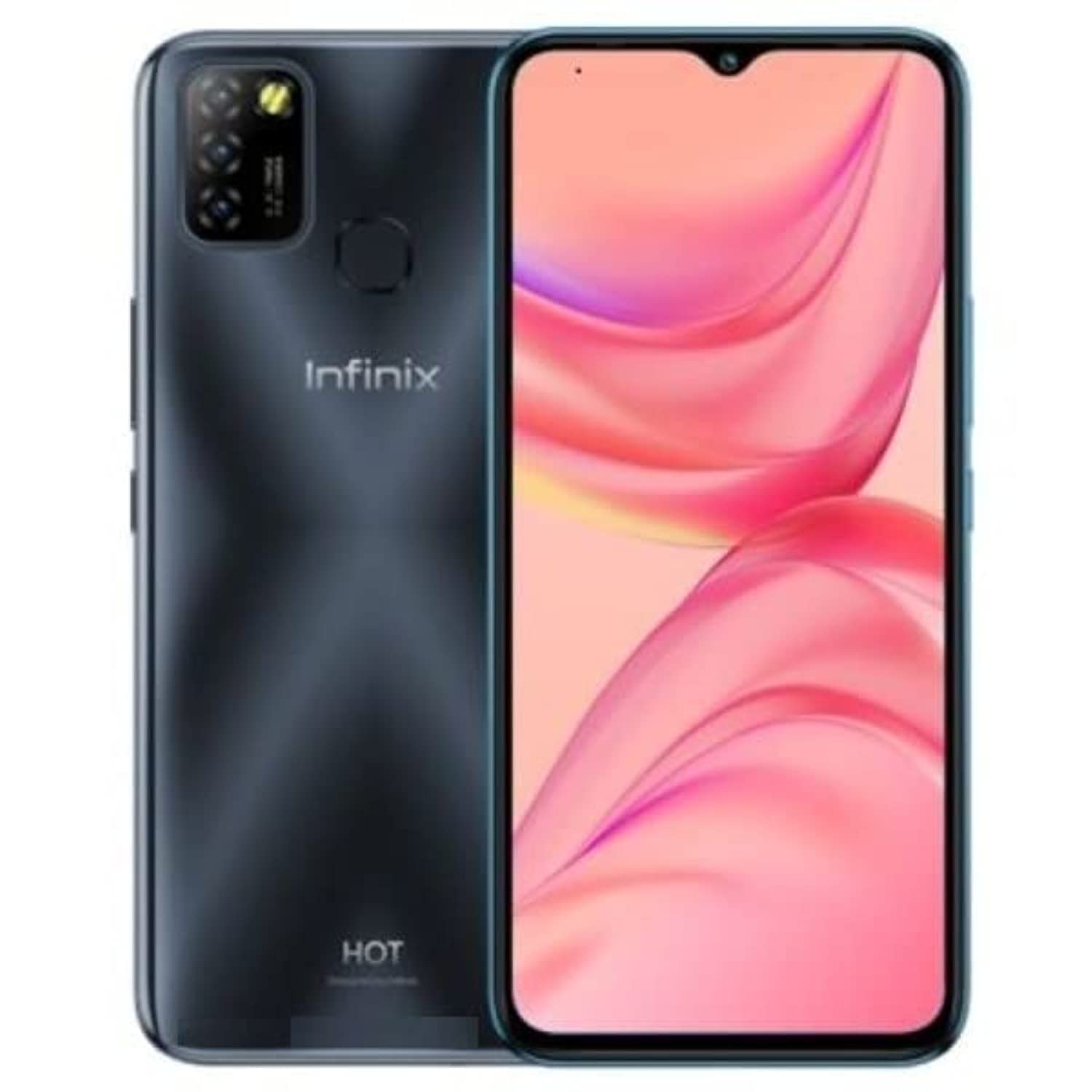
Figure 2.1: Rear view of the Infinix Smart 6, showing the camera module and fingerprint sensor.
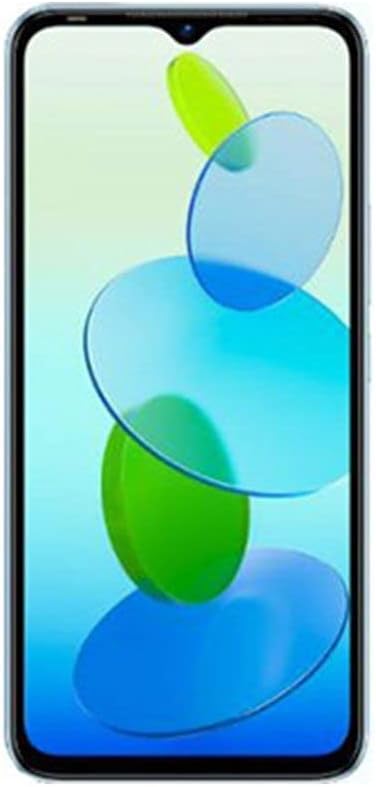
Figure 2.2: Front view of the Infinix Smart 6, displaying the 6.6-inch screen with a waterdrop notch.
3. Setup
3.1 Inserting SIM Cards and SD Card
- Locate the SIM card tray on the side of your device.
- Insert the SIM ejector tool into the small hole next to the tray and push gently until the tray pops out.
- Place your Nano SIM cards into the designated slots. Ensure the gold contacts face downwards. If using an SD card for expanded storage, insert it into its dedicated slot.
- Carefully push the tray back into the device until it is flush with the side.
3.2 Powering On/Off
- To Power On: Press and hold the Power button (usually on the right side) until the Infinix logo appears.
- To Power Off: Press and hold the Power button until the power options appear on the screen. Tap 'Power off'.
- To Restart: Press and hold the Power button until the power options appear. Tap 'Restart'.
3.3 Initial Setup
Upon first power-on, follow the on-screen prompts to configure your device. This includes selecting your language, connecting to Wi-Fi, setting up your Google account, and configuring security features like fingerprint and face recognition.
4. Operating Instructions
4.1 Making Calls
- Open the 'Phone' application.
- Enter the phone number using the dial pad or select a contact from your address book.
- Tap the call icon to initiate the call.
4.2 Sending Messages
- Open the 'Messages' application.
- Tap the 'Start chat' or '+' icon to compose a new message.
- Enter the recipient's number or select from contacts.
- Type your message and tap the send icon.
4.3 Using the Camera
The Infinix Smart 6 features a 13MP rear camera and an 8MP front camera.
- Open the 'Camera' application.
- Select between front and rear cameras using the toggle icon.
- Tap the shutter button to take a photo.
- Explore various shooting modes, including High Dynamic Range (HDR).
4.4 Internet Connectivity
- Wi-Fi: Go to Settings > Network & internet > Wi-Fi. Turn Wi-Fi on and select your desired network. Enter the password if prompted.
- Mobile Data (4G): Go to Settings > Network & internet > Mobile network. Ensure mobile data is enabled.
5. Maintenance
5.1 Battery Care
- Avoid exposing the device to extreme temperatures.
- Use only the original charger and cable provided with the device.
- For optimal battery longevity, avoid frequently draining the battery completely or charging it to 100% for extended periods.
- The 5000mAh Lithium Polymer battery provides extended usage. The AppSqueeze feature can optimize storage, which may indirectly contribute to better performance and battery life.
5.2 Cleaning Your Device
- Use a soft, lint-free cloth to clean the screen and body of the phone.
- Avoid using harsh chemicals or abrasive materials.
- The device is water-resistant; however, avoid submerging it in water.
5.3 Software Updates
Regularly check for and install software updates to ensure your device has the latest features, security patches, and performance improvements. Go to Settings > System > System update.
6. Troubleshooting
6.1 Common Issues and Solutions
| Issue | Possible Solution |
|---|---|
| Device not turning on | Ensure the battery is charged. Connect to a charger for at least 15 minutes. If still unresponsive, perform a force restart by holding the Power button for 10-15 seconds. |
| Poor battery life | Close unused apps, reduce screen brightness, disable Wi-Fi/Bluetooth when not in use. Check for background app activity in battery settings. |
| Apps crashing or freezing | Clear the app's cache (Settings > Apps > [App Name] > Storage > Clear cache). If the issue persists, uninstall and reinstall the app. Ensure your device software is up to date. |
| Cannot connect to Wi-Fi | Restart your phone and Wi-Fi router. Forget the network and reconnect. Ensure the Wi-Fi password is correct. |
| Fingerprint sensor not working | Ensure your finger is clean and dry. Re-register your fingerprint in Settings > Security > Fingerprint. |
7. Specifications
| Feature | Detail |
|---|---|
| Brand Name | Infinix |
| Model Name | X657b |
| Operating System | Android 12.0 |
| Installed RAM | 3 GB |
| Memory Storage Capacity | 64 GB |
| Screen Size | 6.6 inches |
| Resolution | 720 x 1600 Pixels |
| Cellular Technology | 4G |
| Color | Black |
| SIM Card Slot Count | Dual SIM |
| Connector Type | USB Type-C |
| Biometric Security Feature | Face Recognition |
| Water Resistance Level | Water Resistant |
| Headphone Jack | 3.5 mm |
| Front Photo Sensor Resolution | 8 MP |
| Rear Camera Photo Sensor Resolution | 13 MP |
| Battery Capacity | 5000 mAh |
| Battery Life | Up to 30 hours |
| Video Capture Resolution | 4K |
| Connectivity Technology | USB, Bluetooth, Wi-Fi |
| Included Components | USB Cable |
| Item Weight | 360 grams |
| GPS | Yes |
8. Warranty and Support
8.1 Warranty Information
This product carries a manufacturer's warranty for 1 year from the date of purchase. Please retain your proof of purchase for warranty claims.
8.2 Customer Support
For technical assistance, service, or warranty inquiries, you can contact the manufacturer or their authorized service agent. Alternatively, you may contact Amazon customer service for further details regarding your purchase.
- Manufacturer: Infinix
- Warranty Period: 1 Year from purchase date


