
Introduction
This manual provides essential information for setting up, operating, maintaining, and troubleshooting your Dell G2722HS IPS 27 Inch 165Hz Gaming Monitor. The Dell G2722HS monitor features a 165Hz refresh rate and 1ms Gray-to-Gray response time for rapid performance. It utilizes Fast In-Plane Switching (IPS) technology for consistent colors and a 99% sRGB color gamut on a Full HD (1920 x 1080p) display. Designed for comfort, it includes TUV-certified ComfortView Plus to reduce blue light exposure and eye strain.
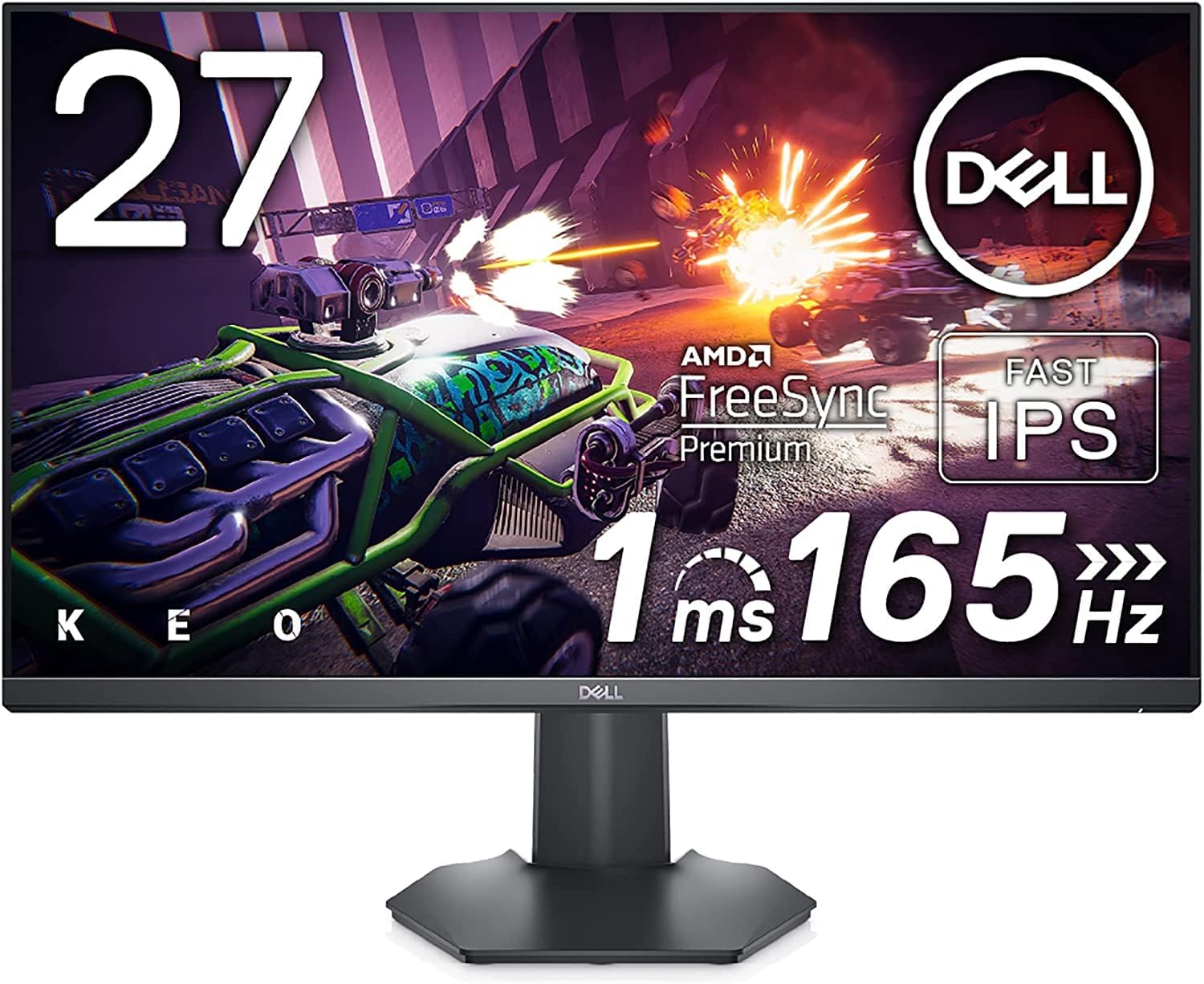
The Dell G2722HS 27-inch gaming monitor, showcasing its sleek design on a typical desk setup.
Setup
1. Unboxing and Component Check
Carefully remove all components from the packaging. Ensure the following items are present:
- Monitor Panel
- Stand Riser
- Stand Base
- Power Cable
- 1x DisplayPort to DisplayPort Cable
2. Assembling the Monitor Stand
- Attach the stand riser to the stand base.
- Secure the assembled stand to the back of the monitor panel.

Rear view of the monitor illustrating the stand attachment point.
3. Connecting Cables
Connect the necessary cables to the monitor's ports. Refer to the port diagram below:

Detailed view of the monitor's rear ports, including power, HDMI, and DisplayPort connections.
- Power Cable: Connect the power cable to the monitor's power input and then to a power outlet.
- Video Input: Connect your computer or gaming console using either the DisplayPort cable (recommended for 165Hz refresh rate) or an HDMI cable. The monitor has two HDMI ports and one DisplayPort.
- Audio Output: If desired, connect external speakers or headphones to the 3.5mm audio output jack.
4. Initial Power On
Press the power button located on the monitor to turn it on. The monitor should automatically detect the input signal. If not, use the OSD menu to select the correct input source.
5. Adjusting Monitor Position
The monitor stand allows for tilt and height adjustments to optimize your viewing experience.
This video demonstrates how to adjust the tilt and swivel of the Dell G2722HS Gaming Monitor for optimal viewing angles.
Operating
1. Power On/Off
Press the power button on the monitor to turn it on or off. The power indicator light will show the monitor's status.
2. On-Screen Display (OSD) Menu
The OSD menu allows you to configure various monitor settings. Use the control buttons located on the back or bottom of the monitor to navigate the menu.
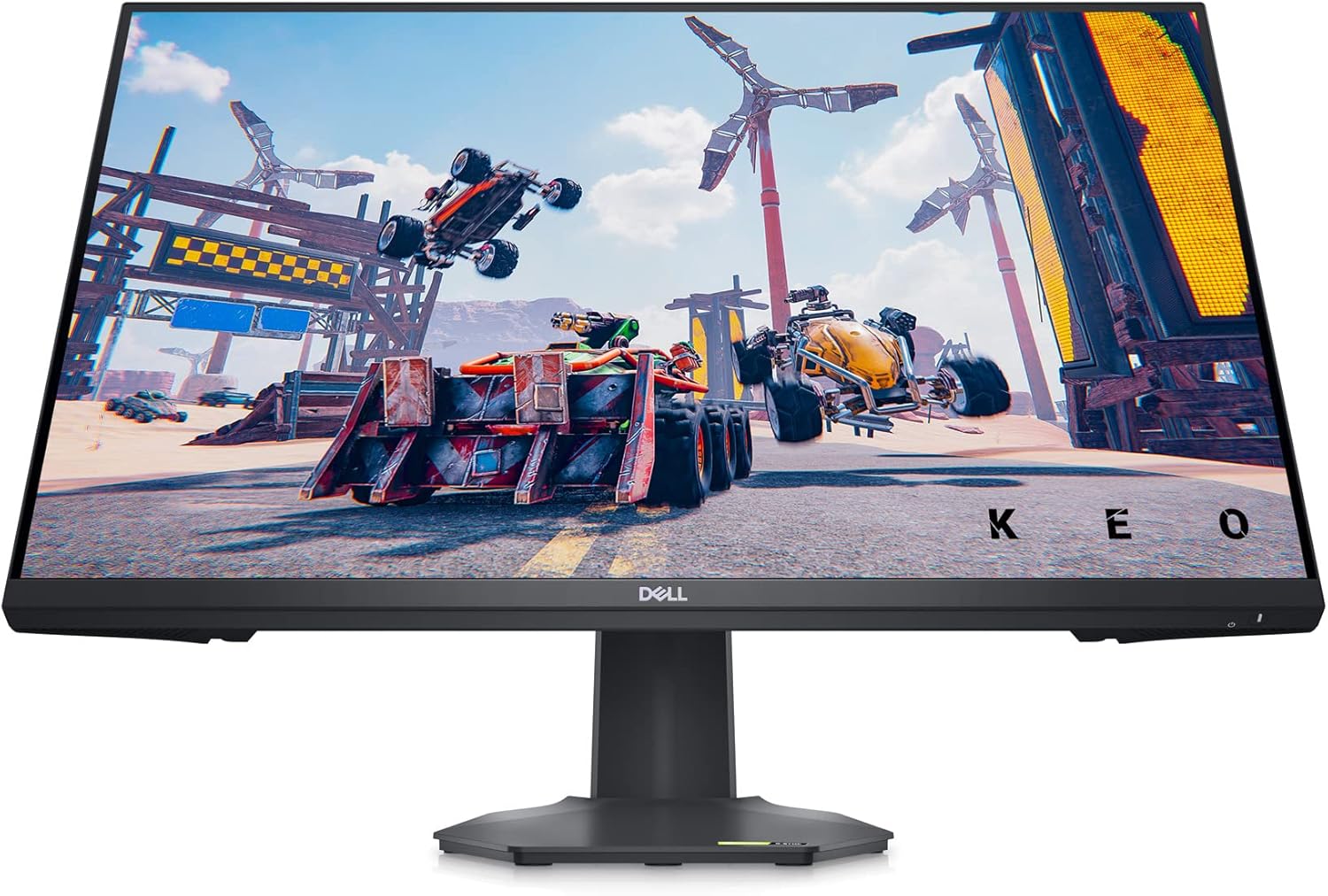
The Dell G2722HS monitor showcasing its display capabilities with a gaming application.
3. Key Settings and Features
- Input Source: Select between HDMI 1, HDMI 2, or DisplayPort.
- Brightness/Contrast: Adjust these settings to your preference.
- Color Settings: Fine-tune color temperature, gamma, and other color parameters. The monitor offers 99% sRGB color gamut.
- Response Time: Set the response time to 1ms Gray-to-Gray for optimal gaming performance.
- Refresh Rate: Ensure your connected device is configured to output at 165Hz for the smoothest experience.
- Adaptive Sync (AMD FreeSync Premium / NVIDIA G-Sync Compatible): Enable this feature in the OSD and your graphics card settings to synchronize the monitor's refresh rate with your GPU's frame rate, reducing screen tearing and stuttering.
- ComfortView Plus: This hardware solution reduces harmful blue light emissions without compromising color accuracy, ideal for extended use.
An official Dell video highlighting the key features and benefits of the Dell Gaming G2722HS Monitor.
Maintenance
1. Cleaning the Monitor
- Always unplug the monitor before cleaning.
- Use a soft, lint-free cloth lightly dampened with water or a non-abrasive screen cleaner.
- Avoid using harsh chemicals, solvents, or abrasive materials, as these can damage the screen or casing.
- Wipe the screen gently to remove dust and smudges.
2. General Care
- Avoid placing heavy objects on the monitor or its cables.
- Do not block the ventilation slots on the back of the monitor to ensure proper heat dispersal.
- Keep the monitor away from direct sunlight, excessive heat, or moisture.

The rear of the Dell G2722HS monitor, highlighting the ventilation design for improved heat dispersal.
Troubleshooting
If you encounter issues with your Dell G2722HS monitor, refer to the following common problems and solutions:
1. No Display or Black Screen
- Ensure the power cable is securely connected to both the monitor and the power outlet.
- Verify that the video cable (DisplayPort or HDMI) is firmly connected to both the monitor and your computer/console.
- Check if the correct input source is selected in the OSD menu.
- Test the monitor with another video source or cable if possible.
2. Flickering or Distorted Image
- Ensure your graphics card drivers are up to date.
- Check the video cable for damage or loose connections.
- Adjust the refresh rate settings on your computer/console to match the monitor's capabilities (165Hz).
- Disable or enable Adaptive Sync (FreeSync/G-Sync) to see if it resolves the issue.
3. Color Inaccuracies
- Reset the monitor's color settings to factory defaults via the OSD menu.
- Calibrate your monitor using your operating system's display settings or a dedicated calibration tool.
Specifications
Below are the key technical specifications for the Dell G2722HS Gaming Monitor:
| Feature | Specification |
|---|---|
| Brand | Dell |
| Model Name | Dell G2722HS Gaming Monitor |
| Screen Size | 27 Inches |
| Native Resolution | 1920 x 1080 pixels (Full HD) |
| Display Type | LED IPS |
| Refresh Rate | 165 Hz |
| Response Time | 1ms Gray-to-Gray |
| Color Gamut | 99% sRGB |
| Connectivity | 2x HDMI, 1x DisplayPort, 3.5mm Audio Out |
| Special Features | Adaptive Sync (AMD FreeSync Premium, NVIDIA G-Sync Compatible), Anti Glare Coating, Flicker-Free, Height Adjustment, Tilt Adjustment, ComfortView Plus |
| Item Weight | 10.9 Pounds |
| Item Dimensions (L x W x Th) | 3"L x 30"W x 6"Th |

Diagram illustrating the physical dimensions of the Dell G2722HS monitor.
Warranty
The Dell G2722HS monitor comes with a 3-Year Advanced Exchange Service & Premium Panel Exchange. This warranty ensures that if a replacement is necessary, it will be shipped to you the next business day after completing phone/online diagnosis. The Premium Panel Exchange allows a free panel replacement during the Limited Hardware Warranty period even if only one bright pixel is found.
Support
For further assistance, technical support, or warranty claims, please visit the official Dell support website or contact Dell customer service. You can find more information and resources at www.dell.com/support.


