
1. Introduction
Thank you for choosing the ASHATA Wireless USB-C Keyboard. This manual provides essential information for setting up, operating, maintaining, and troubleshooting your new keyboard. Please read it carefully to ensure optimal performance and longevity of your device.
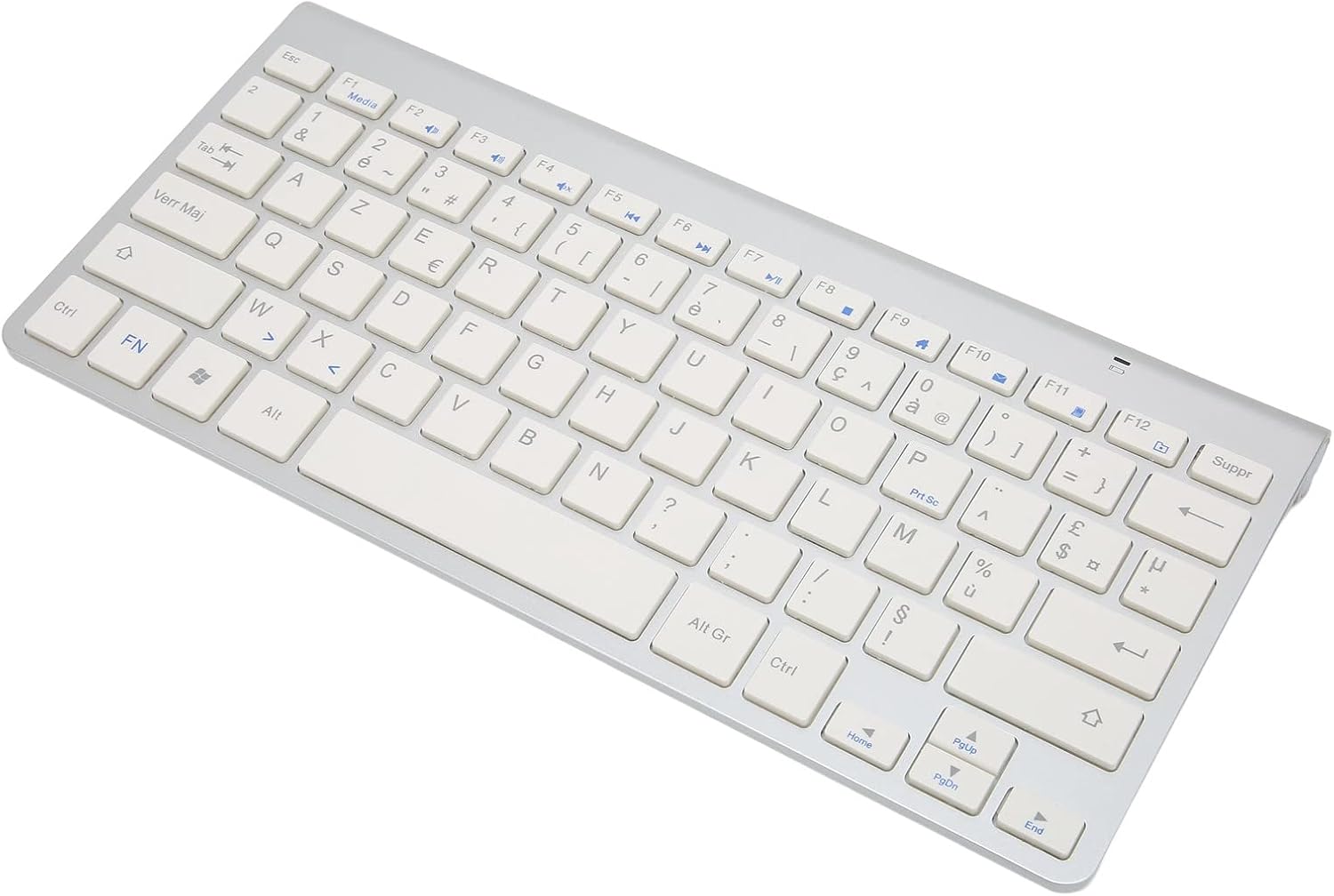
This keyboard features a 2.4G wireless connection and a French-English bilingual layout, designed for seamless integration with various devices such as desktops, laptops, and tablets.
2. Product Overview
The ASHATA Wireless USB-C Keyboard is engineered for comfort and efficiency. Its slim design and X-structure keys provide a smooth typing experience, enhancing work efficiency. The keyboard operates on 2.4G wireless technology, offering a stable and fast connection without the need for complex drivers.
- Cordless 2.4G Technology: Provides fast and reliable wireless connections.
- Comfortable Typing: X-structure key design ensures a smoother typing feel.
- Easy to Use: Plug-and-play functionality requires no additional software installation.
- Wide Compatibility: Suitable for desktops, laptops, tablet computers, and other compatible devices.
- Slim Design: Exquisite appearance with an ultra-thin profile.

Top view of the ASHATA Wireless USB-C Keyboard, showcasing its French-English bilingual layout and the compact 2.4G USB receiver.
3. Setup Instructions
3.1 Unpacking
Carefully remove the keyboard and the 2.4G USB receiver from the packaging. Ensure all components are present.
3.2 Battery Installation and Receiver Location
The 2.4G USB receiver is typically stored within the keyboard's battery compartment for safekeeping during transit. Locate the battery compartment on the underside of the keyboard. Open it to retrieve the USB receiver and install the required batteries (usually AAA, not included). Ensure correct polarity when inserting batteries.
The underside of the keyboard, showing the battery compartment where the 2.4G USB receiver is stored and batteries are inserted.

A close-up of the keyboard's battery compartment, illustrating the location for battery insertion and the storage slot for the USB receiver.
3.3 Connecting to Your Device
- Insert the 2.4G USB receiver into an available USB-C port on your desktop, laptop, or tablet. If your device only has USB-A ports, you may need a USB-C to USB-A adapter (not included).
- Locate the power switch on the keyboard (usually on the back or side) and slide it to the 'ON' position.
- The keyboard should automatically connect to your device. No additional drivers are typically required for most operating systems (Windows, macOS, Android).

The ASHATA Wireless USB-C Keyboard positioned on a desk next to a computer monitor, illustrating its use in a typical desktop setup.
A user operating the ASHATA Wireless USB-C Keyboard alongside a laptop, highlighting its portability and compatibility with various devices.
4. Operating Instructions
4.1 Basic Typing
The keyboard functions as a standard QWERTY layout with additional French characters. Simply type as you would on any conventional keyboard.
4.2 Function Keys (Fn Combinations)
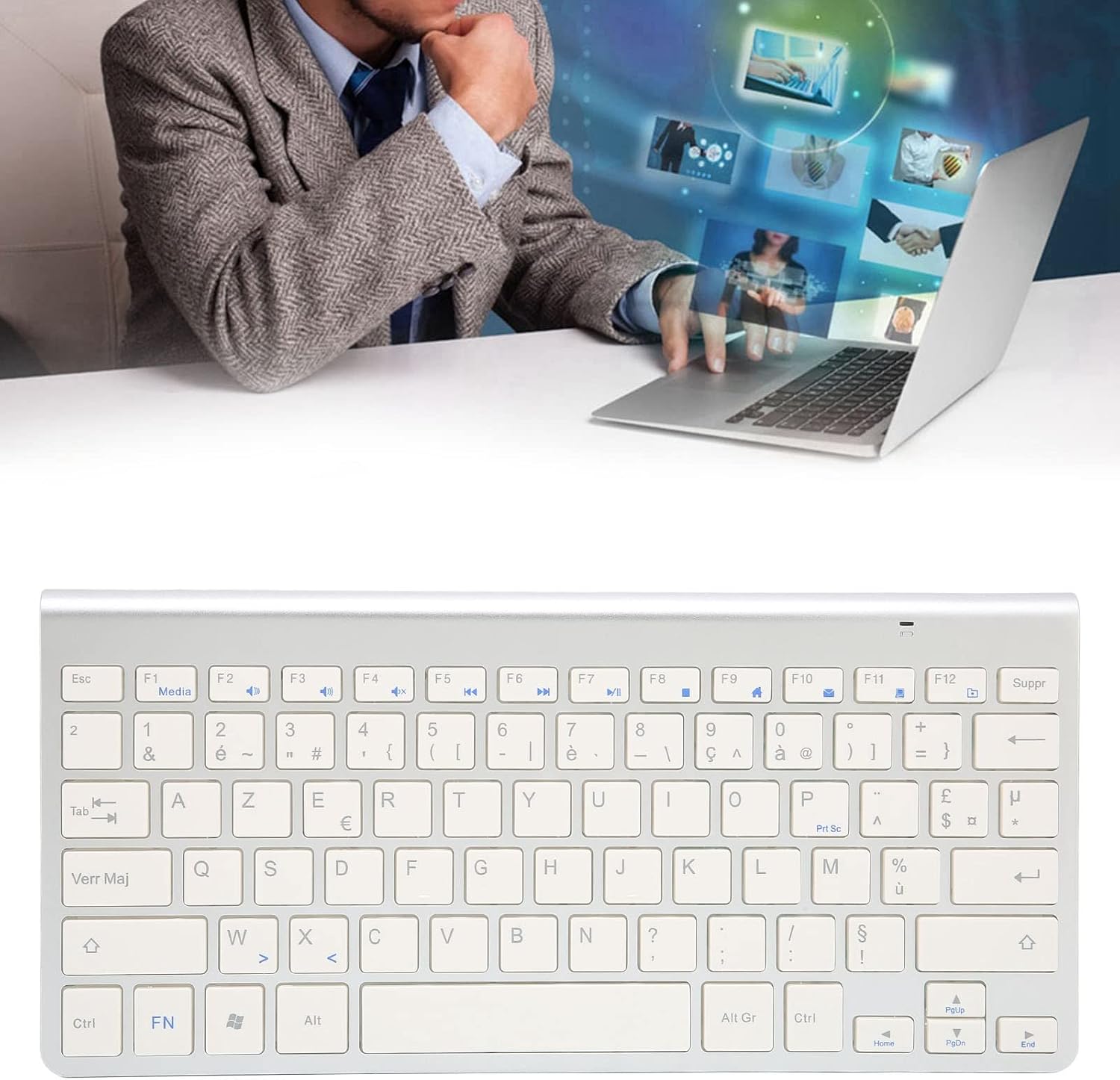
The keyboard includes multimedia shortcut keys accessible via the Fn key. Press and hold the Fn key, then press the desired F-key (F1-F12) to activate its secondary function:
- Fn + F1: Media Player
- Fn + F2: Volume Down
- Fn + F3: Volume Up
- Fn + F4: Mute
- Fn + F5: Previous Track
- Fn + F6: Next Track
- Fn + F7: Play/Pause
- Fn + F8: Stop
- Fn + F9: Web Browser
- Fn + F10: Email
- Fn + F11: My Computer
- Fn + F12: Calculator
4.3 Bilingual Layout Usage
To fully utilize the French-English bilingual layout, ensure your operating system's language and keyboard input settings are configured correctly. You may need to add the French (AZERTY) keyboard layout in your OS settings to access all characters, including those requiring Alt Gr or Shift combinations.
5. Maintenance
5.1 Cleaning the Keyboard
To clean your keyboard, power it off and disconnect it from your device. Use a soft, lint-free cloth slightly dampened with water or a mild cleaning solution. Avoid excessive moisture. For dust and debris between keys, use compressed air.
5.2 Battery Replacement
When the keyboard's performance degrades or it stops responding, it may be time to replace the batteries. Open the battery compartment, remove the old batteries, and insert new ones, ensuring correct polarity. Dispose of old batteries responsibly.
5.3 Storage
When not in use for extended periods, turn off the keyboard to conserve battery life. Store the USB receiver in the battery compartment to prevent loss. Keep the keyboard in a dry, cool place away from direct sunlight and extreme temperatures.
6. Troubleshooting
6.1 Keyboard Not Responding
- Ensure the keyboard is powered on (check the ON/OFF switch).
- Verify that the batteries are correctly installed and have sufficient charge. Replace if necessary.
- Confirm the 2.4G USB receiver is securely plugged into a working USB-C port on your device. Try a different USB port if available.
- Restart your computer or device.
6.2 Incorrect Characters or Layout Issues
- This keyboard features a French-English bilingual layout. Ensure your operating system's keyboard input language is set to French (France) or French (Canada) as appropriate, to correctly access all characters.
- To type the third character on some keys, you typically use the Alt Gr key (located to the right of the spacebar) in combination with the key. For example, to type '@' on a French keyboard, you might press Alt Gr + à. Consult your operating system's language settings for specific key combinations.
6.3 Connection Interruption
- Move the keyboard closer to the USB receiver to rule out range issues.
- Avoid placing the keyboard near other wireless devices that might cause interference.
7. Specifications
| Brand | ASHATA |
| Model | B09T8RN4Z |
| Connectivity Technology | 2.4G Wireless (USB-C Receiver) |
| Keyboard Description | Wireless |
| Compatible Devices | Laptop, PC, Tablet |
| Special Feature | Slim Design |
| Color | French-English bilingual |
| Style | Modern |
| Material | Acrylonitrile Butadiene Styrene |
| Item Weight | 12.3 ounces |
| Package Dimensions | 11.69 x 5.63 x 0.94 inches |
| Included Components | Keyboard, Receiver |
8. Warranty and Support
ASHATA products are designed for quality and reliability. For specific warranty details, please refer to the documentation provided with your purchase or contact the retailer from whom you purchased the product. If you encounter any issues or require technical assistance, please reach out to the seller or ASHATA customer support through their official channels.
