
1. Introduction and Overview
The AeroCool Prism-G-BK-V2 is a mid-tower ATX PC case designed for gaming and high-performance builds. It features a stylish design with a mesh and tempered glass front panel, complemented by a full tempered glass side panel, ensuring both aesthetic appeal and optimal airflow. This case supports various cooling configurations, including comprehensive liquid cooling, and offers convenient features like vertical GPU mounting and efficient cable management. This manual provides essential information for setting up, operating, maintaining, and troubleshooting your PC case.

Figure 1.1: Overview of the AeroCool Prism-G-BK-V2 Mid Tower PC Case. This image displays the case from an angled front-left perspective, highlighting its mesh and tempered glass front panel, the four pre-installed RGB fans, and the full tempered glass side panel.
2. Key Features
- Stylish Design with Enhanced Airflow: Features a mesh and tempered glass front panel, along with a full tempered glass side panel, providing a sleek look while ensuring optimal airflow to keep your components cool.
- Efficient Cooling System: Pre-installed with four 12cm fixed RGB fans (three at the front and one at the rear), delivering effective cooling and vibrant lighting to enhance your gaming setup.
- Vertical GPU Mounting: Equipped with two additional vertical expansion slots, allowing for vertical graphics card installation to showcase your GPU and improve airflow.
- Comprehensive Liquid Cooling Support: Supports liquid cooling solutions in the front (up to 360mm radiator), top (up to 280mm radiator), and rear (120mm radiator) for maximum cooling efficiency.
- Spacious Interior for High-Performance Builds: Accommodates ATX, Micro-ATX, and Mini-ITX motherboards, CPU coolers up to 164mm in height, and high-end graphics cards up to 346mm in length (without front radiator), providing ample space for your gaming components.
- Efficient Cable Management: Designed with features to facilitate neat and efficient cable routing, improving airflow and aesthetics.

Figure 2.1: Close-up view of the tempered glass front panel design, showcasing the integrated RGB fans and mesh sections for airflow.
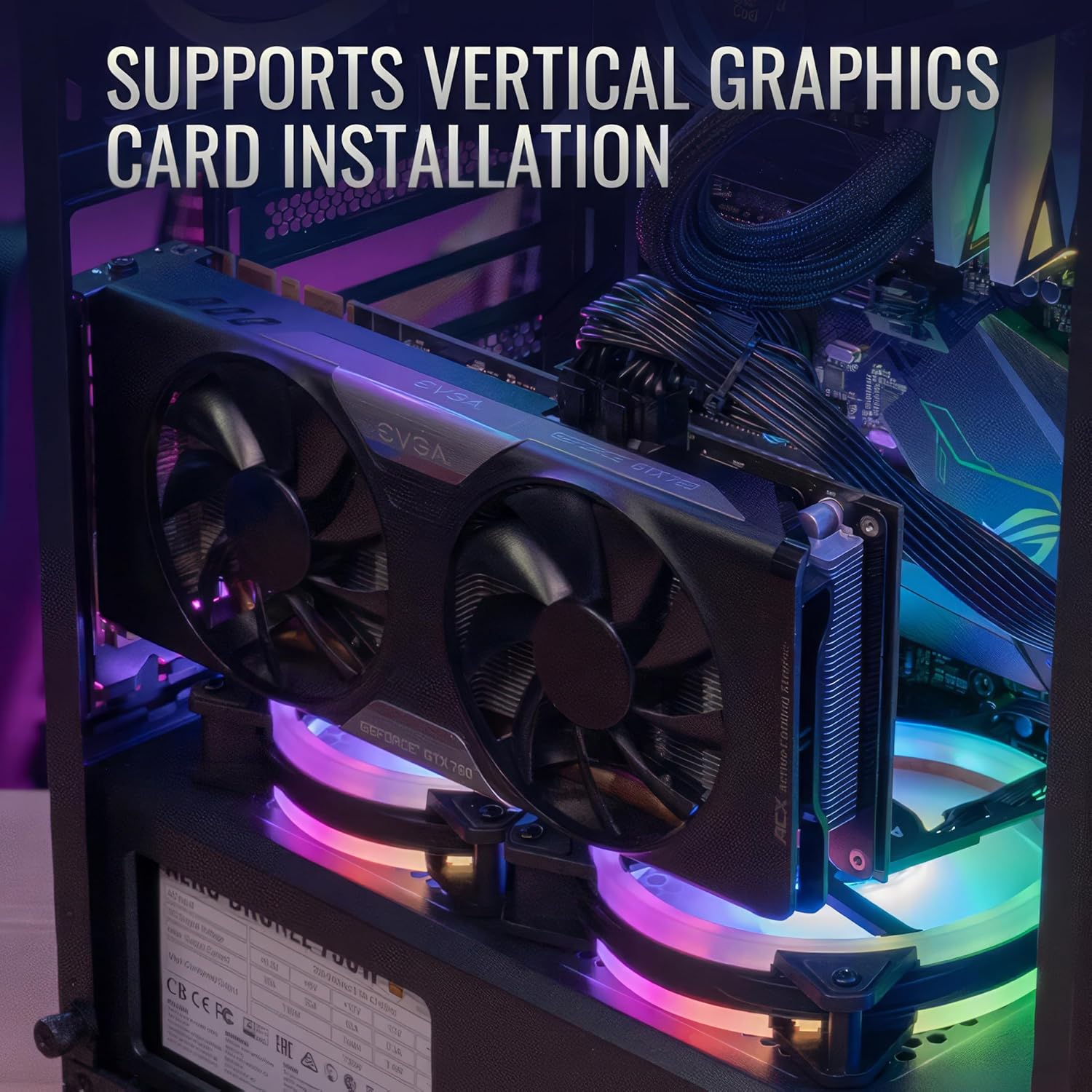
Figure 2.2: Illustration of a graphics card installed vertically within the case, demonstrating the dedicated vertical expansion slots.

Figure 2.3: Diagram indicating the various locations and sizes for liquid cooling radiator installation within the case (front, top, rear).
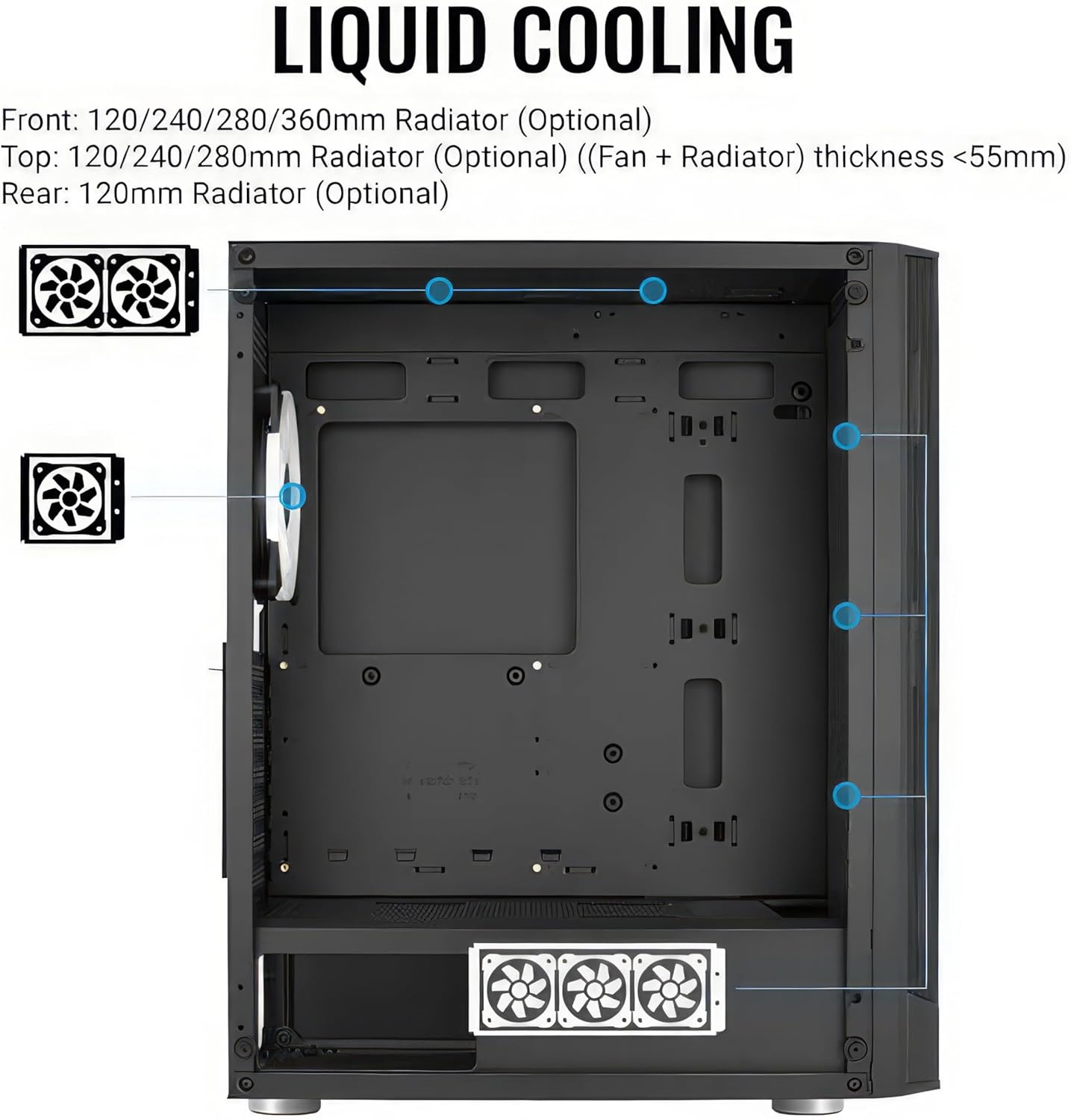
Figure 2.4: Internal view of the case highlighting maximum supported dimensions for CPU coolers (164mm) and graphics cards (346mm).

Figure 2.5: Close-up view of the cable management system, showing routing channels and tie-down points behind the motherboard tray.
3. Setup Guide
Follow these steps to properly set up your AeroCool Prism-G-BK-V2 PC case and install your components.
- Unboxing and Inspection: Carefully remove the case from its packaging. Inspect for any shipping damage. Retain all accessories, screws, and manuals.
- Side Panel Removal: Gently unscrew and remove the tempered glass side panel. Place it on a soft, flat surface to prevent scratches.
- Motherboard Installation: Install the necessary standoffs for your motherboard form factor (ATX, Micro-ATX, Mini-ITX). Carefully place your motherboard into the case and secure it with screws.
- Power Supply Installation: Install your power supply unit (PSU) into the dedicated compartment, typically at the bottom rear of the case. Secure it with screws.
- Storage Drive Installation: Install your SSDs and HDDs into the designated drive bays. Refer to the case's internal layout for specific mounting points.
- Graphics Card (GPU) Installation: Insert your graphics card into the appropriate PCIe slot on your motherboard. If opting for vertical GPU mounting, use the provided vertical expansion slots and a compatible riser cable (sold separately).
- Cable Management: Route all power and data cables neatly behind the motherboard tray using the integrated cable management features. This improves airflow and aesthetics.
- Fan and Radiator Installation (Optional): If installing additional fans or liquid cooling radiators, refer to the "Key Features" section for supported sizes and locations.
- Final Assembly: Once all components are installed and cables are managed, reattach the side panel.

Figure 3.1: The full tempered glass side panel of the PC case, which can be removed for component installation and access.
4. Operating Instructions
The AeroCool Prism-G-BK-V2 PC case is a housing for your computer components. Its operation is primarily tied to the functionality of the installed components.
- Power On: Connect your power supply to a wall outlet. Press the power button on the front I/O panel of the case to turn on your computer.
- Fan Operation: The pre-installed 12cm fixed RGB fans will begin operating upon system power-on. Their speed is typically controlled by the motherboard or a fan controller if one is connected.
- RGB Lighting: The fixed RGB fans illuminate automatically. Control over RGB effects (if any) depends on how the fans are connected to your motherboard or a dedicated RGB controller. Consult your motherboard manual for RGB header compatibility and software control.
- Front I/O Ports: Utilize the front panel USB 2.0 ports and audio jacks for connecting peripherals.
5. Maintenance
Regular maintenance helps ensure optimal performance and longevity of your PC components.
- Dust Cleaning: Periodically clean dust from the case, especially from fan filters and mesh panels. Use compressed air or a soft brush. Ensure the system is powered off and unplugged before cleaning.
- Fan Maintenance: Check fans for dust buildup and ensure they spin freely. Clean fan blades gently if necessary.
- Cable Management Check: Occasionally inspect cable routing to ensure no cables are obstructing airflow or fan operation.
- Tempered Glass Care: Clean tempered glass panels with a microfiber cloth and a non-abrasive glass cleaner. Avoid harsh chemicals.
6. Troubleshooting
This section addresses common issues you might encounter.
- Fans Not Spinning:
- Check if fan power cables are securely connected to the motherboard or fan controller.
- Ensure the power supply is functioning correctly.
- Verify fan settings in your motherboard's BIOS/UEFI.
- RGB Lighting Not Working:
- Confirm RGB cables are correctly connected to the motherboard's RGB header or a dedicated RGB controller.
- Check if RGB software (if applicable) is installed and configured correctly.
- Poor Airflow/High Temperatures:
- Ensure all fans are spinning in the correct direction (intake/exhaust).
- Clean dust filters and internal components.
- Verify proper cable management to avoid airflow obstruction.
- Consider adding additional fans or upgrading to a liquid cooling solution if temperatures remain high.
- Front I/O Ports Not Functioning:
- Check if the front panel connectors (USB, audio, power, reset) are correctly plugged into the motherboard headers. Refer to your motherboard manual for correct pin assignments.
7. Specifications
| Feature | Detail |
|---|---|
| Brand | AeroCool |
| Model Name | Prism G V2 FRGB (Noir) |
| Item Model Number | ACCM-PB2904311 |
| Case Type | Mid Tower |
| Motherboard Compatibility | ATX, Micro ATX, Mini ITX |
| Material | Aluminum, Alloy Steel |
| Color | Black |
| Item Weight | 13.73 pounds |
| Product Dimensions (LxWxH) | 6.46 x 13.62 x 6.46 inches |
| Number of USB 2.0 Ports | 2 |
| Pre-installed Fans | 4x 12cm Fixed RGB Fans (3 front, 1 rear) |
| Max GPU Length | 346mm (without front radiator) |
| Max CPU Cooler Height | 164mm |
| Liquid Cooling Support (Front) | Up to 360mm radiator |
| Liquid Cooling Support (Top) | Up to 280mm radiator |
| Liquid Cooling Support (Rear) | 120mm radiator |
| Light Color | RGB |
8. Warranty and Support
For specific warranty information regarding your AeroCool Prism-G-BK-V2 PC case, please refer to the official AeroCool website or the warranty card included with your product. Warranty terms and conditions may vary by region and retailer.
For technical support, product inquiries, or assistance with troubleshooting beyond this manual, please contact AeroCool customer support through their official channels. You can typically find contact information on the AeroCool website (www.aerocool.io).
Note: Protection plans offered by third-party retailers (e.g., Amazon) are separate from the manufacturer's warranty and provide additional coverage. Please review the terms of any such plans directly with the provider.