
1. Introduction
This manual provides detailed instructions for the setup, operation, maintenance, and troubleshooting of your FELICON 68-Key 60% Mechanical Gaming Keyboard. Please read this manual thoroughly before using the product to ensure optimal performance and longevity.
2. Safety Information
- Keep the keyboard away from liquids and excessive moisture.
- Avoid extreme temperatures.
- Do not attempt to disassemble or repair the device yourself. Contact customer support if issues arise.
- Use only the provided USB cable for connection and charging.
3. Package Contents
Verify that all items are present in the package:
- FELICON 68-Key 60% Mechanical Gaming Keyboard
- USB Type-C Cable (59in/1.5m)
- Keycap Puller
- User Manual
- Additional Dye Sublimation PBT Keycaps (9 pieces)
4. Setup
4.1 Physical Connection
Connect the keyboard to your device (PC, Mac, Laptop, PS4, PS5, etc.) using the provided USB Type-C cable. The keyboard is plug-and-play and should be recognized automatically by most operating systems.
4.2 Ergonomic Adjustment
The keyboard features adjustable kickstands on the underside to provide a comfortable typing angle, reducing wrist strain during extended use.
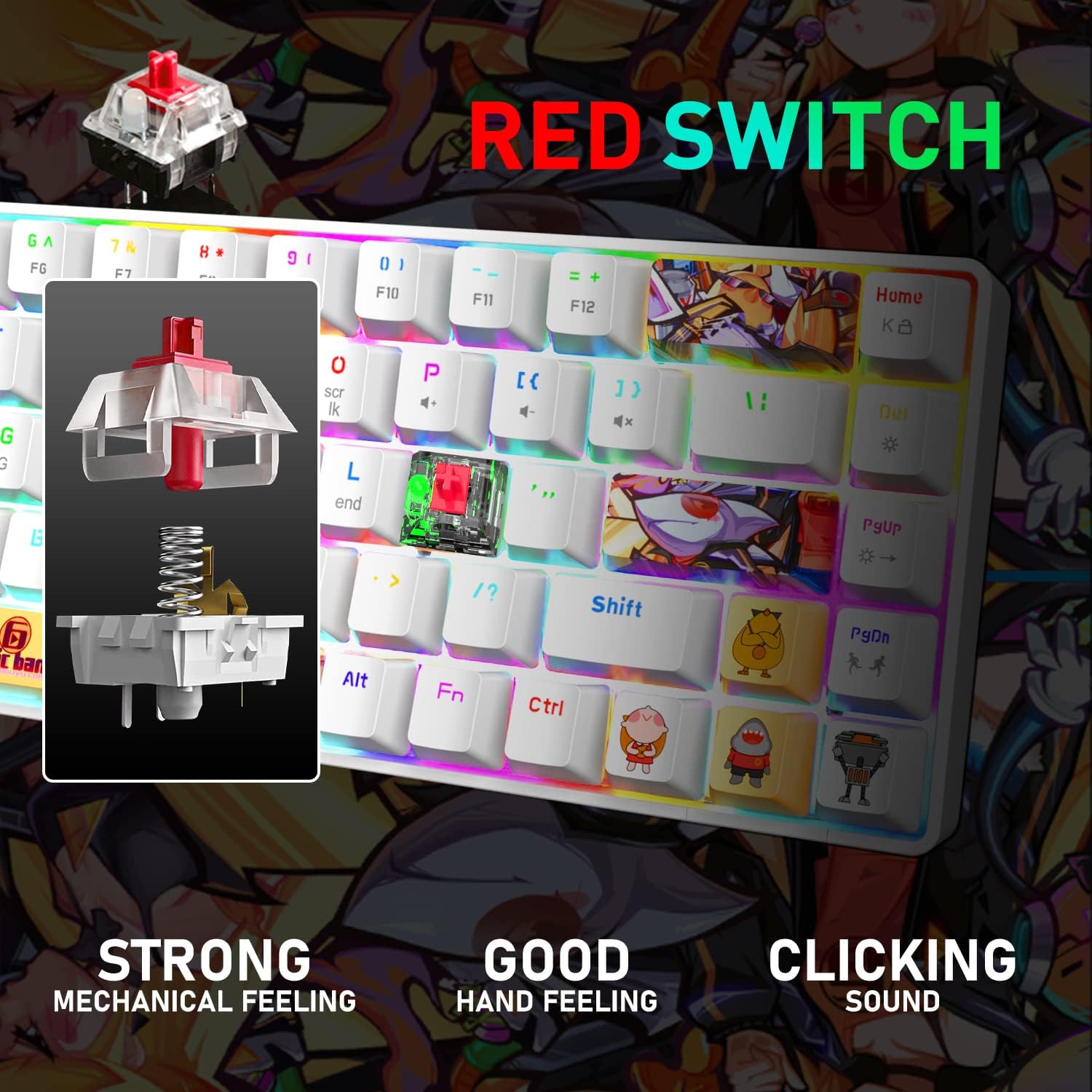
Image: The keyboard is designed with an ergonomic profile to enhance typing comfort.
4.3 Product Overview
The compact 60% layout with 68 keys saves desk space while retaining essential functions. It features RGB backlighting and durable PBT keycaps.

Image: An overview of the keyboard's key features, including its compact size and connectivity options.
Video: Demonstrates the mechanical gaming keyboard with PBT Dye Sublimation keycaps, showcasing its physical attributes and key feel.
5. Operating Instructions
5.1 Basic Typing
The keyboard uses a standard QWERTY layout. Simply connect and begin typing.
5.2 RGB Backlight Control
The keyboard offers 18 different Chroma RGB backlight effects and 9 monochromatic light options. You can adjust brightness and speed.
- Change Backlight Effect: Press FN + TAB to cycle through 18 different RGB backlight modes.
- Change Monochromatic Light: Press FN + PgUp to cycle through 9 kinds of monochromatic light.
- Adjust Brightness: Press FN + ↑ / ↓ to adjust 13 levels of backlight brightness.
- Adjust Speed: Press FN + ← / → to adjust 5 levels of backlight speed.

Image: Instructions for controlling the RGB backlight effects, including modes, colors, brightness, and speed adjustments.
Video: Showcases the 60% RGB Backlit Mechanical Keyboard with Dye Sublimation Keycaps, demonstrating various lighting effects.
5.3 Multimedia Functions
Access various functions quickly using FN key combinations:
- FN + Q: Home Page
- FN + W: My Computer
- FN + E: Email Box
- FN + R: Music
- FN + T: Calculator
- FN + ]: Mute on/off
- FN + [: Volume-
- FN + P: Volume+
- FN + A: Previous Song
- FN + S: Next Song
- FN + D: Play/Pause
- FN + Back: Backlight on/off

Image: Illustrates the full key anti-ghosting feature and a list of FN key combinations for quick access to multimedia and system functions.
5.4 Anti-Ghosting
Advanced anti-ghosting technology allows all 68 keys to work simultaneously, ensuring every keystroke is registered accurately during intense gaming or fast typing.
5.5 Red Switches
This keyboard features mechanical red switches, known for their linear, quiet, and smooth operation, providing excellent tactility, sensitivity, and response. They are rated for up to 50 million clicks.
Image: Details the characteristics of the red mechanical switches, highlighting their feel and sound.
5.6 Dye Sublimation PBT Keycaps
The keyboard is equipped with five-side dye sublimation PBT keycaps, offering superior durability and a premium touch experience. The package includes additional keycaps for customization.

Image: Showcases the five-side dye sublimation PBT keycaps, emphasizing their quality and design.
6. Maintenance
6.1 Cleaning
To clean the keyboard, disconnect it from your device. Use a soft, dry cloth to wipe the surface. For deeper cleaning, use the provided keycap puller to remove keycaps and clean underneath. The keyboard is designed to be waterproof, offering some protection against spills.
6.2 Storage
Store the keyboard in a cool, dry place when not in use. Avoid placing heavy objects on top of it.
7. Troubleshooting
- Keyboard not responding: Ensure the USB cable is securely connected to both the keyboard and the device. Try a different USB port.
- Backlight not working: Check if the backlight is turned off (FN + Back). Adjust brightness (FN + ↑).
- Keys not registering: Ensure the keyboard is clean and free of debris. If specific keys are problematic, they may require deeper cleaning or switch replacement (if applicable).
8. Specifications
| Feature | Description |
|---|---|
| Product Dimensions | 12.21 x 3.98 x 1.46 inches |
| Item Weight | 1.76 pounds |
| Manufacturer | FELICON |
| Connectivity Technology | USB, USB-C |
| Keyboard Description | Mechanical |
| Recommended Uses | Desk, Gaming |
| Special Features | Lightweight, Waterproof |
| Color | White/Red Switch |
| Backlighting Color Support | RGB (18 effects, 9 colors) |
| Key Switches | Red Mechanical Switches |
| Keycaps | Five-Side Dye Sublimation PBT |
| Anti-Ghosting | Full 68-key anti-ghosting |
| Compatible Devices | Windows 10/8/7/Vista/XP, PC, Mac, Laptop, Gaming Consoles (PS4, PS5), Android, Linux, iOS |

Image: Visual representation of the keyboard's dimensions and key features.
9. Warranty and Support
For warranty information and technical support, please refer to the documentation included with your product or visit the official FELICON website. Keep your purchase receipt as proof of purchase.
