
Tera ELF819
Tera Wireless Barcode Scanner User Manual
Model: ELF819
1. Introduction
Thank you for choosing the Tera Wireless Barcode Scanner, Model ELF819. This device is designed for efficient and accurate scanning of 1D, 2D, and QR barcodes, offering both wireless and wired connectivity options. It is suitable for various applications including warehouse logistics, retail, and inventory management.
This manual provides detailed instructions on setting up, operating, and maintaining your scanner to ensure optimal performance and longevity.

Image: The Tera Wireless Barcode Scanner, showcasing its ergonomic design, along with the included USB wired connection cable and 2.4G wireless USB dongle.
2. Package Contents
Please verify that all items are present in your package:
- Tera Wireless Barcode Scanner (Model ELF819)
- USB Charging/Data Cable
- 2.4G Wireless USB Dongle
- User Guide (this manual)
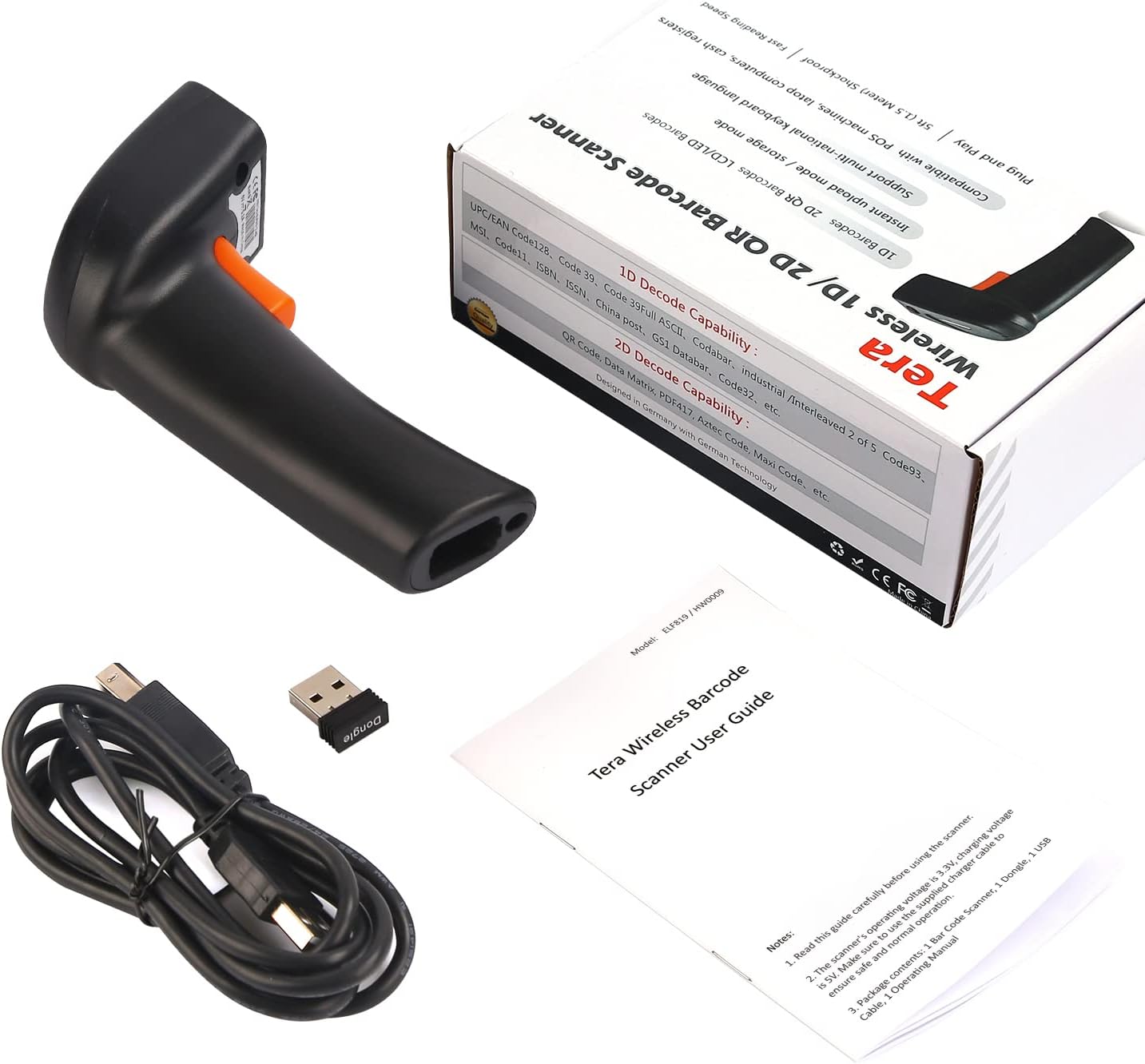
Image: A view of the product packaging and its contents, including the scanner, USB cable, wireless dongle, and user manual.
3. Setup
The Tera ELF819 scanner offers two primary connection methods: 2.4G Wireless and USB Wired.
3.1. 2.4G Wireless Connection
- Insert the 2.4G wireless USB dongle into an available USB port on your computer or host device.
- The system will automatically install the necessary drivers (Plug & Play).
- Turn on the barcode scanner. It will automatically pair with the dongle.
- A successful connection is indicated by a specific sound or LED indicator on the scanner.
3.2. USB Wired Connection
- Connect one end of the provided USB cable to the scanner's charging port.
- Connect the other end of the USB cable to an available USB port on your computer or host device.
- The scanner will automatically be recognized as a HID keyboard device (Plug & Play).
- The scanner will function immediately without additional driver installation.

Image: Illustration demonstrating the 'Plug & Play' functionality, showing both USB wired and USB wireless dongle connection methods. Compatible with PC and Portable devices.
4. Operating Instructions
4.1. Basic Scanning
To scan a barcode, aim the scanner's light beam at the center of the barcode and press the trigger button. Ensure the entire barcode is within the scanning area. A successful scan will be indicated by a beep and/or vibration (if enabled).

Image: The scanner in use, demonstrating its accurate aiming capability and the vibration alert feature for quiet environments.
4.2. Supported Barcode Symbologies
The ELF819 scanner supports a wide range of 1D, 2D, and QR barcodes, including those on paper, labels, or digital screens. It can even read some special barcodes like colorful, fuzzy, or damaged ones.
- 1D Barcodes: Codabar, Code 11, Code93, MSI, Code 128, UCC/EAN-128, Code 39, EAN-8, EAN-13, UPC-A, ISBN, Industrial 25, Interleaved 25, Standard25, Matrix 2 of 5, etc.
- 2D Barcodes: QR Code, DataMatrix, PDF417, Aztec, Hanxin, Micro PDF417, etc.

Image: The scanner demonstrating its ability to read various 1D, 2D, and QR digital and printed barcodes, including examples of supported symbologies.
4.3. Upload / Storage Mode
The scanner supports two data upload modes:
- Upload Mode: Scanned data is transmitted to your connected device immediately.
- Storage Mode: Scanned data is stored internally in the scanner's memory. You can scan multiple barcodes and then upload all stored data to your device at a later time. This is useful for batch processing or when out of range.
Refer to the detailed instructions in the full user guide (included in package) for switching between modes and managing stored data.

Image: Visual representation of the 'Upload Mode' (instant transmission) and 'Storage Mode' (data saved internally for later upload) functionalities, along with settings for prefix/suffix and terminators.
4.4. Advanced Settings
The scanner allows for various customizations, including:
- Setting Prefix/Suffix for scanned data.
- Configuring Terminators.
- Adjusting volume and vibration alerts.
These settings are typically configured by scanning specific setup barcodes found in the comprehensive user manual.
5. Maintenance
5.1. Battery Management
The scanner is equipped with a 1200mAh battery, providing extended usage and a standby time of over 30 days (approximately 720 hours) on a full charge. To charge the scanner, connect it to a USB power source using the provided USB cable.

Image: An illustration highlighting the scanner's 1200mAh battery capacity and its impressive standby time of over 30 days (720 hours).
5.2. Durability and Care
The Tera ELF819 scanner is designed to be robust and can sustain drops from heights of up to 5 feet (approximately 1.5 meters). To ensure its longevity, avoid exposing the scanner to extreme temperatures, direct sunlight, or corrosive liquids. Clean the scanning window regularly with a soft, dry cloth to maintain optimal scanning performance.

Image: A diagram illustrating the scanner's durability, showing it can withstand drops from a height of up to 5 feet (1.5 meters).
6. Troubleshooting
If you encounter issues with your Tera barcode scanner, please refer to the following common problems and solutions:
| Problem | Possible Cause | Solution |
|---|---|---|
| Scanner not connecting wirelessly. | Dongle not properly inserted; scanner out of range; battery low. | Ensure dongle is fully inserted. Move scanner closer to dongle. Charge the scanner. |
| Scanner not reading barcodes. | Barcode damaged/unclear; scanning window dirty; incorrect symbology settings. | Try scanning a different barcode. Clean the scanning window. Check user manual for symbology settings. |
| No data transmitted to computer. | Incorrect connection mode; scanner in storage mode; cable faulty. | Verify connection (wired/wireless). Switch to upload mode if in storage mode. Try a different USB cable. |
| Scanner beeps but no data. | Output format issue; application not ready to receive input. | Ensure cursor is in a text field. Check scanner's output settings (e.g., keyboard emulation). |
For more complex issues or if the problem persists, please refer to the comprehensive troubleshooting section in the full user manual or contact Tera customer support.
7. Specifications
- Model: ELF819
- Connectivity: 2.4G Wireless, USB 2.0 Wired
- Decoding Capability: 1D, 2D, QR Code (EAN, UPC, Code 39, Code 128, DataMatrix, PDF417, Aztec, etc.)
- Battery: 1200mAh (rechargeable)
- Standby Time: > 30 Days (720 hours)
- Drop Resistance: Up to 5 ft (1.5 m)
- Compatible Devices: Desktop, Laptop, Smartphone (via OTG), Tablet
- Compatible OS: iOS, Android, Windows, Mac OS, POS, Linux
- Item Weight: 3.5 ounces
- Package Dimensions: 1.97 x 1.97 x 1.97 inches
8. Warranty and Support
Tera products are manufactured with high-quality standards. For specific warranty information, please refer to the warranty card included with your product or visit the official Tera website. If you require technical assistance or have questions regarding your scanner, please contact Tera customer support through the channels provided in your product documentation.
No official product videos from the seller were available for embedding in this manual.
Ask a question about this manual
Ask about setup, troubleshooting, compatibility, parts, safety, or missing instructions. Manuals+ will review the question and use this page’s manual context to help answer it.