
ProtoArc EKM01
ProtoArc EKM01 Ergonomic Wireless Keyboard and Mouse Combo User Manual
Model: EKM01
1. Introduction
This manual provides detailed instructions for the setup, operation, and maintenance of your ProtoArc EKM01 Ergonomic Wireless Keyboard and Mouse Combo. This combo is designed to offer a comfortable and efficient computing experience with its ergonomic design and multi-device connectivity.

Image: The ProtoArc EKM01 ergonomic wireless keyboard and mouse combo, showcasing its split keyboard design and contoured mouse.
2. Package Contents
Please verify that all items are present in your package:
- ProtoArc EKM01 Ergonomic Wireless Keyboard
- ProtoArc Ergonomic Wireless Mouse
- USB Receiver (stored in the mouse battery compartment)
- USB-C Charging Cable
- User Manual (this document)
3. Setup Instructions
3.1. Initial Charging
Before first use, ensure both the keyboard and mouse are fully charged. Connect the provided USB-C cable to the charging port on each device and to a USB power source. The keyboard has a 300mAh battery, and the mouse has a 500mAh battery.
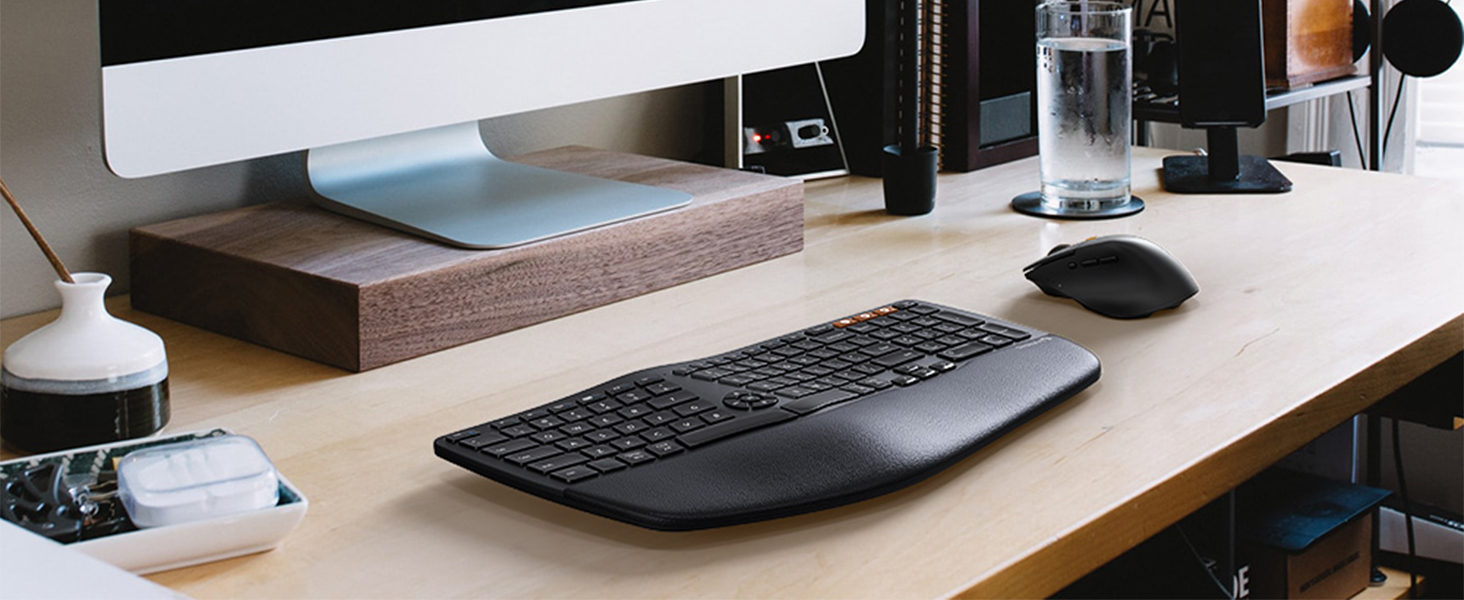
Image: The keyboard and mouse connected to power sources via USB-C cables for charging.
3.2. Connecting the Devices
The combo supports three connection modes: 2.4G wireless via USB receiver, Bluetooth 1 (BT1), and Bluetooth 2 (BT2). You can switch between these modes using dedicated buttons on both the keyboard and mouse.

Image: Diagram illustrating the multi-device connectivity options: 2.4G wireless, Bluetooth 1, and Bluetooth 2.
3.2.1. 2.4G Wireless Connection (USB Receiver)
- Locate the USB receiver in the mouse's battery compartment.
- Plug the USB receiver into an available USB port on your computer.
- Turn on the keyboard and mouse. The devices should automatically connect to the receiver.
- On the keyboard, press the 2.4G button (often indicated by a wireless icon) to select this mode.
- On the mouse, press the mode switch button until the indicator light shows the 2.4G mode.
3.2.2. Bluetooth Connection (BT1 / BT2)
- Turn on the keyboard and mouse.
- On the keyboard, press and hold either the BT1 or BT2 button for 3-5 seconds until the indicator light flashes rapidly, indicating pairing mode.
- On the mouse, press and hold the mode switch button until the indicator light for BT1 or BT2 flashes rapidly.
- On your computer or device (Windows, Mac, Android), go to Bluetooth settings and search for new devices.
- Select "ProtoArc Keyboard" and "ProtoArc Mouse" from the list of available devices to pair.
- Once paired, the indicator light on the keyboard and mouse will stop flashing and remain solid for a few seconds.
Note: For Mac users, some function keys (F1-F12) may have limited functionality when connected via 2.4G. Bluetooth connection is recommended for full Mac compatibility. Mouse backward/forward buttons may not be compatible with macOS.
4. Operating Instructions
4.1. Multi-Device Switching
Both the keyboard and mouse can be connected to up to three devices simultaneously (one via 2.4G, two via Bluetooth). To switch between connected devices:
- Keyboard: Press the corresponding 2.4G, BT1, or BT2 button to instantly switch to the desired device.
- Mouse: Press the mode switch button on the underside or side of the mouse to cycle through the connected devices (2.4G, BT1, BT2).
4.2. Keyboard Features
- Ergonomic Split Design: The keyboard features a curved and split key-frame to promote a more natural wrist and forearm posture, reducing strain during extended typing sessions.
- Cushioned Palm Rest: An integrated palm rest with a soft memory foam layer provides support and comfort for your wrists.
- Adjustable Tilt: The keyboard includes adjustable feet to set the tilt angle for personalized comfort.

Image: A user typing on the ProtoArc EKM01 keyboard, highlighting its ergonomic curved and split design for natural hand placement.

Image: A cutaway diagram illustrating the layers of the keyboard's cushioned palm rest: soft synthetic leather, high-density support, and memory foam.
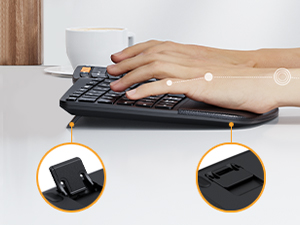
Image: Close-up of the adjustable tilt feet on the underside of the keyboard, allowing users to customize the typing angle.
4.3. Mouse Features
- Sculpted Ergonomic Shape: The mouse is designed with a palm and thumb rest to maintain a natural hand position, reducing wrist strain.
- Adjustable DPI: Cycle through 800, 1300, and 2000 DPI settings for precise cursor control. The indicator light will flash once for 800 DPI, twice for 1300 DPI, and three times for 2000 DPI.
- Navigation Buttons: Dedicated forward and backward buttons are provided for convenient web page browsing.

Image: A hand comfortably gripping the ProtoArc ergonomic mouse, demonstrating its sculpted shape for natural hand positioning.
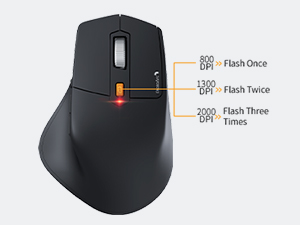
Image: Diagram showing the mouse's DPI indicator light behavior: one flash for 800 DPI, two flashes for 1300 DPI, and three flashes for 2000 DPI.
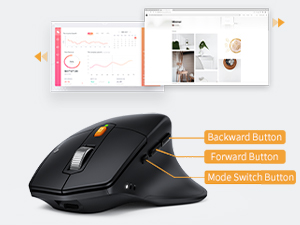
Image: Close-up of the mouse highlighting the backward, forward, and mode switch buttons on its side.
5. Charging and Power Saving
Both the keyboard and mouse are equipped with rechargeable lithium batteries.
- Keyboard Battery: 300mAh capacity.
- Mouse Battery: 500mAh capacity.
- Charging: Use the included USB-C cable to charge the devices. Connect the cable to the charging port on each device and a standard USB power source.
- Auto Sleep Mode: To conserve power, both devices will enter an auto-sleep mode after 30 minutes of inactivity. To wake them up, simply press any key on the keyboard or move/click the mouse.
6. Maintenance
To ensure the longevity and optimal performance of your ProtoArc EKM01 combo, follow these maintenance guidelines:
- Cleaning: Use a soft, dry, lint-free cloth to clean the surfaces of the keyboard and mouse. For stubborn dirt, a slightly damp cloth can be used, but ensure no moisture enters the devices.
- Avoid Liquids: Do not expose the devices to liquids. Spills can cause damage to internal components.
- Storage: When not in use for extended periods, store the devices in a cool, dry place.
- Battery Care: Avoid fully discharging the batteries frequently. Charge them regularly to maintain battery health.
7. Troubleshooting
If you encounter issues with your ProtoArc EKM01 combo, please refer to the following common solutions:
- Devices not responding:
- Ensure both the keyboard and mouse are powered on.
- Check battery levels and recharge if necessary.
- For 2.4G connection, ensure the USB receiver is securely plugged into a working USB port.
- For Bluetooth connection, ensure Bluetooth is enabled on your device and the keyboard/mouse are correctly paired. Try re-pairing if connection is lost.
- Switch to a different connection mode (2.4G, BT1, BT2) to see if the issue persists.
- Lag or intermittent connection:
- Move the devices closer to the USB receiver or your Bluetooth-enabled device.
- Avoid using the devices near strong interference sources (e.g., Wi-Fi routers, other wireless devices).
- Ensure the USB receiver is not plugged into a USB hub, try a direct port on the computer.
- Keys not typing or mouse not moving:
- Confirm the correct connection mode is selected on both devices.
- Reboot your computer or device.
- If specific keys are not working, ensure no debris is lodged beneath them.
- Mac Compatibility Issues:
- For optimal function key performance on Mac, use a Bluetooth connection.
- Note that mouse backward/forward buttons may not function on macOS.
8. Specifications
| Brand | ProtoArc |
| Model Number | EKM01 |
| Connectivity Technology | Bluetooth, USB (2.4G Wireless) |
| Special Features | Ergonomic, Rechargeable, Multi-Device |
| Compatible Devices | Laptop, Personal Computer (Windows 7/8/10, Mac OS X 10.12+, Android 4.3+) |
| Keyboard Battery Capacity | 300mAh Lithium Polymer |
| Mouse Battery Capacity | 500mAh Lithium Polymer |
| Item Weight | 3.39 pounds |
| Package Dimensions | 17.4 x 12.01 x 2.44 inches |
9. Warranty and Support
For warranty information or technical support, please refer to the documentation included with your purchase or contact ProtoArc customer service directly. Contact details can typically be found on the manufacturer's official website.
Related documentsEKM01


Ask a question about this manual
Ask about setup, troubleshooting, compatibility, parts, safety, or missing instructions. Manuals+ will review the question and use this page’s manual context to help answer it.