
1. Introduction
Thank you for choosing the Rapoo M100 Wireless Bluetooth Mouse. This manual will guide you through the setup, operation, and maintenance of your new mouse, ensuring you get the most out of its features. The Rapoo M100 is designed for comfort, precision, and multi-device connectivity, making it ideal for various computing environments.
2. Product Features
- Easy Support for up to 3 Devices: This wireless Bluetooth mouse supports Bluetooth 3.0/4.0 and 2.4G technology, allowing connection to up to 3 devices: two via Bluetooth and the third via a 2.4GHz USB dongle. With one mouse, you can easily switch between devices using a simple button. Please note that you cannot control three devices simultaneously.
- Silent Design: This silent wireless mouse reduces noise by 90%. Quiet clicks eliminate worries about disturbing others and allow you to focus better on your work. Enjoy peace and quiet during your browsing and working experiences. The outer shell is resistant to fingerprints and sweat, allowing air circulation and absorbing moisture, keeping it cool and refreshing. Suitable for laptops, computers, MacBooks, notebooks, and Chromebooks.
- Comfortable and High-Precision Design: Symmetrical shape designed for left or right hand use with a flat radian design that fits the hand's curve. It relieves strain and is suitable for all-day use. High-precision optical engine, allowing mouse use on various surfaces such as leather, fabric, paper, desk, wood, or resin, without a mouse pad.
- Long-Lasting Battery Life: Rapoo mouse applies energy-saving technology and design with power switches to extend battery life, which can last up to 9 months under normal conditions. Portable compact size makes it easy to carry for business trips, office, or travel.
3. Package Contents
Please check the package for the following items:
- Rapoo M100 Wireless Bluetooth Mouse
- USB 2.4GHz Receiver
- AA Battery (pre-installed or included)
- Quick Start Guide (this manual)
4. Setup
4.1. Battery Installation
The Rapoo M100 mouse uses one AA battery. If the battery is not pre-installed, open the battery compartment cover on the underside of the mouse, insert the AA battery with the correct polarity, and close the cover.

The underside of the Rapoo M100 mouse, with labels pointing to key components: anti-slip pads, the ON/OFF switch, the Bluetooth Pairing Button/Device Switch Button, the Invisible Optical sensor, the Battery Slot, and the storage compartment for the USB Receiver.
4.2. Connecting Your Mouse
The Rapoo M100 offers two primary connection methods: 2.4GHz Wireless via USB receiver and Bluetooth.
4.2.1. 2.4GHz Wireless Connection (via USB Receiver)
- Locate the USB receiver stored in the battery compartment of the mouse.
- Plug the USB receiver into an available USB port on your computer.
- Turn on the mouse using the ON/OFF switch on the bottom.
- The mouse should automatically connect to your computer.
4.2.2. Bluetooth Connection (up to 2 devices)
- Turn on the mouse using the ON/OFF switch on the bottom.
- Press the Bluetooth Pairing Button/Device Switch Button on the bottom of the mouse to select a Bluetooth channel (e.g., Bluetooth 1 or Bluetooth 2). The indicator light will blink slowly.
- Press and hold the Bluetooth Pairing Button/Device Switch Button for 3 seconds until the indicator light starts blinking rapidly. This indicates the mouse is in pairing mode.
- On your device (laptop, tablet, smartphone), go to Bluetooth settings and search for new devices.
- Select "Rapoo M100" from the list of available devices to complete the pairing process. The indicator light on the mouse will stop blinking once connected.

An illustration demonstrating the wide compatibility of the Rapoo M100 mouse with different operating systems and device types, including laptops, tablets, cellphones, and PCs, through both Bluetooth 3.0/4.0 and 2.4G USB connectivity.

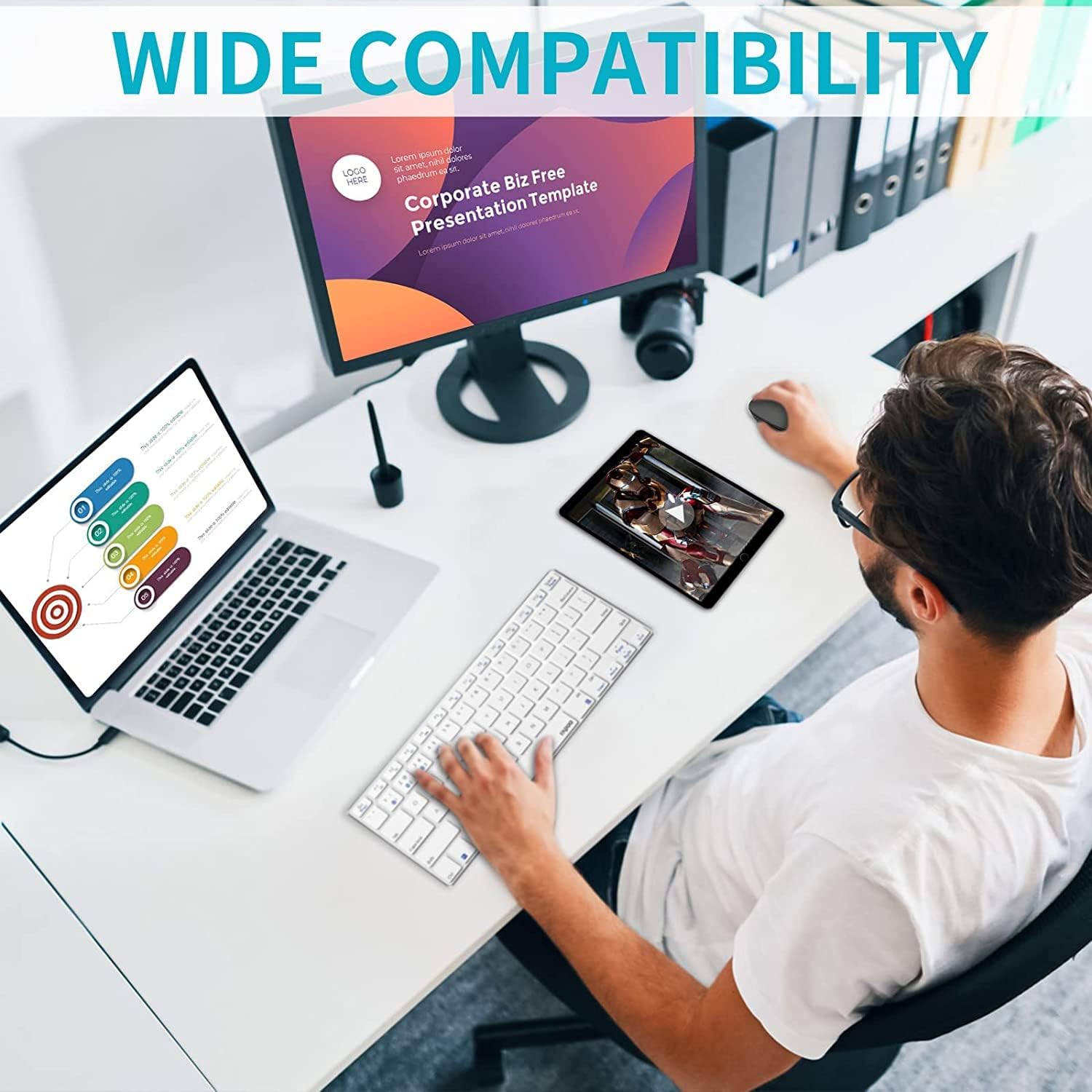
An overhead view of a workspace featuring the Rapoo M100 mouse, a keyboard, a laptop, and a tablet, demonstrating how the mouse can connect seamlessly across multiple devices via Bluetooth or the USB receiver.
5. Operating Instructions
5.1. Switching Between Connected Devices
To switch between the 2.4GHz wireless connection and the two Bluetooth connections, simply press the Bluetooth Pairing Button/Device Switch Button on the bottom of the mouse. Each press will cycle through the connected devices (2.4G, Bluetooth 1, Bluetooth 2).

Diagram showing the Rapoo M100 mouse's ability to connect to and switch between three different devices: a laptop, a tablet, and a PC, highlighting its multi-device pairing capability.
5.2. Silent Click Feature
The Rapoo M100 is designed with silent click buttons, reducing the noise produced by clicks by up to 90%. This feature allows for a quieter working environment without disturbing others.

Close-up of the Rapoo M100 mouse, illustrating its silent click feature with visual cues indicating reduced noise from the left and right mouse buttons.
5.3. Ergonomic Design
The symmetrical shape of the mouse is suitable for both left and right-handed users, with a flat radian design that comfortably fits the curve of your hand. This design helps reduce strain during prolonged use.
A person working at a desk, using the Rapoo M100 mouse with a desktop computer and a laptop, illustrating its comfortable design during extended use.
6. Maintenance
6.1. Cleaning
To clean your mouse, use a soft, dry cloth. For stubborn dirt, a slightly damp cloth can be used, but ensure no moisture enters the mouse. Avoid using harsh chemicals or abrasive materials.

A detailed side view of the Rapoo M100 mouse, emphasizing its anti-slip lattice texture on both sides and the anti-fingerprint and sweat-proof outer shell, designed for breathability and moisture absorption.
6.2. Battery Replacement
When the mouse performance degrades or the indicator light signals low battery, replace the AA battery. Turn off the mouse before replacing the battery.
7. Troubleshooting
| Problem | Possible Cause | Solution |
|---|---|---|
| Mouse not responding | Battery low or dead; Mouse is off; USB receiver not connected; Bluetooth not paired. | Replace battery; Turn on mouse; Plug in USB receiver; Re-pair Bluetooth. |
| Lag or delayed response (especially with Bluetooth) | Interference from other wireless devices; Device's Bluetooth module issue; Mouse went into sleep mode. | Move mouse closer to device; Reduce other wireless interference; Update Bluetooth drivers; Click mouse to wake it up. |
| Cannot switch between devices | Incorrect button press; Devices not properly paired. | Ensure you are pressing the correct device switch button; Re-pair devices if necessary. |
| Mouse cursor erratic or not moving smoothly | Dirty optical sensor; Unsuitable surface; Low battery. | Clean optical sensor; Use on a clean, non-reflective surface; Replace battery. |
8. Specifications
- Model Name: M100 Silent
- Connectivity Technology: Bluetooth 3.0/4.0, 2.4GHz Wireless
- Movement Detection: Optical
- Button Quantity: 2 (Left, Right, Scroll Wheel Click)
- Hand Orientation: Ambidextrous (uses both hands)
- Special Features: Silent Click, Multi-device connectivity
- Compatible Devices: Personal Computer, Laptop, Mac, Tablet, Smartphone
- Recommended Uses: Office
- Color: Grey
- Product Dimensions: 10.39 x 6.54 x 0.1 cm
- Item Weight: 80 grams
- Country of Origin: China
- First Available Date: February 22, 2022
9. Warranty and Support
Rapoo products are designed to provide reliable performance. For warranty information and technical support, please refer to the official Rapoo website or contact your local distributor. Keep your purchase receipt for warranty claims.
For further assistance, please visit www.rapoo.com.


