
1. Introduction
This manual provides detailed instructions for the setup, operation, and maintenance of your MAD OWL DMX 512 Stage Light Controller, Model Great 512. This controller is designed for managing DMX-controlled lighting effects, including LED spot lights, moving heads, and scanners, in various stage and event environments. Please read this manual thoroughly before operating the device to ensure proper functionality and safety.

Figure 1.1: Front view of the MAD OWL DMX 512 Stage Light Controller.
2. Product Overview and Key Features
The MAD OWL DMX 512 Controller offers comprehensive control over your stage lighting setup. Key features include:
- 512 Control Channels: Compatible with all stage lights using 3-pin DMX cables, allowing flexible assignment of channels.
- 32 Memory Banks: Store sequences of scenes, each with up to 100 steps.
- Playback Modes: Chases can be played manually, sound-controlled, or automatically.
- USB Storage: Conveniently store and archive all light show settings on a USB memory device.
- Built-in RDM Dip Switch Function: Directly edit the address code of RDM-enabled stage lamps from the console.
- Integrated Effect Generator: Simplifies programming with 9 movement patterns for moving heads/scanners and 7 color effects for RGBW LED devices.
3. Setup
3.1 Powering the Controller
The DMX 512 Controller can be powered via the included corded electric power adapter or, for portable use, by a power bank (USB male-to-male cable not included). When connected to an external power supply, the USB ports on the controller can also charge other devices.
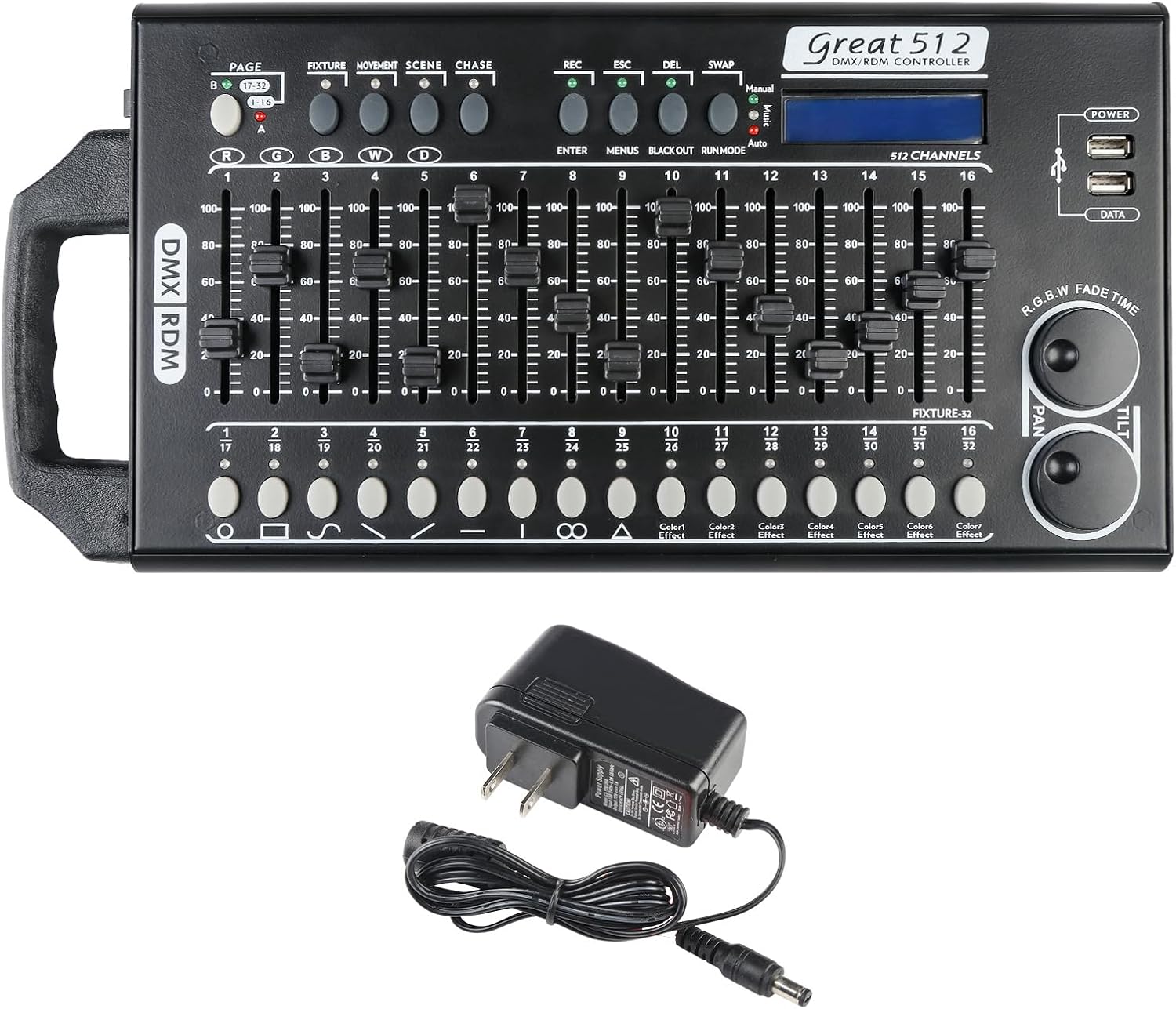
Figure 3.1: Controller connected to the included power adapter.

Figure 3.2: Close-up of the display and USB ports, showing power bank connection capability.
3.2 Connecting DMX Fixtures
Connect your DMX-compatible stage lights to the controller using standard 3-pin DMX cables. Ensure all connections are secure. The controller is compatible with a wide range of DMX lighting equipment.

Figure 3.3: The controller's compatibility with different types of DMX stage lights.
4. Operating Instructions
4.1 Basic Control and Channel Assignment
The controller provides 512 DMX channels. These channels are typically assigned to control specific parameters of your lighting fixtures (e.g., intensity, color, pan, tilt). Refer to your lighting fixture's manual for its DMX channel assignments.

Figure 4.1: The faders control individual DMX channel values.
4.2 Programming Scenes and Chases
The controller allows you to program and store complex lighting scenes and sequences (chases).
- Reset: Turn the controller off and then on again to ensure it is in a reset state.
- Enter Record Mode: Press the REC button until its LED indicator illuminates.
- Select Fixture: Press the FIXTURE button, then select the desired fixture number (e.g., #1).
- Adjust Values: Use the faders to adjust the DMX values for the selected fixture. The function of each slider may vary depending on your specific lighting fixture. Experiment or consult your fixture's manual to understand the controls.
- Configure Multiple Fixtures: After adjusting fixture #1, press 1 again to deselect it. Then, press 2 and adjust values for the next light, and so on, until all desired fixtures are configured for the scene.
- Save Scene: Once all fixtures are set for the scene, press the SCENE button, then press REC (do not hold this time). Finally, press the number where you wish to save this scene. The lights will blink briefly to confirm saving.
- Recall Scene: To recall a saved scene, simply press the SCENE button, then the corresponding scene number.

Figure 4.2: Fixture and scene selection buttons for programming.
4.3 RDM Function
The built-in RDM (Remote Device Management) dip switch function allows you to directly edit the DMX address code of compatible stage lamps from the console. This eliminates the need to manually set dip switches on each fixture, streamlining setup.
4.4 Built-in Effect Generator
The controller features an effect generator to simplify programming. It includes 9 pre-designed movement patterns for moving heads and scanners, and 7 color effects specifically for RGBW LED lighting devices. These effects can be activated with a single button press.
5. Maintenance
- Cleaning: Use a soft, dry cloth to clean the surface of the controller. Avoid using abrasive cleaners or solvents.
- Storage: Store the controller in a cool, dry place away from direct sunlight and extreme temperatures.
- Cable Management: Ensure DMX and power cables are not kinked or strained. Regularly check cables for damage.
- Firmware Updates: Check the manufacturer's website periodically for any available firmware updates to ensure optimal performance.
6. Troubleshooting
- No Power: Ensure the power adapter is securely connected to both the controller and a working power outlet. If using a power bank, verify it is charged and the USB cable is functional.
- Lights Not Responding:
- Check all DMX cable connections between the controller and fixtures.
- Verify that the DMX addresses on your fixtures match the channels being controlled by the console.
- Ensure the controller is not in a 'Blackout' mode.
- Confirm that the correct fixture is selected on the controller.
- Scene Settings Not Saving: Ensure you follow the scene saving procedure correctly (SCENE > REC > Scene Number). Some users have reported issues with the first few scenes not saving properly; try saving to a different memory bank if this occurs.
- Settings Lost After Power Cycle: If settings are lost after turning off the console, ensure the DMX cable is disconnected before powering down, and reconnected before restarting. This can help retain settings.
- Buttons/Controls Unresponsive: Ensure the controller is clean and free from debris. If issues persist, contact customer support.
7. Specifications
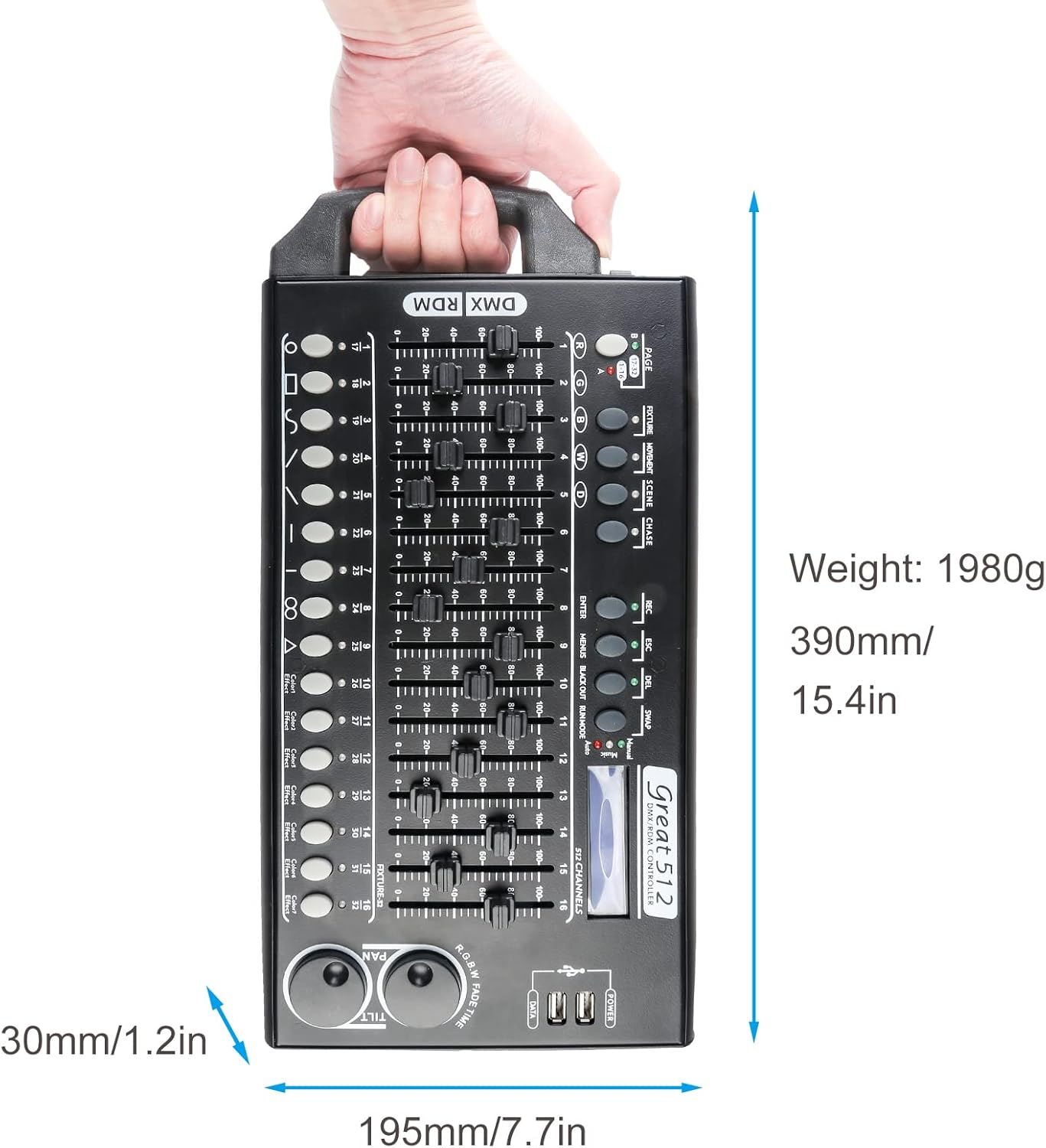
Figure 7.1: Dimensions of the MAD OWL DMX 512 Stage Light Controller.
| Feature | Detail |
|---|---|
| Brand | MAD OWL |
| Model Number | Great 512 |
| Color | USB Portable 512 Channel |
| Material | Aluminum |
| Shape | Rectangular |
| Product Dimensions (L x W x H) | 19.02" x 5.12" x 3.23" (48.3 cm x 13 cm x 8.2 cm) |
| Item Weight | 4.85 Pounds (2.2 kg) |
| Power Source | Corded Electric |
| Voltage | 9 Volts (DC) |
| Amperage | 0.3 Amps |
| Wattage | 2.7 Watts |
| Light Source Type | Light Emitting Diode (for compatible fixtures) |
| Number of Light Sources | 512 (channels) |
| Mounting Type | Rack Mount |
| Batteries Included | No |
| UPC | 792933990304 |
8. Warranty and Support
For warranty information, technical support, or service inquiries, please refer to the contact information provided with your purchase or visit the official MAD OWL website. Protection plans may be available for extended coverage; please check with your retailer for details.