1. Introduction
Thank you for choosing the Saba SA32S67A9 32-inch Smart Android LED TV. This television combines a sleek, ultra-slim design with the power of Android 9, offering a comprehensive entertainment experience. Enjoy HD Ready resolution, pre-installed applications like Netflix, YouTube, and Prime Video, and seamless connectivity with built-in Chromecast and Airplay support. This manual provides essential information for setup, operation, maintenance, and troubleshooting to ensure optimal performance of your new television.

Image: Front view of the Saba SA32S67A9 TV showcasing the Android TV home screen with streaming applications.
2. Safety Information
Please read all safety instructions carefully before using your television. Keep this manual for future reference.
- Power Source: Connect the TV only to an AC power outlet of the specified voltage.
- Ventilation: Ensure adequate ventilation around the TV. Do not block ventilation openings.
- Water and Moisture: Do not expose the TV to rain or moisture. Do not place objects filled with liquids, such as vases, on the TV.
- Cleaning: Unplug the TV before cleaning. Use a soft, dry cloth. Do not use liquid or aerosol cleaners.
- Placement: Place the TV on a stable, level surface. Avoid placing it in direct sunlight or near heat sources.
- Children: Supervise children to prevent them from climbing on the TV or stand.
- Servicing: Do not attempt to service the TV yourself. Refer all servicing to qualified service personnel.
3. Package Contents
Verify that all items are present in the box:
- Saba SA32S67A9 32-inch Smart Android LED TV
- Remote Control
- AAA 1.5V Batteries (for remote control)
- TV Stand (2 feet)
- Screws for TV Stand
- Power Cord
- Mini AV Adapter Cable
- User Manual (this document)
4. Setup
4.1 Attaching the Stand
To attach the stand to your TV:
- Carefully place the TV face-down on a soft, clean surface to prevent screen damage.
- Align each stand foot with the corresponding slots on the bottom of the TV.
- Secure the stand feet using the provided screws. Ensure they are tightened firmly.

Image: Detail of the TV stand attachment.
4.2 Connecting Peripherals
Your TV offers various connection ports for external devices:
- HDMI: Connect Blu-ray players, game consoles, or set-top boxes.
- USB: Connect USB drives for media playback.
- RF (Antenna/Cable): Connect your antenna or cable TV signal.
- Ethernet: For a wired internet connection.
- Mini AV: Use the provided adapter cable to connect older AV devices.
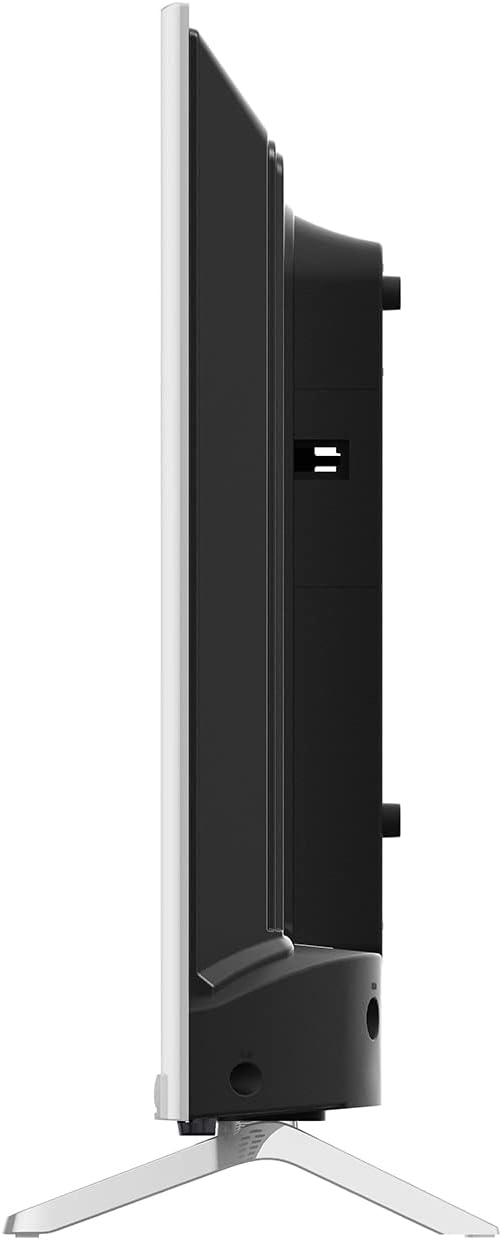
Image: Side profile of the TV showing available connection ports.
4.3 Initial Power On and Setup
After connecting all necessary cables and the power cord:
- Press the power button on the remote control or TV.
- Follow the on-screen instructions to select your language, country, and time zone.
- Network Connection: Choose to connect via Wi-Fi or Ethernet. For Wi-Fi, select your network and enter the password.
- Google Account: Sign in with your Google account to access the full features of Android TV, including the Google Play Store.
- Channel Scan: Perform an automatic channel scan for DVB/T2/S2/C signals to find available TV channels.
5. Operating the TV
5.1 Remote Control Overview
Familiarize yourself with the remote control buttons for easy navigation and control of your TV's functions.
5.2 Navigating Android TV
The Android TV interface provides a user-friendly experience:
- Use the directional pad (up, down, left, right) to move between menu items and apps.
- Press the OK button to select an item.
- Press the Back button to return to the previous screen.
- Press the Home button to go to the Android TV home screen.
5.3 Using Pre-installed Applications
Your TV comes with popular streaming applications pre-installed:
- Netflix, YouTube, Prime Video: Access these apps directly from the home screen. You may need to log in with your existing accounts.
- Google Play Store: Download additional apps, games, and content.
5.4 Chromecast and Airplay Functionality
The TV supports both Chromecast and Airplay, allowing you to cast content from your compatible mobile devices or computers directly to the TV screen.
- Ensure your device and TV are connected to the same Wi-Fi network.
- Look for the Cast icon (□) in compatible apps on your mobile device or the Airplay icon (△) on Apple devices.
- Select your TV from the list of available devices to start casting.
5.5 Input Selection
To switch between different input sources (e.g., HDMI, TV tuner, USB):
- Press the Input or Source button on your remote control.
- Select the desired input from the on-screen menu.
6. Maintenance
6.1 Cleaning the Screen
To clean the TV screen:
- Turn off the TV and unplug the power cord.
- Gently wipe the screen with a soft, lint-free cloth.
- For stubborn marks, lightly dampen the cloth with water or a specialized screen cleaner (ensure it's safe for LED screens) and wipe carefully. Do not spray liquid directly onto the screen.
6.2 General Care
- Keep the TV away from direct sunlight and heat sources.
- Avoid placing heavy objects on top of the TV.
- Do not expose the TV to extreme temperatures or humidity.
7. Troubleshooting
If you encounter issues with your TV, refer to the following common problems and solutions:
| Problem | Possible Solution |
|---|---|
| No power | Check if the power cord is securely plugged into the TV and the wall outlet. Ensure the outlet has power. |
| No picture, but sound is present | Check the input source. Ensure the connected device is powered on and functioning correctly. |
| No sound, but picture is present | Check the volume level. Ensure the TV is not muted. Check audio settings and external audio connections. |
| Remote control not working | Replace the batteries. Ensure there are no obstructions between the remote and the TV's IR sensor. |
| Cannot connect to Wi-Fi | Ensure your Wi-Fi router is on and working. Re-enter the Wi-Fi password. Try restarting the TV and router. |
| Apps are slow or freezing | Close unused applications. Clear app caches. Restart the TV. Ensure a stable internet connection. |
If the problem persists after trying these solutions, please contact customer support.
8. Specifications
Detailed technical specifications for the Saba SA32S67A9 TV:
| Feature | Specification |
|---|---|
| Brand | Saba |
| Model Number | SA32S67A9 |
| Screen Size | 32 Inches (80 cm diagonal) |
| Display Technology | LED LCD |
| Resolution | 1366 x 768 (HD Ready) |
| Aspect Ratio | 16:9 |
| Refresh Rate | 60 Hz |
| Operating System | Android 9 |
| Connectivity Technology | Wi-Fi, Ethernet, HDMI, RF, USB |
| Total USB Ports | 1 |
| Special Features | Smart TV, Internet Access, Chromecast Built-in, Airplay Support, Dolby Audio |
| Supported Internet Services | Netflix, YouTube, Prime Video |
| Tuner Type | DVB/T2/S2/C, MPEG-4, HEVC Main 10 |
| Energy Efficiency Class (SDR) | F |
| Power Consumption On-mode (SDR) | 32.0 W |
| Included Components | TV, Remote Control, AAA Batteries, TV Stand, Screws, Power Cord, Mini AV Adapter Cable |
| Manufacturer | CHANGHONG EUROPE ELECTRIC S.R.O. |
| Minimum Guaranteed Spare Parts Availability | Until September 3, 2028 |
| Minimum Guaranteed Technical Support | Until September 3, 2028 |
9. Warranty and Support
Your Saba SA32S67A9 TV comes with a manufacturer's warranty. Please refer to the warranty card included in your package for specific terms and conditions. For technical support, service, or warranty claims, please contact your retailer or the manufacturer's authorized service center. Keep your proof of purchase for warranty validation.


