
Introduction
This manual provides detailed instructions for the setup, operation, maintenance, and troubleshooting of your Lomiluskr 2.4G Full-Size Wireless Keyboard and Mouse Combo. This combo features a 104-key full-size keyboard with retro round keycaps and a comfortable mouse, both connecting wirelessly via a single 2.4G USB receiver. Please read this manual thoroughly to ensure proper use and longevity of your product.
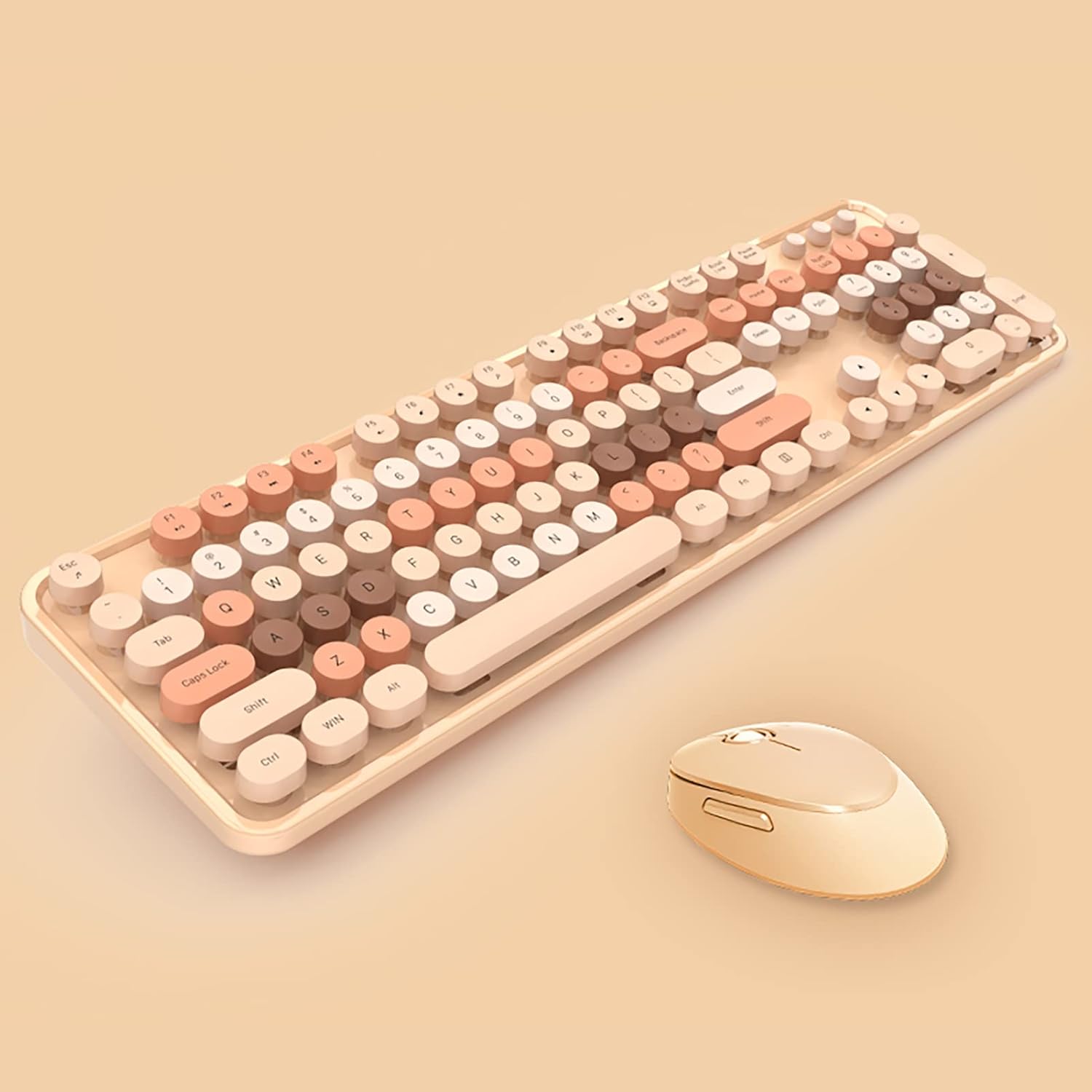
Image: The Lomiluskr 2.4G Full-Size Wireless Keyboard and Mouse Combo, showcasing the milk tea color scheme and round keycaps.
Package Contents
- 1 x Lomiluskr 2.4G Full-Size Wireless Keyboard
- 1 x Lomiluskr 2.4G Wireless Mouse
- 1 x USB Receiver (located in the mouse battery compartment)
- 2 x AA Batteries (for keyboard and mouse)
- 1 x User Manual (this document)
Setup Instructions
- Install Batteries:
- Keyboard: Open the battery compartment cover on the underside of the keyboard. Insert one AA battery, ensuring correct polarity (+/-). Close the cover.
- Mouse: Open the battery compartment cover on the underside of the mouse. Insert one AA battery, ensuring correct polarity (+/-). Close the cover.
- Locate USB Receiver: The USB receiver is stored in the battery compartment of the mouse for convenience during transport. Carefully remove it.
Image: A single USB receiver is used for both the keyboard and mouse, saving USB ports.
- Connect USB Receiver: Plug the USB receiver into an available USB port on your computer (PC or laptop).

Image: USB plug-and-play wireless connectivity for a tidy desktop setup.
- Power On: Ensure the keyboard and mouse are switched on (if they have an on/off switch, typically on the underside). The devices should automatically connect to your computer. No additional drivers are usually required.
- Compatibility: This combo is compatible with PCs and laptops that have at least one available USB port. It does not connect via Bluetooth and is not compatible with iPads or mobile phones.

Image: The keyboard and mouse are compatible with PC/laptop systems, requiring at least one USB port.
Operating Instructions
Keyboard Usage
The keyboard features a full 104-key layout with a numeric keypad. The retro round keycaps are designed for a comfortable typing experience.

Image: Detail of the typewriter-style retro round keycaps, designed for tactile feedback and comfort.
Multimedia Hot Keys
The keyboard includes 13 easily accessible function keys (F1-F12) that provide shortcuts when pressed in combination with the Fn key.
- Fn + F1: Music Player
- Fn + F2: Play/Pause
- Fn + F3: Previous Song
- Fn + F4: Next Song
- Fn + F5: Volume Up
- Fn + F6: Volume Down
- Fn + F7: Mute
- Fn + F8: Home Page
- Fn + F9: Search
- Fn + F10: Favorite
- Fn + F11: Email
- Fn + F12: Keyboard Lock
- Fn + Esc: (Function not specified, typically for media or system functions)
Note: Some hotkeys may not be fully functional on Mac operating systems.
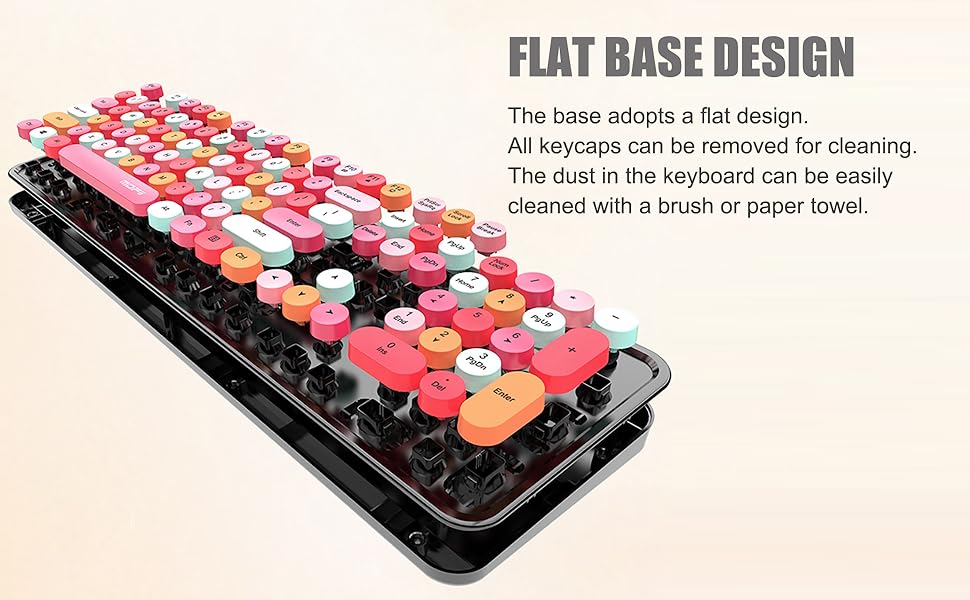
Image: Visual guide to multimedia key combinations using the Fn key.
Mouse Usage
The wireless mouse provides precise tracking with 1600 DPI. Its rounded shape is designed for comfortable handling.

Image: The mouse features a rounded shape for comfortable grip and use.
Smart Power Saving
Both the keyboard and mouse are equipped with a smart power-saving feature. After a few minutes of inactivity (typically 3-5 minutes), they will automatically enter sleep mode to conserve battery life. To wake them up, simply click any key on the keyboard or any button on the mouse.
A low battery indicator light is located in the upper right corner of the keyboard. This light will illuminate when the battery level is low, signaling that it's time to replace the battery.
Maintenance
Cleaning
To clean your keyboard and mouse:
- Ensure both devices are powered off and disconnected from your computer.
- Use a soft, dry cloth to wipe down the surfaces.
- For stubborn dirt, slightly dampen the cloth with water or a mild, non-abrasive cleaner. Avoid excessive moisture.
- The keyboard features a flat base design, and keycaps can be removed for thorough cleaning of dust and debris underneath. Use a brush or a soft cloth for this purpose.
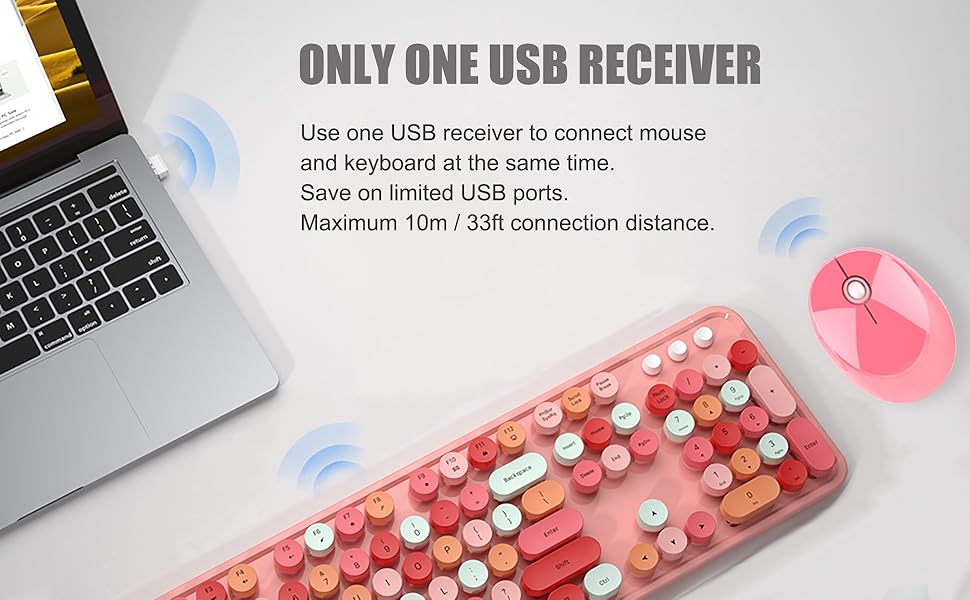
Image: The keyboard's flat base design allows for easy removal of keycaps and cleaning of the underlying surface.
Battery Replacement
When the low battery indicator on the keyboard lights up, or if the mouse or keyboard becomes unresponsive, replace the AA batteries in both devices. Use high-quality alkaline batteries for optimal performance.
Troubleshooting
| Problem | Possible Cause | Solution |
|---|---|---|
| Keyboard/Mouse not responding |
|
|
| Lag or intermittent connection |
|
|
| Hotkeys not working on Mac | Operating system compatibility limitations. | Some multimedia hotkeys may not be fully supported on Mac OS. This is a known compatibility limitation. |
Specifications
| Feature | Detail |
|---|---|
| Connectivity | 2.4G Wireless (USB Receiver) |
| Wireless Range | Up to 10 meters (33 feet) |
| Keyboard Dimensions | 445 x 136 x 35 mm |
| Keyboard Weight | 658 g |
| Keyboard Keys | 104 Keys (Full-size with numeric keypad) |
| Keyboard Battery | 1 x AA Battery (included) |
| Mouse Dimensions | 101 x 75 x 34 mm |
| Mouse Weight | 80 g |
| Mouse DPI | 1600 DPI |
| Mouse Buttons | 4 Buttons |
| Mouse Battery | 1 x AA Battery (included) |
| Compatible Devices | Laptop, Personal Computer (requires USB port) |
| Special Features | Retro Round Keycaps, Smart Power Saving |

Image: Detailed product specifications for the keyboard and mouse.
Warranty and Support
All Lomiluskr products undergo quality inspection before shipping. If you encounter any quality issues with this product within one year of purchase, Lomiluskr offers a refund or a free replacement.
For any questions or support needs, please contact Lomiluskr customer service. Refer to your purchase documentation for contact details.