Download PDFFree PDF. The Save button below keeps a bookmark and private notes in your account.
Alacrity 2D Wireless Ring Barcode Scanner User Manual
Model: R35-6000
1. Introduction
Welcome to your Alacrity 2D Wireless Ring Barcode Scanner. This manual provides detailed instructions for the proper setup, operation, and maintenance of your device. Please read this manual thoroughly before using the scanner to ensure optimal performance and longevity.
2. Product Overview
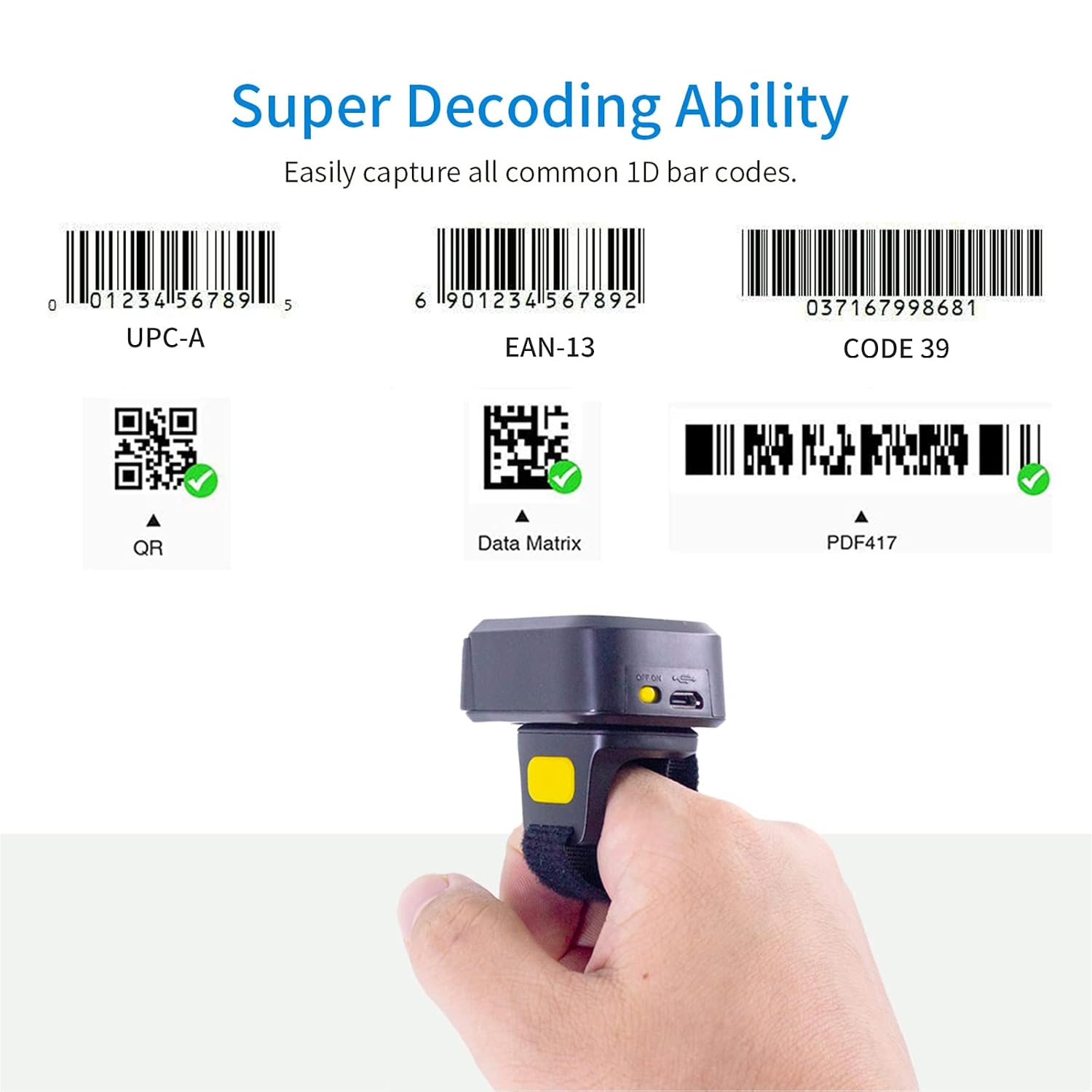
The Alacrity 2D Wireless Ring Barcode Scanner is a compact, wearable device designed for efficient barcode scanning. Its ergonomic ring design allows for hands-free operation, enhancing productivity in various environments.
Figure 2.1: Alacrity 2D Wireless Ring Barcode Scanner in use.
2.1 Key Features
Wearable Ring Design: Allows for hands-free scanning, fitting comfortably on the finger.
Dual Connectivity: Supports 2.4G Wireless via dongle and Bluetooth 4.0 for versatile connection options.
Vibration Alert: Provides tactile feedback for successful scans, ideal for quiet environments.
Broad Compatibility: Compatible with Windows, Mac OS, Android, and iOS devices.
Long Battery Life: Offers up to 6 hours of continuous scanning and 720 hours of standby time.
Two Upload Modes: Instant upload and storage mode (up to 50,000 barcodes).
2.2 Package Contents
Verify that all items are present in your package:
1 x Alacrity 2D Wireless Ring Barcode Scanner
1 x User Manual (this document)
1 x Charging Cable (USB)
1 x Charger Head
1 x Mobile Phone 4.0 Receiver (Bluetooth Dongle)
3. Setup
3.1 Charging the Device
Before initial use, fully charge the scanner. Connect the provided USB charging cable to the scanner's charging port and plug the other end into a USB power source (e.g., computer, wall adapter). The charging indicator light will illuminate during charging and turn off when fully charged. A full charge typically takes 2-3 hours.
Figure 3.1: Battery capacity and charging times.
3.2 Powering On/Off
To Power On: Press and hold the power button (usually located on the side or top) for a few seconds until the indicator light turns on.
To Power Off: Press and hold the power button again for a few seconds until the indicator light turns off.
3.3 Wearing the Scanner
The scanner is designed to be worn on your finger. Adjust the Velcro strap to ensure a snug yet comfortable fit on either your left or right hand. The scanning window should face outwards, allowing for easy aiming at barcodes.
4. Connectivity
4.1 2.4GHz Wireless Connection
For devices without Bluetooth, use the provided 2.4GHz wireless dongle:
Plug the 2.4GHz USB dongle into an available USB port on your computer, laptop, or POS system.
Power on the barcode scanner. It should automatically connect to the dongle.
A successful connection is indicated by a specific light pattern or sound from the scanner.
4.2 Bluetooth Connection
To connect via Bluetooth:
Ensure the scanner is powered on and in Bluetooth pairing mode (refer to the scanner's indicator lights for status).
On your host device (smartphone, tablet, computer), go to Bluetooth settings and enable Bluetooth.
Search for available devices. The scanner will typically appear as "BarCode Scanner HID" or similar.
Select the scanner to pair. Once paired, the scanner's indicator light will change, and a confirmation sound may play.
Figure 4.1: 2.4GHz Wireless and Bluetooth connection methods.
4.3 Supported Operating Systems
The Alacrity 2D Wireless Ring Barcode Scanner is compatible with a wide range of operating systems:
Microsoft Windows (XP, 7, 8, 10)
Mac OS
Android (4.0 and above)
iOS
Linux
4.4 Transmission Distance
The effective transmission range varies depending on the connection type and environment:
2.4GHz Wireless: Up to 150m (492ft) in barrier-free environments; up to 30m (98ft) with barriers.
Bluetooth 4.0: Up to 50m (164ft) in barrier-free environments; up to 15m (49ft) with barriers.
Figure 4.2: Transmission distances for 2.4GHz and Bluetooth connections.
5. Operating Instructions
5.1 Scanning Barcodes
To scan a barcode, aim the scanner's light beam at the barcode and press the trigger button. A successful scan will be indicated by a beep (if enabled) and/or a vibration.
5.2 Supported Barcode Types
The scanner supports a wide range of 1D and 2D barcode symbologies, including screen scanning:
Instant Upload Mode: Barcode data is transmitted to your connected device immediately after each scan.
Storage Mode: Barcode data is stored in the scanner's internal 16MB memory (up to 50,000 barcodes). You can upload the stored data to your device at a later time by scanning a specific command barcode (refer to the included quick setup guide for command barcodes).
Figure 5.2: Instant Upload Mode and Storage Mode.
5.4 Vibration Alert
The scanner features a vibration alert function. When enabled, the scanner will vibrate upon a successful scan, providing silent confirmation. This is particularly useful in environments where audible beeps are undesirable. You can enable or disable this feature by scanning the appropriate command barcode from the quick setup guide.
Figure 5.3: Vibration alert feature.
5.5 180-Degree Rotation
The scanner head can be rotated up to 180 degrees to accommodate different scanning angles and user preferences. Gently rotate the scanner module to the desired position until it clicks into place.
Figure 5.4: Scanner head rotation capability.
6. Maintenance
6.1 Cleaning the Scanner
To maintain optimal scanning performance, keep the scanning window clean. Use a soft, lint-free cloth slightly dampened with water or a mild cleaning solution. Avoid abrasive cleaners or solvents that could damage the device.
6.2 Battery Care
To prolong battery life, avoid fully discharging the battery frequently. Charge the device regularly, especially if it will be stored for an extended period. Store the scanner in a cool, dry place.
7. Troubleshooting
If you encounter issues with your Alacrity 2D Wireless Ring Barcode Scanner, refer to the following common problems and solutions:
Problem
Possible Cause
Solution
Scanner does not power on.
Low battery or device is off.
Charge the scanner fully. Press and hold the power button to turn it on.
Cannot connect via Bluetooth/2.4GHz.
Scanner not in pairing mode, out of range, or interference.
Ensure scanner is in pairing mode. Move closer to the host device. Check for other wireless devices causing interference. Re-pair the device.
Scanner not reading barcodes.
Barcode damaged, scanning window dirty, or incorrect barcode type.
Clean the scanning window. Ensure the barcode is clear and undamaged. Verify the barcode type is supported. Adjust scanning distance.
Scanned data not appearing on device.
Not connected, in storage mode, or application focus issue.
Ensure successful connection. If in storage mode, upload data. Ensure the cursor is in the desired input field on your device.
Charging issues (e.g., light goes off quickly).
Faulty cable/charger, or loose connection.
Ensure the charging cable is securely inserted. Try a different USB port or charger. If issues persist, contact support.
8. Specifications
Feature
Detail
Model Number
R35-6000
Light Source
650nm Visible Laser
Scan Rate
100 ± 10 scans/second
Reading Precision
0.10mm (4mil)
Connectivity
Wireless (2.4GHz), Bluetooth 4.0, USB Cable
Battery
DC 3.7V, 360mA Li-ion battery (1 included)
Memory
512KB (stores over 5000 barcodes)
Supported OS
Microsoft Windows XP/7/8/10, Android, iOS, Mac OS, Linux
Reading Distance
2.5-600mm (100% UPC/EAN)
Scan Scope
10mm-250mm
Scanning Angle
Roll: ±35° / Pitch: ±65° / Yaw: ±50°
Bit Error Rate
1/5 million
Power Voltage
5V
Safety Performance
CE & RoHS
Dimensions (D x W x H)
6.5D x 6.5H Centimeters (approx. 150mm*50mm*65mm)
Weight
95g
9. Warranty and Support
9.1 Warranty Information
This Alacrity product is covered by a standard manufacturer's warranty. Please retain your proof of purchase for warranty claims. The warranty covers defects in materials and workmanship under normal use. It does not cover damage caused by misuse, accidents, unauthorized modifications, or improper maintenance.
9.2 Customer Support
For technical assistance, troubleshooting, or warranty inquiries, please contact Alacrity customer support. Refer to the product packaging or the official Alacrity website for the most current contact information.
Ask about setup, troubleshooting, compatibility, parts, safety, or missing instructions. Manuals+ will review the question and use this page’s manual context to help answer it.