
1. Introduction
Welcome to the user manual for your Hogar Cerebro Mighty Zigbee Home Controller. This guide provides essential information for the proper setup, operation, maintenance, and troubleshooting of your smart home device. Please read this manual thoroughly before using the product to ensure optimal performance and safety.
What's in the Box
- Hogar Cerebro Mighty Controller
- QR Code Product Manual
- Alexa/Google Assistant Configuration Manual
- Fridge Magnet
2. Product Overview
The Hogar Cerebro Mighty is a central smart home controller designed to seamlessly integrate and manage up to 60 Zigbee smart home devices. It supports both Zigbee wireless protocol and connects to your home Wi-Fi network, offering versatile and robust connectivity. This device enables comprehensive control of your smart home environment through a dedicated smartphone application and voice commands via popular assistants like Amazon Alexa and Google Assistant.
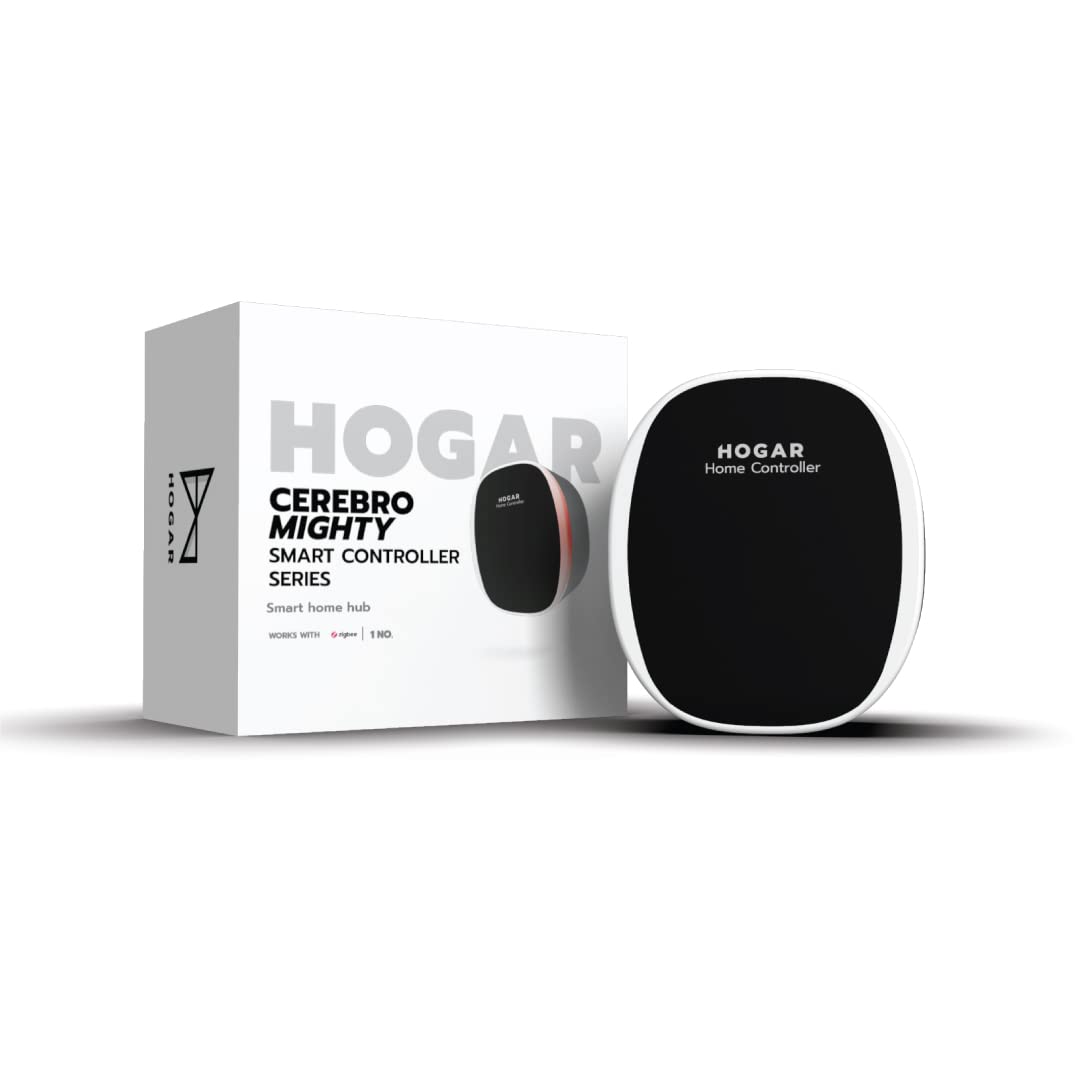
Image 2.1: The Hogar Cerebro Mighty Zigbee Home Controller.

Image 2.2: Hogar Cerebro Mighty packaging highlighting features like Plug and Play, Multi Protocol, Secured Protocol, Seamless Connectivity, and App Control.
3. Setup Instructions
- Unboxing: Carefully remove the Cerebro Mighty and all included accessories from its packaging.
- Power Connection: Connect the Cerebro Mighty to a standard power outlet using the provided power adapter. The device will power on automatically.
- App Installation: Download and install the "Hogar SE" application on your smartphone. The app is available on both iOS and Android app stores.
- Device Pairing:
- Open the Hogar SE app and follow the on-screen prompts to create a new account or log in to an existing one.
- Select the option to "Add Device" and choose the Cerebro Mighty from the list of available devices.
- The app will guide you through connecting the Cerebro Mighty to your home Wi-Fi network. Ensure your Wi-Fi network is active and you have the correct password.
- Once the Cerebro Mighty is connected, the app will prompt you to pair your Zigbee smart home devices. Follow the specific pairing instructions provided with each individual Zigbee device.
- Voice Assistant Integration: For detailed steps on linking your Hogar account with Amazon Alexa or Google Assistant, please refer to the dedicated Alexa/Google Assistant configuration manual included in your package.

Image 3.1: The Hogar SE App icon, used for device setup and control.
4. Operating Instructions
The Hogar Cerebro Mighty provides multiple ways to control your smart home devices, ensuring convenience and flexibility.
4.1. Smartphone Control
Utilize the Hogar SE app on your smartphone to manage all connected smart devices. Through the app, you can:
- Turn devices on or off remotely.
- Create customized scenes (e.g., "Good Morning" scene to open blinds and turn on lights).
- Set schedules for automated device operation.
- Monitor the status of your devices from anywhere.
4.2. Voice Control
Once integrated with Amazon Alexa or Google Assistant, you can use simple voice commands to manage your smart devices. Ensure your voice assistant device is properly configured and linked to your Hogar account.
Example Commands:
- "Alexa, turn on the living room lights."
- "Hey Google, set the thermostat to 22 degrees."
- "Alexa, dim the bedroom lights to 50%."

Image 4.1: A family interacting with a smart home device using voice commands, demonstrating the convenience of voice control.
4.3. Multi-protocol Functionality
The Cerebro Mighty serves as a unified hub for both Zigbee and Wi-Fi enabled devices. This allows you to manage a diverse range of smart products from a single interface, simplifying your smart home experience.

Image 4.2: Icon indicating support for both Zigbee and Wi-Fi protocols.
5. Maintenance
To ensure the longevity and optimal performance of your Hogar Cerebro Mighty, follow these maintenance guidelines:
- Software Updates: Regularly check for and install firmware updates for your Cerebro Mighty and updates for the Hogar SE app. These updates often include performance enhancements, new features, and security improvements. Updates are typically managed through the Hogar SE app.
- Cleaning: Clean the exterior of the device with a soft, dry, lint-free cloth. Do not use liquid cleaners, aerosols, or abrasive materials, as these can damage the device.
- Placement: Position the Cerebro Mighty in a central location within your home to maximize signal strength and coverage for all connected devices. Avoid placing it near large metal objects, thick walls, or other electronic devices that may cause interference.
- Environmental Conditions: Ensure the device is operated within its specified temperature and humidity ranges. Avoid exposure to extreme heat, cold, or moisture.
6. Troubleshooting
If you encounter issues with your Hogar Cerebro Mighty, refer to the following common troubleshooting steps:
6.1. Device Not Connecting to Wi-Fi
- Check Power: Ensure the Cerebro Mighty is properly plugged in and powered on.
- Wi-Fi Signal: Verify that your Wi-Fi network is active and the Cerebro Mighty is within range of your router.
- Router Restart: Try restarting your Wi-Fi router and then the Cerebro Mighty.
- App Version: Confirm that your Hogar SE app is updated to the latest version.
- Password: Double-check that you are entering the correct Wi-Fi password during setup.
6.2. Zigbee Devices Not Pairing
- Pairing Mode: Ensure the Zigbee device you are trying to pair is in its specific pairing mode, as per its own instruction manual.
- Proximity: Bring the Zigbee device closer to the Cerebro Mighty during the pairing process.
- Device Limit: Confirm that you have not exceeded the maximum limit of 60 connected Zigbee devices.
- Reset Device: Try resetting the Zigbee device to factory settings and attempt pairing again.
6.3. Voice Commands Not Working
- Integration Check: Verify that your Cerebro Mighty is correctly linked to your Amazon Alexa or Google Assistant account through their respective apps.
- Internet Connection: Ensure your voice assistant device and the Cerebro Mighty have an active internet connection.
- Device Naming: Confirm that the names of your smart devices in the Hogar SE app are consistent with how you are addressing them via voice commands.

Image 6.1: An illustration of a smart home ecosystem, showing the Cerebro Mighty as the central hub connecting various devices.
7. Specifications
| Feature | Specification |
|---|---|
| Model Number | HC-CR-MT-ZB-IN |
| Dimensions (LxWxH) | 5.6 x 5.2 x 3 Centimeters |
| Item Weight | 90 g |
| Supported Protocols | Zigbee, Wi-Fi |
| Device Capacity | Up to 60 Zigbee smart home devices |
| Voice Assistant Compatibility | Amazon Alexa, Google Assistant |
| Manufacturer | Hogar Controls India Private Limited |
8. Warranty Information
Hogar products are covered by a limited manufacturer's warranty. For specific terms, conditions, and duration of the warranty applicable to your Cerebro Mighty, please refer to the warranty card included in your product packaging. It is recommended to retain your purchase receipt as proof of purchase for any warranty claims.
9. Support
For further assistance, product inquiries, or troubleshooting steps not covered in this manual, please contact Hogar customer support. You can find detailed FAQs, support resources, and contact information on the official Hogar website:
