
1. Introduction
Thank you for purchasing the zelotes T80 Wired Gaming Mouse. This manual provides essential information for setting up, operating, and maintaining your new gaming mouse. Please read it thoroughly to ensure optimal performance and longevity of your device.
2. Setup
2.1 What's in the Box
- 1 x T80 Gaming Mouse
- 1 x Instruction Manual
2.2 Connecting Your Mouse
- Unpack the zelotes T80 Gaming Mouse and the instruction manual from the box.
- Locate an available USB port on your computer (Laptop, PC, Mac).
- Plug the USB connector of the mouse into the USB port.
- The mouse is plug-and-play and should be automatically recognized by your operating system (Windows 11/10/8/7, Mac OS). No additional drivers are typically required for basic functionality.
For advanced customization of buttons and lighting, please refer to the manufacturer's website for any available software downloads.
3. Operating Instructions
3.1 Button Functions
The zelotes T80 Gaming Mouse features 7 programmable buttons designed for enhanced gaming and productivity.
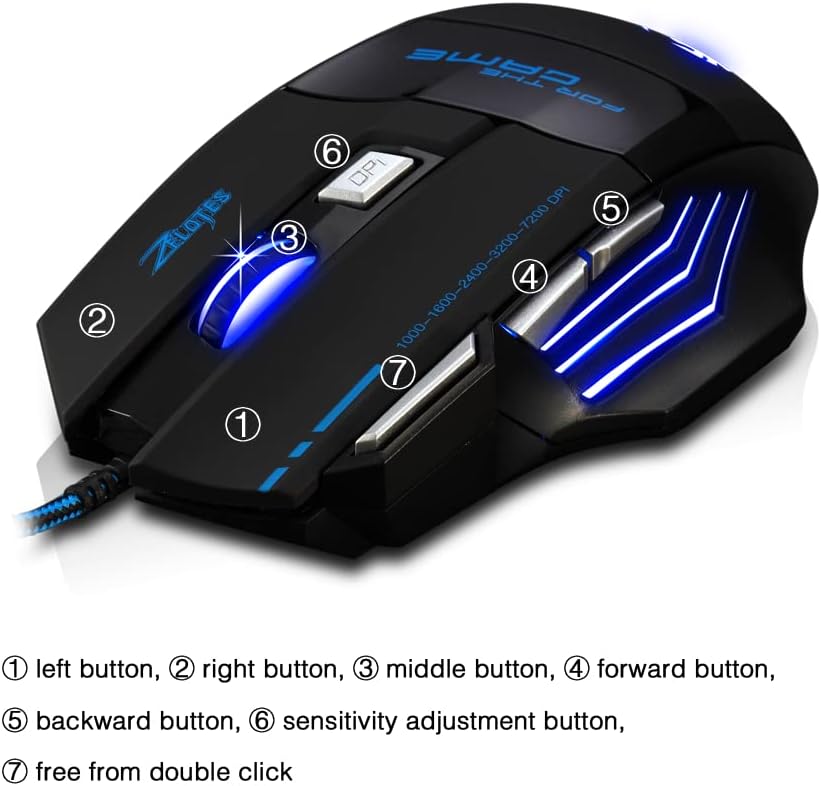
- Left Button (1): Standard left-click function.
- Right Button (2): Standard right-click function.
- Middle Button / Scroll Wheel (3): Scrolls up/down and acts as a middle-click button.
- Forward Button (4): Navigates forward in web browsers or file explorers.
- Backward Button (5): Navigates backward in web browsers or file explorers.
- Sensitivity Adjustment (DPI) Button (6): Cycles through DPI settings.
- Quick Fire Button (7): Equipped for rapid firing, allowing continuous shooting with a single press (functions as a double-click by default).
3.2 DPI Adjustment
The mouse offers 5 adjustable DPI settings to match your preference for gaming or office work. Use the Sensitivity Adjustment (DPI) Button (6) to cycle through the following settings:
- 1000 DPI
- 1600 DPI
- 2400 DPI
- 3200 DPI
- 7200 DPI
3.3 LED Backlight Illumination
The zelotes T80 features multi-mode LED backlighting that enhances your visual experience and gaming atmosphere. The LED lights cycle through various colors, providing dynamic illumination.

3.4 Ergonomic Design
The mouse is designed with an ergonomic shape and skin-friendly material for a comfortable grip and soft touch. Its sweat-resistant and anti-slip features ensure comfort during prolonged use, reducing arm fatigue.

4. Maintenance
- Keep the mouse clean by wiping it with a soft, dry cloth.
- Avoid exposing the mouse to extreme temperatures, direct sunlight, or liquids.
- Do not attempt to disassemble the mouse, as this may void the warranty.
5. Troubleshooting
- Mouse not responding: Ensure the USB cable is securely plugged into the computer. Try a different USB port or restart your computer.
- Cursor movement is erratic: Clean the optical sensor on the bottom of the mouse. Ensure you are using the mouse on a suitable surface (e.g., a mouse pad).
- LED lights not working: Check if the mouse is properly connected. Some operating systems or software might interfere with lighting controls.
6. Specifications
| Feature | Description |
|---|---|
| Product Dimensions | 5.12 x 4.09 x 1.77 inches |
| Item Weight | 5.5 ounces |
| Model Number | T80 |
| Brand | zelotes |
| Color | Black |
| Connectivity Technology | USB (Wired) |
| Movement Detection Technology | Optical |
| DPI Settings | 1000/1600/2400/3200/7200 DPI (5 adjustable levels) |
| Buttons | 7 (Programmable, including Quick Fire Button) |
| Special Feature | Ergonomic Design, LED Illumination, Sweat-resistant, Anti-slip |
| Compatibility | Windows 11/10/8/7, Mac OS |
7. Product Videos
7.1 T80 7200DPI Gaming Mouse Overview
This video provides a brief overview of the zelotes T80 Gaming Mouse, highlighting its 7200 DPI capability and overall design. It demonstrates the mouse's appearance and some features in action.
8. Warranty and Support
For warranty information or technical support, please refer to the contact details provided on the product packaging or visit the official zelotes website. Keep your purchase receipt as proof of purchase for any warranty claims.
