
1. Introduction
Thank you for purchasing the Explore Scientific Touch Key Advanced Weather Station. This device provides accurate indoor and outdoor temperature and humidity readings, weather forecasts, moon phase display, and a radio-controlled clock with dual alarms. This manual will guide you through the setup, operation, and maintenance of your new weather station.
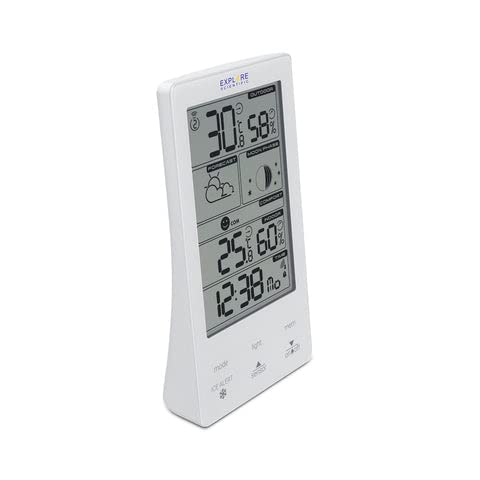
Image 1.1: Angled view of the Explore Scientific Touch Key Advanced Weather Station, showing its sleek design and display.
2. Safety Information
- Read all instructions carefully before using the device.
- Keep this manual for future reference.
- Do not expose the main unit to extreme temperatures, direct sunlight, or moisture.
- The outdoor sensor is weather-resistant but should not be submerged in water.
- Use only the specified battery types (1.5V batteries).
- Dispose of used batteries responsibly according to local regulations.
- Do not attempt to repair or modify the device yourself. Contact customer support for assistance.
3. Package Contents
Please check to ensure all items are present in your package:
- Main Weather Station Unit (Model WSH4009GYE)
- Wireless Outdoor Sensor
- User Manual (this document)
Note: Batteries are not included. You will need 1.5V batteries for both the main unit and the outdoor sensor.
4. Setup
4.1 Battery Installation
- Outdoor Sensor: Open the battery compartment on the back of the outdoor sensor. Insert the required 1.5V batteries, ensuring correct polarity (+/-). Close the compartment securely.
- Main Unit: Open the battery compartment on the back of the main weather station unit. Insert the required 1.5V batteries, ensuring correct polarity (+/-). Close the compartment securely.
- The main unit will power on automatically and begin searching for the outdoor sensor signal and radio-controlled time signal.
4.2 Sensor Placement
- Place the outdoor sensor in a shaded area, away from direct sunlight and heat sources, to ensure accurate temperature readings.
- Ensure the sensor is protected from heavy rain or snow, although it is weather-resistant.
- Position the sensor within the effective transmission range of the main unit (typically up to 30 meters/100 feet in open air). Walls and other obstructions may reduce this range.
- Avoid placing the sensor near large metal objects or electronic devices that could interfere with the wireless signal.
4.3 Initial Synchronization
After battery installation, the main unit will automatically attempt to connect with the outdoor sensor. The outdoor temperature and humidity should appear on the display within a few minutes. If the outdoor readings do not appear, press the "SENSOR" button on the main unit to initiate a manual search.
The unit will also attempt to receive the radio-controlled time signal. This may take several hours, especially during initial setup. For best reception, place the unit near a window and away from electronic interference.
5. Operating Instructions
5.1 Display Overview

Image 5.1: Front display of the weather station, highlighting various data points.
The large display is divided into several sections:
- Top Section: Outdoor temperature and humidity, with trend indicators.
- Middle-Top Section: Weather forecast icons and Moon Phase display.
- Middle-Bottom Section: Comfort level indication (smiley face icon).
- Bottom Section: Indoor temperature and humidity, with trend indicators, and radio-controlled time with dual alarm status.
- Ice Alert: An ice crystal icon will appear when the outdoor temperature drops to a certain threshold (e.g., near freezing).
5.2 Touch Key Functions
The weather station features touch-sensitive keys located below the main display:
- MODE: Press to cycle through time display modes (e.g., 12/24 hour), set time/date, and set alarms.
- LIGHT: Activates the backlight for a few seconds.
- MEM: Displays minimum and maximum temperature/humidity records. Press once for MAX, again for MIN, and a third time to return to current readings. Hold to clear records.
- ICE ALERT: (Indicated by snowflake icon) This is an indicator, not a button. The icon illuminates when conditions are met.
- SENSOR: (Indicated by up arrow) Manually search for the outdoor sensor signal. Also used to adjust settings upwards during setup.
- ON/OFF: (Indicated by down arrow) Used to adjust settings downwards during setup.
5.3 Setting Time and Date (Manual Override)
While the unit attempts to receive radio-controlled time, you can manually set the time and date:
- Press and hold the MODE button until the time display flashes.
- Use the SENSOR (up) and ON/OFF (down) buttons to adjust the flashing value.
- Press MODE again to confirm and move to the next setting (e.g., hour, minute, year, month, day).
- Repeat steps 2 and 3 until all settings are complete. Press MODE one last time to exit setup.
5.4 Setting Alarms
The weather station supports dual alarms:
- From the normal time display, press MODE repeatedly until "AL1" or "AL2" appears.
- Press and hold MODE until the alarm hour flashes.
- Use the SENSOR (up) and ON/OFF (down) buttons to set the desired alarm hour.
- Press MODE to confirm and set the alarm minute.
- Press MODE again to confirm and activate/deactivate the alarm. An alarm icon will appear on the display when active.
- To snooze, press any button (except MODE) when the alarm sounds. The alarm will sound again after approximately 5 minutes.
- To stop the alarm, press the MODE button.
6. Maintenance
- Cleaning: Wipe the display and casing with a soft, damp cloth. Do not use abrasive cleaners or solvents.
- Battery Replacement: Replace batteries in both the main unit and outdoor sensor when the low battery indicator appears on the display. Always replace all batteries at the same time with new ones of the same type.
- Storage: If storing the unit for an extended period, remove all batteries to prevent leakage. Store in a cool, dry place.
7. Troubleshooting
| Problem | Solution |
|---|---|
| No display on main unit. | Check battery polarity. Replace batteries if depleted. |
| Outdoor temperature/humidity not displayed. | Ensure outdoor sensor batteries are installed correctly and not depleted. Press the "SENSOR" button on the main unit to manually search. Move sensor closer to the main unit. Avoid interference from other electronics. |
| Incorrect time displayed. | Ensure the unit is in an area with good radio signal reception. Allow several hours for automatic synchronization. Manually set the time if necessary (refer to Section 5.3). |
| Weather forecast seems inaccurate. | The weather forecast is based on atmospheric pressure changes and is an estimation. It may take 24-48 hours for the station to calibrate after initial setup. |
8. Specifications
- Model: WSH4009GYE
- Brand: Explore Scientific
- Power Source: 1.5V Batteries (Main Unit & Sensor)
- Display Type: Digital
- Temperature Accuracy: 1 °C
- Upper Temperature Rating: 60 Degrees Celsius
- Sensor Technology: Thermistor, Capacitive
- Frequency: 433 MHz
- Special Features: Alarm, Clock, Weather Forecast, Moon Phase, Comfort Level, Ice Alert
- Color: Gray
- Shape: Rectangular
9. Warranty and Support
For warranty information and customer support, please refer to the documentation provided with your purchase or visit the official Explore Scientific website. Keep your proof of purchase for any warranty claims.