
1. Introduction
This manual provides essential information for the safe and efficient use of your Getac V110 Rugged Convertible Laptop/Tablet PC. Please read this manual thoroughly before operating the device and retain it for future reference. The Getac V110 is designed for durability and performance in challenging environments, offering versatility as both a laptop and a tablet.
2. Safety Information
Observe the following safety precautions to prevent damage to the device or injury to yourself:
- Do not expose the device to extreme temperatures, direct sunlight, or excessive moisture.
- Use only Getac-approved power adapters and accessories.
- Avoid dropping or subjecting the device to severe impacts, despite its rugged design.
- Do not attempt to disassemble or repair the device yourself. Refer to qualified service personnel.
- Keep ventilation openings clear to prevent overheating.
3. Physical Overview
The Getac V110 is a versatile device designed for rugged use. It features a convertible design, allowing it to function as both a traditional laptop and a tablet. Key components include a durable chassis, an 11.6-inch touchscreen display, a full-sized keyboard, and various ports for connectivity.

Figure 3.1: Exploded view illustrating the internal structure and ruggedized layers of the Getac V110.
3.1. Keyboard and Touchpad
The device includes a backlit keyboard for typing in various lighting conditions and a precision touchpad for navigation.
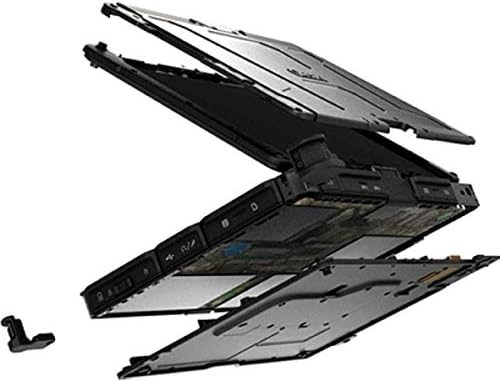
Figure 3.2: Top-down view of the Getac V110 keyboard and integrated touchpad.
3.2. Convertible Design
The V110 can be easily converted between laptop and tablet modes by rotating the screen. This flexibility allows for optimal use in different scenarios.

Figure 3.3: The Getac V110 configured in laptop mode, displaying the screen and keyboard.

Figure 3.4: The Getac V110 in tablet mode, showcasing the touchscreen interface.
4. Setup
4.1. Initial Power On
- Connect the power adapter to the device and a power outlet.
- Press the power button located on the side or front of the device.
- Follow the on-screen prompts to complete the initial Windows 8.1 setup, including language, region, and user account creation.
4.2. Network Connectivity
The Getac V110 supports both Wi-Fi and Ethernet for internet access.
- Wi-Fi: Access the network settings in Windows 8.1, select your desired Wi-Fi network, and enter the password if required.
- Ethernet: Connect an Ethernet cable from your network router or switch to the Ethernet port on the device.
4.3. Bluetooth Pairing
To connect Bluetooth devices:
- Ensure the Bluetooth device is in pairing mode.
- On the Getac V110, navigate to PC Settings > PC and devices > Bluetooth.
- Turn Bluetooth on and select the device from the list to pair.
5. Operating the Device
5.1. Switching Between Laptop and Tablet Modes
To convert the device:
- Gently rotate the screen 180 degrees clockwise or counter-clockwise.
- Fold the screen back over the keyboard to enter tablet mode.
- Unfold the screen and rotate it back to the original position for laptop mode.
5.2. Touchscreen Usage
The 11.6-inch LED touchscreen supports multi-touch gestures. Use your fingers or a compatible stylus for navigation, selection, and input.
5.3. Power Management
To conserve battery life, adjust power settings in Windows 8.1. You can configure sleep mode, display brightness, and other power-saving options.
- Sleep Mode: Briefly press the power button to put the device into sleep mode.
- Shut Down: Go to the Charms bar (swipe from right edge or move mouse to top-right corner), select Settings > Power > Shut down.
- Restart: Go to the Charms bar, select Settings > Power > Restart.
6. Maintenance
6.1. Cleaning the Device
Regular cleaning helps maintain performance and appearance.
- Use a soft, lint-free cloth slightly dampened with water or a mild, non-abrasive cleaner for the screen and exterior.
- Avoid spraying liquids directly onto the device.
- Do not use harsh chemicals, solvents, or abrasive materials.
6.2. Battery Care
To maximize battery lifespan:
- Avoid fully discharging the battery frequently.
- Store the device in a cool, dry place if not used for extended periods.
- If the device has removable batteries, ensure they are properly seated.
6.3. Software Updates
Regularly check for and install operating system and driver updates to ensure optimal performance and security. Access Windows Update through PC Settings.
7. Troubleshooting
This section addresses common issues you might encounter with your Getac V110.
7.1. Device Does Not Power On
- Ensure the power adapter is securely connected and the outlet is functional.
- Check if the battery is charged. If not, allow it to charge for at least 30 minutes before attempting to power on again.
- If the battery is removable, ensure it is correctly installed.
7.2. Wi-Fi Connectivity Issues
- Verify that Wi-Fi is enabled in Windows settings.
- Restart your router and the Getac V110.
- Ensure you are within range of the Wi-Fi network and have the correct password.
- Check for updated Wi-Fi drivers.
7.3. Touchscreen Unresponsive
- Restart the device.
- Ensure the screen is clean and free of debris.
- Check for any recent software updates or driver issues.
7.4. Slow Performance
- Close unnecessary applications running in the background.
- Check available storage space.
- Run a virus scan.
- Ensure Windows and drivers are up to date.
8. Specifications
| Feature | Detail |
|---|---|
| Brand | Getac |
| Model Number | V110 |
| Processor | Intel Core i5-6300U (2.6 GHz) |
| RAM Memory | 8 GB DDR4 SDRAM |
| Storage Capacity | 128 GB |
| Screen Size | 11.6 Inches |
| Display Resolution | 1366 x 768 pixels |
| Display Type | LED |
| Human-Interface Input | Touchscreen |
| Operating System | Windows 8.1 |
| Graphics Coprocessor | Intel HD Graphics 520 |
| Connectivity Technology | Bluetooth, Ethernet, HDMI, USB, Wi-Fi |
| Item Weight | 4.4 Pounds |
| Item Dimensions (L x W x Th) | 11.99" x 18.9" x 3.9" |
| Battery Cell Type | Lithium Ion (23 Watt Hours) |
9. Warranty Information
The Getac V110 Rugged Convertible Laptop/Tablet PC comes with a 90-day limited warranty. This warranty covers manufacturing defects and malfunctions under normal use. It does not cover damage caused by misuse, accidents, unauthorized repairs, or modifications. Please retain your proof of purchase for warranty claims.
For detailed terms and conditions, refer to the warranty documentation provided with your device or contact Getac customer support.
10. Support
If you require further assistance or encounter issues not covered in this manual, please contact Getac customer support. You can typically find support contact information on the manufacturer's official website or within the device's pre-installed documentation.
When contacting support, please have your device's model number (V110) and serial number ready.


