
Cherry JD-8560US-0
CHERRY Stream Desktop Recharge Keyboard and Mouse Wireless Combo
Model: JD-8560US-0
Introduction
The CHERRY Stream Desktop Recharge Keyboard and Mouse Wireless Combo offers extended functionality, quiet keystroke, and a modern design. This premium wireless version features a convenient charging function for both the keyboard and mouse.
The keyboard and mouse utilize NiMH rechargeable batteries, providing months of use on a single charge. Both devices can be recharged via USB-C, allowing for uninterrupted work.

Image: The CHERRY Stream Desktop Recharge Keyboard and Mouse Wireless Combo in white, showcasing both the full-size keyboard and the ergonomic mouse.
Package Contents
- CHERRY Stream Desktop Recharge Keyboard (White)
- CHERRY Stream Desktop Recharge Mouse (White)
- USB-C Charging Cable
- USB Receiver
- NiMH Rechargeable Batteries (pre-installed or included)
- Instruction Manual (this document)
Setup
1. Charging the Devices
Before initial use, it is recommended to fully charge both the keyboard and the mouse.
- Connect the supplied USB-C cable to the charging port on the keyboard (located on the top edge) and to a USB power source (e.g., computer USB port, USB wall adapter).
- Connect the supplied USB-C cable to the charging port on the mouse (located on the front edge) and to a USB power source.
- The charging indicator light on each device will show charging status (refer to the indicator section for details).

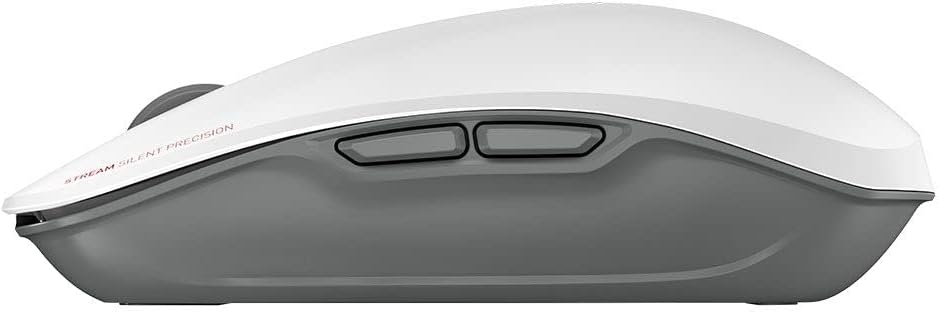
Image: Side views of the keyboard and mouse, highlighting their respective USB-C charging ports.
2. Connecting the USB Receiver
The keyboard and mouse connect wirelessly via a single USB receiver.
- Locate the USB receiver, typically stored within the mouse's battery compartment for safekeeping during transport.
- Plug the USB receiver into an available USB port on your computer.
- Your operating system should automatically detect and install the necessary drivers.
3. Powering On the Devices
- For the keyboard, locate the On/Off switch on the top edge and slide it to the 'On' position.
- For the mouse, locate the On/Off switch on the underside and slide it to the 'On' position.
- The devices should automatically connect to the USB receiver.

Image: Top view of the CHERRY Stream mouse, showing its ergonomic design.
Operating Instructions
Keyboard Functions
The CHERRY Stream keyboard features a full-size layout with dedicated function keys and media controls.
- Function Keys (F1-F12): These keys may have secondary functions (e.g., media control, volume, brightness) accessible by pressing the Fn key simultaneously.
- Numeric Keypad: For efficient data entry.
- Quiet Keystroke: Designed for a quiet typing experience, ideal for office environments.
Mouse Functions
The CHERRY Stream mouse provides precise tracking and comfortable use.
- Left and Right Click: Standard mouse buttons.
- Scroll Wheel: For vertical scrolling. The scroll wheel also functions as a middle click button.
- Side Buttons: Two programmable side buttons for enhanced productivity (functionality may vary by operating system or software).
- AES Encryption: The mouse features Advanced Encryption Standard (AES) for secure data transmission.

Image: The CHERRY Stream mouse, highlighting its AES encryption capability.
Maintenance
Cleaning
To maintain the performance and appearance of your CHERRY Stream combo:
- Disconnect the devices from your computer before cleaning.
- Use a soft, lint-free cloth slightly dampened with water or a mild cleaning solution.
- Avoid using harsh chemicals, abrasive cleaners, or solvents.
- Do not immerse the devices in water or any liquid.
Battery Care
The devices use NiMH rechargeable batteries. Proper care ensures long battery life:
- Recharge the batteries when the low battery indicator appears.
- Avoid completely draining the batteries frequently.
- If storing the devices for an extended period, charge them to about 50% and store in a cool, dry place.
- The batteries are user-replaceable. Refer to the battery compartment for instructions on replacement.

Image: The CHERRY Stream keyboard and mouse, emphasizing their long-lasting rechargeable batteries.
Troubleshooting
| Problem | Possible Cause | Solution |
|---|---|---|
| Devices not responding. |
|
|
| Lag or delayed response. |
|
|
| Keys not working or mouse not tracking. |
|
|
Specifications
- Brand: Cherry
- Model: JD-8560US-0
- Color: White
- Connectivity Technology: Wireless (USB Receiver)
- Special Feature: Rechargeable NiMH Batteries, AES Encryption
- Compatible Devices: Laptop, Personal Computer
- Product Dimensions (Keyboard): 18.2 x 6.53 x 1.34 inches
- Item Weight (Combo): 3.09 pounds
- Manufacturer: CHERRY
- Country of Origin: China
- Date First Available: February 16, 2022
Warranty Information
CHERRY products are manufactured with high-quality materials and undergo strict quality control. For detailed warranty information, please refer to the official CHERRY website or contact their customer support. Keep your proof of purchase for warranty claims.
Support
For further assistance, technical support, or to download the latest drivers and software (such as CHERRY Keys software), please visit the official CHERRY website:
You can also find additional resources and FAQs on the CHERRY brand store on Amazon:
Related documentsJD-8560US-0


Ask a question about this manual
Ask about setup, troubleshooting, compatibility, parts, safety, or missing instructions. Manuals+ will review the question and use this page’s manual context to help answer it.