
zelotes C12
zelotes C12 Wired Gaming Mouse User Manual
Model: C12
1. Introduction
Thank you for purchasing the zelotes C12 Wired Gaming Mouse. This manual provides detailed instructions for setting up, operating, and maintaining your new gaming mouse. Please read this manual thoroughly before use to ensure optimal performance and longevity of your device.
Safety Information
- Keep the device away from water and other liquids.
- Avoid dropping or subjecting the mouse to strong impacts.
- Do not attempt to disassemble or repair the mouse yourself. Contact customer support if issues arise.
- Use the mouse in a clean, dry environment.
2. Package Contents
Verify that all items are present in your package:
- 1x zelotes C12 Gaming Mouse
- 1x CD (for driver/software)
- 1x Instruction Manual
- 1x Foot Pad Set
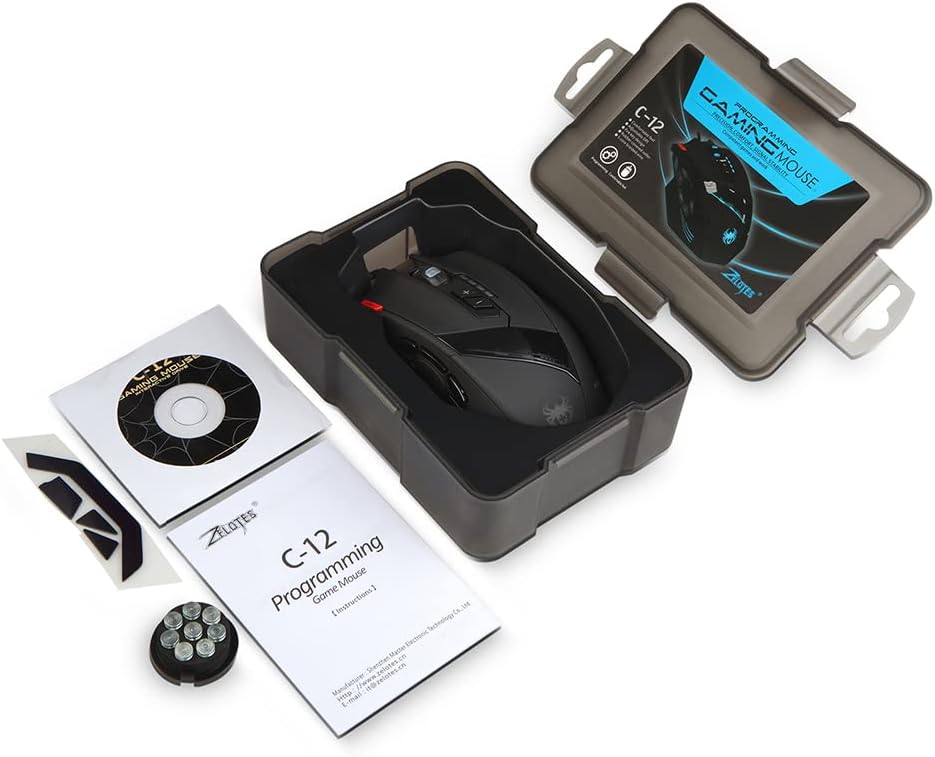
Image: Contents of the zelotes C12 Gaming Mouse package.
3. Product Overview
The zelotes C12 Gaming Mouse features 12 programmable buttons and an ergonomic design for comfortable use. Refer to the diagram below for button identification.
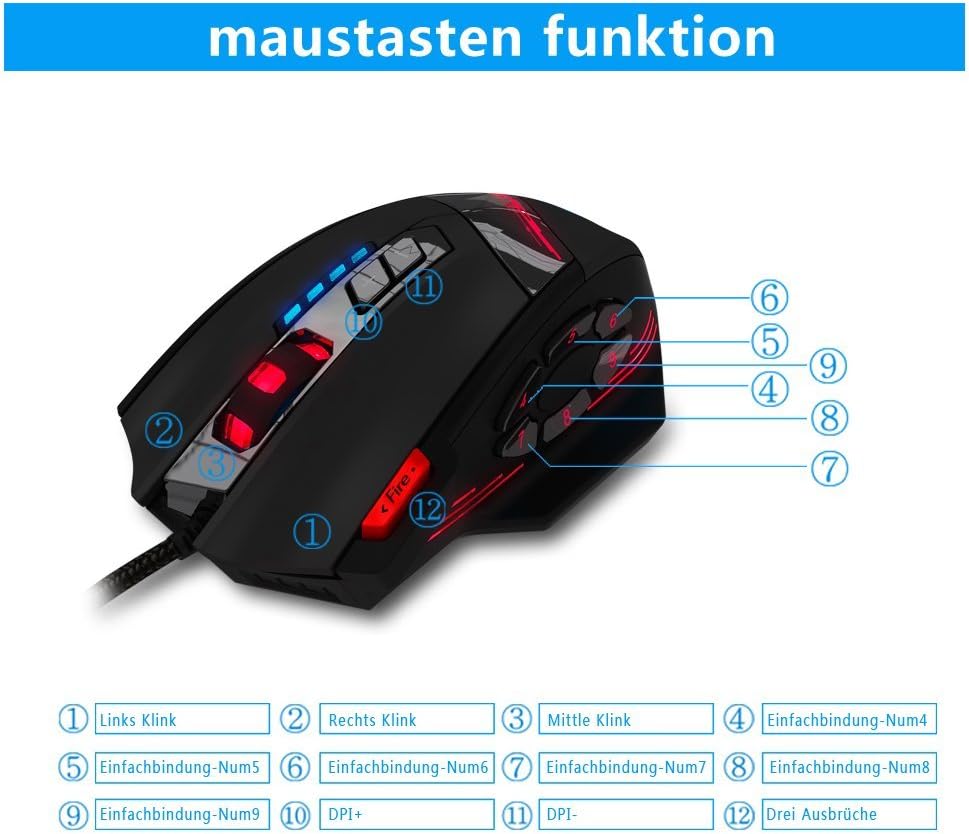
Image: zelotes C12 Gaming Mouse button layout.
Button Functions:
- Left Click
- Right Click
- Middle Click (Scroll Wheel)
- Programmable Button 4
- Programmable Button 5
- Programmable Button 6
- Programmable Button 7
- Programmable Button 8
- Programmable Button 9
- DPI+ Button
- DPI- Button
- Fire Key (Triple Click)

Image: Ergonomic design of the zelotes C12 Gaming Mouse.
4. Setup
The zelotes C12 Gaming Mouse is designed for simple plug-and-play functionality.
Connecting the Mouse
- Locate an available USB port on your computer (PC or Mac).
- Plug the USB connector of the zelotes C12 mouse into the USB port.
- Your operating system should automatically detect and install the necessary basic drivers. The mouse will be ready for use.
Video: Demonstration of the zelotes C12 Gaming Mouse features, including its design and button functionality.
5. Operating Instructions
Adjusting DPI (Dots Per Inch)
The mouse features adjustable DPI settings to change cursor sensitivity. You can cycle through preset DPI levels using the DPI+ (Button 10) and DPI- (Button 11) buttons located on the top of the mouse.
- Default DPI settings: 1000/1500/2000/4000 DPI.
- DPI can be adjusted up to 8000 DPI through the dedicated software.
Programmable Buttons
The zelotes C12 mouse includes 12 programmable buttons (Buttons 4-9, Fire Key, etc.) that can be customized to perform specific functions according to your gaming or work requirements. Customization is performed using the provided software.

Image: Shortcut key function and lighting modes.
Weight Adjustment System
The mouse is equipped with 8 removable weight blocks, each weighing 2.5g (0.1oz). You can add or remove these weights from the bottom of the mouse to achieve your preferred balance and feel.
- Turn the mouse over.
- Locate the circular weight compartment cover on the underside.
- Twist the cover counter-clockwise to open and remove it.
- Add or remove the 2.5g weights as desired.
- Replace the cover and twist clockwise to secure it.
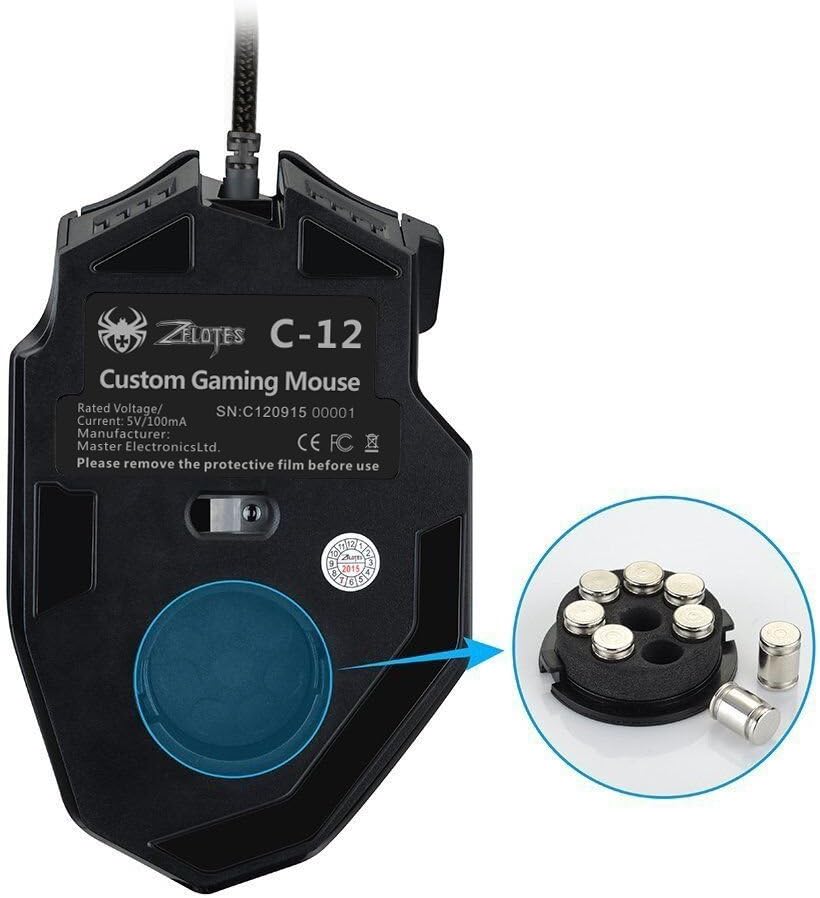
Image: Weight adjustment system on the zelotes C12 Gaming Mouse.
LED Lighting Modes
The mouse features customizable LED lighting. The lighting modes, including 7-color cycle breathing and monochromatic constant bright, can be adjusted through the software.
6. Software Installation and Customization
To unlock the full potential of your zelotes C12 Gaming Mouse, including button programming, advanced DPI settings (up to 8000 DPI), and LED customization, install the dedicated driver software.
- Insert the included CD into your computer's optical drive.
- Follow the on-screen instructions to install the software. If your computer does not have an optical drive, please visit the zelotes official website to download the latest driver software.
- Once installed, launch the software to access customization options for button assignments, DPI profiles, polling rate, and LED effects.
Note: Programming software is not fully available for Mac operating systems.
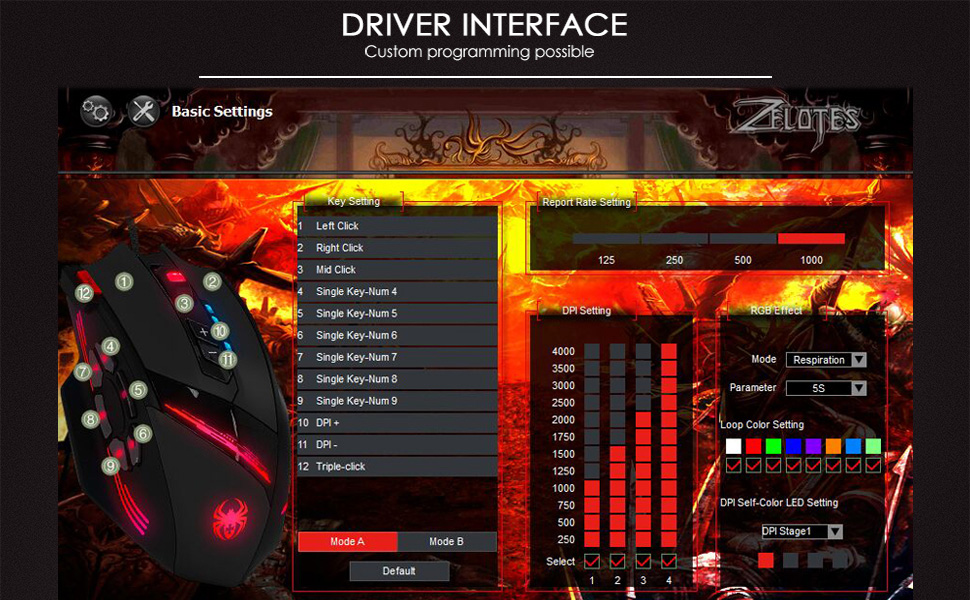
Image: Driver interface for custom programming.
7. Maintenance
Proper care will extend the life of your gaming mouse.
- Cleaning: Use a soft, dry cloth to wipe the surface of the mouse. For stubborn dirt, a slightly damp cloth can be used, but ensure no moisture enters the device.
- Storage: Store the mouse in a cool, dry place when not in use. Avoid extreme temperatures.
- Cable Care: Do not excessively bend or pull the USB cable.
8. Troubleshooting
If you encounter issues with your zelotes C12 Gaming Mouse, try the following solutions:
- Mouse not responding:
- Ensure the USB cable is securely plugged into a working USB port.
- Try plugging the mouse into a different USB port or another computer to rule out port or system issues.
- Restart your computer.
- Cursor movement is erratic or lagging:
- Clean the optical sensor on the underside of the mouse with a soft, dry cloth.
- Ensure you are using the mouse on a suitable surface (e.g., a mouse pad). Avoid highly reflective or transparent surfaces.
- Adjust the DPI settings to a lower value if the cursor is too sensitive.
- Buttons not working or programmable features not functioning:
- Ensure the driver software is correctly installed and updated.
- Check the button assignments within the software.
- Restart the software and/or your computer.
If the problem persists after trying these steps, please contact zelotes customer support for further assistance.
9. Specifications

Image: Dimensions of the zelotes C12 Gaming Mouse.
| Feature | Description |
|---|---|
| Brand | zelotes |
| Model Name | C12 |
| Connectivity Technology | USB (Wired) |
| Movement Detection Technology | Optical |
| DPI Settings | 1000/1500/2000/4000 DPI (Adjustable up to 8000 DPI via software) |
| Buttons | 12 (Programmable) |
| Hand Orientation | Right |
| Weight | 160 Grams (Adjustable with 8x 2.5g weights) |
| Cable Length | 1.8 meters |
| Polling Rate | 125-1000Hz |
| Acceleration | 24G |
| Key Life | 12 million clicks |
| Compatible Operating Systems | Win11, Win10, Win8, Win7, Mac OS (Programming software limited on Mac) |
| Dimensions (L x W x H) | 130mm x 81.5mm x 39.8mm |
10. Warranty and Support
Your zelotes C12 Gaming Mouse comes with a standard manufacturer's warranty. Please refer to the warranty card included in your package or visit the official zelotes website for detailed warranty terms and conditions.
For technical support, troubleshooting assistance, or warranty claims, please contact zelotes customer service through their official website or the contact information provided in your product documentation.
Related documentsC12

Ask a question about this manual
Ask about setup, troubleshooting, compatibility, parts, safety, or missing instructions. Manuals+ will review the question and use this page’s manual context to help answer it.