
1. Introduction
This manual provides essential information for the safe and efficient use of your Twinkly Festoon 40 LED Light Chain. Please read these instructions carefully before installation and operation. Retain this manual for future reference.
2. Safety Information
- Ensure the product is installed in accordance with local electrical codes.
- Do not connect the light chain to the power supply while it is in the packaging.
- Do not use if any part of the product is damaged. Contact customer support for assistance.
- This product is rated IP44 for outdoor and indoor use, indicating protection against solid objects larger than 1mm and splashing water from any direction. However, do not submerge the product in water.
- Keep away from heat sources and open flames.
- Only use the power adapter supplied with the product.
3. Package Contents
Verify that all components are present in the package:
- 1 x Twinkly Festoon 40 LED Light Chain (65 ft)
- 1 x Power Adapter
- Instruction Manual

Image: The Twinkly Festoon 40 LED Light Chain, showing the string of 40 bulbs, the power adapter, and the product packaging.
4. Product Overview
The Twinkly Festoon 40 LED Light Chain is a smart lighting solution designed for both indoor and outdoor environments. It features 40 individually controllable LED bulbs capable of producing a range of warm to cool white light. The system is app-controlled and compatible with various smart home platforms.

Image: An infographic highlighting key features of the Twinkly Festoon lights, including 40 bulbs, 65 ft length, Wi-Fi and Bluetooth connectivity, Type A plug, and IP44 weather resistance.
5. Setup
5.1 Physical Installation
- Unpack: Carefully remove the light chain and all components from the packaging.
- Placement: Determine the desired location for your light chain. It can be used indoors or outdoors. Ensure the power adapter is protected from direct exposure to heavy rain or snow, even though the lights themselves are IP44 rated.
- Mounting: Securely hang the light chain using appropriate hooks or fasteners. Ensure the bulbs are evenly spaced and the cable is not under excessive tension.
- Power Connection: Connect the light chain to the power adapter, then plug the adapter into a suitable power outlet.
5.2 App Installation and Connectivity
- Download the Twinkly App: Search for "Twinkly" in your device's app store (available on App Store and Google Play).
- Create Account: Open the app and follow the on-screen instructions to create a Twinkly account or log in.
- Pairing: The app will guide you through the pairing process using Bluetooth. Ensure Bluetooth is enabled on your device.
- Wi-Fi Configuration: Connect your Twinkly Festoon to your home Wi-Fi network for full functionality and remote control.
5.3 Mapping
The Twinkly app features an automatic mapping function that identifies the exact position of each LED. This allows for pixel-perfect effects and customization.
- Initiate Mapping: In the Twinkly app, select your Festoon device and choose the mapping option.
- Follow On-Screen Prompts: The app will instruct you to point your device's camera at the installed lights. Ensure all lights are visible within the camera frame.
- Complete Mapping: The app will process the image and create a digital map of your light layout.

Image: A smartphone screen displaying the Twinkly app's mapping interface, showing a grid representation of the Festoon lights with a 'Chill' effect active, against a backdrop of outdoor string lights.
6. Operation
6.1 Basic Control
Once connected, use the Twinkly app to:
- Turn On/Off: Toggle the power for your lights.
- Dimming: Adjust the brightness level.
- Timers: Set schedules for automatic power on and off.
6.2 Color and Effects
The Twinkly Festoon lights offer a range of warm to cool white light options. The app allows you to:
- Select White Tones: Choose from various shades of white, from warm to cool, to suit your ambiance.
- Apply Effects: Browse a library of pre-set lighting effects or download new ones from the online gallery.
- Create Custom Effects: Design your own unique lighting patterns and animations.
- Playlists: Create playlists of your favorite effects for dynamic displays.

Image: A person adjusting the color temperature of the Twinkly Festoon lights using the Twinkly app, which displays a gradient from warm yellow to cool blue-white.
6.3 Grouping Multiple Devices
If you have multiple Twinkly devices, you can group them virtually within the app to synchronize effects and create larger, cohesive lighting displays.
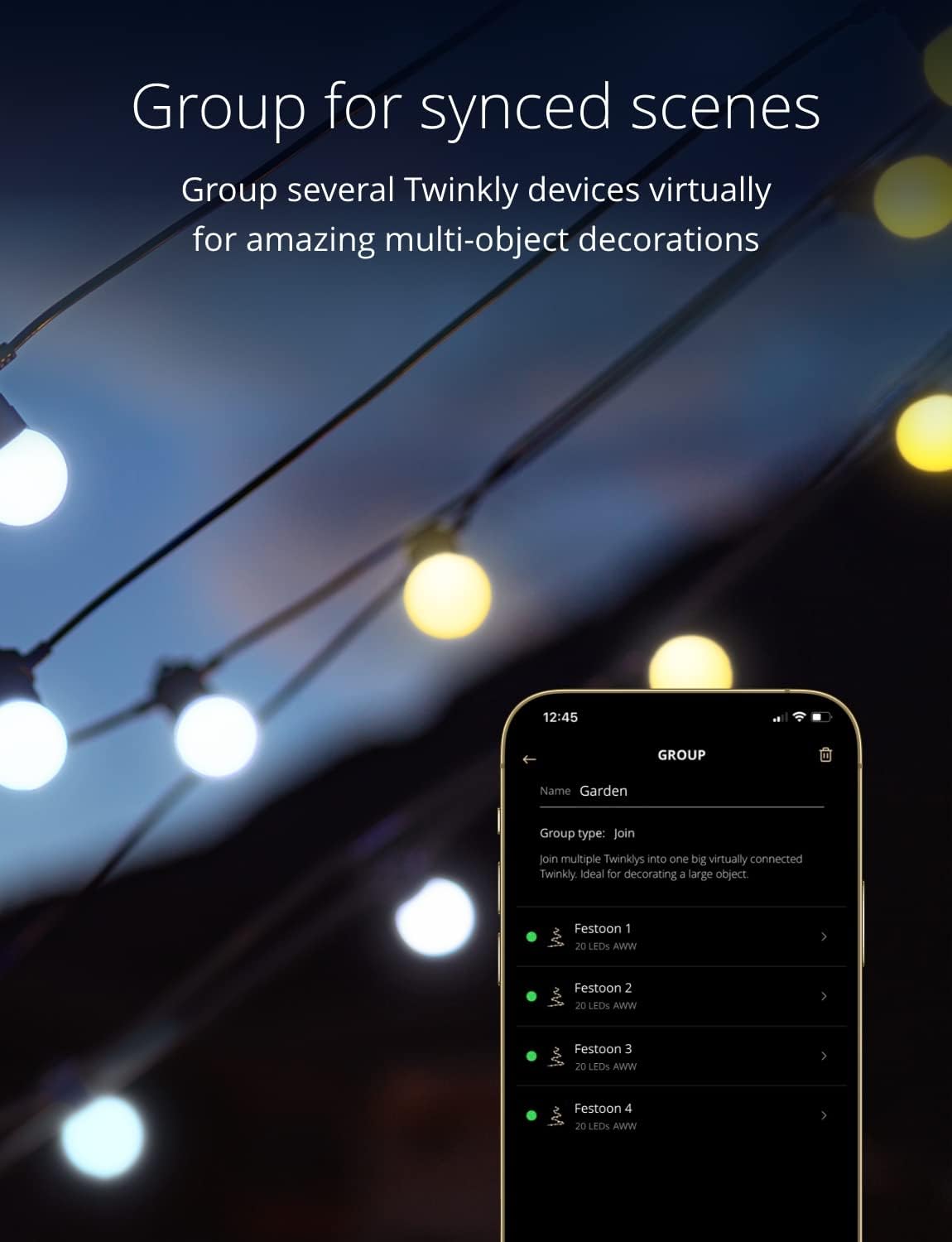
Image: The Twinkly app interface displaying a 'Group' setting, showing multiple Festoon light chains listed as 'Festoon 1', 'Festoon 2', etc., indicating they are virtually connected for synchronized scenes.
6.4 Music Sync
Enhance your lighting experience by synchronizing your Twinkly Festoon lights with music using the Twinkly Music feature (requires a separate Twinkly Music device or compatible app functionality).

Image: A person smiling with Twinkly Festoon lights in the background, while a smartphone displays the Twinkly app's music synchronization interface, suggesting an audiovisual experience.
6.5 Smart Home Integration
Twinkly Festoon lights are compatible with popular smart home voice assistants, allowing for convenient control.
- Amazon Alexa: Integrate with Alexa for voice commands like "Alexa, turn Twinkly on."
- Google Assistant: Control your lights using Google Assistant voice commands.
- Apple HomeKit: Update the product firmware to enable HomeKit compatibility.

Image: Twinkly Festoon lights illuminated, with icons indicating compatibility with Amazon Alexa and Google Home, and a speech bubble showing an Alexa command and response.
7. Maintenance
- Cleaning: Disconnect the power before cleaning. Wipe the bulbs and cable with a soft, damp cloth. Do not use harsh chemicals or abrasive cleaners.
- Storage: When not in use, store the light chain in a cool, dry place, away from direct sunlight and extreme temperatures. Ensure the cable is not kinked or tangled.
- Weather Resistance: The IP44 rating provides protection against splashing water. Regularly inspect the cable and bulb connections for any signs of wear or damage, especially after prolonged outdoor exposure.
8. Troubleshooting
| Problem | Possible Cause | Solution |
|---|---|---|
| Lights do not turn on. | No power, loose connection, faulty adapter. | Check power outlet, ensure all connections are secure. Verify power adapter is functioning. |
| Cannot connect to Twinkly app. | Bluetooth/Wi-Fi off, incorrect network, app issue. | Ensure Bluetooth is on. Check Wi-Fi credentials. Restart app and device. Try resetting the Twinkly device (refer to app for specific reset instructions). |
| Some LEDs are not lighting up or show incorrect colors. | Damaged bulb, mapping error. | Re-run the mapping process in the Twinkly app. If a bulb is physically damaged, contact customer support. |
| Lights flicker or behave erratically. | Unstable power, Wi-Fi interference, firmware issue. | Ensure stable power supply. Check for Wi-Fi interference. Update firmware via the Twinkly app. |
9. Specifications
| Feature | Detail |
|---|---|
| Model Number | TWF040GOP-BUS |
| Number of Lights | 40 LED Bulbs |
| Light Color | AWW (Cool to Warm White) |
| Length | 65 ft |
| Indoor/Outdoor Usage | Indoor, Outdoor |
| Water Resistance Level | IP44 |
| Connectivity | Wi-Fi, Bluetooth |
| Control Method | App-controlled (Twinkly App) |
| Smart Home Compatibility | Amazon Alexa, Google Assistant, Apple HomeKit (via firmware update) |
| Power Source | Corded Electric |
| Voltage | 120 Volts |
| Wattage | 40 Watts |
| Bulb Shape Size | G40 |
| Item Weight | 8.29 pounds |
10. Warranty and Support
For warranty information and customer support, please refer to the official Twinkly website or contact your retailer. Keep your proof of purchase for any warranty claims.
Online Resources:
- Twinkly Official Website: www.twinkly.com
- Twinkly App Support: Available within the Twinkly application.


