
Twinkly TWD200STP-TUS
Twinkly Dots TWD200STP-TUS App-Controlled Flexible LED String Lights User Manual
Brand: Twinkly | Model: TWD200STP-TUS
1. Introduction
The Twinkly Dots TWD200STP-TUS are app-controlled flexible LED string lights designed for indoor use. This model features 200 RGB LEDs on a 33-foot clear wire, powered via USB. These smart lights combine the versatility of classic LED strings with advanced app control, allowing for extensive customization and integration into smart home ecosystems. This manual provides essential information for setup, operation, maintenance, and troubleshooting to ensure optimal performance of your Twinkly Dots.
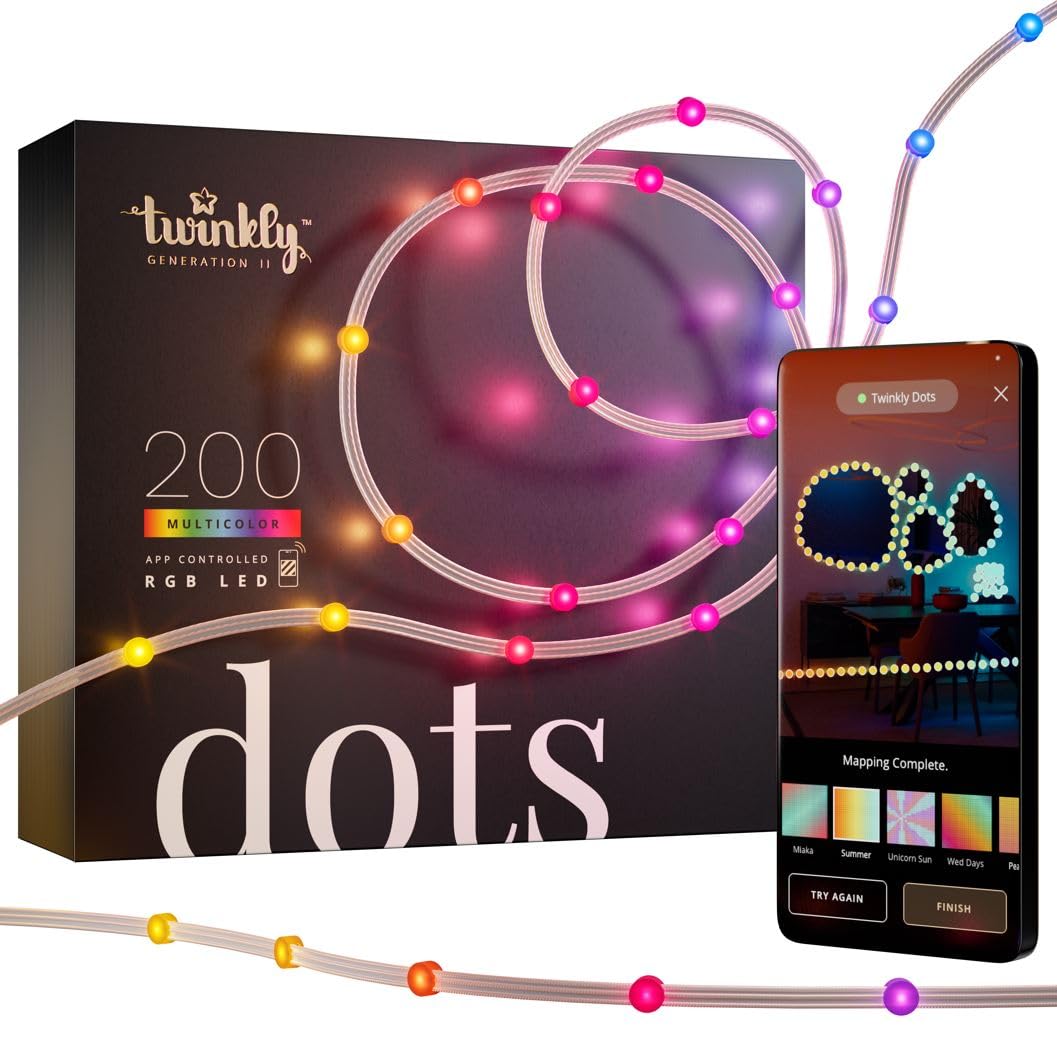
Image 1.1: Twinkly Dots product packaging and lights with smartphone app interface.
2. Safety Information
Please read and follow these safety instructions carefully to prevent injury or damage to the product:
- This product is designed for indoor use only. Do not expose to water, moisture, or outdoor elements.
- Ensure the USB power source used is compatible and provides the correct voltage and current (5V, 1A minimum).
- Do not cut, modify, or attempt to repair the string lights or power cable. Unauthorized modifications may void the warranty and pose safety risks.
- Keep the lights away from heat sources, open flames, and flammable materials.
- Avoid excessive bending or twisting of the wire, which could damage internal components.
- Keep out of reach of children and pets.
3. Package Contents
Verify that all items are present in your package:
- 1x Twinkly Dots String Lights (200 RGB LEDs, 33 ft Clear Wire)
- 1x USB Power Cable
- Adhesive Pads (pre-attached or included separately)
- Quick Start Guide (if included)
4. Setup Instructions
4.1 Physical Installation
The Twinkly Dots feature small, pill-shaped bulbs that can be wrapped around objects or affixed to surfaces using the included adhesive pads. Plan your desired layout before permanent attachment.
- Wrapping: Gently wrap the string lights around furniture, plants, or other decorative items.
- Adhesive Mounting: For flat surfaces, use the adhesive pads on the back of each dot to secure the lights. Ensure the surface is clean and dry for optimal adhesion.

Image 4.1: Twinkly Dots installed around various objects in a room.
4.2 Power Connection
Connect the USB power cable to the Twinkly Dots and plug the other end into a compatible USB power adapter (not included) or a USB port. The lights will briefly illuminate to indicate power.
4.3 App Installation
Download the free Twinkly app from the App Store (for iOS devices) or Google Play Store (for Android devices). Search for "Twinkly" and install the application.

Image 4.2: Twinkly App icon for download.
4.4 Initial Connection (Bluetooth/Wi-Fi)
Follow the in-app instructions to connect your Twinkly Dots:
- Open the Twinkly app and create an account or log in.
- Select "Add New Device" and choose your Twinkly Dots model.
- The app will guide you through connecting via Bluetooth. Ensure Bluetooth is enabled on your smartphone.
- Once connected via Bluetooth, the app will prompt you to connect the lights to your home Wi-Fi network. For best performance, use a 2.4GHz Wi-Fi network.
- During the Wi-Fi setup, you may need to press and hold the button on the Twinkly controller until it blinks blue, indicating it's in pairing mode.
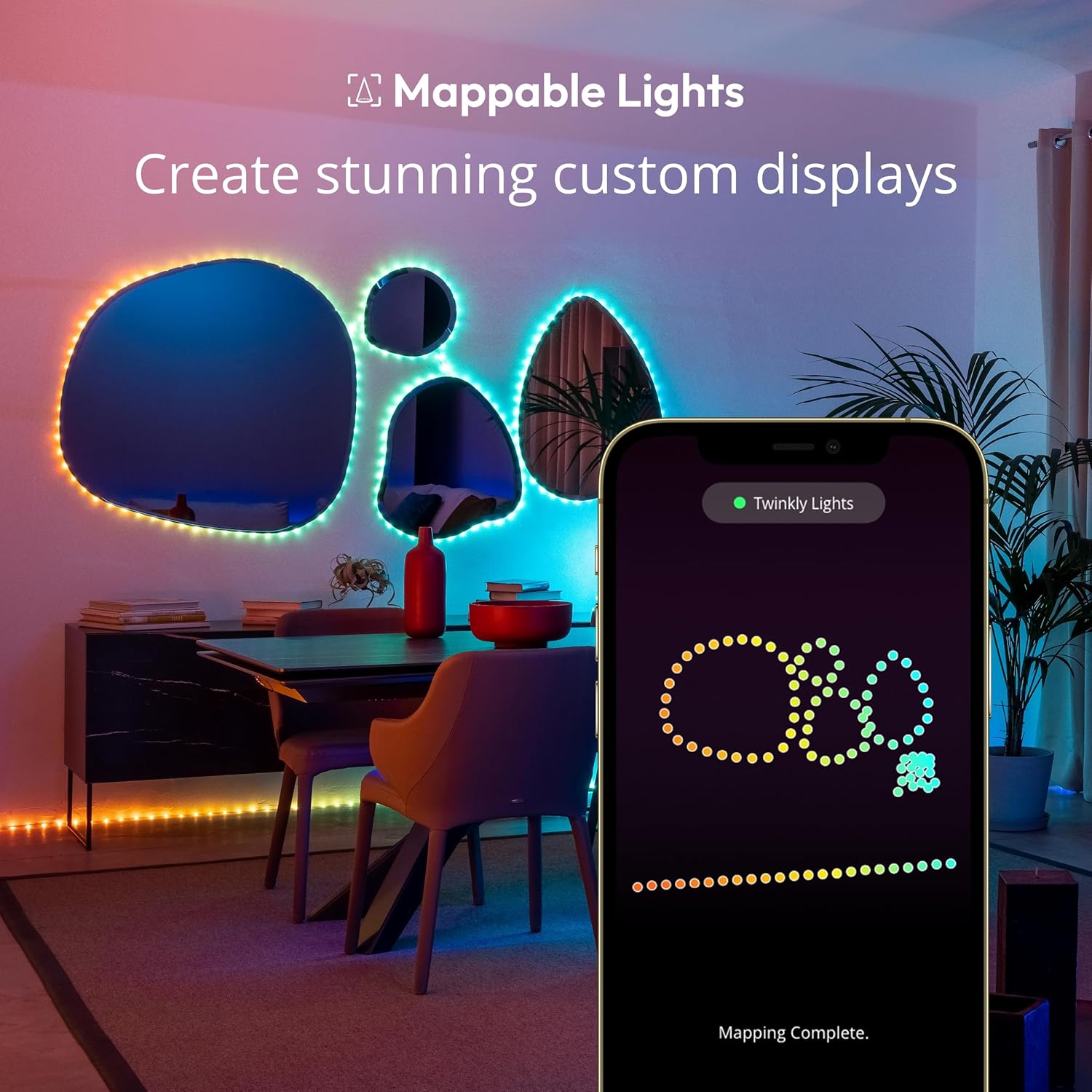
Image 4.3: Twinkly app showing a newly found device ready for connection.
5. Operating Instructions
5.1 App Control and Customization
The Twinkly app provides extensive control over your lights:
- Preset Effects: Browse and apply a wide range of pre-designed lighting effects and animations.
- FX Wizard: Use the FX Wizard to create your own custom effects. You can virtually draw effects with any of the 16 million available colors.
- Mapping: The app allows you to map the physical layout of your lights, enabling precise effect application.
- Playlists: Create automated playlists of your favorite effects to cycle through.
- Timers: Set schedules for your lights to turn on/off automatically.
- Dimming & Brightness: Adjust the intensity of the lights to suit your mood or environment.

Image 5.1: Twinkly app interface showing a selection of lighting effects.
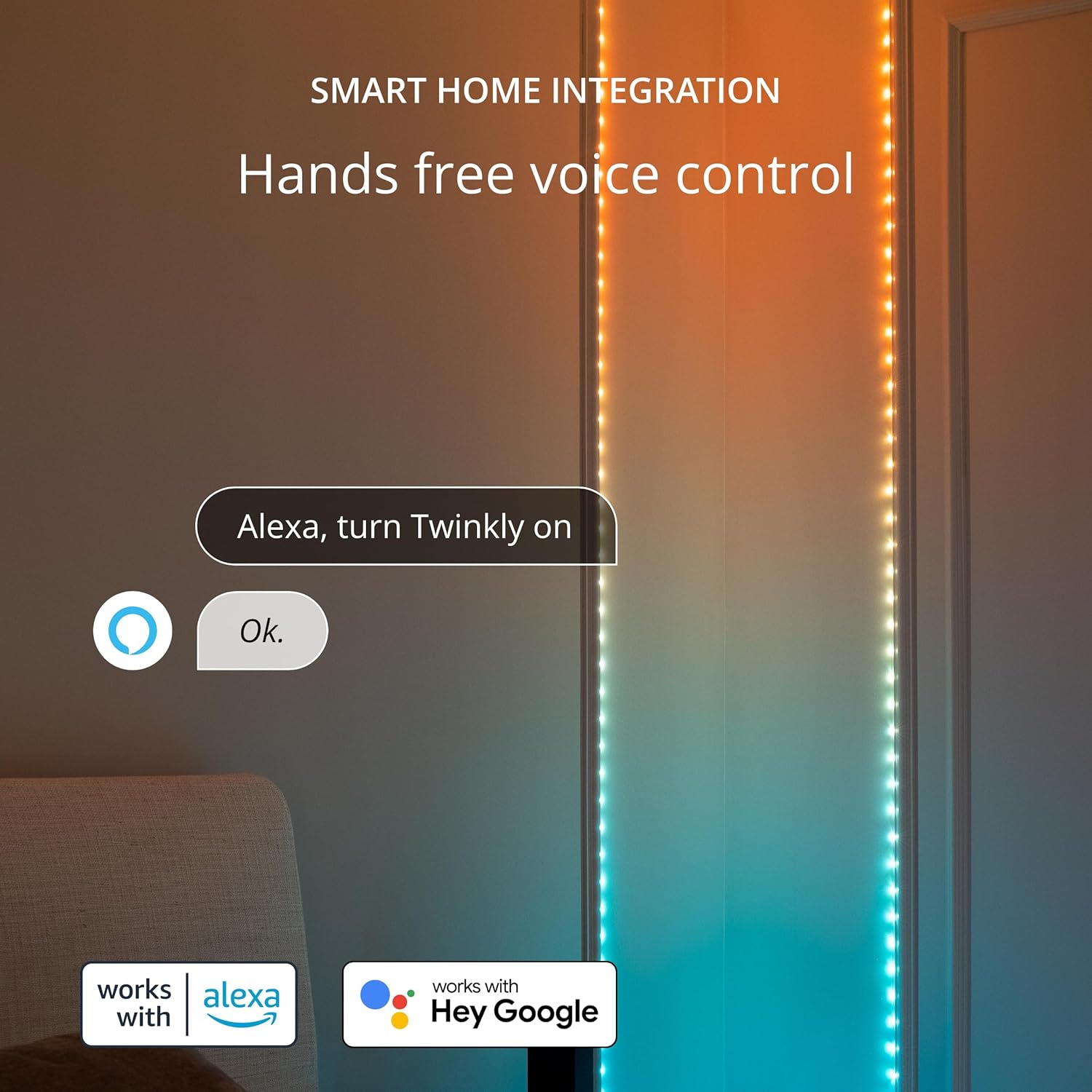
Image 5.2: Twinkly app indicating successful light mapping.
5.2 Grouping Multiple Devices
The Twinkly app supports grouping multiple Twinkly devices for synchronized displays. Refer to the app's help section for detailed instructions on how to create and manage groups.
5.3 Smart Home Integration
Twinkly Dots can be integrated with various smart home platforms for hands-free voice control and automation:
- Voice Assistants: Compatible with Google Assistant, Amazon Alexa, and Apple HomeKit. Follow the respective platform's instructions to link your Twinkly account.
- Gaming Integration: Sync your lights with multi-sensory gameplay through platforms like Razer Chroma RGB and Omen Light Studio.

Image 5.3: Twinkly Dots controlled via Amazon Alexa voice command.
5.4 Music Synchronization
For dynamic lighting effects synchronized with music, the Twinkly Dots can be paired with Twinkly Music (sold separately). This smart USB-powered sound sensor interprets ambient music and applies synchronized effects to your lights.

Image 5.4: Twinkly Dots displaying effects synchronized with music.
6. Maintenance
6.1 Cleaning
To clean your Twinkly Dots, ensure they are unplugged from the power source. Use a soft, dry cloth to gently wipe away dust or debris. Do not use liquid cleaners or abrasive materials.
6.2 Storage
When not in use, store the Twinkly Dots in their original packaging or a clean, dry place away from direct sunlight and extreme temperatures. Avoid tangling the wires to prevent damage.
7. Troubleshooting
If you encounter issues with your Twinkly Dots, refer to the following common problems and solutions:
| Problem | Possible Cause | Solution |
|---|---|---|
| Lights do not turn on. | No power or faulty connection. | Ensure the USB power cable is securely connected to both the lights and a working USB power source. Try a different USB port or adapter. |
| Cannot connect to the Twinkly app. | Bluetooth/Wi-Fi issues, incorrect pairing mode. | Ensure Bluetooth is enabled on your device. Verify your Wi-Fi network is 2.4GHz. Press and hold the controller button until it blinks blue to enter pairing mode. Restart the app and try again. |
| Adhesive pads are not holding. | Surface not clean, unsuitable surface, or environmental factors. | Clean the surface thoroughly before application. For long-term or challenging installations, consider using additional securing methods like small clips or stronger adhesive tape. |
| Some LEDs are discolored or not working. | Hardware issue. | This may indicate a hardware fault. Contact Twinkly customer support for assistance. |
8. Specifications
| Feature | Detail |
|---|---|
| Brand | Twinkly |
| Model Number | TWD200STP-TUS |
| Color | Clear wire, Multicolor LEDs |
| Indoor/Outdoor Usage | Indoor |
| Special Feature | Corded |
| Light Source Type | LED |
| Power Source | DC (USB-Powered) |
| Number of Light Sources | 200 |
| Wattage | 5 watts |
| Item Length | 33 Feet |
| Material | Plastic |
| Control Method | App (Android, iOS) |
| Water Resistance Level | Water Resistant (for indoor use, not submersible) |
| Item Weight | 2 pounds |
9. Warranty and Support
Twinkly products are covered by a manufacturer's warranty. For specific warranty details, please refer to the documentation included with your product or visit the official Twinkly website. If you require technical assistance, have questions about your product, or need to make a warranty claim, please contact Twinkly customer support directly.
You can find more information and support resources by visiting the Twinkly Store on Amazon.
Ask a question about this manual
Ask about setup, troubleshooting, compatibility, parts, safety, or missing instructions. Manuals+ will review the question and use this page’s manual context to help answer it.