
1. Introduction
The MageGee V650 Wireless Keyboard and Mouse Combo is designed for efficient and comfortable use with your computer. This combo features a full-size 104-key keyboard with a number pad and multimedia shortcuts, paired with a sensitive and quiet mouse. Both devices connect wirelessly via a single 2.4G USB receiver, offering a stable connection within a 10-meter range.

Image 1.1: MageGee V650 Wireless Keyboard and Mouse Combo.

Image 1.2: Key features of the MageGee V650 combo.
2. Package Contents
Please check the package for the following items:
- 1 x Wireless Keyboard
- 1 x Wireless Mouse
- 1 x USB Receiver (stored inside the keyboard)
- 1 x AA Battery (for mouse)
- 2 x AAA Batteries (for keyboard)
- 1 x User Manual
3. Setup Instructions
3.1. Battery Installation
- For the Keyboard: Locate the battery compartment on the underside of the keyboard. Insert two AAA batteries, ensuring correct polarity (+/-).
- For the Mouse: Locate the battery compartment on the underside of the mouse. Insert one AA battery, ensuring correct polarity (+/-).

Image 3.1: Keyboard battery compartment and USB receiver storage.
3.2. Connecting the USB Receiver
- Locate the USB receiver. It is typically stored in a dedicated slot on the underside of the keyboard for safekeeping.
- Plug the USB receiver into an available USB port on your computer (PC, desktop, laptop, or notebook).
- The system should automatically detect and install the necessary drivers. No additional software download is required.
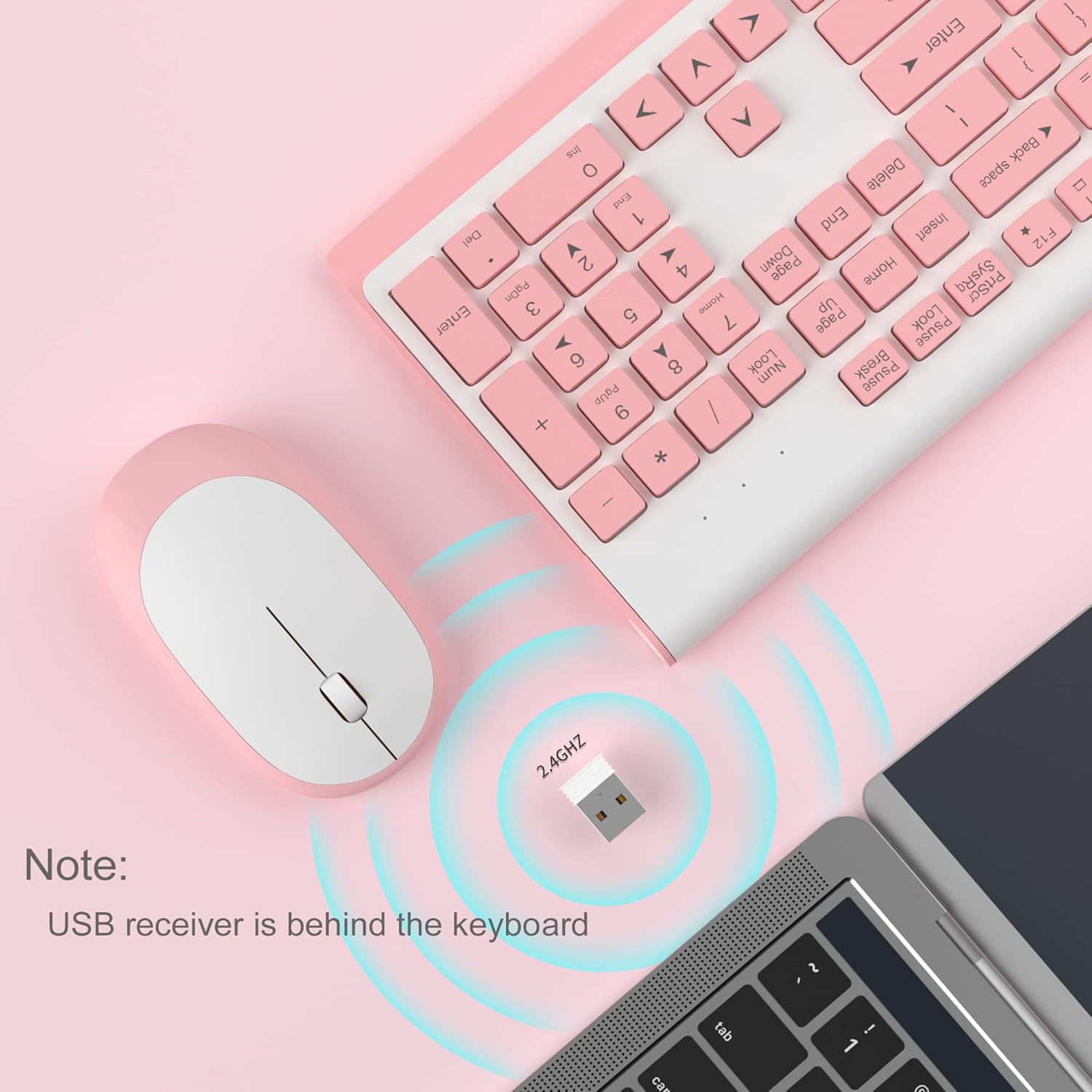
Image 3.2: USB receiver connection and storage location.

Image 3.3: 2.4G wireless connection diagram.
3.3. Power On
Ensure the power switches on both the keyboard and mouse are in the 'ON' position. The devices should now be ready for use.
4. Operating Instructions
4.1. Keyboard Functions
The V650 keyboard features a standard 104-key layout, including a full number pad for data entry and dedicated arrow keys. The keys are designed for quiet and responsive typing.
Multimedia Shortcuts
The keyboard includes 12 multimedia shortcuts accessible by pressing the Fn key in combination with the F1-F12 function keys. These shortcuts allow quick access to common functions such as volume control, media playback, and more.

Image 4.1: Keyboard multimedia function key combinations.
| Combination | Function |
|---|---|
| Fn + F1 | Multimedia |
| Fn + F2 | Volume - |
| Fn + F3 | Volume + |
| Fn + F4 | Mute |
| Fn + F5 | Previous Track |
| Fn + F6 | Next Track |
| Fn + F7 | Play/Pause |
| Fn + F8 | Stop |
| Fn + F9 | Homepage |
| Fn + F10 | |
| Fn + F11 | My Computer |
| Fn + F12 | Favorites |
4.2. Mouse Functions
The wireless mouse offers precise 1200 DPI tracking and quiet clicks. It features standard left and right click buttons and a scroll wheel for navigation.

Image 4.2: Mouse features: 1200 DPI and quiet operation.
4.3. Automatic Sleep Mode
To conserve battery life, both the keyboard and mouse will enter an automatic sleep mode after a period of inactivity. To wake them up, simply press any key on the keyboard or move the mouse.
5. Maintenance and Care
- Cleaning: Use a soft, dry cloth to clean the surfaces of the keyboard and mouse. For stubborn dirt, a slightly damp cloth can be used, but ensure no liquid enters the devices. Avoid harsh chemicals or abrasive cleaners.
- Battery Replacement: Replace batteries when performance degrades or devices stop responding. Always use new batteries of the specified type (AAA for keyboard, AA for mouse) and dispose of old batteries responsibly.
- Storage: When not in use for extended periods, turn off the devices to save battery life. Store the USB receiver in its dedicated slot on the keyboard to prevent loss.
- Environment: Avoid exposing the devices to extreme temperatures, direct sunlight, or excessive moisture.
6. Troubleshooting
If you encounter issues with your MageGee V650 combo, please refer to the following common solutions:
- No Connection / Lag:
- Ensure both the keyboard and mouse are powered on and have fresh batteries.
- Verify the USB receiver is securely plugged into a working USB port on your computer.
- Try plugging the USB receiver into a different USB port.
- Move the keyboard and mouse closer to the USB receiver to ensure they are within the 10-meter operating range.
- Avoid placing the receiver near other wireless devices or large metal objects that might cause interference.
- Keys Not Responding / Stuck Keys:
- Check battery levels and replace if necessary.
- Gently clean around the affected keys to remove any debris that might be causing them to stick.
- Re-establish the connection by unplugging and re-plugging the USB receiver.
- Mouse Not Working / Cursor Jumps:
- Ensure the mouse has a fresh AA battery and is powered on.
- Clean the optical sensor on the underside of the mouse.
- Use the mouse on a suitable surface (not highly reflective or transparent).
- Re-establish the connection by unplugging and re-plugging the USB receiver.
- Letters Fading on Keys:
- This is typically a result of prolonged use and wear. While not a functional defect, it can affect visibility.
7. Product Specifications
| Feature | Detail |
|---|---|
| Model | V650 |
| Connectivity Technology | 2.4G Wireless (Radio Frequency), USB Receiver |
| Keyboard Layout | Full Size, 104 Keys with Number Pad and 12 Multimedia Shortcuts |
| Keyboard Type | Scissor-cross low profile, Quiet Keys |
| Mouse DPI | 1200 DPI |
| Compatible Devices | PC, Desktop, Laptop, Notebook |
| Operating Systems | Windows XP / Vista / 7 / 8 / 10 |
| Keyboard Dimensions | 16.06 x 6.6 x 1.3 inches (approx. 40.8 x 16.8 x 3.3 cm) |
| Mouse Dimensions | 4.25 x 2.4 x 1.18 inches (approx. 10.8 x 6.1 x 3 cm) |
| Item Weight | 1.63 pounds (approx. 0.74 kg) |
| Keyboard Battery | 2 x AAA Batteries |
| Mouse Battery | 1 x AA Battery |
| Special Feature | Round Keycaps, Ultra-Thin Design, Automatic Sleep Mode |

Image 7.1: Product dimensions.
8. Warranty and Customer Support
MageGee products are designed for reliability and performance. For any warranty inquiries, technical support, or assistance with your product, please contact MageGee customer support through the retailer where you purchased the item or visit the official MageGee store online.
You can find more information and contact details at the MageGee Store on Amazon.


