
1. Welcome
Welcome to the BYYBUO SmartPad T10 user manual. This guide provides detailed instructions on setting up, operating, maintaining, and troubleshooting your new Android 12 tablet. Please read this manual thoroughly to ensure optimal performance and longevity of your device.
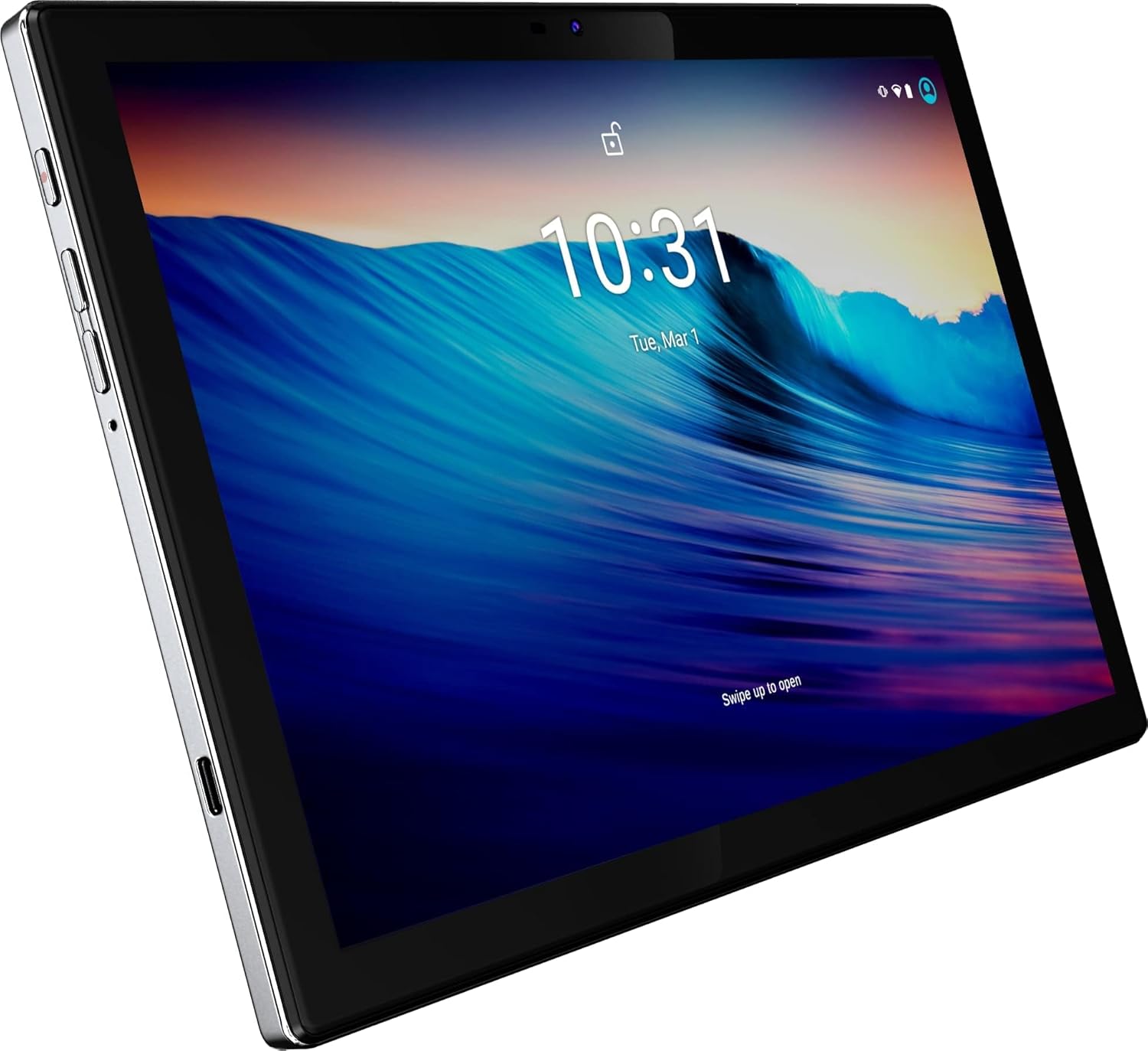
Figure 1: Front view of the BYYBUO SmartPad T10 Tablet.
2. Product Overview
2.1 Components
- 10.1-inch Full HD IPS Display: High-resolution touchscreen for clear visuals.
- Front Camera: For video calls and selfies.
- Rear Camera: For capturing photos and videos.
- Power Button: To turn the device on/off or put it to sleep.
- Volume Buttons: To adjust audio levels.
- USB-C Port: For charging and data transfer.
- 3.5mm Headphone Jack: For audio output.
- MicroSD/TF Card Slot: For expandable storage.
- Dual Speakers: For enhanced audio experience.

Figure 2: Side view highlighting ports and buttons.
2.2 Key Features
- High-Performance Octa-Core Processor: Ensures smooth operation and efficient multitasking.
- Android 12 Operating System: Provides a user-friendly interface and access to the latest apps.
- 7000mAh Battery Capacity: Offers extended usage time for entertainment and productivity.
- 64GB Internal Storage (Expandable to 512GB): Ample space for apps, photos, and videos.
- 1920x1200 IPS Display: Delivers vibrant colors and sharp details for an immersive viewing experience.
- Dual-band Wi-Fi (2.4G+5G): For fast and stable internet connectivity.
- Bluetooth 4.2: For connecting wireless accessories.
- Built-in GPS: For navigation and location-based services.
- Dual Cameras (5MP Front, 13MP Rear): For capturing memories and video calls.
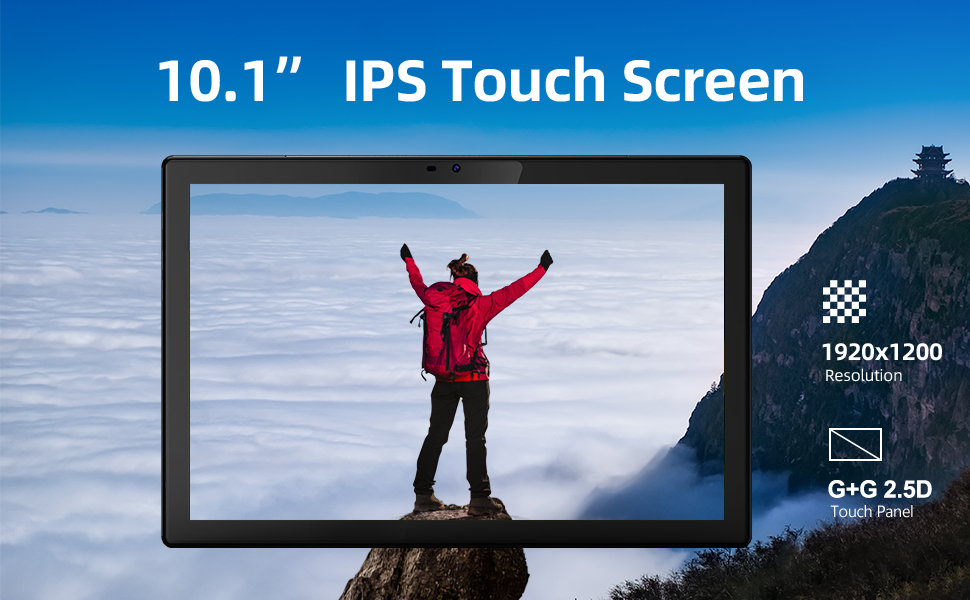
Figure 3: Visual representation of key features.
3. Setup Guide
3.1 Initial Charge
Before first use, fully charge your SmartPad T10 using the provided USB-C cable and charger. The battery indicator on the screen will show charging progress.

Figure 4: The tablet's large battery capacity ensures long usage.
3.2 Power On/Off
- To Power On: Press and hold the Power button on the side of the tablet until the BYYBUO logo appears.
- To Power Off: Press and hold the Power button until a menu appears. Select 'Power off' and confirm.
- To Sleep/Wake: Briefly press the Power button.
3.3 Wi-Fi Connection
- Go to 'Settings' > 'Network & internet' > 'Wi-Fi'.
- Toggle Wi-Fi 'On'.
- Select your desired Wi-Fi network from the list.
- Enter the password if prompted and tap 'Connect'.
3.4 Google Account Setup
Upon first power-on or after a factory reset, you will be guided through the initial setup process, including connecting to Wi-Fi and signing in with your Google account. A Google account is required to download apps from the Google Play Store.
3.5 Storage Expansion
The SmartPad T10 supports MicroSD/TF cards up to 512GB for expanded storage. Locate the card slot on the side of the tablet. Use the provided tool to open the tray, insert the card, and close the tray securely.

Figure 5: Expandable storage for more content.
4. Operating Your SmartPad
4.1 Navigation
The SmartPad T10 features a highly responsive touchscreen. Use standard Android gestures such as tap, swipe, pinch-to-zoom, and long-press to navigate the interface and interact with apps.

Figure 6: The Android 12 interface on the SmartPad T10.
4.2 App Management
- Downloading Apps: Open the 'Play Store' app, search for your desired app, and tap 'Install'.
- Uninstalling Apps: Long-press the app icon on the home screen or app drawer, then drag it to 'Uninstall' or select 'Uninstall' from the pop-up menu. Alternatively, go to 'Settings' > 'Apps' > select the app > 'Uninstall'.
4.3 Camera Usage
Access the camera app from the home screen or app drawer. You can switch between the front (5MP) and rear (13MP) cameras. Tap the shutter button to take photos or switch to video mode to record.
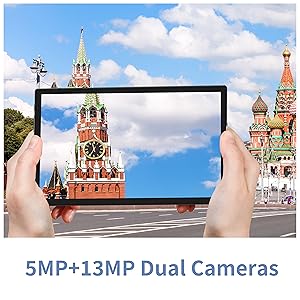
Figure 7: The tablet features dual cameras for versatile photography.
4.4 Media Playback
Enjoy videos and music on your SmartPad T10. The 1920x1200 IPS display provides a clear viewing experience, and dual speakers offer quality audio. You can download streaming apps like Netflix and YouTube from the Play Store.

Figure 8: The Full HD display is ideal for media consumption.
Video 1: Official product video showcasing the BYYBUO SmartPad T10's features and usage scenarios.
4.5 Bluetooth Pairing
- Go to 'Settings' > 'Connected devices' > 'Bluetooth'.
- Toggle Bluetooth 'On'.
- Ensure your Bluetooth device is in pairing mode.
- Select the device from the 'Available devices' list and follow on-screen prompts to pair.
4.6 GPS Functionality
The built-in GPS allows for accurate location tracking and navigation. Use pre-installed map applications or download your preferred navigation apps from the Google Play Store.
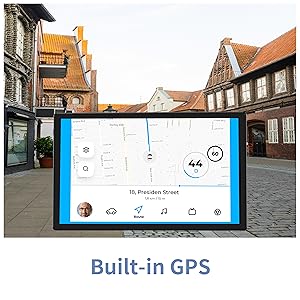
Figure 9: Built-in GPS for reliable navigation.
5. Maintenance and Care
5.1 Cleaning
Use a soft, lint-free cloth to clean the screen and body of the tablet. Avoid using harsh chemicals or abrasive materials that could damage the surface.
5.2 Battery Care
- Avoid extreme temperatures, as they can degrade battery life.
- Do not let the battery completely drain frequently.
- Use only the provided charger or a certified compatible charger.
5.3 Software Updates
Periodically check for system updates to ensure your tablet has the latest features and security patches. Go to 'Settings' > 'System' > 'System update'.
5.4 Storage Management
Regularly clear unnecessary files, cache data, and uninstall unused apps to free up storage space and maintain optimal performance. You can manage storage in 'Settings' > 'Storage'.
6. Troubleshooting Common Issues
| Problem | Possible Solution |
|---|---|
| Device won't power on | Ensure the battery is charged. Connect the charger and wait a few minutes before attempting to power on again. |
| Wi-Fi connection issues | Restart the tablet and your Wi-Fi router. Check Wi-Fi settings to ensure correct network and password. Try forgetting and re-connecting to the network. |
| Apps crashing or freezing | Clear the app's cache and data (Settings > Apps > [App Name] > Storage). If the issue persists, uninstall and reinstall the app. Ensure sufficient free storage space. |
| Slow performance | Close unused background apps. Clear cache and temporary files. Consider a factory reset if performance issues persist after other troubleshooting steps. |
| Battery drains quickly | Reduce screen brightness. Disable unused features like Bluetooth or GPS. Close background apps. Check for apps consuming excessive battery in Settings > Battery. |
7. Technical Specifications
| Feature | Specification |
|---|---|
| Brand | BYYBUO |
| Model Name | T10 |
| Screen Size | 10.1 Inches |
| Screen Resolution | 1920 x 1200 pixels (Full HD IPS) |
| Processor | Octa-Core 2.0 GHz (MediaTek) |
| RAM | 4 GB |
| Internal Storage | 64 GB |
| Expandable Storage | Up to 512 GB (MicroSD/TF) |
| Operating System | Android 12 |
| Battery Capacity | 7000mAh (Lithium Polymer) |
| Average Battery Life | 12 Hours |
| Wireless Type | 802.11b/g/ac (2.4G+5G WiFi) |
| Bluetooth | Bluetooth 4.2 |
| Cameras | Rear: 13 MP, Front: 5 MP |
| Item Weight | 1.23 pounds |
| Dimensions (LxWxH) | 0.01 x 0.31 x 0.01 inches |
8. Warranty and Support
8.1 Warranty Information
For specific warranty details, please refer to the warranty card included in your product packaging or contact BYYBUO customer support directly. Keep your proof of purchase for warranty claims.
8.2 Customer Support
If you encounter any issues or have questions not covered in this manual, please contact BYYBUO customer support. You can find contact information on the official BYYBUO website or through your purchase platform. BYYBUO offers 24-hour online support.
Visit the official BYYBUO Store: BYYBUO Amazon Store
For community support and updates, you may also check the BYYBUO Facebook page: BYYBUO Facebook
