
Introduction
This manual provides instructions for the Verbatim 32GB USB Type-C USB 3.2 Gen 1 Flash Drive. This device is designed for convenient storage and transfer of digital files between various USB Type-C compatible devices such as smartphones, tablets, laptops, and PCs. Its compact design and retractable connector make it suitable for on-the-go use.
Key features include:
- Quick and easy file transfer, backup, or offload from USB Type-C devices.
- Transfer speeds up to 150 MB/s.
- Retractable USB-C connector for protection and convenience.
- USB 3.2 Gen 1 performance with backward compatibility to USB 2.0.
- Compact and lightweight design.
Setup
The Verbatim USB Type-C Flash Drive is designed for plug-and-play operation, requiring no special drivers for most operating systems.
- Extend the USB-C Connector: Gently slide the housing of the flash drive to expose the USB Type-C connector.
- Connect to Device: Insert the USB Type-C connector into an available USB Type-C port on your smartphone, tablet, laptop, or PC. Ensure the connection is firm.
- Device Recognition: Your operating system should automatically detect the flash drive and display it as a removable storage device. On some mobile devices, you may receive a notification to open a file manager application.

Image: Verbatim 32GB USB Type-C Flash Drive with the USB-C connector extended, ready for use.
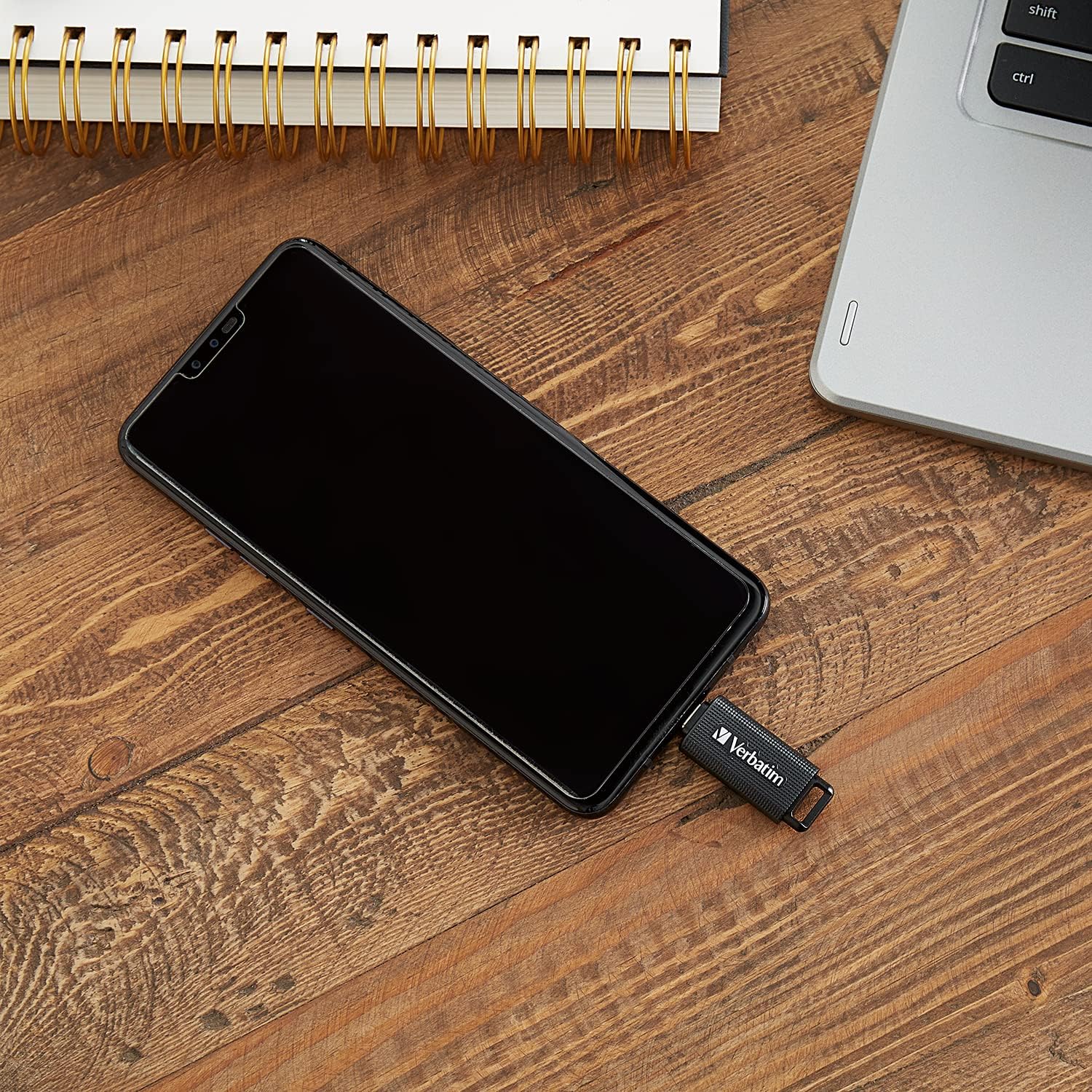
Image: The Verbatim USB-C Flash Drive connected to a smartphone, demonstrating its use with mobile devices.
Operating Instructions
Once the flash drive is recognized by your device, you can begin transferring files.
- Accessing the Drive: Open your device's file explorer (Windows File Explorer, macOS Finder, Android File Manager, etc.). The drive will typically appear under "This PC," "Devices and drives," or a similar section, often labeled as "Verbatim" or a generic "USB Drive."
- Transferring Files:
- Copy/Paste: Locate the files you wish to transfer, right-click (or long-press on touch devices) and select "Copy." Navigate to the flash drive's folder, right-click (or long-press) in an empty space, and select "Paste."
- Drag and Drop: Open two windows side-by-side: one showing your source files and the other showing the flash drive's contents. Click and drag the desired files from the source window to the flash drive window.
The USB 3.2 Gen 1 interface allows for faster data transfer speeds, up to 150 MB/s, which is beneficial for large files or multiple files.
- Safe Removal: To prevent data corruption, always safely remove the flash drive before physically disconnecting it.
- Windows: Click the "Safely Remove Hardware and Eject Media" icon in the system tray, then select the Verbatim drive.
- macOS: Drag the drive icon from the desktop or Finder sidebar to the Trash, or right-click the drive icon and select "Eject."
- Android/Other Mobile OS: Look for an "Eject" or "Unmount" option in the storage settings or notification panel.
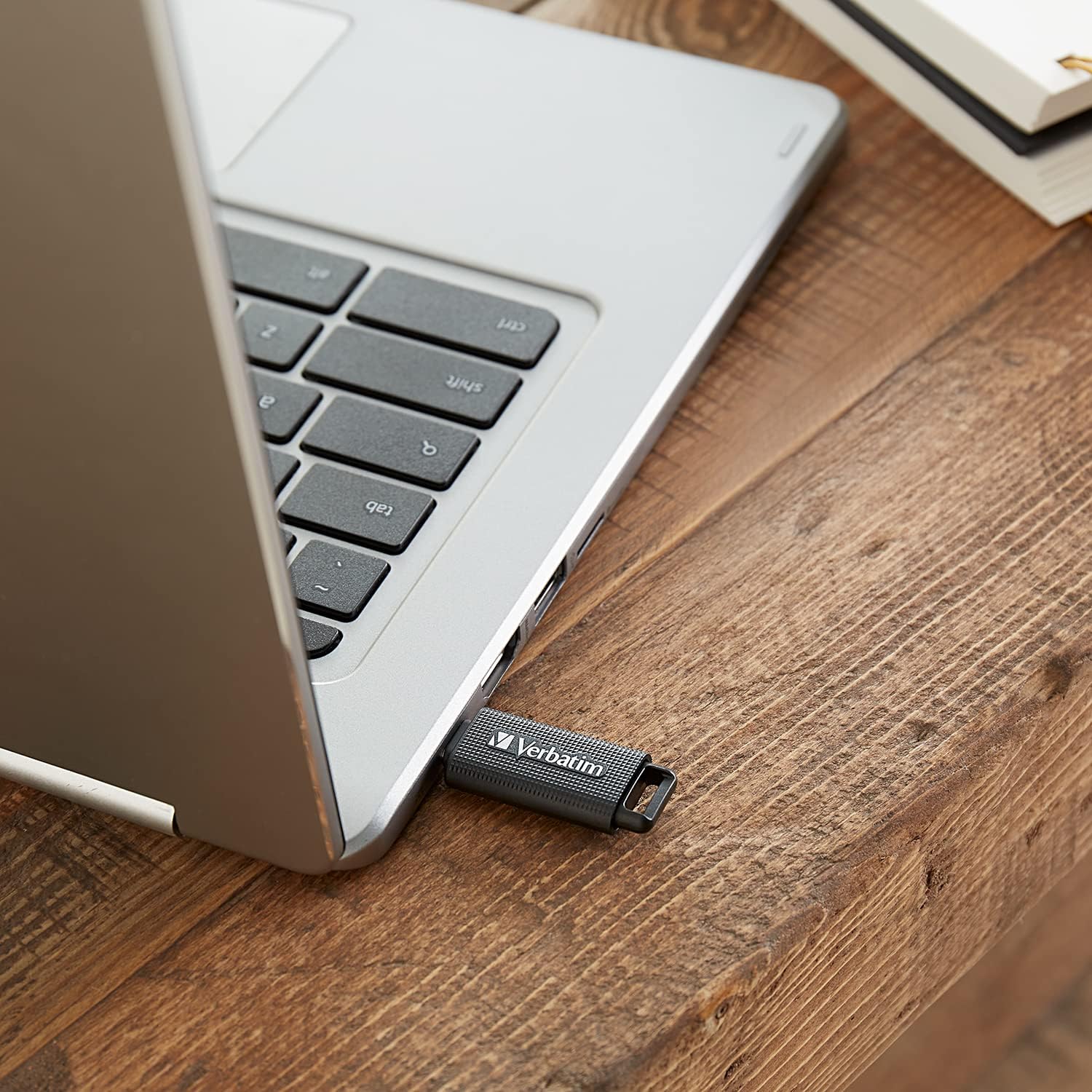
Image: The Verbatim USB-C Flash Drive inserted into the USB-C port of a laptop, showing a typical connection scenario.
Maintenance
Proper care will ensure the longevity and reliable performance of your flash drive.
- Physical Protection: When not in use, retract the USB Type-C connector into the drive's housing to protect it from dust, dirt, and physical damage.
- Cleaning: If necessary, gently wipe the exterior of the drive with a soft, dry, lint-free cloth. Avoid using liquid cleaners or solvents.
- Environmental Conditions: Store the drive in a cool, dry place. Avoid exposing it to extreme temperatures, direct sunlight, or high humidity.
- Avoid Impact: Do not drop the drive or subject it to strong impacts, as this can damage internal components.

Image: Top view of the Verbatim USB-C Flash Drive, showing the USB-C connector retracted into the casing for protection.
Troubleshooting
If you encounter issues with your Verbatim USB Type-C Flash Drive, try the following steps:
- Drive Not Recognized:
- Ensure the drive is fully inserted into the USB Type-C port.
- Try connecting the drive to a different USB Type-C port on the same device.
- Test the drive on a different computer or mobile device to rule out a device-specific issue.
- Restart your computer or mobile device.
- Check your device's Disk Management (Windows) or Disk Utility (macOS) to see if the drive is detected but not assigned a drive letter or is unformatted.
- Unable to Write Files:
- Check if the drive is full. Delete unnecessary files to free up space.
- Verify that the files you are trying to transfer do not exceed the maximum file size supported by the drive's file system (e.g., FAT32 has a 4GB file size limit). Consider reformatting to exFAT or NTFS if larger files are needed.
- Ensure you have appropriate write permissions for the drive.
- Slow Transfer Speeds:
- Ensure you are connected to a USB 3.2 Gen 1 (or USB 3.0/3.1) compatible port. Connecting to a USB 2.0 port will result in slower speeds.
- Large numbers of small files transfer slower than a single large file of the same total size.
- Close other applications that might be using system resources.
- Reformatting the Drive: If the drive is consistently unrecognized or unusable, reformatting it may resolve the issue. Warning: Reformatting will erase all data on the drive. Back up any important files before proceeding.
- Windows: Right-click the drive in File Explorer, select "Format," choose a file system (e.g., exFAT for broad compatibility), and click "Start."
- macOS: Open Disk Utility, select the drive, click "Erase," choose a format (e.g., ExFAT), and click "Erase."
Specifications
| Feature | Specification |
|---|---|
| Model Number | 023942709039 |
| Memory Storage Capacity | 32 GB |
| Hardware Interface | USB 3.2 Gen 1 |
| Read Speed | Up to 150 Megabytes Per Second |
| Connectivity Technology | USB Type-C |
| Color | Black |
| Item Weight | 0.32 ounces (approx. 9 grams) |
| Package Dimensions | 1.18 x 1.18 x 1.18 inches |
| UPC | 023942709039 |
Warranty Information
The Verbatim 32GB USB Type-C USB 3.2 Gen 1 Flash Drive is backed by a Limited Lifetime Warranty. For detailed terms and conditions, please refer to the official Verbatim website or the warranty documentation included with your purchase. This warranty covers defects in materials and workmanship under normal use.

Image: Retail packaging for the Verbatim 32GB USB Type-C USB 3.2 Gen 1 Drive, highlighting its capacity and features, including a 'Limited Lifetime Warranty' badge.
Support
For further assistance, technical support, or warranty claims, please contact Verbatim customer service. You can find contact information and additional resources on the official Verbatim website:
Verbatim Official Website: www.verbatim.com
Please have your product model number (023942709039) and proof of purchase ready when contacting support.


