
1. Introduction
The FOXWELL NT726 Bidirectional Scan Tool is a comprehensive diagnostic device designed for automotive professionals and DIY enthusiasts. It offers full-module active tests, 12 hot maintenance functions, and complete OBD2 diagnostics across a wide range of vehicle models. Featuring a 5.5-inch touchscreen and Android 9.0, it provides a fast and intuitive user experience with lifetime free WiFi updates.

Figure 1.1: FOXWELL NT726 Scan Tool and its carrying case.
This tool is an excellent choice for repair shops, home mechanics, and car dealers, covering over 10,000 vehicle models from various regions including USA, Asia, and Europe.
2. What's in the Box
- 1 X NT726 Diagnostic Scan Tool
- 1 X Diagnostic Cable
- 1 X User Manual & 1 X Quick Start Guide
- 1 X Protective Carrying Case
- 1 X USB TYPE C Cable

Figure 2.1: Package contents of the NT726 Scan Tool.
3. Setup
3.1 Connecting the Device
The NT726 can be connected to your vehicle via the diagnostic cable for direct communication or wirelessly using a VCI dongle (if purchased separately).
- Tablet with Cable: Locate the Data Link Connector (DLC) under the dash on the driver's side. Connect the Diagnostic Cable to the scanner and tighten the captive screws. Connect the correct adapter to the data cable and plug it into the vehicle DLC. Switch the ignition key to the ON position.
- Tablet with VCI Dongle (Bluetooth/USB): Locate the DLC. Connect the Diagnostic Cable to the VCI dongle and plug it into the vehicle DLC with a correct adapter. Switch the ignition key to the ON position. Check if the connection indicator is correct.

Figure 3.1: Vehicle connection methods.
3.2 Initial Setup and Registration
Ensure your network works correctly and the tablet is fully charged or connected to external power supply. Press 'Update' from the home screen of the Diagnostic APP, then 'Free Registration' to start. Enter your email and tap 'Send Code' to get a 4-digit security code. Input the code, create a password, and click 'Free Registration' to complete.
4. Operating the Device
4.1 Main Menu Overview
The main menu provides access to various functions:
- Diagnostic: Initiates vehicle system scanning and fault code reading.
- Maintenance: Accesses 12 common reset and service functions.
- Update: Allows for one-click WiFi updates to keep the scanner's software current.
- Data Manager: Manages saved reports, screenshots, and recorded data.
- My Account: Manages user account details and product registration.
- More+: Provides access to remote control, additional functions, VCI manager, and settings.
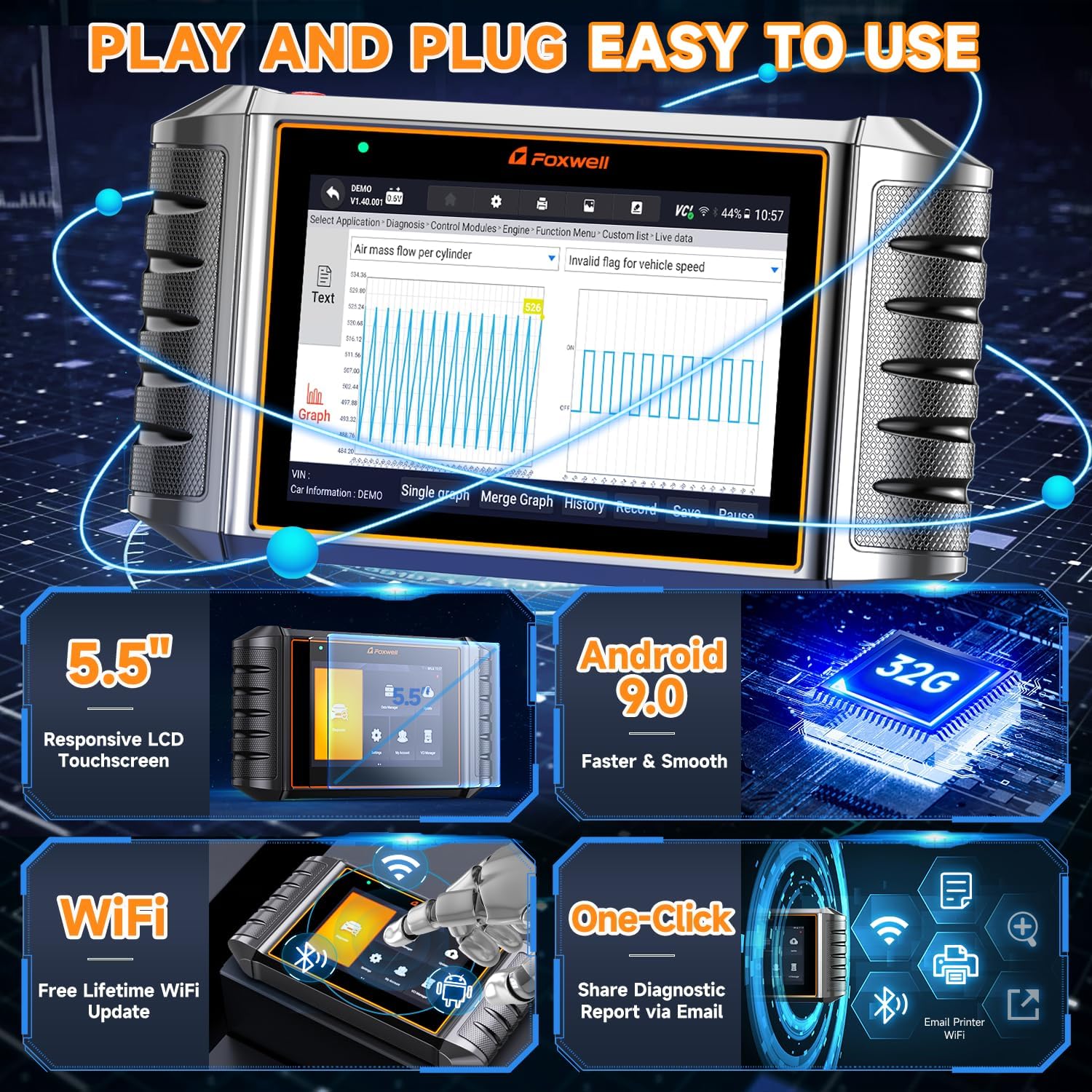
Figure 4.1: Main menu interface.
4.2 Diagnostic Functions
The Diagnostic section allows for comprehensive vehicle scanning:
- All System Scan: Supports scanning all available vehicle systems (Engine, Transmission, ABS, SRS, EPB, SAS, TPMS, etc.) to read and clear DTCs.
- AutoVIN: Automatically identifies vehicle information for quick diagnostics.
- Full OBD2 Functions: Includes code reading/clearing, DTC lookup, I/M Readiness, multi-dimensional live data streams, freeze frame data, and more.

Figure 4.2: Full OBD2 Functions.
4.3 Live Data and Active Tests
The NT726 provides detailed live data streams and powerful active tests:
- Live Data: View real-time sensor data in text or graph formats. Supports multi-graph display and data recording for later playback and analysis.
- Active Test (Bi-directional Control): Perform specific tests on vehicle components to verify their functionality. Examples include: Radiator Fan, Injector Test, Fuel Pump Test, Parking Brake, Doors and Windows, Sound Horn, Cycle A/C, Modulate Throttle, Exterior Lights, Oil Pressure Control, Brake Vacuum, Wheel Speed Sensor, and more.

Figure 4.3: Active Test List.
5. Maintenance Functions (12 Hot Resets)
The NT726 offers 12 commonly used reset and service functions to address various vehicle maintenance needs:
- ABS Bleeding: Performs brake bleeding to restore ABS brake sensitivity after component replacement.
- Oil Reset: Resets the oil life system after an oil change.
- EPB Reset: Resets the electronic parking brake system after brake pad replacement or maintenance.
- SAS Calibration: Calibrates the steering angle sensor.
- D-PF Regeneration: Clears particulate matter from the Diesel Particulate Filter to restore performance.
- TPMS Reset: Resets the Tire Pressure Monitoring System after tire rotation or sensor replacement.
- Injector Coding: Codes new injector parameters to the ECU after replacement.
- Throttle Matching: Optimizes throttle response and idle speed.
- Window/Door Control: Maintains smooth and safe window/door operation.
- Transmission Adaptation: Optimizes transmission shift logic.
- Suspension Reset: Resets suspension settings to factory defaults.
- Battery Registration: Registers new battery information after replacement.

Figure 5.1: 12 Hot Reset Services.
Video 5.1: Official product video demonstrating the Foxwell NT726's 12 hot services and system diagnosis capabilities.
6. Troubleshooting
If you encounter issues with your NT726, consider the following:
- VIN Acquisition: If automatic VIN acquisition takes too long, stop it and manually enter the VIN.
- Software Updates: Ensure your device software is up-to-date via WiFi. Regular updates improve compatibility and accuracy.
- Remote Support: The device supports TeamViewer QuickSupport for remote technical assistance from FOXWELL's team.
7. Specifications
| Feature | Specification |
|---|---|
| Screen | 5.5-inch diagonal, daylight readable color LCD screen, 720*1280 pixel |
| Operation System | Android 9.0 |
| Processor | CPU 4 core, 1.3GHz |
| Memory | 1GB DDR4 |
| SSD Hard drive | 32GB |
| Built-in Battery | 4000mAh Lithium-polymer battery |
| Item Weight | 0.634 ounces |
| Product Dimensions | 9.29 x 4.88 x 1.5 inches |
Table 7.1: FOXWELL NT726 Specifications.
8. Warranty and Support
FOXWELL is committed to ensuring customer satisfaction with the NT726 Scan Tool:
- Customer Service: 24/7/365 customer service is provided.
- Warranty: The product comes with 1-year coverage.
- Technical Assistance: Lifetime technical assistance from engineers is available.
- Returns: A 30-day return/replacement policy is offered. For issues beyond 30 days but within one year, contact FOXWELL directly through your Amazon order for assistance.
Legal Disclaimer: Any car brand logo and brand name appearing on the detailed page are to indicate compatibility between the Foxwell scanner and the vehicle. We do not sell any products manufactured/sold by car brands.


