
Introduction
This manual provides detailed instructions for the setup and operation of your Geevon Atomic Alarm Clock with Color Display. This device offers precise timekeeping, indoor temperature and humidity monitoring, calendar functions, and moon phase display, designed for convenience in your bedroom, office, or living space.

Image: Front view of the Geevon Atomic Alarm Clock displaying current time, day, date, indoor temperature, indoor humidity, and moon phase.
Package Contents
Please check the package for the following items:
- Geevon Atomic Alarm Clock Unit
- AC Power Adapter
- Instruction Manual
Note: 3 AAA batteries are required for backup power and are not included.
Product Features
- Atomic Timekeeping: Automatically adjusts time and date via WWVB radio broadcast from NIST in Fort Collins, Colorado. Includes automatic Daylight Saving Time (DST) updates.
- Multi-functional Display: Large LCD color display shows time, date, day of the week, indoor temperature, indoor humidity, and moon phases.
- Adjustable Backlight: Three levels of adjustable brightness (100%, 50%, Off) for clear visibility day and night. Requires AC power for backlight function.
- Alarm with Snooze: Features a 5-minute snooze function.
- Dual Power Modes: Operates with the included AC power adapter or 3 AAA batteries (not included) for backup. A low battery indicator will appear on the screen when batteries need replacement.
- Versatile Placement: Equipped with a built-in stand bracket for tabletop use and a hanging hole for wall mounting.
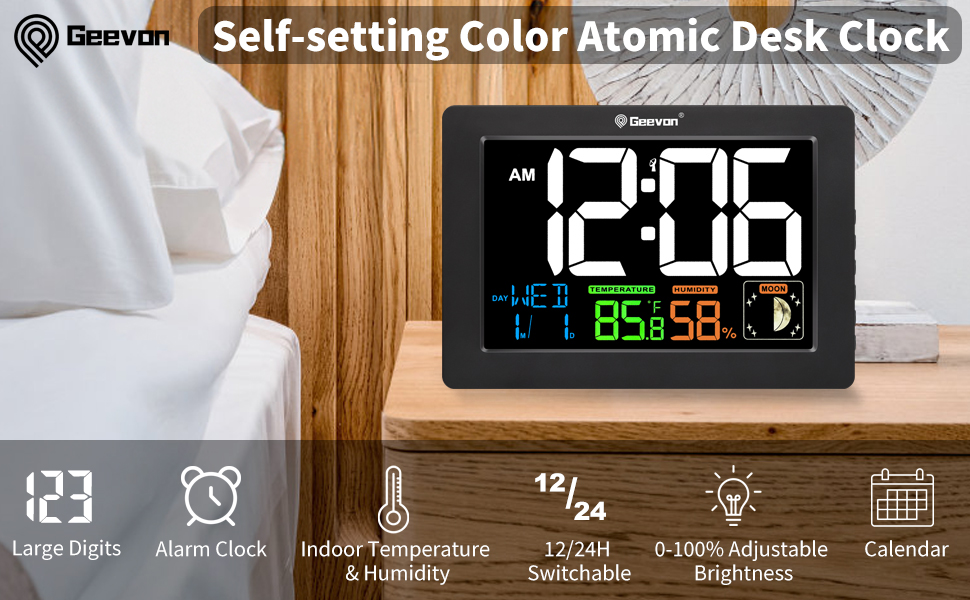
Image: Visual representation of the clock's multi-functional display, highlighting features like atomic time, temperature, humidity, and moon phase.
Setup
- Insert Batteries: Open the battery compartment on the back of the clock and insert 3 new AAA batteries (not included). These batteries serve as a backup in case of power outage.
- Connect AC Power: Plug the AC power adapter into the clock's power input port and then into a standard electrical outlet. The display will illuminate.
- Initial Atomic Signal Reception: Upon initial power-up, the clock will automatically attempt to receive the WWVB atomic radio signal. This process may take several minutes to several hours depending on your location and environmental conditions. During this time, the backlight may turn off.
- Manual Time Zone Selection: If the atomic signal is not received or you wish to set the time manually, proceed to the "Operating Instructions" section.

Image: Rear view of the clock, showing the battery compartment and the integrated kickstand for tabletop use, along with a wall-mount option.
Video: This video demonstrates the initial setup of the Geevon Atomic Alarm Clock, including inserting batteries and connecting the power adapter, followed by a demonstration of manual time setting.
Operating Instructions
Buttons Overview
The control buttons are located on the side of the clock:
- LIGHT/SNOOZE Button: On top of the clock, activates backlight and snooze function.
- UP Button: Adjusts values upwards, also used to activate/deactivate alarm.
- DOWN Button: Adjusts values downwards, also switches between °F and °C.
- SET Button: Enters and confirms settings.
- ALARM Button: Enters and confirms alarm settings.
- ATOMIC Button: Initiates manual atomic signal receiving.

Image: Close-up of the side of the clock, indicating the function of each button.
Manual Time Setting
- Press and hold the "SET" button for approximately 3 seconds until the 12/24Hr format starts flashing.
- Use the "UP" or "DOWN" buttons to select your preferred time format (12Hr or 24Hr).
- Press "SET" to confirm and move to the Time Zone setting.
- Use "UP" or "DOWN" to select your time zone (e.g., PST, MST, CST, EST).
- Press "SET" to confirm and move to the Hour setting.
- Use "UP" or "DOWN" to adjust the hour.
- Press "SET" to confirm and move to the Minute setting.
- Use "UP" or "DOWN" to adjust the minutes.
- Press "SET" to confirm and move to the Year setting.
- Use "UP" or "DOWN" to adjust the year.
- Press "SET" to confirm and move to the Month setting.
- Use "UP" or "DOWN" to adjust the month.
- Press "SET" to confirm and move to the Day setting.
- Use "UP" or "DOWN" to adjust the day.
- Press "SET" to confirm and exit the time setting mode.
Alarm Setting
- Press and hold the "ALARM" button for approximately 3 seconds until the alarm hour starts flashing.
- Use the "UP" or "DOWN" buttons to adjust the alarm hour.
- Press "ALARM" to confirm and move to the alarm minute setting.
- Use "UP" or "DOWN" to adjust the alarm minutes.
- Press "ALARM" to confirm and exit the alarm setting mode.
- To activate the alarm, press the "ALARM" button once to display the set alarm time. While the alarm time is displayed, press the "UP" button. A bell icon will appear on the screen, indicating the alarm is active.
- To deactivate the alarm, press the "ALARM" button once to display the set alarm time. While the alarm time is displayed, press the "UP" button. The bell icon will disappear, indicating the alarm is inactive.
Snooze Function
When the alarm sounds, press the "LIGHT/SNOOZE" button on the top of the clock or the "SNOOZE" button on the side to activate the 5-minute snooze function. The alarm will sound again after 5 minutes.
Temperature Unit Switch (°F/°C)
In normal display mode, press the "DOWN" button to switch the indoor temperature display between Fahrenheit (°F) and Celsius (°C).
Backlight Adjustment
When the clock is powered by the AC adapter, press the "LIGHT/SNOOZE" button on the top of the clock to cycle through three backlight brightness levels: 100%, 50%, and Off.

Image: Comparison of the clock's display at different backlight settings (Off, 50%, 100%).
Placement Options
The Geevon Atomic Alarm Clock offers flexible placement options:
- Tabletop: Utilize the built-in stand bracket on the back of the unit to place it on any flat surface, such as a desk, nightstand, or shelf.
- Wall Mount: Use the integrated hanging hole to mount the clock securely on a wall.

Image: The clock displayed as a wall clock, emphasizing its atomic time synchronization feature.
Troubleshooting
| Problem | Possible Cause | Solution |
|---|---|---|
| Clock not displaying or dim display. | No AC power, low backup batteries, backlight set to Off. | Ensure AC adapter is securely plugged in. Replace AAA backup batteries. Press LIGHT/SNOOZE button to adjust backlight brightness. |
| Atomic time not synchronizing. | Weak WWVB signal, interference, incorrect time zone. | Place the clock near a window, away from electronic devices that may cause interference. Ensure the correct time zone is selected. Manually initiate signal reception by holding the "ATOMIC" button. If signal is consistently weak, set time manually. |
| Time is incorrect after atomic synchronization. | Incorrect time zone setting. | Verify and correct the time zone setting as described in the "Manual Time Setting" section. |
| Alarm not sounding. | Alarm not activated, volume too low (if applicable). | Ensure the alarm is activated (bell icon visible). Check if there are any volume settings (this model does not have explicit volume control, but it's a general troubleshooting tip). |
Specifications
- Model Number: 22145-US
- Brand: Geevon
- Display Type: LCD
- Color: Black
- Product Dimensions: 6.1" (L) x 4.3" (H) x 0.98" (W)
- Power Source: AC/DC Adapter (included), 3 x AAA Batteries (not included) for backup
- Material: Acrylonitrile Butadiene Styrene (ABS), Metal, Plastic
- Indoor Temperature Range: 14°F to 122°F (-10°C to 50°C)
- Indoor Humidity Range: 20% to 95%
- Special Features: Adjustable Brightness, Atomic Alarm Clock, Auto Time Set, Large Display, Temperature Humidity Display, Moon Phases
Warranty and Support
This Geevon product comes with a 1-year warranty from the date of purchase. For any issues, questions, or technical support, please contact Geevon customer service. We offer lifetime consulting service.
Contact information can typically be found on the product packaging or the official Geevon website.


