
Introduction
This manual provides comprehensive instructions for the setup, operation, and maintenance of your Folgtek WiFi Deer & Game Camera, Model ZP-W600. Please read this manual thoroughly before using the camera to ensure proper functionality and to maximize its performance for wildlife monitoring or security applications.
Product Overview
The Folgtek ZP-W600 is a high-performance trail camera designed for capturing images and videos of wildlife or for general outdoor security. It features advanced imaging capabilities, robust construction, and convenient wireless connectivity.
Key Features:
- High-Resolution Imaging: Captures up to 32MP still images and 1296P H.264 full HD videos.
- WiFi & Bluetooth Connectivity: Allows remote control and viewing of footage via a dedicated smartphone app.
- No-Glowing Night Vision: Equipped with 36 infrared LEDs for clear night recordings up to 75ft (23m) without visible flash.
- Motion Detection: Highly sensitive Passive Infrared (PIR) sensor detects movement within its range.
- Durable & Waterproof: IP66 rated for outdoor use, resistant to dust and water.
- Wide Angle Lens: 110° wide-angle lens for broader coverage.
- Large Storage Support: Supports SD/SDHC memory cards up to 256GB (not included).
Camera Components:

Figure 1: Folgtek ZP-W600 Camera Component Diagram. Key components include (1) Screen, (2) Menu button, (3) OK button, (4) Start button, (5) Mode switch (OFF/SETUP/ON), (6) Memory card slot, (7) Mini USB connection, (8) Battery compartment, (9) Seal ring.
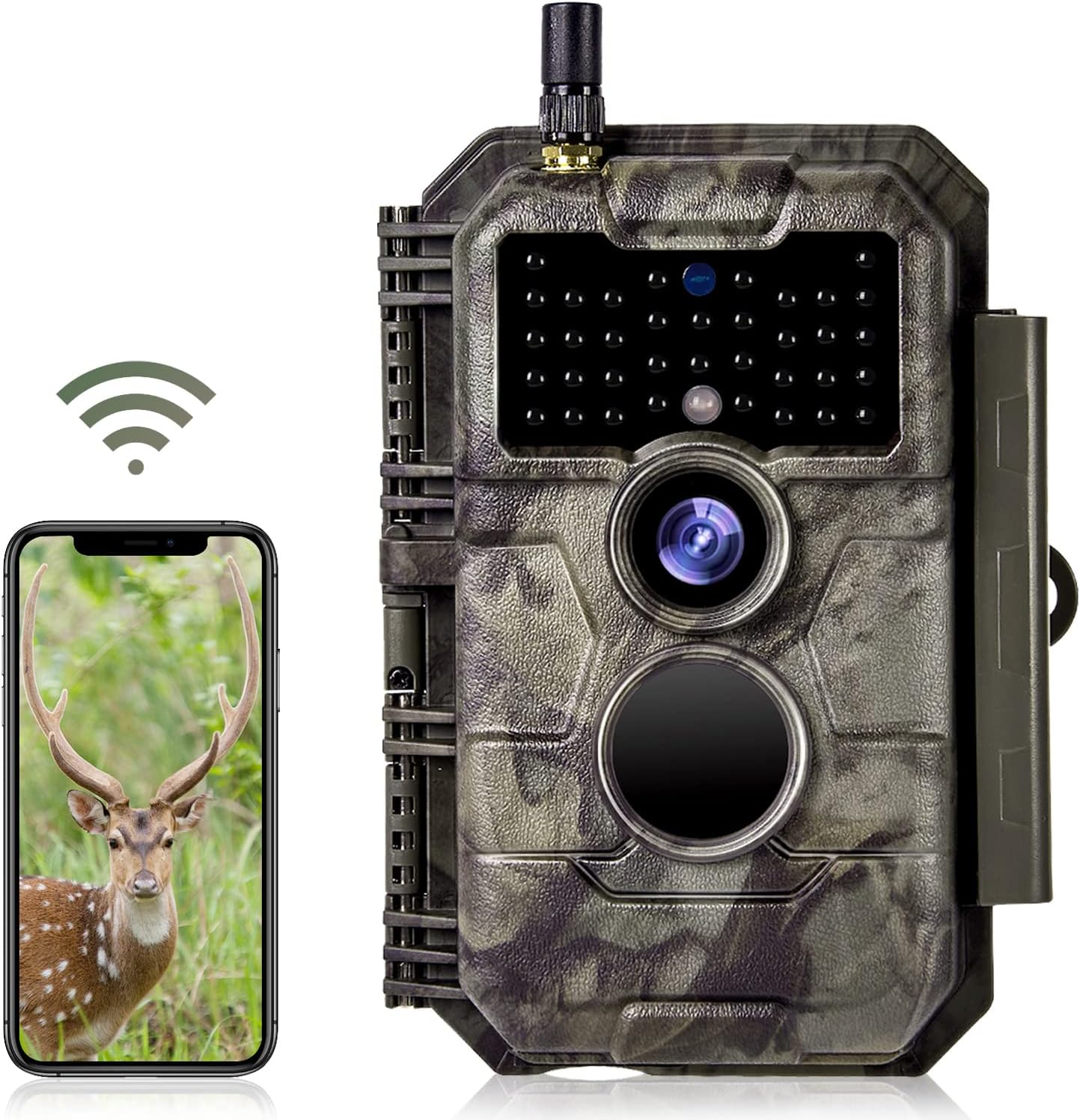
Figure 2: Folgtek ZP-W600 Camera with smartphone app interface.

Figure 3: Image and video quality comparison (24MP photo, 1296P H.264 video).

Figure 4: Example of clear night vision capture (75ft/23m range).
Setup
1. Battery Installation
- Open the camera casing.
- Locate the battery compartment (8).
- Insert the required number of AA batteries (not included), ensuring correct polarity.
- Close the battery compartment securely.
2. SD Card Insertion
- Locate the SD card slot (6).
- Insert a formatted SD/SDHC memory card (up to 256GB, not included) into the slot until it clicks into place.
- To remove, press the card gently to release it.
3. Initial Power On and Settings
- Move the mode switch (5) to the "SETUP" position. The camera screen (1) will turn on.
- Use the Menu button (2) and OK button (3) to navigate and adjust settings such as date, time, photo/video resolution, and PIR sensitivity.
- Ensure the plastic protective film on the lens is removed for optimal image clarity.
4. Mounting the Camera
The camera is IP66 waterproof and designed for outdoor use. Use the provided strap to secure the camera to a tree or pole. Ensure the camera is positioned to capture the desired area without obstructions.

Figure 5: Camera mounted on a tree, demonstrating IP66 waterproof capability.

Figure 6: Illustration of the 110° wide-angle lens coverage.
Operating Instructions
Mode Switch Positions:
- OFF: Power off the camera.
- SETUP: Access the camera's menu for settings adjustments and live view.
- ON: Activate the camera for motion-activated recording. The screen will turn off after a few seconds, and the camera will enter monitoring mode.
Recording Modes:
- Photo Mode: Captures still images when motion is detected.
- Video Mode: Records video clips when motion is detected.
- Photo + Video Mode: Captures both a still image and a video clip upon motion detection.
These modes can be selected and configured in the SETUP menu.
App Connection and Remote Control
The Folgtek ZP-W600 camera can be controlled and its footage accessed remotely via the "TrailCam Mobile" smartphone application. This app connects to the camera using Bluetooth for initial pairing and then WiFi for data transfer and live viewing.
1. Download the App:
Search for "TrailCam Mobile" in your device's app store or scan the QR codes below:

2. Connect to the Camera:
- Ensure the camera is in "SETUP" mode.
- Enable Bluetooth and WiFi on your smartphone.
- Open the "TrailCam Mobile" app.
- Follow the in-app instructions to connect via Bluetooth first, then establish a WiFi connection. The effective WiFi connection distance is approximately 20 meters (65 feet).
- Once connected, you can view live footage, adjust settings, and download photos/videos directly to your phone.

Figure 8: Camera connected via WiFi and Bluetooth for app control.
Video Tutorial: App Connection
Video 1: Demonstrates the process of connecting the camera to the smartphone app via Bluetooth and WiFi.
Maintenance
1. Cleaning:
- Regularly clean the camera lens and PIR sensors with a soft, dry cloth to ensure optimal performance.
- Wipe the camera body with a damp cloth if necessary, avoiding abrasive cleaners.
2. Battery Management:
- Check battery levels periodically, especially before extended deployment.
- Replace all batteries simultaneously with new, high-quality AA batteries for consistent power.
- Remove batteries if the camera will not be used for a prolonged period to prevent leakage.
3. SD Card Management:
- Format the SD card regularly (via camera settings or computer) to maintain optimal recording performance and prevent data corruption.
- Ensure the SD card is securely inserted.
Troubleshooting
Common Issues and Solutions:
- Camera not powering on:
- Check battery polarity and ensure batteries are fully charged.
- Verify the mode switch is in "SETUP" or "ON" position.
- Poor image/video quality:
- Ensure the protective plastic film has been removed from the lens.
- Clean the lens and sensors.
- Check camera settings for resolution and adjust as needed.
- WiFi connection issues:
- Ensure Bluetooth is enabled on your phone for initial connection.
- Try different WiFi channels if connection fails (as noted by some users).
- Ensure your phone is within the effective WiFi range (approx. 20m).
- Restart both the camera and the app.
- Motion sensor not triggering:
- Adjust PIR sensitivity in the camera settings.
- Ensure there are no obstructions directly in front of the PIR sensors.
- Check for excessive heat sources or moving branches that might cause false triggers or prevent detection.
- Water ingress:
- While rated IP66, ensure all latches and the seal ring (9) are properly closed and intact.
- Avoid submerging the camera.
Specifications
| Feature | Detail |
|---|---|
| Model Name | ZP-W600 |
| Image Resolution | Up to 32MP |
| Video Resolution | 1296P H.264 |
| Night Vision Range | 75ft (23m) |
| Connectivity | Wi-Fi, Bluetooth, IR |
| Water Resistance | IP66 Waterproof |
| Lens Angle | 110° Wide Angle |
| Storage | SD/SDHC/SDXC card up to 256GB (not included) |
| Power Source | AA Batteries (not included) |
| Operating Temperature | -4 ~ 140°F / -20 ~ 60°C |
| Dimensions | 15 x 10 x 8 inches |
| Item Weight | 1.08 pounds |
Warranty and Support
For warranty information, technical support, or service inquiries, please refer to the product packaging or contact Folgtek customer service directly. You may also visit the official Folgtek Store on Amazon for additional resources.