
BLAZEVIDEO A280W
BLAZEVIDEO 48MP 1296P WiFi Trail & Game Camera User Manual
Model: A280W | Brand: BLAZEVIDEO
Introduction
This manual provides detailed instructions for the setup, operation, and maintenance of your BLAZEVIDEO A280W WiFi Trail & Game Camera. Designed for wildlife observation, hunting, home security, farm area monitoring, and remote crop surveillance, this camera offers high-resolution imaging and advanced features to capture important moments.
Please read this manual thoroughly before using the camera to ensure optimal performance and longevity.
Package Contents
Upon opening the package, please verify that all the following items are included:
- Camera body
- Antenna
- Mounting strap
- USB cable

Image: Contents of the BLAZEVIDEO A280W package, including the camera, antenna, strap, and USB cable.
Product Overview
Familiarize yourself with the main components of your trail camera:

Image: Detailed view of the camera's internal and external components, including the LCD screen, keypad, SD card slot, Mini USB port, DC port, tripod screw hole, antenna, and battery slot.
- Antenna: For wireless communication.
- LCD Screen: For menu navigation and viewing captured media.
- Keypad: Buttons for navigating the camera's settings.
- SD Card Slot: Supports SD, SDXC, SDHC cards up to 512GB (not included).
- Mini USB Port: For connecting to a computer.
- DC Port (12V/1A 5.5*2.1mm): For external power supply.
- Tripod Screw Hole (UNC 1/4-20): For mounting on a tripod or other compatible accessories.
- Battery Slot: Houses 8 AA batteries (not included).
Setup
1. Battery Installation
The camera requires 8 AA batteries for operation. Ensure batteries are inserted with correct polarity.

Image: Demonstrates the installation of AA batteries into the camera's battery compartment, highlighting the low-power consumption feature for extended standby time.
2. SD Card Installation
Insert a compatible SD, SDHC, or SDXC card (up to 512GB) into the SD card slot. Ensure the card is inserted correctly until it clicks into place.
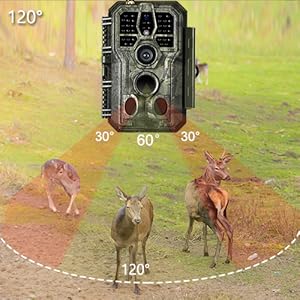
Image: Illustrates the insertion of an SD card into the camera's dedicated slot, emphasizing support for large capacity cards.
3. Mounting the Camera
Use the provided mounting strap to secure the camera to a tree or pole. The camera also features a tripod screw hole for alternative mounting options.
Video: Demonstrates the process of mounting the BLAZEVIDEO trail camera to a tree using the provided strap, and shows the camera's features.
4. App Installation & Connection
The BLAZEVIDEO A280W camera connects wirelessly to your smartphone via the "TrailCam Mobile" app using Wi-Fi and Bluetooth technology. This allows for remote viewing, operation, and accessing captured media.

Image: Shows the camera connecting to a smartphone via Wi-Fi and Bluetooth, with QR codes for downloading the "TrailCam Mobile" app from the Apple App Store and Google Play Store.
Follow these steps to connect your camera to the app:
- Enable Wi-Fi and Bluetooth on your phone.
- Turn on the camera.
- Open the "TrailCam Mobile" app on your phone and choose "WiFi camera".
- Start to set camera on phone.
Download the app here:
Video: A step-by-step guide on how to connect the BLAZEVIDEO camera to your smartphone via Wi-Fi using the dedicated app.
Operating the Camera
High-Resolution Capture
The A280W camera captures stunning 48MP photos and smooth 1296P videos with sound, ensuring clear and detailed recordings of wildlife or security events.

Image: Illustrates the camera's capability to capture high-definition 1296P video and 48MP photos, shown with a deer fawn.
Video: Shows the trail camera capturing beautiful moments of wildlife, demonstrating its video recording capabilities.
Fast Trigger Speed & Wide Angle Detection
With a rapid 0.1s trigger speed and a 120° wide-angle lens, the camera instantly captures movements up to 100ft away, minimizing missed activity.

Image: Highlights the camera's 0.1s fast trigger speed and 120° wide-angle lens, capturing a squirrel and deer in motion.
Image: Illustrates the camera's 120-degree wide-angle detection with three detection zones, showing its broad coverage for monitoring animals.
Video: Shows a day video captured by the trail camera, demonstrating its performance in daylight conditions.
No Glow Night Vision
Equipped with advanced 940nm infrared technology, the camera provides clear night vision without disturbing animals, thanks to its adaptive lighting technology.

Image: Depicts the camera's night vision capability, showing a bird in a dark environment with a 100ft detection range.
Video: Features deer captured in the trail camera's video, showcasing its ability to record wildlife.
Durable and Weatherproof Design
The camera boasts an IP66 waterproof rating, ensuring reliable performance even in challenging environmental conditions like rainforests or snowy landscapes.
Image: Shows the camera's IP66 waterproof and dustproof rating, with examples of it operating in rain and snow, featuring a deer and a coyote.
Maintenance
- Cleaning: Gently wipe the lens and camera body with a soft, dry cloth. Avoid abrasive cleaners.
- Battery Care: Replace all batteries simultaneously. Do not mix old and new batteries or different battery types. Remove batteries if the camera will not be used for an extended period.
- SD Card Management: Regularly format the SD card in the camera to ensure optimal performance and prevent data corruption. Back up important files before formatting.
- Storage: Store the camera in a cool, dry place when not in use.
Troubleshooting
- Camera not turning on:
Ensure batteries are correctly installed and fully charged. Check if the power switch is in the "ON" position.
- App connection issues (WiFi/Bluetooth):
Ensure your phone is within the camera's Wi-Fi signal range (approximately 45 feet). Close and reopen the app. Restart both the camera and your phone. Verify that Wi-Fi and Bluetooth are enabled on your phone. Note that the camera's Wi-Fi is for local connection to your phone, not for connecting to a home network.
- Poor image/video quality:
Check the lens for dirt or condensation. Ensure the camera is positioned correctly and not facing direct sunlight or strong light sources at night. Verify that the resolution settings in the camera are set to desired levels (e.g., 48MP for photos, 1296P for video).
- Camera not detecting motion:
Adjust the camera's sensitivity settings. Ensure there are no obstructions in front of the PIR sensors. Test the camera's detection range in the desired environment.
- Time-lapse feature not creating video file:
The camera saves time-lapse images as separate files. It does not automatically combine them into a single video file. You will need to use third-party software to compile these images into a video if desired.
Specifications
| Feature | Detail |
|---|---|
| Brand | BLAZEVIDEO |
| Model Name | A280W-Green |
| Effective Still Resolution | 48 MP |
| Video Capture Resolution | 1296P |
| Max Shutter Speed | 0.1s |
| Field Of View | 120 Degrees |
| Night Vision Range | 90 Feet (approx. 30m) |
| Water Resistance Level | IP66 Waterproof |
| Connectivity Technology | Wireless (Bluetooth, Wi-Fi) |
| Power Source | Battery Powered (8 AA batteries) |
| Flash Memory Type | SD, SDXC, SDHC (up to 512GB) |
| Item Dimensions L x W x H | 5.12 x 3.54 x 2.36 inches |
| Item Weight | 1.25 pounds |
| Operating Temperature | -4°F to 140°F (-20°C to 60°C) |
Warranty and Support
BLAZEVIDEO offers a 12-month warranty for this product. For any inquiries or assistance, please utilize our 24/7 online support. Refer to the product packaging or official website for specific contact details.
Related documentsA280W


Ask a question about this manual
Ask about setup, troubleshooting, compatibility, parts, safety, or missing instructions. Manuals+ will review the question and use this page’s manual context to help answer it.