
Lumens DC136
Lumens DC136 Portable USB Document Camera User Manual
Model: DC136
1. Introduction
This manual provides instructions for the proper setup, operation, and maintenance of your Lumens DC136 Portable USB Document Camera. Please read this manual thoroughly before using the device to ensure optimal performance and longevity.

Figure 1: Lumens DC136 Portable USB Document Camera with its flexible gooseneck fully extended, showcasing the camera head and base unit.
2. Safety Information
Observe the following safety precautions to prevent damage to the device or injury to yourself:
- Do not expose the device to water or excessive moisture.
- Avoid placing the device near heat sources.
- Use only the provided USB cable for connection.
- Do not attempt to disassemble or repair the device yourself. Contact qualified service personnel.
- Keep the lens clean and free from dust.
3. Package Contents
Verify that all items are present in the package:
- Lumens DC136 Document Camera Unit
- USB 3.0 Cable
- Quick Start Guide (if applicable)
4. Setup
4.1 Physical Setup
- Unpack the Device: Carefully remove the DC136 from its packaging.
- Position the Camera: Place the document camera on a stable, flat surface. The flexible gooseneck allows for various positioning options.
- Connect the USB Cable: Insert one end of the supplied USB 3.0 cable into the USB port on the back of the DC136 base.
- Connect to Computer: Connect the other end of the USB cable to an available USB 3.0 port on your computer. The device is plug-and-play and typically does not require additional drivers.
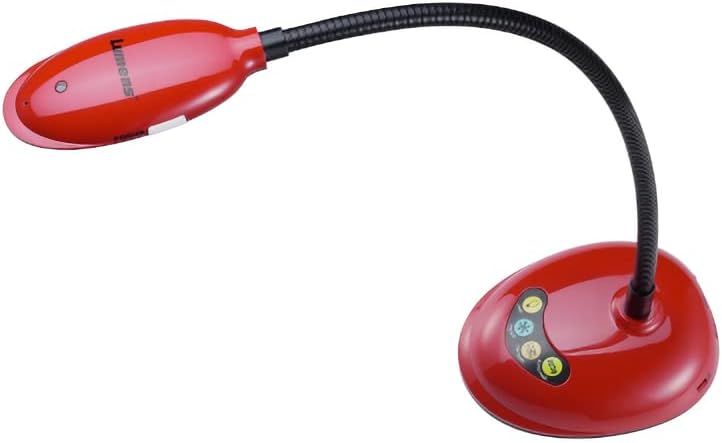
Figure 2: The Lumens DC136 Document Camera positioned with its gooseneck slightly bent, demonstrating its flexibility for various viewing angles.

Figure 3: A close-up view of the USB 3.0 port located on the rear of the Lumens DC136 document camera base, indicating the connection point.
4.2 Software Installation (Optional)
While the DC136 is a plug-and-play device, Lumens may offer proprietary software for enhanced features. Refer to the Lumens website for the latest software downloads and installation instructions.
5. Operating Instructions
5.1 Powering On/Off
The DC136 powers on automatically when connected to a computer via USB. Disconnect the USB cable to power off the device.
5.2 Adjusting the Camera
- Gooseneck Adjustment: The flexible gooseneck allows you to position the camera head to capture documents, objects, or even use it as a webcam.
- Auto-Focus: The camera features hands-free auto-focus. For optimal clarity, ensure the object is within the camera's focal range.
- LED Lamp: The built-in LED lamp provides additional illumination for objects.
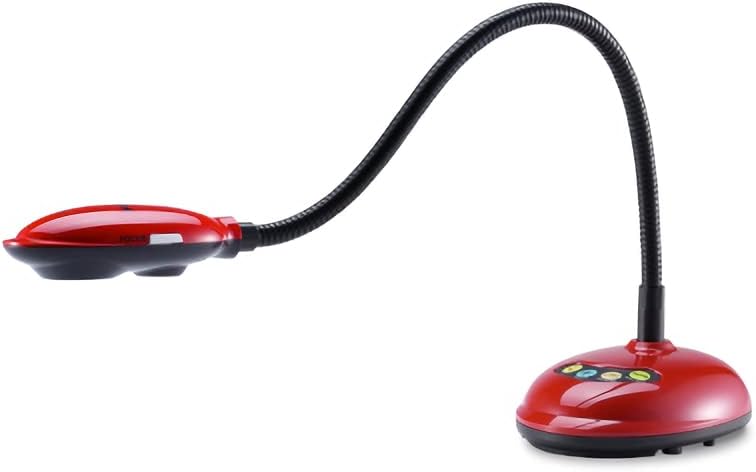
Figure 4: The Lumens DC136 Document Camera with its gooseneck folded into a compact position, illustrating its portability and storage convenience.
5.3 Using with Software
The DC136 is compatible with most video conferencing software, interactive whiteboards, and presentation applications that support USB cameras. Select "Lumens DC136" as your video input device within the software settings.
- Image Rotation: Use software controls to rotate the image 0°, 180°, flip, or mirror as needed.
- Zoom: Utilize the 16x digital zoom via software for closer inspection of details.
- Video/Audio Recording: If supported by your software, you can record video and audio using the built-in microphone.
6. Maintenance
- Cleaning the Lens: Use a soft, lint-free cloth specifically designed for optical lenses to gently wipe the camera lens. Do not use abrasive cleaners.
- Cleaning the Body: Wipe the camera body with a soft, dry cloth. For stubborn dirt, a slightly damp cloth can be used, followed by a dry cloth.
- Storage: When not in use, store the camera in a clean, dry place, preferably in its original packaging or a protective case.
7. Troubleshooting
| Problem | Possible Cause | Solution |
|---|---|---|
| No image displayed. | USB cable not properly connected. Incorrect camera selected in software. | Ensure USB cable is securely connected to both the camera and computer. Select "Lumens DC136" as the video input in your application. |
| Image is blurry. | Object out of focus range. Lens is dirty. | Adjust the gooseneck to bring the object into focus. Clean the camera lens with a soft, lint-free cloth. |
| Poor image quality. | Insufficient lighting. Software settings. | Turn on the built-in LED lamp or add external lighting. Check resolution settings in your software; ensure 4K or 1080p is selected if supported. |
| Device not recognized by computer. | Faulty USB port or cable. Operating system issue. | Try a different USB port or cable. Restart your computer. Check device manager for driver status. |
8. Specifications
| Feature | Detail |
|---|---|
| Sensor | 1/3" 13MP CMOS |
| Total Pixels | 13.48M |
| Output Resolution | 4K(2160p), 1600x1200, 1080p, 720p, XGA, 960x540, 640x480, 640x360 |
| Frame Rate | 30fps for 2160p; 60fps for 1080p / 720p |
| Total Zoom | 16x |
| Digital Zoom | 16x (via Software) |
| Mechanical Zoom | 7x |
| Close-up Distance | 2.4" (60 mm) |
| Shooting Area Max | 16.8" x 12.6" (428 mm x 321 mm) |
| Lamp | LED |
| Arm Type | Joint-free Gooseneck |
| Output Interface | USB 3.0 (Compatible with USB2.0) |
| Control | USB |
| Built-in Microphone | Yes |
| Auto Tune | Yes, One Button for Optimization Image |
| Focus Mode | Auto/Manual |
| Image Rotation | 0° / 180° / Flip / Mirror |
| Video / Audio Recording | Yes (via Software) |
| Freeze Function | Yes |
| VESA Mount | Yes, 75 mm x 75 mm |
| Included Accessories | USB 3.0 Cable |
| Power Consumption | 2.25W (Maximum) |
| Weight | 2.65 lb |
| Dimensions (Folded) | 4.2" x 11" x 5.4" |
| Dimensions (Open) | 4.2" x 15" x 13.8" |
9. Warranty Information
Lumens products typically come with a limited warranty. For detailed warranty terms and conditions, including duration and coverage, please refer to the warranty card included with your product or visit the official Lumens website. Keep your proof of purchase for warranty claims.
10. Customer Support
If you encounter issues not covered in this manual or require further assistance, please contact Lumens customer support:
- Website: Visit the official Lumens website for FAQs, software downloads, and support contact information.
- Email/Phone: Refer to the contact details provided on the Lumens website or in your product documentation.
Related documentsDC136


Ask a question about this manual
Ask about setup, troubleshooting, compatibility, parts, safety, or missing instructions. Manuals+ will review the question and use this page’s manual context to help answer it.