
NACON 10946680
NACON Asymmetric Wireless Controller for PlayStation 4
Model: 10946680
Introduction
Thank you for choosing the NACON Asymmetric Wireless Controller for PlayStation 4. This controller is officially licensed for PlayStation 4 and designed to provide an immersive gaming experience with its unique asymmetric stick layout and wireless connectivity. This manual will guide you through the setup, operation, maintenance, and troubleshooting of your new controller.
What's in the Box
Please check the contents of your package to ensure all items are present:
- NACON Asymmetric Wireless Controller
- USB Receiver
- USB Charging Cable
- Quick Start Guide (not included in this digital manual)
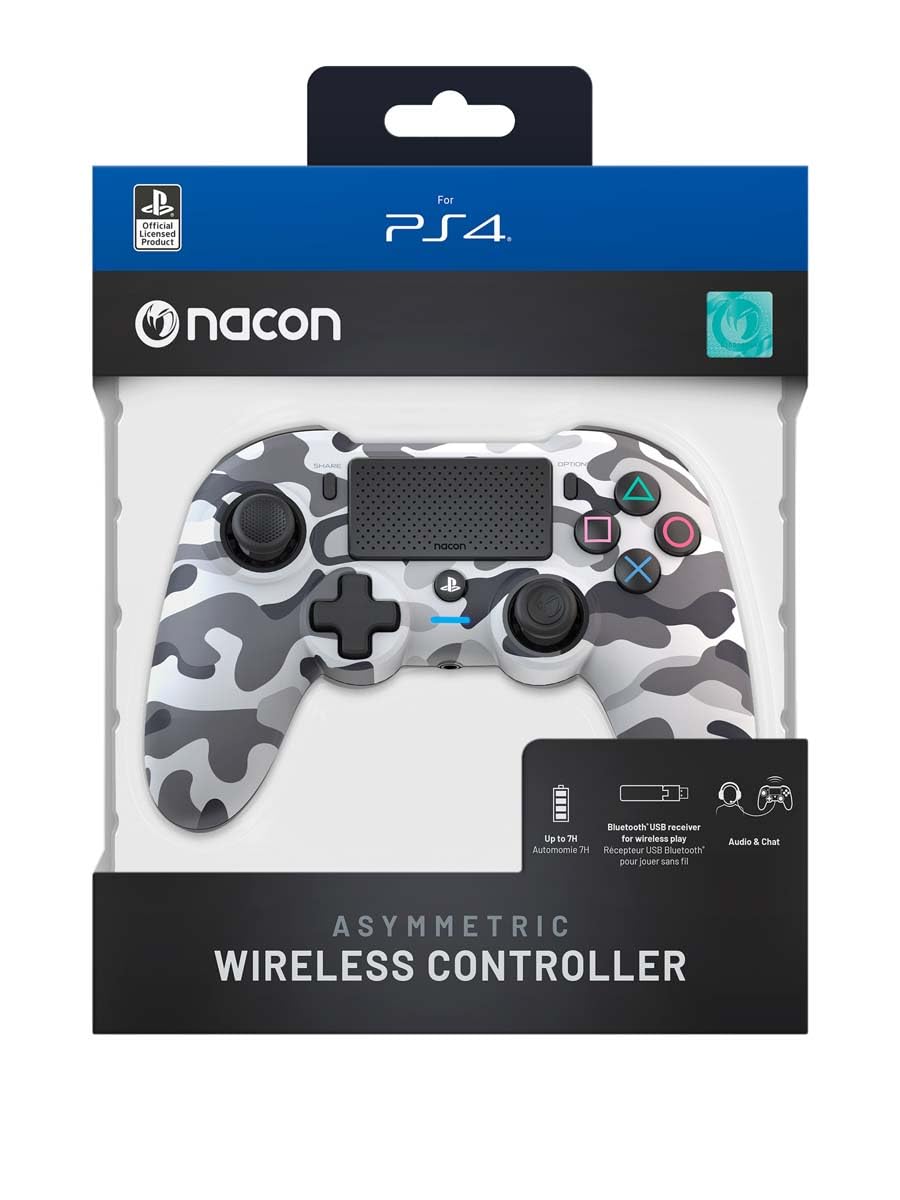
Image: The NACON Asymmetric Wireless Controller shown in its retail packaging, highlighting the product and its key features.
Setup
1. Charging the Controller
Before first use, fully charge the controller. Connect the small end of the USB charging cable to the controller's charging port and the larger end to a USB port on your PlayStation 4 console or a compatible USB wall adapter. The LED indicator on the controller will show charging status and turn off when fully charged.
2. Connecting to PlayStation 4 (Wireless)
- Insert the USB Receiver into an available USB port on your PlayStation 4 console.
- Press the PlayStation button on the controller. The controller will automatically attempt to pair with the USB Receiver.
- Once successfully paired, the LED indicator on the controller will illuminate steadily, indicating a stable connection.
3. Connecting to PC (Wireless)
The controller can also be used with a PC. Insert the USB Receiver into an available USB port on your PC. The controller should be recognized automatically by Windows as a standard gamepad. Drivers may be installed automatically.

Image: Front view of the NACON Asymmetric Wireless Controller, showcasing its button layout and asymmetric stick design.
Operating the Controller
Button Layout and Functions
The NACON Asymmetric Wireless Controller features a familiar PlayStation button layout with an ergonomic asymmetric stick configuration for enhanced comfort and precision.
- Left Analog Stick: Used for movement and navigation.
- Right Analog Stick: Used for camera control and aiming.
- Directional Pad (D-Pad): For precise directional input.
- Action Buttons (Triangle, Circle, Cross, Square): Standard PlayStation action buttons.
- L1/R1 Buttons: Shoulder buttons.
- L2/R2 Triggers: Analog triggers for precise input.
- SHARE Button: Access sharing features on PS4.
- OPTIONS Button: Access in-game menus and options.
- PlayStation Button: Power on/off the controller, access PS4 Home Menu.
- Touch Pad: Interactive surface for specific game functions.
Battery Indicator
The controller includes an LED indicator that provides information on battery status. Refer to the Quick Start Guide for specific LED patterns and their meanings (e.g., low battery, charging, fully charged).
Maintenance
Cleaning
To clean your controller, use a soft, dry cloth. For stubborn dirt, slightly dampen the cloth with water. Do not use harsh chemicals, abrasive cleaners, or solvents, as these can damage the controller's finish and internal components.
Storage
When not in use, store the controller in a cool, dry place away from direct sunlight and extreme temperatures. Avoid placing heavy objects on the controller.
Battery Care
To prolong battery life, avoid fully discharging the controller frequently. If storing for an extended period, charge the battery to approximately 50% before storage and recharge every few months.
Troubleshooting
| Problem | Possible Solution |
|---|---|
| Controller does not connect. |
|
| Controller does not charge. |
|
| Buttons or sticks are unresponsive. |
|
Resetting the Controller
If the controller is unresponsive or behaving erratically, a soft reset may resolve the issue. Locate the small reset button (often a pinhole) on the back or underside of the controller. Use a thin, pointed object (like a paperclip) to press and hold the button for a few seconds. Then, re-pair the controller with your console.
Specifications
- Model Number:
- 10946680
- Connectivity:
- Wireless (via USB Receiver)
- Compatibility:
- PlayStation 4, PC
- Dimensions (Controller):
- Approximately 6.89 x 2.76 x 8.27 inches (17.5 x 7 x 21 cm)
- Weight (Controller):
- Approximately 14.1 ounces (400 grams)
- Manufacturer:
- NACON
- First Available Date:
- July 6, 2022
Warranty and Support
For warranty information, technical support, or further assistance with your NACON Asymmetric Wireless Controller, please visit the official NACON website or contact their customer support directly. Keep your proof of purchase for warranty claims.
Official NACON Website: www.nacongaming.com
Related documents10946680

Ask a question about this manual
Ask about setup, troubleshooting, compatibility, parts, safety, or missing instructions. Manuals+ will review the question and use this page’s manual context to help answer it.