
1. Introduction
This manual provides detailed instructions for setting up, operating, and maintaining your GeeekPi Raspberry Pi 4 2GB Starter Kit with DeskPi Lite Case. Please read this manual thoroughly before use to ensure proper functionality and longevity of your product.
2. Package Contents
Verify that all items listed below are included in your package. If any items are missing or damaged, please contact GeeekPi customer support.

Image 2.1: Overview of the GeeekPi Raspberry Pi 4 2GB Starter Kit components, including the Raspberry Pi 4 board, DeskPi Lite case, heatsink with PWM fan, QC3.0 power supply, USB-C cable, HDMI cables, 64GB Micro SD card, and USB Micro SD card reader.
- Raspberry Pi 4 Model B (2GB RAM)
- DeskPi Lite Case with Power Button and Heatsink with PWM Fan
- QC3.0 Power Supply (USB-C)
- USB-C Power Cable
- HDMI Cables (2x)
- 64GB Micro SD Card
- USB Micro SD Card Reader
3. Product Overview
3.1 Raspberry Pi 4 Model B (2GB RAM)
The Raspberry Pi 4 Model B is a powerful single-board computer. Key features include:

Image 3.1.1: Detailed view of the Raspberry Pi 4 Model B (2GB RAM) board, highlighting its processor, memory, connectivity options, GPIO pins, video and sound ports, and multimedia capabilities.
- Processor: Broadcom BCM2711, quad-core Cortex-A72 (ARM v8) 64-bit SoC @ 1.5GHz
- Memory: 2GB LPDDR4 SDRAM
- Connectivity: 2.4 GHz and 5.0 GHz IEEE 802.11b/g/n/ac wireless LAN, Bluetooth 5.0, Gigabit Ethernet
- USB Ports: 2 × USB 3.0 ports, 2 × USB 2.0 ports
- Video & Sound: 2 × micro HDMI ports (up to 4Kp60 supported), 2-lane MIPI DSI display port, 2-lane MIPI CSI camera port, 4-pole stereo audio and composite video port
- GPIO: Standard 40-pin GPIO header (fully backwards compatible with previous boards)
- SD Card: Micro SD card slot for loading operating system and data storage
3.2 DeskPi Lite Case
The DeskPi Lite Case is designed to house and cool your Raspberry Pi 4, offering additional features for enhanced usability.
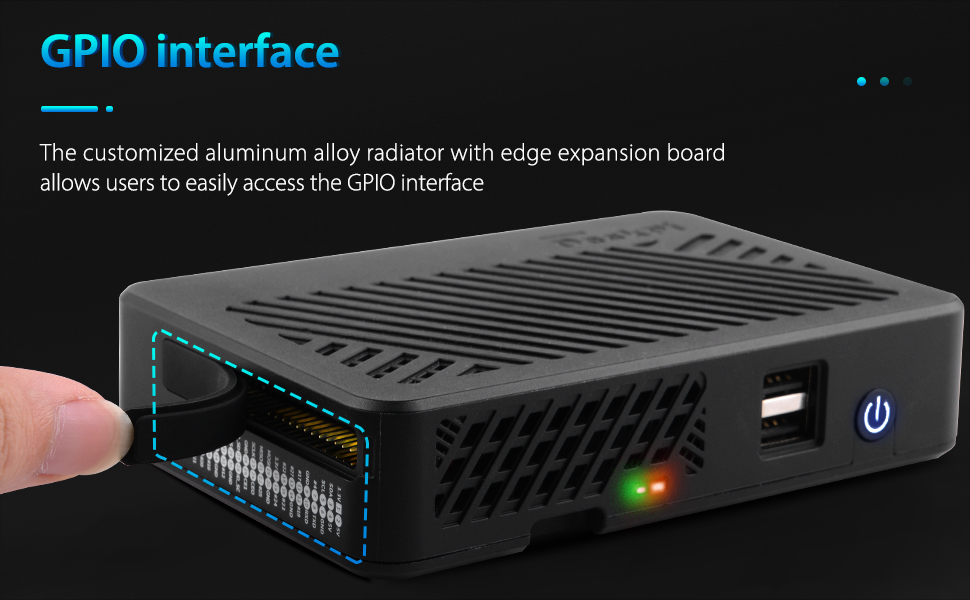
Image 3.2.1: The DeskPi Lite case, showcasing its compact design and integrated cooling solution for the Raspberry Pi 4B.
- Lightweight Plastic Housing: Durable and compact design.
- PWM Variable Speed Fan: Supports official and programmable speed regulation for efficient cooling.
- Integrated Power Button: For convenient power control.
- Expanded USB Ports: Adds two additional USB 2.0 ports.
- GPIO Access: Customized aluminum alloy radiator with edge expansion board allows easy access to the GPIO interface.
3.2.1 Case Ports and Indicators

Image 3.2.2: Top and side views of the DeskPi Lite case, with numbered labels indicating the Power Button, USB 2.0 ports, Status LED, TF Card slot, GPIO, Power In, HDMI 0, HDMI 1, and CVBS ports.
- Power Button
- 2 x USB 2.0 Ports
- Status LED (Red for Power On, Green for Disk Status)
- TF Card Slot
- GPIO
- Power In (USB-C)
- HDMI 0
- HDMI 1
- CVBS
- Raspberry Pi Port (Internal connection)
3.2.2 Cooling System

Image 3.2.3: Diagram showing the airflow within the DeskPi Lite case, demonstrating the efficient cooling provided by the integrated fan and ventilation design.
The DeskPi Lite case features an integrated heatsink and a PWM variable speed fan to ensure optimal thermal management for the Raspberry Pi 4, preventing overheating during intensive operations.
3.3 Power Supply and Accessories

Image 3.3.1: Components including the 18W QC3.0 power supply with USB-C cable, a high-speed 4K HDMI cable, and a USB Micro SD card reader.
- QC3.0 Power Supply: 18W Quick Charge 3.0 power adapter for stable and efficient power delivery to the Raspberry Pi 4B.
- HDMI Cables: High-speed 4K HDMI cables with PVC and gold-plated connectors for reliable video output.
- USB Micro SD Card Reader: For easy installation of the operating system onto the included 64GB Micro SD card.
4. Setup Instructions
4.1 Assembling the Raspberry Pi 4 into the DeskPi Lite Case
- Prepare the Raspberry Pi: Ensure your Raspberry Pi 4 board is clean and free of debris.
- Install Heatsink/Fan: Attach the heatsink with the PWM fan onto the Raspberry Pi's CPU, ensuring proper contact for thermal transfer. Connect the fan's power cable to the appropriate pins on the Raspberry Pi's GPIO header as indicated in the case's specific instructions (refer to the DeskPi Lite manual for exact pinout).
- Insert Raspberry Pi: Carefully align the Raspberry Pi 4 board with the connectors and mounting posts inside the DeskPi Lite case. Gently press down until it is securely seated. Ensure all ports align with the case openings.
- Connect Internal Cables: Connect any internal USB or power cables from the case's expansion board to the Raspberry Pi 4 board as required. This typically includes connections for the power button and expanded USB ports.
- Close the Case: Secure the top cover of the DeskPi Lite case. Ensure it snaps into place or is fastened with any provided screws.
4.2 Operating System Installation
The Raspberry Pi requires an operating system (OS) to function. The most common OS is Raspberry Pi OS (formerly Raspbian).
- Prepare Micro SD Card: Insert the included 64GB Micro SD card into the USB Micro SD card reader, then plug the reader into a computer.
- Download Raspberry Pi Imager: Download the official Raspberry Pi Imager software from the Raspberry Pi website (www.raspberrypi.com/software/).
- Write OS to SD Card:
- Open Raspberry Pi Imager.
- Select your desired Raspberry Pi OS (e.g., Raspberry Pi OS (64-bit)).
- Choose the 64GB Micro SD card as the storage device.
- Click "Write" and wait for the process to complete.
- Insert SD Card: Once the OS is written, safely eject the Micro SD card from your computer and insert it into the TF Card slot on the DeskPi Lite case.
5. Operating Instructions
5.1 Connecting Peripherals
Before powering on, connect your essential peripherals:
- Display: Connect one or two monitors to the micro HDMI ports using the provided HDMI cables.
- Keyboard & Mouse: Connect your USB keyboard and mouse to the USB 2.0 or USB 3.0 ports.
- Network (Optional): For wired internet, connect an Ethernet cable to the Gigabit Ethernet port.
5.2 Powering On
- Connect Power: Plug the USB-C power cable into the "Power In" port on the DeskPi Lite case, then connect the QC3.0 power supply to a wall outlet.
- Power On: Press the power button on the front of the DeskPi Lite case. The red status LED will illuminate, and the green disk status LED will flash during boot-up.
- Initial Setup: Follow the on-screen instructions for the initial setup of Raspberry Pi OS, including setting up Wi-Fi, language, and user accounts.
5.3 Powering Off
Always shut down the Raspberry Pi OS gracefully to prevent data corruption:
- From the desktop environment, go to the menu (usually top-left) and select "Shutdown" or "Reboot".
- Once the system has completely shut down (the screen goes black and disk activity stops), you can safely disconnect the power supply or press the power button on the case if configured for a hard shutdown.
6. Maintenance
- Cleaning: Periodically clean the case and fan vents to prevent dust buildup, which can impede airflow and cooling performance. Use a soft, dry cloth or compressed air. Ensure the device is powered off and unplugged before cleaning.
- Software Updates: Regularly update your Raspberry Pi OS to ensure you have the latest features, security patches, and performance improvements. This can typically be done via the terminal using commands like
sudo apt updateandsudo apt upgrade. - Fan Operation: The PWM fan's speed can be regulated. Ensure it is operating correctly, especially during high-load tasks, to maintain optimal operating temperatures.
7. Troubleshooting
- No Power/No Boot:
- Ensure the QC3.0 power supply is correctly connected and plugged into a working outlet.
- Verify the Micro SD card is properly inserted and has a valid operating system image.
- Check internal connections within the case, especially the power button and fan connections.
- No Display Output:
- Confirm HDMI cables are securely connected to both the Raspberry Pi's micro HDMI ports and the monitor.
- Ensure your monitor is set to the correct input source.
- Try a different HDMI cable or monitor if possible.
- Overheating:
- Ensure the case's fan is spinning and not obstructed.
- Verify the heatsink is properly seated on the CPU.
- Clean any dust from the fan and case vents.
- USB Devices Not Working:
- Try connecting the device to a different USB port.
- Ensure the device does not require more power than the Raspberry Pi can supply (consider a powered USB hub for high-power devices).
8. Specifications
| Component | Specification |
|---|---|
| Processor | Broadcom BCM2711, Quad-core Cortex-A72 (ARM v8) 64-bit SoC @ 1.5GHz |
| RAM | 2GB LPDDR4 |
| Storage | 64GB Micro SD Card (included) |
| Wireless Connectivity | 2.4 GHz and 5.0 GHz IEEE 802.11b/g/n/ac wireless LAN, Bluetooth 5.0 |
| Wired Connectivity | Gigabit Ethernet |
| USB Ports | 2 × USB 3.0, 2 × USB 2.0 (on Pi board) + 2 × USB 2.0 (on DeskPi Lite case) |
| Video Output | 2 × micro HDMI ports (up to 4Kp60 supported), 2-lane MIPI DSI display port, CVBS |
| Audio Output | 4-pole stereo audio and composite video port |
| GPIO | Standard 40-pin GPIO header |
| Power Input | 5V DC via USB-C connector (minimum 3A), QC3.0 Power Supply (included) |
| Operating System | Linux (e.g., Raspberry Pi OS) |
| Case Dimensions | Approx. 7.28 x 4.53 x 3.15 inches (Package Dimensions) |
| Item Weight | Approx. 1.1 pounds |
9. Warranty and Support
GeeekPi products are designed for reliability and performance. For warranty information, technical support, or to report any issues, please visit the official GeeekPi website or contact their customer service directly. Keep your purchase receipt for warranty claims.
Online Resources:
- Official GeeekPi Store: GeeekPi Amazon Store
- Raspberry Pi Official Website (for OS and documentation): www.raspberrypi.com