
1. Introduction
Thank you for choosing the LODVIE D112 2.4G USB Wireless Mouse. This manual provides detailed instructions on how to set up, operate, and maintain your new wireless mouse. Please read this manual carefully before use to ensure optimal performance and longevity of your device.
2. Product Overview
The LODVIE D112 Wireless Mouse features an ergonomic design for comfortable use, 5 adjustable DPI settings for precise control, and a stable 2.4G wireless connection. It is designed for efficiency and convenience in various computing environments.
Package Contents
- LODVIE D112 Wireless Mouse
- USB Receiver
- User Manual
Mouse Components
Familiarize yourself with the key components of your LODVIE D112 Wireless Mouse:
- Left Button: Standard click function.
- Right Button: Standard right-click function.
- Scroll Wheel: For scrolling up and down, also functions as a middle click button.
- DPI Switch Button: Adjusts cursor sensitivity (DPI).
- Forward Button: Navigates forward in web browsers or file explorers.
- Back Button: Navigates backward in web browsers or file explorers.
- USB Receiver Slot: Located at the bottom of the mouse for storage.
- Battery Compartment: Located at the bottom of the mouse.
- Power Switch: On/Off switch at the bottom.

Figure 1: LODVIE D112 Wireless Mouse Components
3. Setup Instructions
Follow these steps to set up your LODVIE D112 Wireless Mouse:
- Insert Battery:
- Open the battery compartment cover on the bottom of the mouse.
- Insert one AA battery, ensuring correct polarity (+/-).
- Close the battery compartment cover.
- Retrieve USB Receiver:
- Locate the USB receiver stored in the slot next to the battery compartment on the bottom of the mouse.
- Gently pull out the USB receiver.
- Connect USB Receiver:
- Plug the USB receiver into an available USB port on your computer (laptop or desktop PC).
- Your computer should automatically detect and install the necessary drivers. No additional software installation is required.
- Power On:
- Slide the power switch on the bottom of the mouse to the "ON" position.
- The mouse is now ready for use.

Figure 2: LODVIE D112 Wireless Mouse
4. Operating Instructions
Basic Functions
- Clicking: Use the left and right buttons for standard click actions.
- Scrolling: Rotate the scroll wheel to navigate documents and web pages vertically.
- Side Buttons: The forward and back buttons on the side of the mouse allow for quick navigation in web browsers and file explorers.
DPI Adjustment
The mouse features 5 adjustable DPI levels to suit different tasks and preferences. DPI (Dots Per Inch) determines the sensitivity of the mouse cursor.
- Press the DPI Switch Button (located below the scroll wheel) to cycle through the available DPI settings: 800, 1200, 1600, 2000, and 2400.
- Each press will change the sensitivity, allowing you to find the optimal speed for your work or leisure activities.

Figure 3: DPI Adjustment for Enhanced Efficiency
5. Power Saving Mode
To conserve battery life, the LODVIE D112 Wireless Mouse is equipped with an automatic super saving sleep mode.
- If the mouse remains inactive for 8 minutes, it will automatically enter sleep mode.
- To wake the mouse, simply click any button. The mouse will instantly resume normal operation.
6. Specifications
| Feature | Description |
|---|---|
| Model Number | D112 |
| Connectivity Technology | 2.4G USB Wireless |
| Movement Detection | Optical |
| Adjustable DPI | 800/1200/1600/2000/2400 |
| Number of Buttons | 6 (Left, Right, Scroll Wheel, DPI, Forward, Back) |
| Power Source | 1 x AA Battery (not included) |
| Product Dimensions | 4.2 x 2.4 x 1.6 inches |
| Item Weight | 2.89 ounces |
| Manufacturer | LODVIE |
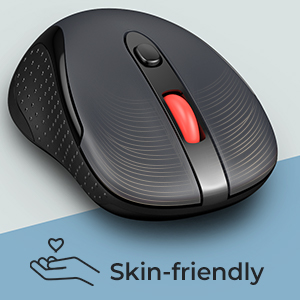
Figure 4: Mouse Dimensions
7. Troubleshooting
If you encounter issues with your LODVIE D112 Wireless Mouse, please refer to the following common solutions:
- Mouse not responding:
- Ensure the mouse is powered on (switch at the bottom).
- Check if the battery is inserted correctly and has sufficient charge. Replace the battery if necessary.
- Ensure the USB receiver is securely plugged into a working USB port on your computer.
- Try plugging the USB receiver into a different USB port.
- Move the mouse closer to the USB receiver to rule out range issues.
- Cursor movement is erratic or jumpy:
- Clean the optical sensor on the bottom of the mouse with a soft, dry cloth.
- Ensure you are using the mouse on a suitable surface. Highly reflective or transparent surfaces may affect tracking.
- Adjust the DPI setting using the DPI switch button to see if a different sensitivity improves performance.
- Side buttons (Forward/Back) not working:
- These buttons are typically supported by most operating systems and applications. Ensure your application (e.g., web browser) supports these navigation functions.
- Restart your computer.
8. Maintenance
Proper maintenance can extend the life of your wireless mouse:
- Cleaning: Use a soft, lint-free cloth to wipe the surface of the mouse. For stubborn dirt, slightly dampen the cloth with water. Avoid harsh chemicals or abrasive materials.
- Sensor Care: Keep the optical sensor on the bottom of the mouse clean and free from dust or debris to ensure accurate tracking.
- Storage: When not in use for extended periods, turn off the mouse using the power switch and store the USB receiver in its dedicated slot to prevent loss.
- Battery Replacement: Replace the AA battery when the mouse performance degrades or it stops responding.

Figure 5: Mouse in a typical work setup
9. Warranty and Support
LODVIE products are designed for reliability and performance. For any issues not covered in this manual or for further assistance, please contact LODVIE customer support through the retailer where you purchased the product or visit the official LODVIE website for contact information.
Please retain your proof of purchase for warranty claims.

