1. Introduction
The Lenovo 510 FHD Webcam is designed to provide high-definition video and clear audio for teleconferencing, streaming, and video calls. This manual outlines the product's features, setup, operation, and maintenance to ensure optimal performance.
2. Safety Information
Please read and follow all safety instructions to prevent damage to the device or personal injury.
- Do not expose the webcam to water or excessive moisture.
- Avoid dropping or subjecting the webcam to strong impacts.
- Do not attempt to disassemble or repair the webcam yourself. Contact qualified service personnel.
- Keep the webcam away from heat sources and direct sunlight.
3. Package Contents
Verify that all items are present in the package:
- Lenovo 510 FHD Webcam
- USB-C to USB-A Cable (1.8 meters)
- Documentation (Quick Start Guide, Warranty Information)
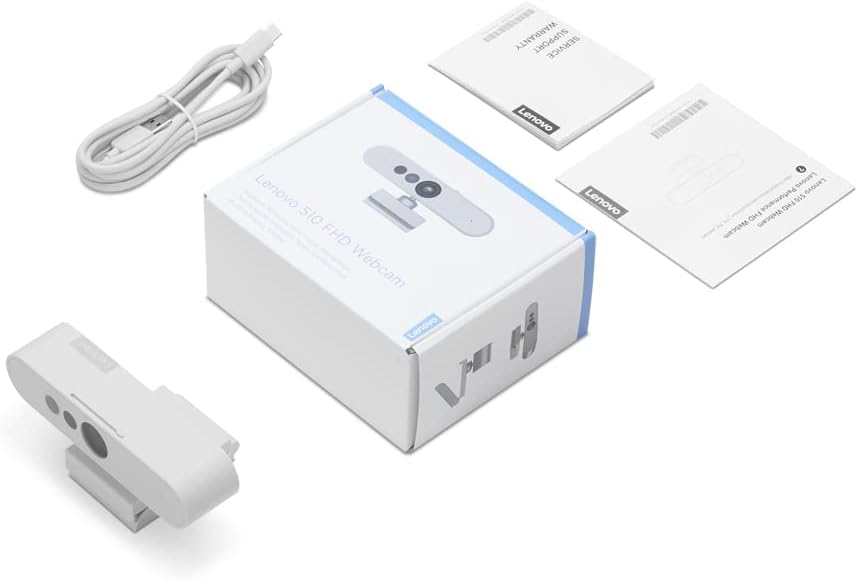
Figure 3.1: Package Contents
4. Product Overview
The Lenovo 510 FHD Webcam features a sleek design with integrated components for enhanced functionality.

Figure 4.1: Webcam Components
- RGB Lens: Captures 1080p Full HD video.
- IR Lens & IR LED: Used for Windows Hello facial recognition.
- Dual Microphones: Integrated for clear audio capture.
- Built-in Shutter: Provides physical privacy control.
- Universal Clip Mount: Attaches securely to laptops, monitors, or tripods.
- USB-C Port: For connecting the webcam to your device.
5. Setup Instructions
Setting up your Lenovo 510 FHD Webcam is a simple plug-and-play process.
- Mounting the Webcam:
- Open the universal clip mount.
- Place the webcam on top of your laptop screen or monitor, ensuring it is stable.
- Alternatively, attach the webcam to a tripod using the integrated tripod mount.

Figure 5.1: Mounting the Webcam
- Connecting to Your Device:
- Connect the USB-C end of the provided cable to the webcam's USB-C port.
- Connect the USB-A end of the cable to an available USB 2.0 port on your computer (Windows or Mac).
- The webcam is UVC-compliant, meaning it is plug-and-play and does not require additional driver installation for most operating systems.

Figure 5.2: Connecting the Webcam
6. Operating Instructions
Utilize the full capabilities of your Lenovo 510 FHD Webcam with these operating guidelines.
6.1 Video and Audio Features
- High-Definition Video: The webcam delivers crisp 1080p Full HD video at 30 frames per second, suitable for various communication needs.
- Wide-Angle View: A 95-degree wide-angle lens captures more of your environment, ideal for group calls or showcasing a broader background.
- Digital Zoom: Use the 4X digital zoom feature within your video conferencing software to focus on specific areas.
- 360° Rotation: The webcam head can rotate 360 degrees, allowing you to easily adjust the camera angle without repositioning the entire unit.
- Dual Microphones: Integrated stereo microphones pick up clear audio from up to 2 meters away, ensuring your voice is heard during calls.

Figure 6.1: Video and Audio Capabilities
6.2 Privacy Shutter
For enhanced privacy, the webcam includes a physical sliding privacy shutter.
- To block the camera lens, slide the shutter to the closed position.
- To open the camera lens, slide the shutter to the open position.
6.3 Windows Hello Facial Recognition
The Lenovo 510 FHD Webcam supports Windows Hello for secure and convenient login.
- Ensure your computer is running a compatible version of Windows.
- Navigate to your Windows settings and configure Windows Hello facial recognition.
- Once set up, you can log in to your device using facial recognition.

Figure 6.2: Windows Hello in Action
7. Maintenance
Proper maintenance ensures the longevity and optimal performance of your webcam.
- Cleaning the Lens: Use a soft, lint-free cloth to gently wipe the camera lens. Avoid abrasive materials or harsh chemicals.
- Cleaning the Body: Wipe the webcam body with a dry, soft cloth.
- Storage: When not in use, store the webcam in a cool, dry place, away from dust and extreme temperatures.
8. Troubleshooting
If you encounter issues with your webcam, refer to the following common solutions:
| Problem | Possible Cause | Solution |
|---|---|---|
| Webcam not detected | Loose USB connection, incompatible port, driver issue. | Ensure the USB cable is securely connected. Try a different USB port. Restart your computer. Check device manager for driver updates. |
| Poor image quality | Insufficient lighting, dirty lens, software settings. | Ensure adequate lighting in your environment. Clean the camera lens. Adjust video settings within your application (e.g., brightness, contrast). |
| No audio from microphone | Microphone muted, incorrect audio input selected. | Check if the microphone is muted in your operating system or application. Select the Lenovo 510 FHD Webcam as the default audio input device. |
| Windows Hello not working | Incorrect setup, environmental factors. | Ensure Windows Hello is properly configured in settings. Verify sufficient lighting and that your face is clearly visible to the camera. |
9. Specifications
| Feature | Detail |
|---|---|
| Model Number | GXC1D66063 |
| Video Capture Resolution | 1080p Full HD |
| Frame Rate | 30 frames per second |
| Field of View | 95 degrees |
| Digital Zoom | 4X |
| Rotation | 360 degrees Pan & Tilt |
| Microphones | Dual, Integrated Stereo |
| Connectivity | USB 2.0 (USB-C on webcam, USB-A on computer) |
| Cable Length | 1.8 meters |
| Privacy Feature | Sliding Privacy Shutter |
| Facial Recognition | Windows Hello 4.1 compatible |
| Product Dimensions | 5.5 x 4.5 x 2.4 inches |
| Item Weight | 0.5 ounces |
| Color | White |
Figure 9.1: Webcam Dimensions
10. Warranty and Support
Lenovo provides a standard limited warranty for this product. For detailed warranty terms and conditions, please refer to the documentation included in your package or visit the official Lenovo support website.
For technical assistance, driver downloads, or further inquiries, please contact Lenovo customer support.


