Download PDFFree PDF. The Save button below keeps a bookmark and private notes in your account.
MAXTOP T5 Smartwatch User Manual
Model: T5
1. Introduction
Thank you for choosing the MAXTOP T5 Smartwatch. This device is designed to help you monitor your health and fitness activities, receive notifications, and manage various daily functions. Please read this manual carefully to ensure proper use and optimal performance.
Image: The MAXTOP T5 Smartwatch in use during a run, highlighting its fitness and health tracking capabilities.
2. Package Contents
Ensure all items are present in the package:
MAXTOP T5 Smartwatch Head
Watch Strap
Magnetic Charging Cable
User Manual
3. Setup and Initial Use
3.1. Charging the Smartwatch
Before first use, fully charge the smartwatch.
Connect the magnetic charging cable to the charging points on the back of the smartwatch.
Connect the USB end of the cable to a standard USB power adapter (5V/1A recommended) or a computer's USB port.
The watch display will indicate charging status. A full charge typically takes approximately 2 hours.
Note: The battery life is approximately 3 to 5 days with normal use and up to 7 days in standby mode. Actual battery life may vary based on usage.
3.2. App Installation and Pairing
To access all features and synchronize data, download and install the companion app on your smartphone.
Scan the QR code in the manual or search for "MAXTOP" or "H BAND" in your smartphone's app store (Google Play Store for Android, Apple App Store for iOS).
Download and install the app.
Ensure Bluetooth is enabled on your smartphone.
Open the app and follow the on-screen instructions to create an account and pair your MAXTOP T5 Smartwatch.
During pairing, select "T5" from the list of available devices.
Compatibility: Requires iOS 9.0 or higher, or Android 6.0 or higher.
4. Operating the Smartwatch
4.1. Basic Navigation
Touchscreen: Swipe left/right, up/down to navigate through menus and functions. Tap to select.
Side Button: Press to return to the home screen or wake the device.
Image: The MAXTOP T5 Smartwatch showing its main display with time, steps, distance, and calories.
4.2. Fitness Tracking
The smartwatch tracks various fitness metrics throughout the day.
Step Counter: Automatically records your daily steps.
Distance: Calculates the distance covered based on your steps.
Calories Burned: Estimates calorie expenditure.
Image: A visual representation of the smartwatch's 24-hour tracking feature, showing steps, distance, and calorie data.
4.3. Sports Modes
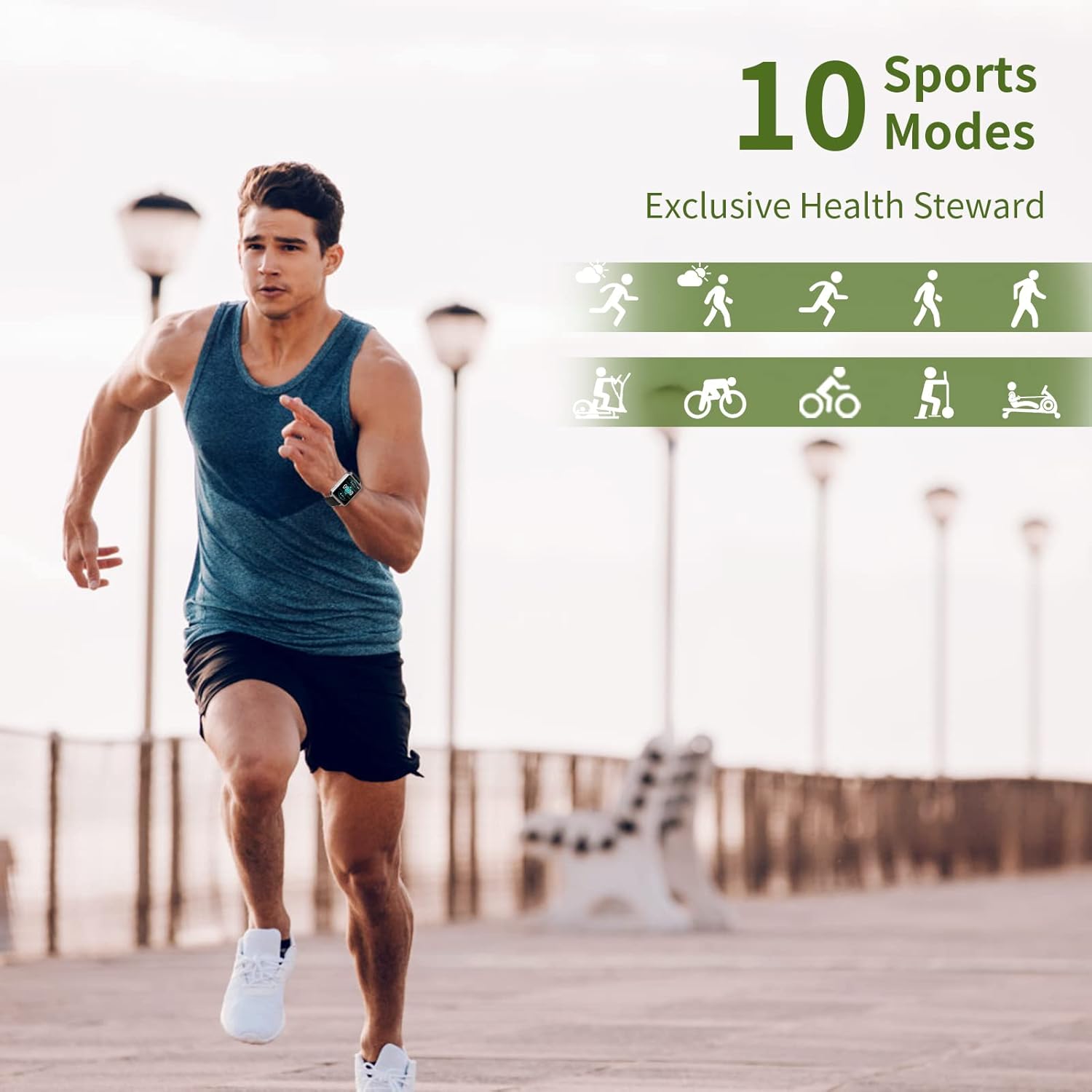
The smartwatch offers 10 exercise modes to track specific workouts.
Access the "Sports" menu on the watch.
Select your desired activity (e.g., Running, Walking, Cycling).
The watch will record duration, distance, and calories for the selected activity.
Image: A man running, with icons representing the 10 available sports modes on the MAXTOP T5 Smartwatch.
Image: A man exercising with weights, illustrating the 10 sports modes available on the smartwatch.
4.4. Health Monitoring
The smartwatch provides continuous monitoring of key health metrics.
Heart Rate Monitor: Measures your heart rate in real-time. Access this function from the watch menu or view data in the app.
Blood Pressure Monitor: Provides blood pressure readings. For medical accuracy, consult a professional medical device.
Sleep Tracking: Monitors your sleep patterns, including deep sleep, light sleep, and awake time. View detailed analysis in the app to adjust sleep habits.
Menstrual Cycle Tracking: For female users, the app can track and predict menstrual cycles.
Image: A man sleeping, with the smartwatch displaying heart rate and icons indicating deep sleep, light sleep, and awake time tracking.
Image: The smartwatch screen showing sleep data, including duration and quality.
Image: The smartwatch displaying a heart rate reading.
Image: The smartwatch displaying a blood pressure reading.
Image: A woman wearing the smartwatch, with an overlay showing the menstrual period management feature.
4.5. Notifications
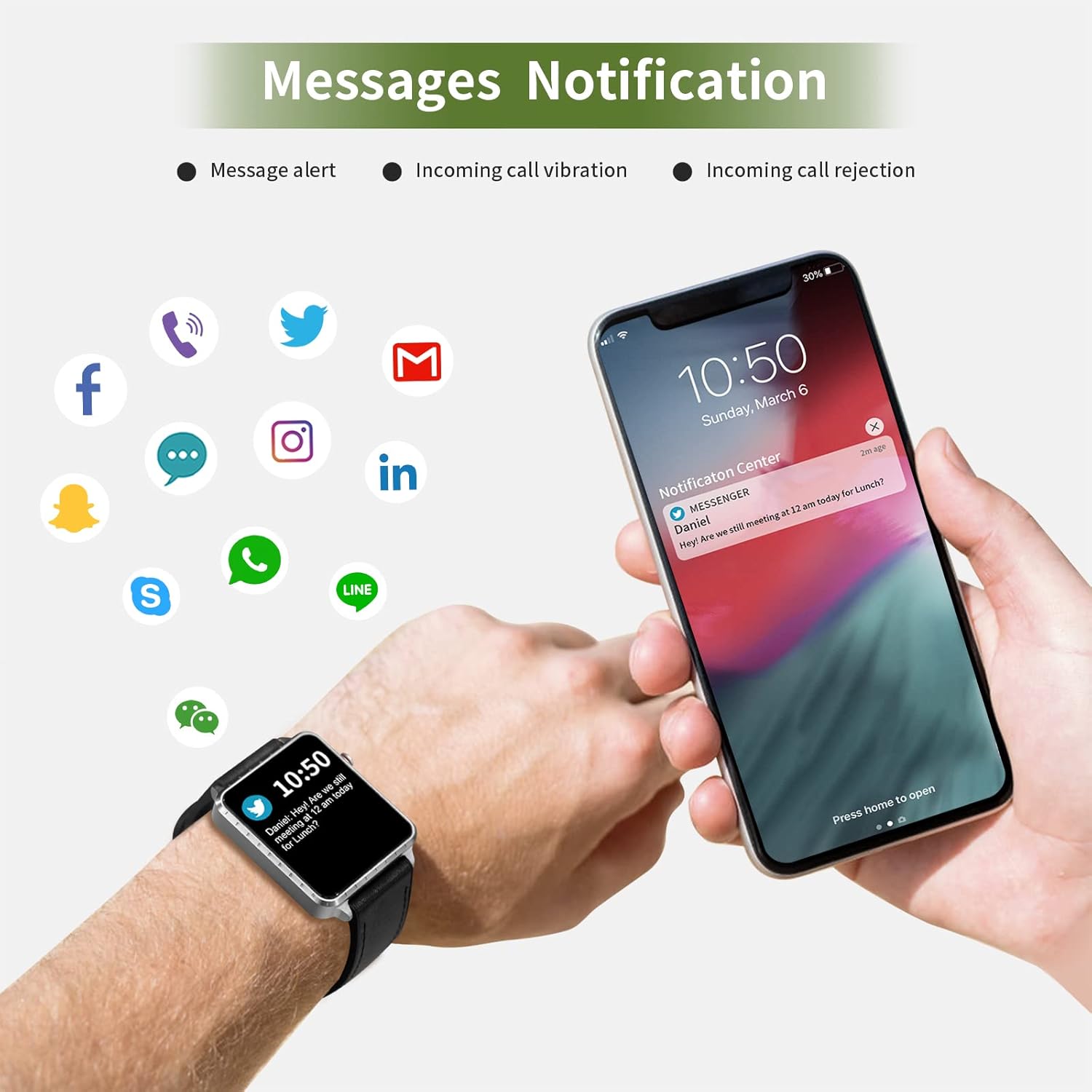
Receive call and message notifications directly on your smartwatch when paired with your phone.
Incoming Calls: The watch will vibrate and display caller ID. You can reject calls from the watch.
Message Alerts: Receive notifications from SMS, Facebook, WhatsApp, Twitter, Instagram, LinkedIn, etc.
Important: The smartwatch cannot answer calls or reply to messages.
Image: The smartwatch and a smartphone displaying message notifications from social media and communication apps.
Image: The smartwatch screen showing icons for various social media and communication app notifications.
4.6. Additional Features
Music Control: Control music playback on your smartphone (play, pause, skip tracks) directly from the watch.
Camera Remote Control: Use the watch as a remote shutter for your smartphone camera.
Alarm Clock: Set alarms through the app, and the watch will vibrate to alert you.
Stopwatch/Timer: Basic timekeeping functions.
Find Phone: Locate your paired smartphone by triggering an alert sound from the watch.
Sedentary Reminder: The app can remind you to move if you've been inactive for too long.
Customizable Watch Faces: Choose from various watch faces via the app.
Image: The smartwatch screen showing the camera icon, indicating its remote camera control function.
Image: The smartwatch screen showing music control icons (play, pause, skip).
Image: A collage of different watch faces available for the MAXTOP T5 Smartwatch.
5. Maintenance
5.1. Waterproof Rating (IP68)
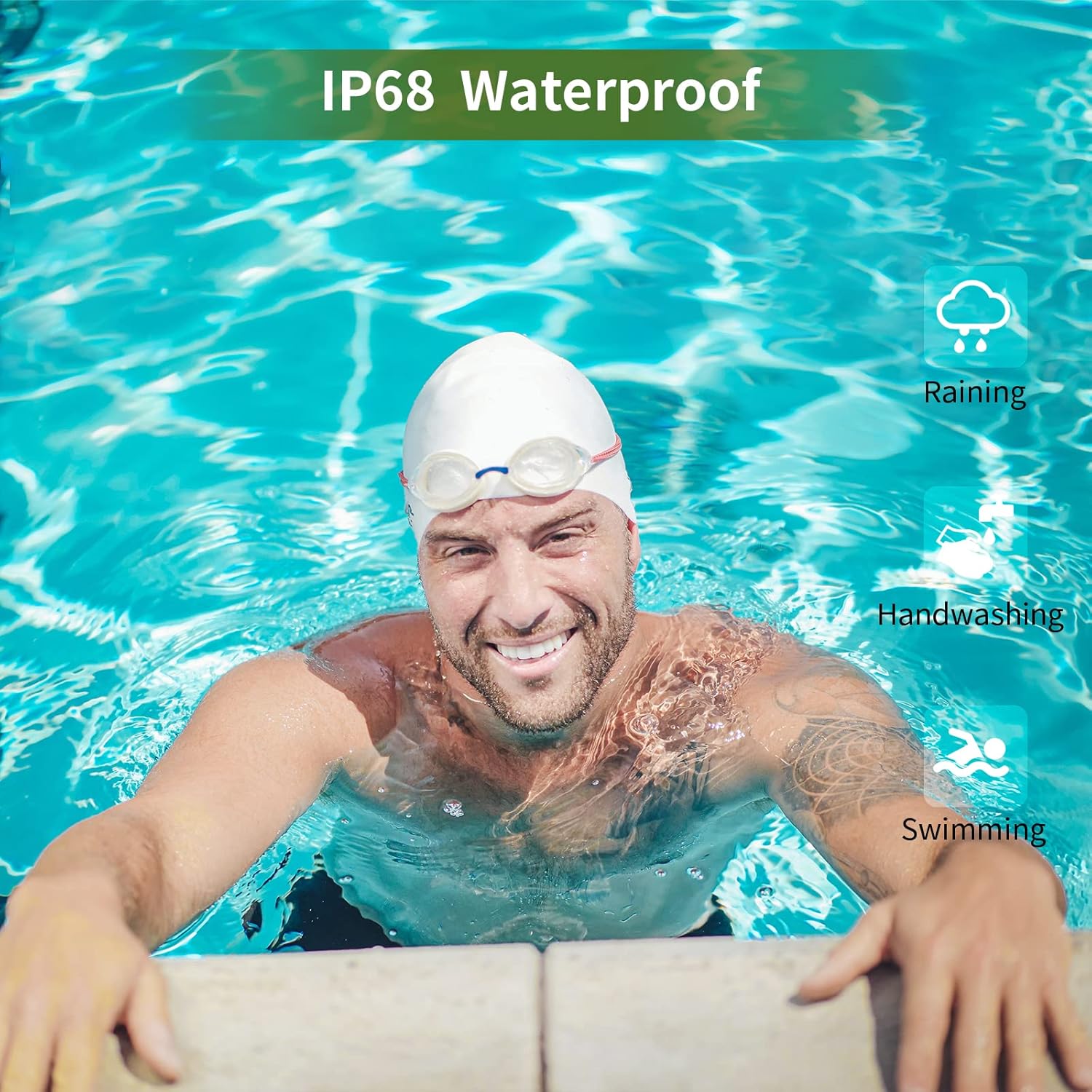
The MAXTOP T5 Smartwatch is IP68 waterproof, meaning it is dust-tight and protected against continuous immersion in water up to 1.5 meters for a maximum of 30 minutes.
You can wear the watch while washing hands, running in the rain, or swimming in shallow water.
Do NOT immerse the watch in seawater, hot water, or use it in hot springs or saunas.
Avoid exposing the watch to high-pressure water jets.
Image: A man swimming, demonstrating the IP68 waterproof capability of the MAXTOP T5 Smartwatch.
Image: The smartwatch with water droplets, visually confirming its IP68 waterproof rating.
5.2. Cleaning
Wipe the watch and strap regularly with a soft, dry cloth. If necessary, use a slightly damp cloth and dry thoroughly. Avoid harsh chemicals.
6. Troubleshooting
Watch not turning on: Ensure the watch is fully charged. Connect it to the charger for at least 10 minutes.
Cannot pair with smartphone:
Ensure Bluetooth is enabled on your phone.
Make sure the watch is within Bluetooth range (typically 10 meters).
Restart both the watch and your smartphone.
Check if the app is updated to the latest version.
If previously paired, try unpairing from your phone's Bluetooth settings and re-pairing through the app.
Inaccurate health data:
Ensure the watch is worn snugly on your wrist, not too tight or too loose.
Avoid excessive movement during measurements.
Environmental factors can affect readings. For medical accuracy, consult a professional medical device.
Notifications not received:
Check app permissions on your smartphone to ensure the app has access to notifications.
Verify that notification settings are enabled within the MAXTOP/H BAND app.
Ensure the watch is connected via Bluetooth.
Short battery life:
Frequent use of features like continuous heart rate monitoring, bright screen, and numerous notifications can reduce battery life.
Reduce screen brightness and notification frequency if extended battery life is desired.
7. Specifications
Image: Detailed physical dimensions of the MAXTOP T5 Smartwatch, including watch face and strap measurements.
Feature
Detail
Brand
MAXTOP
Model
T5
Screen Size
1.54 inches
Dimensions
4.5 x 3.8 x 1 cm
Weight
250 g
Waterproof Rating
IP68
Connectivity
Bluetooth
Operating System
iOS (9.0 and above), Android (6.0 and above)
Battery Type
Lithium Polymer
Charging Time
Approx. 2 hours
Battery Life (Typical Use)
3-5 days
Battery Life (Standby)
Up to 7 days
Included Components
Watch head, strap, magnetic charging cable, manual
8. Warranty and Support
For warranty information and customer support, please refer to the warranty card included in your package or visit the official MAXTOP website.
Disclaimer: The health monitoring features of this device are for general wellness and fitness purposes only and are not intended for medical diagnosis, treatment, or prevention of any disease. Always consult a medical professional for health-related concerns.
Ask about setup, troubleshooting, compatibility, parts, safety, or missing instructions. Manuals+ will review the question and use this page’s manual context to help answer it.