
T-Dagger T-TGK315
T-Dagger Bora T-TGK315 Mechanical Gaming Keyboard User Manual
Model: T-TGK315 | Brand: T-Dagger
1. Introduction
This manual provides detailed instructions for the T-Dagger Bora T-TGK315 Mechanical Gaming Keyboard. Please read this manual carefully before using the product to ensure proper operation and to maximize its features. This keyboard is designed for gaming, offering a compact Tenkeyless (TKL) layout and vibrant RGB backlighting.
2. Package Contents
Please check the package for the following items:
- T-Dagger Bora T-TGK315 Mechanical Gaming Keyboard
- Micro USB to USB-A Cable (1.6 meters, detachable)
- Keycap Puller
- Switch Puller
- 5 x Replaceable Switches (T-Dagger Blue or Red, depending on model)
- User Manual (this document)
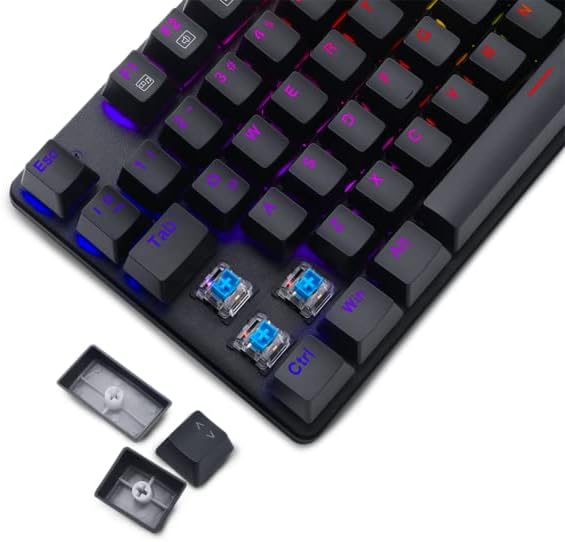
Image: T-Dagger Bora T-TGK315 keyboard showing the detachable USB cable and included accessories like the keycap and switch pullers.
3. Product Overview
The T-Dagger Bora T-TGK315 is a Tenkeyless (TKL) mechanical keyboard, meaning it lacks a dedicated numeric keypad, saving valuable desk space. It features durable T-Dagger mechanical switches (50 million click lifespan) and vibrant RGB backlighting.

Image: Top-down view of the T-Dagger Bora T-TGK315 keyboard, showcasing its compact layout and illuminated RGB keys.

Image: Angled view of the T-Dagger Bora T-TGK315 keyboard, highlighting its design and RGB lighting effects.
Key Features:
- Tenkeyless (TKL) Design: Compact form factor for more mouse space.
- T-Dagger Mechanical Switches: High durability (50 million clicks) with options for Blue (tactile and clicky) or Red (linear and smooth).
- RGB Backlighting: Customizable lighting effects.
- Full Key Rollover & Anti-Ghosting: Ensures every keypress is registered accurately.
- Multimedia Keys: Accessible via FN key combinations.
- Windows Key Lock: Prevents accidental presses during gaming.
- Double-Shot Injection Keycaps: Legends won't fade or wear off.
- Reinforced ABS Plastic Construction: Durable build.
- Detachable USB Cable: For easy transport and replacement.
4. Setup Guide
- Unpack the Keyboard: Carefully remove the keyboard and all accessories from the packaging.
- Connect the Cable: Insert the Micro USB end of the provided cable into the port on the back of the keyboard.
- Connect to Computer: Plug the USB-A end of the cable into an available USB port on your computer.
- Driver Installation: The keyboard is plug-and-play. Your operating system will automatically detect and install the necessary drivers. No additional software is required for basic functionality.
- Placement: Place the keyboard on a stable, flat surface. Adjust the kickstands on the back if you prefer an angled typing position.
5. Operating Instructions
5.1. RGB Backlighting Control
The T-Dagger Bora T-TGK315 features various RGB lighting modes and brightness levels. Use the following key combinations:
- FN + INS: Cycle through different lighting effects.
- FN + HOME: Change lighting color (for static modes).
- FN + PGUP: Increase brightness.
- FN + PGDN: Decrease brightness.
- FN + DEL: Adjust lighting speed (for dynamic modes).

Image: The T-Dagger Bora T-TGK315 keyboard illuminated with colorful RGB lighting, integrated into a gaming environment.
5.2. Multimedia and Function Keys
Access multimedia and system functions by holding the FN key and pressing the corresponding F-key:
| Key Combination | Function |
|---|---|
| FN + F1 | My Computer |
| FN + F2 | Search |
| FN + F3 | Calculator |
| FN + F4 | Media Player |
| FN + F5 | Previous Track |
| FN + F6 | Next Track |
| FN + F7 | Play/Pause |
| FN + F8 | Stop |
| FN + F9 | Mute |
| FN + F10 | Volume Down |
| FN + F11 | Volume Up |
| FN + F12 | Lock Keyboard |
5.3. Windows Key Lock
To prevent accidental presses of the Windows key during gaming, you can lock it:
- FN + WIN: Toggles the Windows key lock on/off.
5.4. Replacing Switches and Keycaps
The T-Dagger Bora T-TGK315 supports hot-swappable switches, allowing you to change them without soldering. Use the included tools:
- Remove Keycap: Use the keycap puller to gently pull the keycap straight up.
- Remove Switch: Use the switch puller to grasp the clips on the top and bottom of the switch. Gently rock and pull the switch straight up.
- Insert New Switch: Align the pins of the new switch with the holes on the PCB. Press down firmly until the switch clicks into place. Ensure pins are not bent.
- Replace Keycap: Press the keycap onto the new switch stem until it is secure.
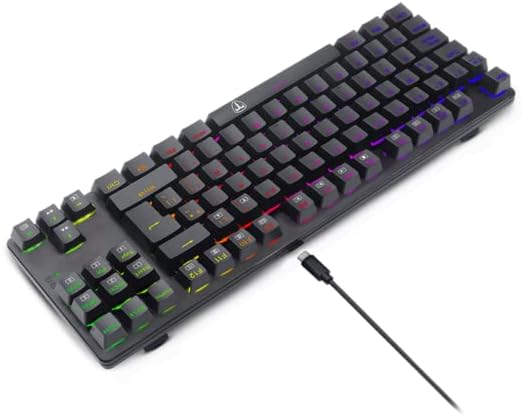
Image: Close-up view of the T-Dagger Bora T-TGK315 keyboard demonstrating the hot-swappable mechanical switches and keycap removal process.
6. Maintenance and Care
- Cleaning: Use a soft, dry cloth to wipe the keyboard surface. For deeper cleaning, you can remove keycaps and use compressed air to clear debris from under the switches.
- Avoid Liquids: Do not spill liquids on the keyboard. If a spill occurs, immediately disconnect it from your computer and allow it to dry completely before reconnecting.
- Storage: Store the keyboard in a cool, dry place away from direct sunlight and extreme temperatures.
- Cable Care: Avoid bending or twisting the USB cable excessively to prevent damage.
7. Troubleshooting
- Keyboard not responding:
- - Ensure the USB cable is securely connected to both the keyboard and the computer.
- Try plugging the keyboard into a different USB port.
- Restart your computer.
- Test the keyboard on another computer to rule out system-specific issues. - RGB lighting not working or stuck:
- - Ensure the keyboard is properly connected.
- Try cycling through lighting modes using FN + INS.
- Increase brightness using FN + PGUP.
- Disconnect and reconnect the keyboard. - Certain keys not working:
- - If you have recently replaced a switch, ensure it is fully seated and its pins are not bent.
- Try replacing the non-functional switch with one of the spare switches provided.
- Clean around the affected key with compressed air to remove any debris. - Windows key is disabled:
- - Press FN + WIN to toggle the Windows key lock on or off.
8. Specifications
| Feature | Detail |
|---|---|
| Model | T-TGK315 (Bora) |
| Keyboard Type | Mechanical |
| Switch Type | T-Dagger Blue (50g actuation force) or Red |
| Switch Lifespan | 50 Million Clicks |
| Key Rollover | Full Key Rollover with 100% Anti-Ghosting |
| Backlighting | RGB |
| Layout | Tenkeyless (TKL) |
| Connectivity | USB (Detachable Micro USB to USB-A cable) |
| Cable Length | 1.6 meters |
| Material | Reinforced ABS Plastic |
| Dimensions (L x W x H) | 355 x 124 x 28 mm (approx. 13.976 x 4.88 x 1.1 inches) |
| Weight | 570g (approx. 1.26 lbs) |
| Keycaps | Double-shot injection, laser engraved |
| Software | None required |
| Included Components | Manual, Keycap Puller, Switch Puller, 5x Spare Switches, USB Cable |
9. Warranty and Support
For warranty information and technical support, please refer to the warranty card included with your product or visit the official T-Dagger website. Keep your purchase receipt as proof of purchase.
Official T-Dagger Website: www.t-dagger.com
Related documentsT-TGK315

Ask a question about this manual
Ask about setup, troubleshooting, compatibility, parts, safety, or missing instructions. Manuals+ will review the question and use this page’s manual context to help answer it.