
1. Setup
1.1 Unboxing and Package Contents
Carefully remove the television and all components from the packaging. Verify that all items listed below are present:
- LG 70-Inch Class UQ9000 Series 4K Smart TV
- Magic Remote Control
- Remote Control Batteries (AA x 2)
- TV Stand
- Power Cable
- Quick Start Guide
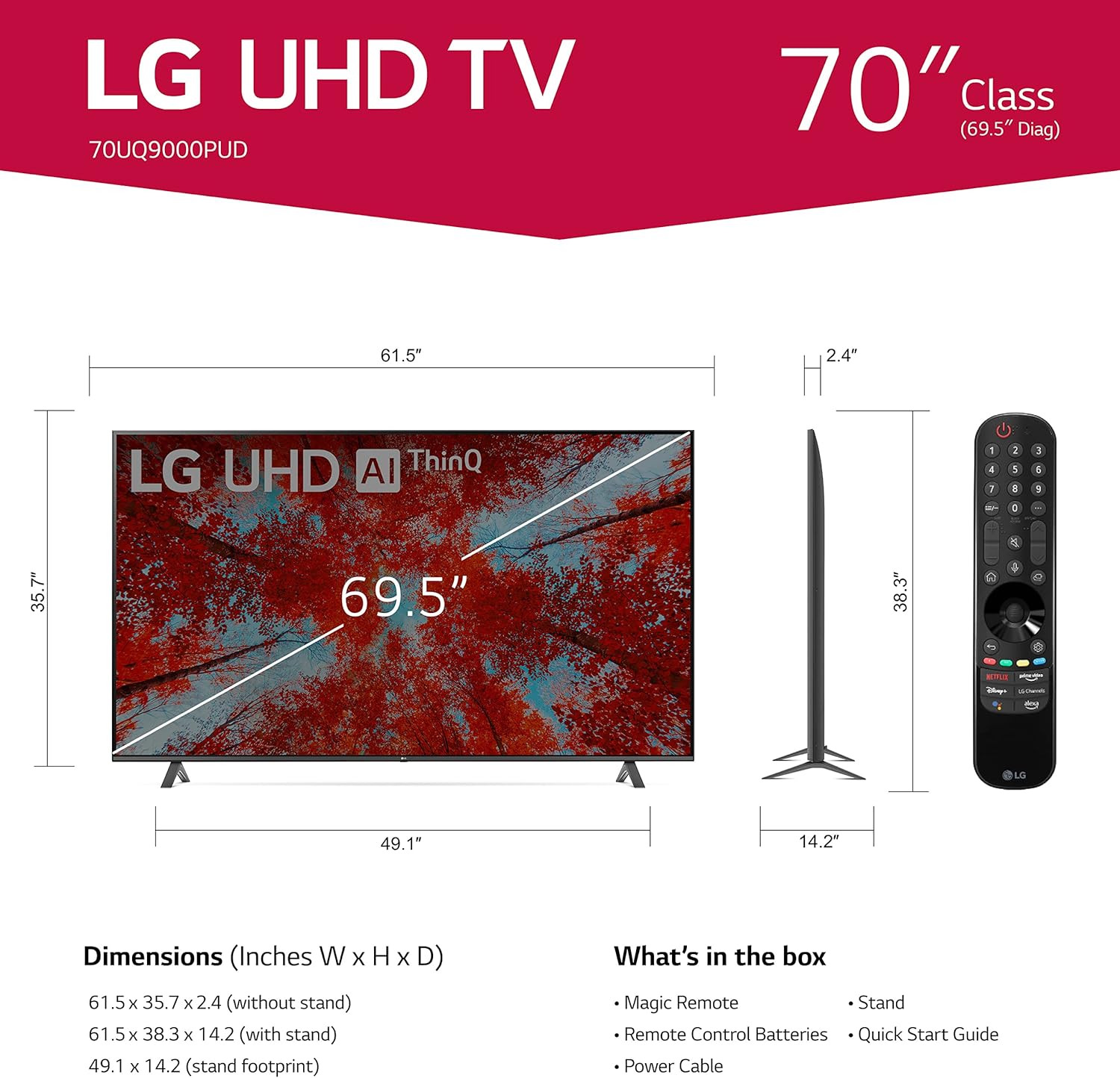
Image 1.1: LG 70UQ9000PUD TV with dimensions, Magic Remote, and a list of included accessories.
1.2 Physical Installation
The television can be installed using the included stand or mounted on a wall.
Stand Installation:
- Attach the stand components to the bottom of the TV using the provided screws.
- Ensure the stand is securely fastened before placing the TV on a stable, flat surface.
Wall Mount Installation:
For wall mounting, use a VESA compatible mount with a 400 x 400 mm standard. Consult a professional for wall mounting to ensure proper and safe installation.
1.3 Connecting External Devices
Connect your external devices to the TV's ports. The LG 70UQ9000PUD features multiple connectivity options:
- HDMI Ports (x3): For connecting devices such as gaming consoles, Blu-ray players, and set-top boxes.
- USB Ports (x2): For connecting USB storage devices or other compatible peripherals.
- LAN Port: For a wired internet connection.
- Optical Digital Audio Out: For connecting to external audio systems.
- Antenna/Cable In: For connecting an antenna or cable TV signal.
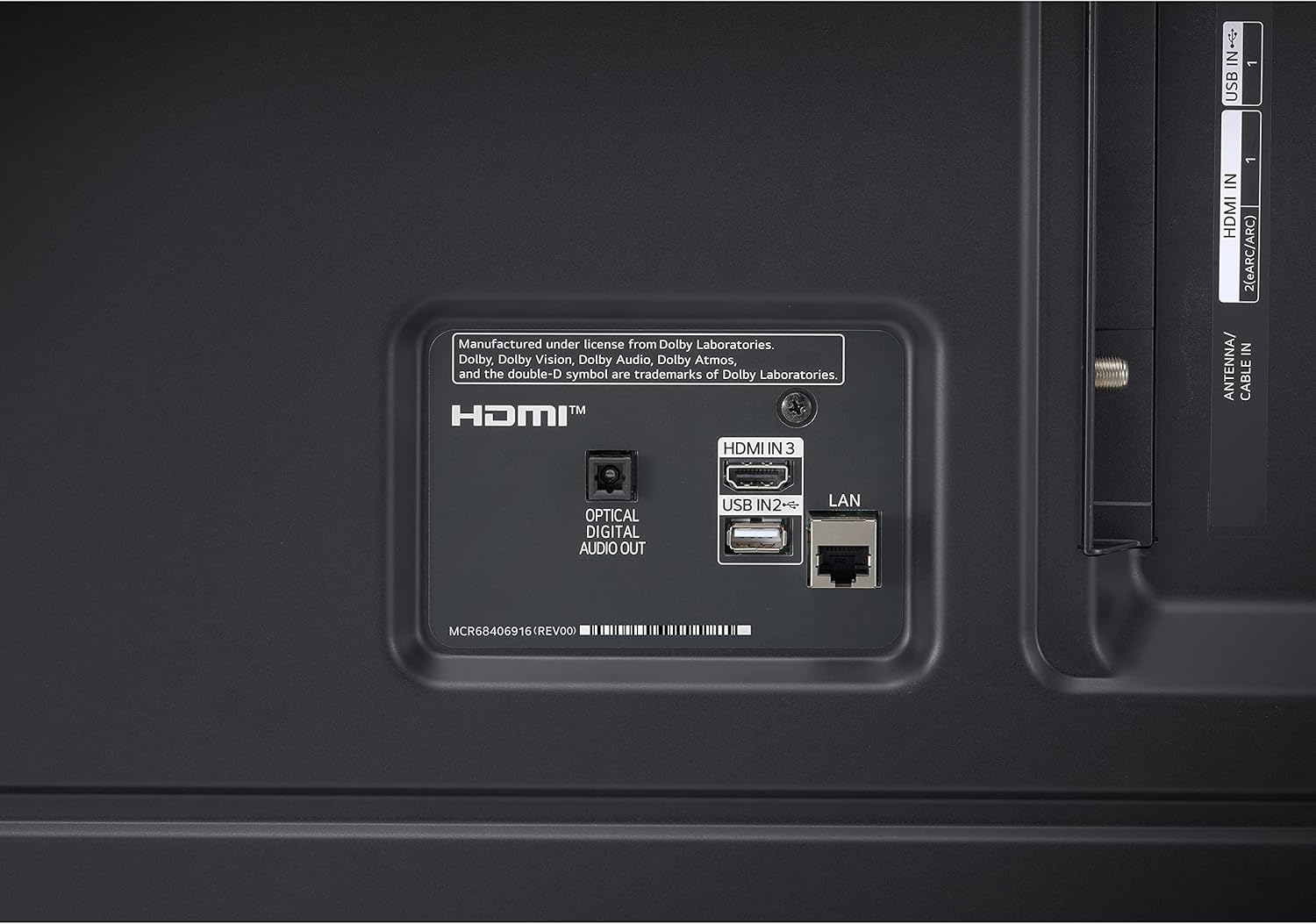
Image 1.2: Rear panel connections showing HDMI, USB, LAN, and Optical Digital Audio Out ports.
1.4 Initial Power On and Basic Settings
- Connect the power cable to the TV and a power outlet.
- Press the power button on the remote control or the TV.
- Follow the on-screen instructions to complete the initial setup, including language selection, network connection (Wi-Fi or LAN), and channel scanning.
2. Operating Instructions
2.1 Using the Magic Remote Control
The LG Magic Remote allows for intuitive control of your TV. It supports point, click, scroll, and voice commands.

Image 2.1: The LG Magic Remote, designed for easy navigation and voice control.
Key Features:
- Pointing: Point the remote at the screen to move the on-screen cursor.
- Clicking: Press the scroll wheel (OK button) to select items.
- Scrolling: Use the scroll wheel to move through menus and web pages.
- Voice Control: Press and hold the microphone button to activate voice commands for searching content or controlling TV functions.

Image 2.2: Using the Magic Remote for intuitive control, including voice commands.
2.2 Smart TV Features (webOS with ThinQ AI)
The LG UQ9000 Series TV runs on webOS, providing a user-friendly interface for accessing various smart features and applications. ThinQ AI integrates artificial intelligence for enhanced control and personalized experiences.
Video 2.1: This video demonstrates the LG webOS interface, showcasing user profiles and personalized recommendations for a customized viewing experience.
Key Smart Features:
- Personalized Recommendations: webOS learns your viewing habits to suggest content.
- Built-in Streaming Apps: Access popular services like Netflix, Prime Video, Apple TV app, Disney+, HBO Max, and over 300+ free LG Channels.
- Alexa Built-in: Use voice commands to control your TV and smart home devices.
Video 2.2: This video highlights various LG UHD TV features, including the α5 Gen5 AI Processor 4K, AI Brightness, and AI Sound, enhancing picture and audio quality.
2.3 Picture and Sound Enhancement
The TV incorporates advanced technologies to optimize your viewing and listening experience.
- α5 Gen5 AI Processor 4K: Enhances picture and sound quality through artificial intelligence.
- 4K Upscaling: Transforms lower-resolution content into near-4K quality for sharper detail.
- AI Brightness Control: Automatically adjusts screen brightness based on ambient room lighting.
- HDR Format Support: Compatible with HDR10 and HLG for improved contrast and color.
- Filmmaker Mode: Preserves the director's original colors, settings, and frame rates for an authentic cinematic experience.
- AI Sound Pro: Automatically up-mixes 2-channel audio into virtual 5.1.2 channel sound for an immersive audio experience.

Image 2.3: AI Brightness Control automatically adjusts screen brightness to match room conditions.
2.4 Gaming Features
The TV offers features designed to enhance the gaming experience.
- Cloud Gaming: Access games directly from the cloud (GeForce Now compatible, subscription and compatible controller may be required).
- Game Optimizer & Dashboard: Centralized settings for quick adjustments to game-specific parameters.
- HGiG: Delivers realistic HDR gaming with optimized tone mapping.

Image 2.4: Game Optimizer and Dashboard for quick adjustment of gaming settings.
2.5 Sports Alert
Receive real-time updates for your favorite teams and matches, ensuring you never miss important sports moments.

Image 2.5: Sports Alert feature providing real-time updates for ongoing matches.
3. Maintenance
3.1 Cleaning the TV
- Screen: Gently wipe the screen with a soft, dry microfiber cloth. For stubborn marks, lightly dampen the cloth with water or a specialized screen cleaner. Avoid harsh chemicals.
- Frame and Stand: Use a soft, dry cloth to wipe dust from the TV frame and stand.
- Ventilation: Ensure the ventilation openings on the back of the TV are not blocked to prevent overheating.
3.2 Software Updates
The TV may receive regular software updates to improve performance, add new features, and enhance security. It is recommended to allow these updates to install when prompted to ensure optimal functionality.
3.3 Remote Control Battery Replacement
The Magic Remote requires two AA batteries. Replace them when the remote's performance diminishes.
- Open the battery compartment cover on the back of the remote control.
- Remove the old batteries.
- Insert two new AA batteries, ensuring correct polarity (+/-).
- Close the battery compartment cover.
4. Troubleshooting
If you encounter issues with your LG 70UQ9000PUD TV, refer to the following common troubleshooting steps:
- No Power: Ensure the power cable is securely connected to both the TV and the power outlet. Check if the outlet is functioning by plugging in another device.
- No Picture/Sound: Verify that the correct input source is selected. Check all cable connections (HDMI, antenna, etc.) for looseness or damage.
- Remote Control Not Working: Replace the batteries in the Magic Remote. Ensure there are no obstructions between the remote and the TV.
- Network Connection Issues: For Wi-Fi, restart your router and modem. For wired connections, ensure the LAN cable is properly connected. You can also try resetting network settings on the TV.
- Picture Quality Issues: Adjust picture settings (brightness, contrast, color) in the TV menu. Ensure the content source is high quality.
For more detailed troubleshooting or persistent issues, consult the full electronic manual available through the TV's settings or contact LG customer support.
5. Specifications
| Feature | Specification |
|---|---|
| Model Number | 70UQ9000PUD |
| Brand | LG |
| Screen Size | 69.5 Inches (70-Inch Class) |
| Display Technology | LED |
| Resolution | 4K (3840 x 2160) |
| Refresh Rate | 60 Hz |
| Processor | α5 Gen5 AI Processor 4K |
| Operating System | webOS |
| Voice Assistant | Alexa Built-in |
| Connectivity Technology | Bluetooth 5.0, Wi-Fi |
| HDMI Ports | 3 |
| USB Ports | 2 |
| Product Dimensions (D x W x H) | 14.2"D x 61.5"W x 38.3"H |
| VESA Mount Standard | 400 x 400 mm |
| Power Consumption | 22 Watts |
| Remote Control Batteries | 2 AA batteries |
| UPC | 195174030073 |
6. Warranty Information
This LG TV is covered by a Manufacturer’s Warranty. For specific details regarding warranty coverage, duration, and terms, please refer to the warranty card included with your product or visit the official LG website. Keep your proof of purchase for warranty claims.
7. Customer Support
For further assistance, technical support, or service inquiries, please contact LG Customer Support. You can find contact information on the official LG website or in the documentation provided with your television.
Online Resources: Visit the LG support website for FAQs, software downloads, and detailed product manuals.
Telephone Support: Refer to your product documentation for regional customer service numbers.