
1. Introduction
Thank you for choosing the Macally Premium Bluetooth Keyboard and Mouse Combo. This essential duo is designed to enhance your workspace with its sleek aesthetics and convenient features, making daily tasks and web browsing more efficient. This manual provides detailed instructions for setting up, operating, maintaining, and troubleshooting your new keyboard and mouse.

Image: The Macally Premium Bluetooth Keyboard and Mouse Combo, featuring a full-size keyboard and a compact mouse in Space Gray.
2. Package Contents
- Macally Premium Bluetooth Keyboard
- Macally Bluetooth Mouse
- USB Charging Cable (for both keyboard and mouse)
- User Manual (this document)
3. Product Overview
3.1 Keyboard Features
- Full-size Layout: Equipped with 110 scissor switch keys for comfortable and responsive typing.
- Shortcut Keys: Includes 20 dedicated shortcut keys for enhanced productivity.
- Multi-Device Bluetooth: Seamlessly pair and switch between up to 3 Bluetooth-enabled devices (e.g., Mac, iOS, PC, Android).
- Rechargeable Battery: Built-in 800mAh rechargeable battery for extended use.
- Durable Design: Features a stable aluminum backplate for improved typing stability and longevity.

Image: Close-up view of the Macally Bluetooth Keyboard, highlighting its full 110-key layout and dedicated shortcut keys.
3.2 Mouse Features
- Silent Click Buttons: Designed for quiet operation, reducing click noise by up to 90%.
- Adjustable DPI: Offers 3 DPI modes (800/1200/1600) for customizable cursor sensitivity.
- Rechargeable Battery: Built-in 300mAh rechargeable battery.
- Compact Design: Thin and ergonomic for comfortable use.
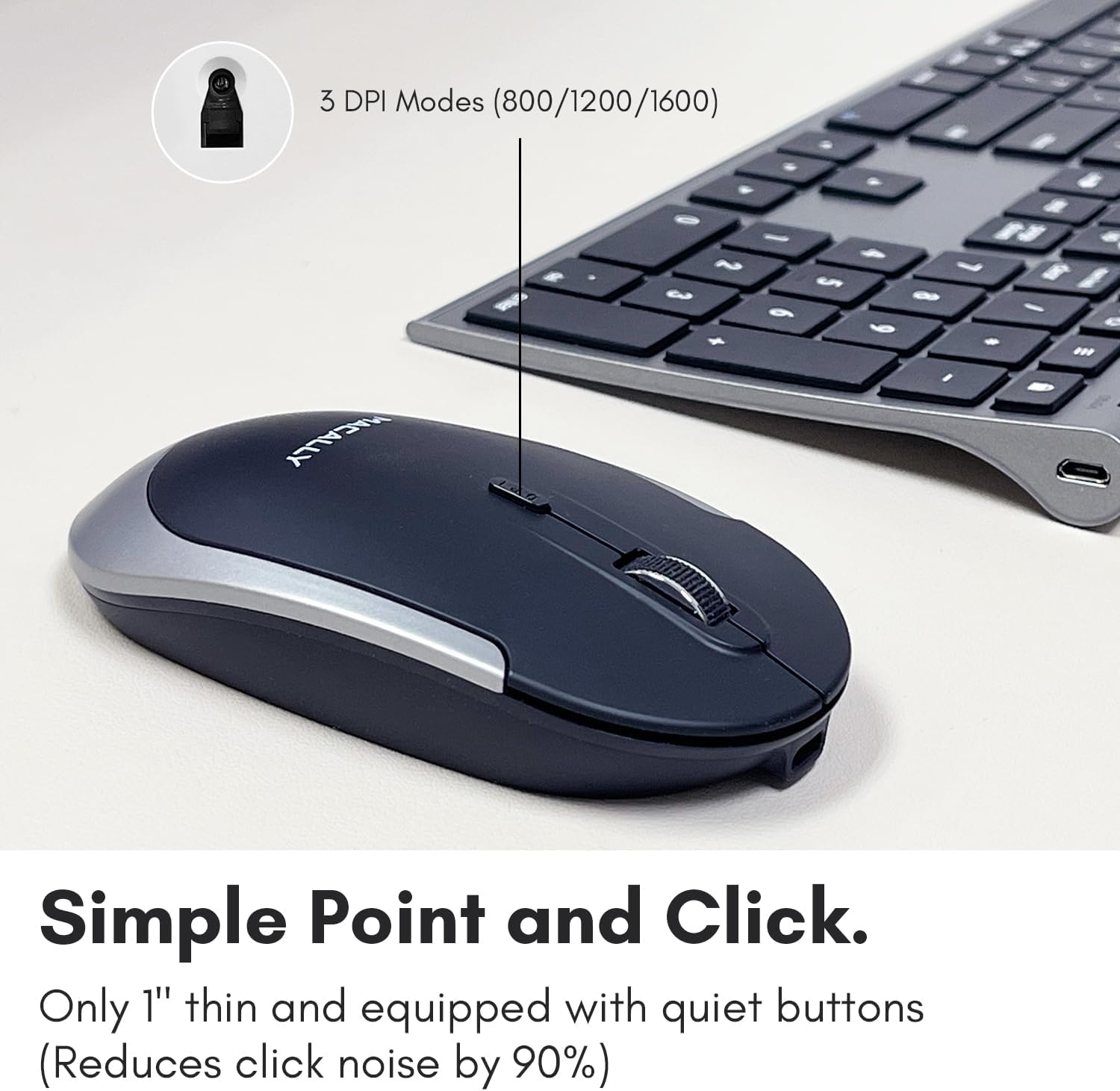
Image: The Macally Bluetooth Mouse, illustrating its compact design, silent click buttons, and adjustable DPI settings.
3.3 Compatibility
The Macally Premium Bluetooth Keyboard and Mouse Combo is compatible with a wide range of operating systems and devices, including:
- macOS (MacBook Pro/Air, iMac)
- iOS (iPhone, iPad)
- Windows PC
- Android devices

Image: The Macally keyboard and mouse displayed with icons representing compatibility with Apple, Windows, iOS, and Android operating systems.
4. Setup
4.1 Charging the Devices
Before initial use, it is recommended to fully charge both the keyboard and the mouse. Use the included USB charging cable.
- Connect the micro-USB end of the charging cable to the charging port on the keyboard (located on the top edge) and the mouse (located on the front edge).
- Connect the USB-A end of the cable to a USB power adapter (not included) or a USB port on your computer.
- The charging indicator light will illuminate during charging and turn off or change color when fully charged.
- Both devices can be used while charging.

Image: The Macally keyboard and mouse shown with their respective charging cables connected to their charging ports.
4.2 Bluetooth Pairing
Ensure Bluetooth is enabled on your device (Mac, PC, tablet, or smartphone) before proceeding.
4.2.1 Pairing the Keyboard
- Turn on the keyboard using the power switch.
- Press and hold one of the Bluetooth channel keys (B1, B2, or B3) for 3-5 seconds until the corresponding LED indicator starts blinking rapidly. This indicates the keyboard is in pairing mode.
- On your device, go to Bluetooth settings and select "Macally Keyboard" from the list of available devices.
- Follow any on-screen prompts to complete the pairing process (e.g., entering a code displayed on your screen).
- Once paired, the LED indicator will stop blinking and remain solid for a few seconds before turning off.
- Repeat for up to two additional devices using B2 and B3.
4.2.2 Pairing the Mouse
- Turn on the mouse using the power switch on its underside.
- Press and hold the Bluetooth pairing button (usually on the underside) for 3-5 seconds until the LED indicator starts blinking.
- On your device, go to Bluetooth settings and select "Macally Mouse" from the list of available devices.
- Once paired, the LED indicator will stop blinking.

Image: The Macally keyboard and mouse setup, demonstrating the keyboard's ability to seamlessly connect to and switch between multiple Bluetooth devices like a laptop, tablet, and smartphone.
5. Operating Instructions
5.1 Keyboard Functions
- Switching Between Devices: To switch between paired devices, simply press the corresponding Bluetooth channel key (B1, B2, or B3) once. The keyboard will connect to the selected device.
- Shortcut Keys: The keyboard features 20 shortcut keys, typically located in the function row (F1-F12) and other dedicated keys. These keys provide quick access to common macOS functions such as brightness control, media playback, volume control, and Mission Control. Refer to your macOS settings for specific key assignments or customize them as needed.
5.2 Mouse Functions
- DPI Adjustment: The mouse has a DPI switch button, usually located near the scroll wheel. Press this button to cycle through the 3 DPI settings (800, 1200, and 1600 DPI). Choose the sensitivity that best suits your preference for precise or fast cursor movement.
- Silent Clicks: The left and right click buttons are designed to be quiet, minimizing noise during use.
6. Maintenance
To ensure the longevity and optimal performance of your Macally keyboard and mouse, follow these maintenance guidelines:
- Cleaning: Use a soft, lint-free cloth slightly dampened with water or a mild cleaning solution to wipe down the surfaces. Avoid harsh chemicals, abrasives, or excessive moisture.
- Storage: When not in use for extended periods, turn off both devices to conserve battery life. Store them in a cool, dry place away from direct sunlight and extreme temperatures.
- Avoid Spills: Keep liquids away from the keyboard and mouse to prevent damage to internal components.
- Handle with Care: Avoid dropping or subjecting the devices to strong impacts.
7. Troubleshooting
If you encounter issues with your Macally keyboard and mouse, please refer to the following common solutions:
| Problem | Possible Solution |
|---|---|
| Keyboard/Mouse not connecting via Bluetooth. |
|
| Lag or intermittent connection. |
|
| Keys not responding or mouse not tracking. |
|
| Keyboard shortcut keys not working. |
|
8. Specifications
| Feature | Detail |
|---|---|
| Product Dimensions | 17.32 x 7.09 x 1.06 inches |
| Item Weight | 15.9 ounces |
| Model Number | ACEBTKEYSGCB |
| Batteries | 1 D batteries required (included) - Note: Refers to internal rechargeable batteries. |
| Brand | Macally |
| Color | Space Gray |
| Connectivity Technology | Bluetooth |
| Special Features | Ergonomic, Rechargeable |
| Compatible Devices | Laptop, Personal Computer, Smartphone, Tablet |
| Keyboard Keys | 110 Scissor Switch Keys, 20 Shortcut Keys |
| Mouse DPI Modes | 800/1200/1600 |
| Keyboard Battery Capacity | 800mAh |
| Mouse Battery Capacity | 300mAh |
9. Warranty and Support
Macally stands behind the quality of its products. This product comes with a warranty of up to 2 years from the date of purchase. For warranty claims, technical assistance, or any other inquiries, please contact Macally customer service.
For support, please visit the official Macally website or refer to the contact information provided with your product packaging.


