
1. Product Overview
The JOBY Swing Phone Mount Kit is a compact electronic slider designed for smartphone creators. It enables linear motion control for capturing professional-quality motion timelapses, videos, and b-roll footage. The device is controlled via the JOBY Motion app available for iOS and Android.

Image 1: The JOBY Swing Phone Mount Kit with a smartphone mounted on a tripod, demonstrating its linear motion capability for capturing dynamic shots.
2. What's in the Box
The JOBY Swing Phone Mount Kit includes the following components:
- 1x Swing Phone Mount Kit (Electronic Slider)
- USB-C Charging Cable
- BallHead
- Phone Mount
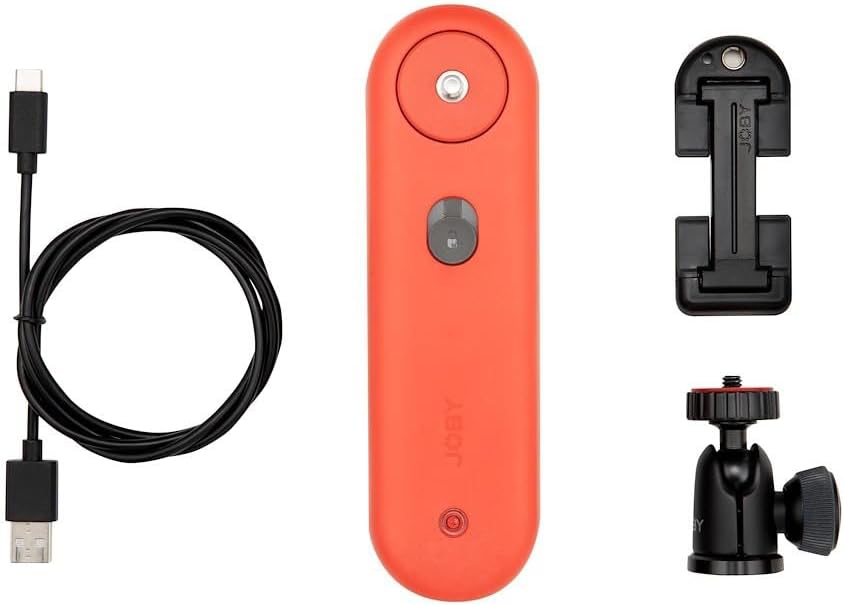
Image 2: All components included in the JOBY Swing Phone Mount Kit, laid out on a white surface.
3. Setup Instructions
3.1 Charging the Device
Before initial use, fully charge your JOBY Swing. Connect the included USB-C cable to the device and a suitable 5V power source. The orange indicator light will turn white when fully charged. Charging typically takes 2 to 2.5 hours.
3.2 Mounting the Swing
The JOBY Swing can be mounted to any tripod or support with a standard 1/4"-20 mounting point. Secure the gray base of the Swing onto your chosen support. Avoid manually rotating the upper and lower parts of the Swing while mounting, especially when the device is powered on.
3.3 Attaching the Phone Mount
Attach the phone mount to the red part of the Swing. Ensure it is securely fastened. The kit includes a phone mount, but other compatible phone mounts can be used.
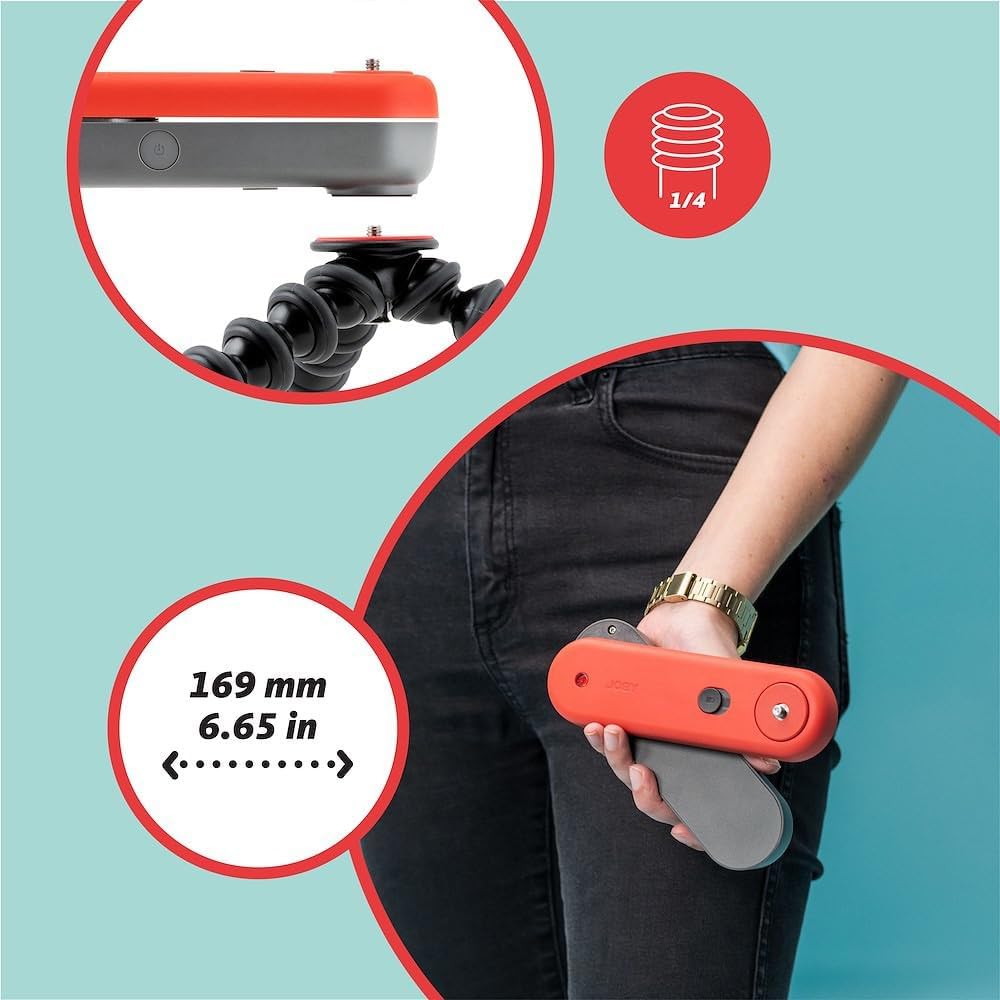
Image 3: Demonstrating how to attach the JOBY Swing to a Gorillapod tripod.
3.4 Securing Your Smartphone
Place your smartphone securely into the phone mount. Turn on the JOBY Swing by pressing the power button on its side. For optimal app functionality, ensure your phone's orientation lock is turned off.

Image 4: The included phone clamp for securing your smartphone to the Swing.
3.5 App Download and Connection
Download the JOBY Motion app from your device's app store (iOS or Android). Open the app and tap the Bluetooth icon in the top right corner to connect to your JOBY Swing. Select your device from the list. You may be prompted for a firmware update; ensure this is completed before proceeding. You can also rename your device for easier identification.
Video 1: A detailed tutorial on setting up and using the JOBY Spin and Swing, including app connection and various modes.
4. Operating Instructions - JOBY Motion App
The JOBY Motion app provides intuitive control over your Swing. After connecting, tap 'Create' to access the different shooting modes.
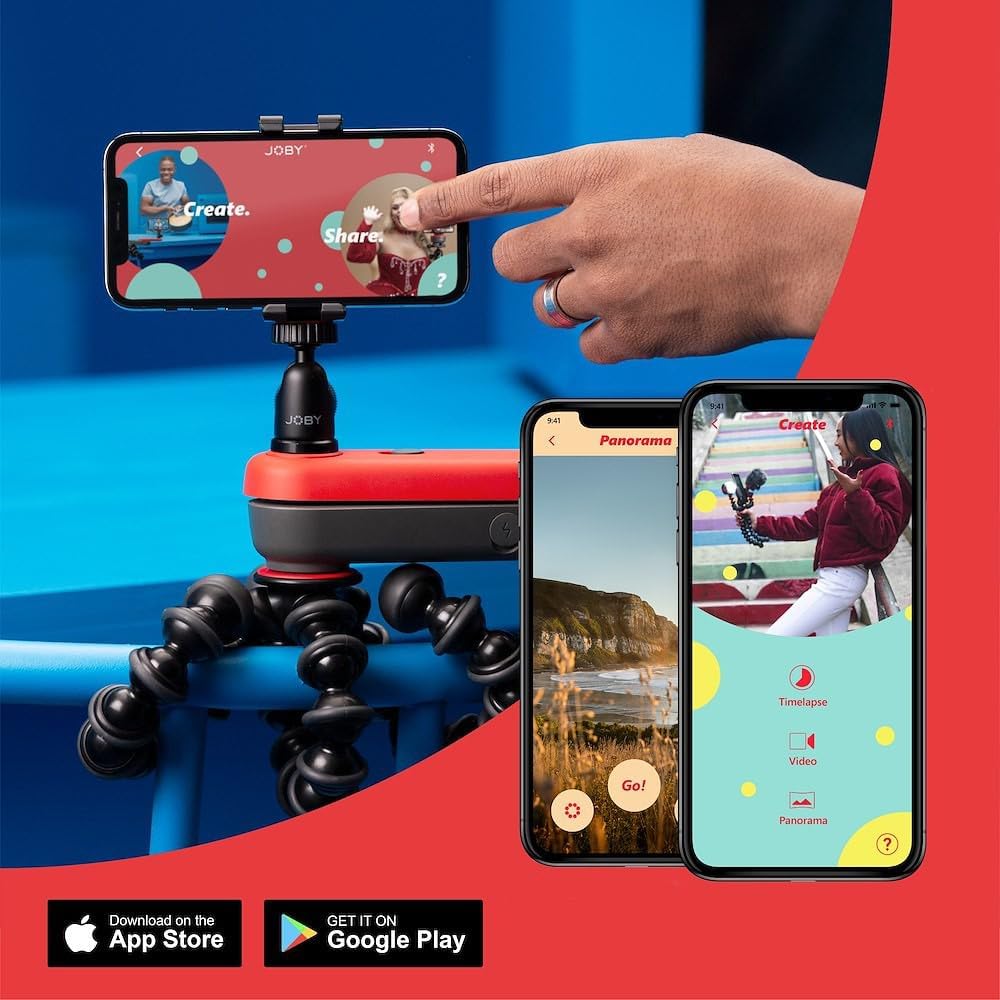
Image 5: The main interface of the JOBY Motion app, displaying various creative modes.
4.1 Setting Start and End Points
In any mode, you will see a start and end bar at the top of the screen. To set a point, drag your finger along the screen to move the Swing to the desired position, then tap the corresponding circle on the bar. The circle will turn white to indicate it's set. Use the play arrow button to preview the movement.
4.2 Timelapse Mode
Select 'Timelapse' mode. Set your start and end points. Access settings by tapping the gear icon. You can adjust the speed (in 5% increments) and the interval (time between photos: 3s, 5s, 10s). A longer interval results in a more sped-up final timelapse. You can also set a start delay if you wish to be in the shot. Tap 'Go!' to begin capturing.
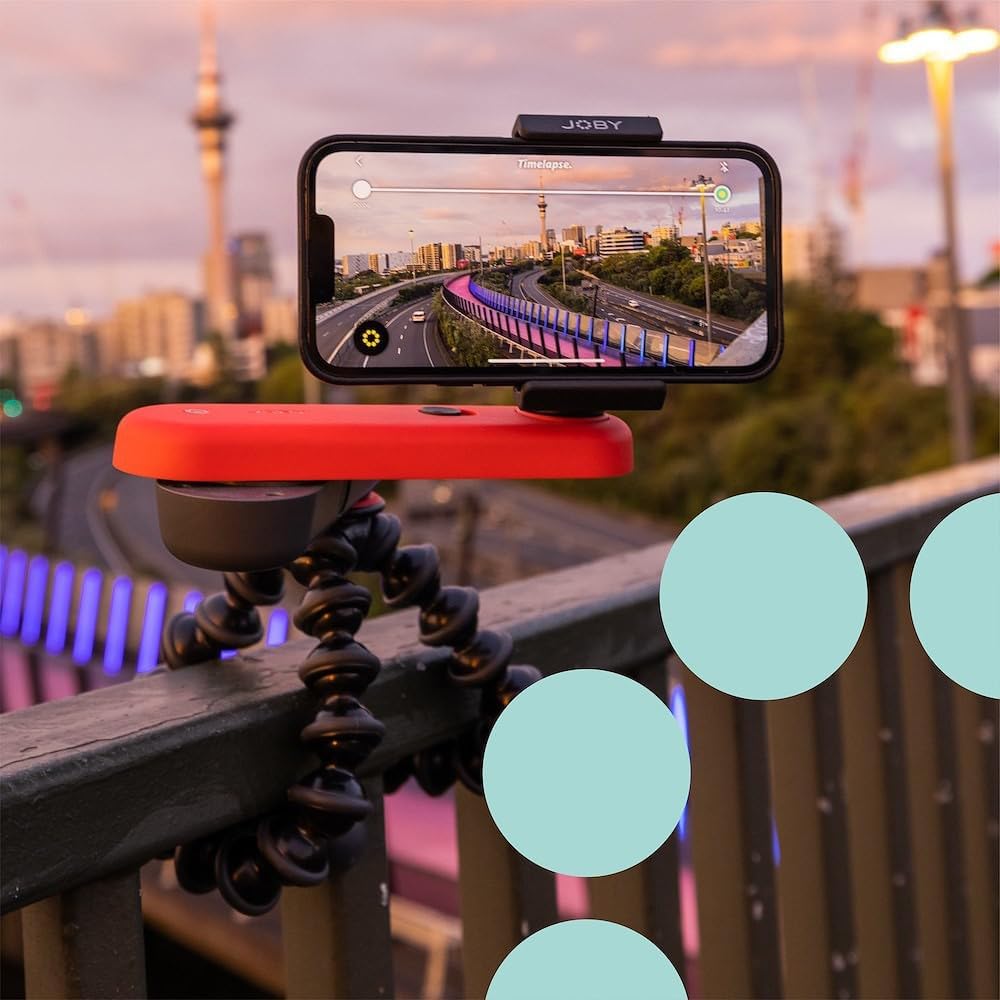
Image 6: The JOBY Motion app in Timelapse mode, showing an example of setting a motion path.
4.3 Video Mode
Select 'Video' mode. Similar to timelapse, set your start and end points. In settings, you can adjust speed and add a start delay. The 'Repeat' setting allows the Swing to move back and forth between points until you tap stop, ideal for B-roll. Tap 'Go!' to start recording.
4.4 Panorama Mode
Select 'Panorama' mode. Set your start and end points. This mode creates a single panoramic still image. You can add a start delay if needed. Tap 'Go!' to capture the panoramic image.
Video 2: A guide on the do's and don'ts when using the JOBY Swing, providing essential tips for optimal performance.
5. Important Considerations
- Optical Image Stabilization (OIS): Phone camera lenses with OIS may result in shakiness in the video. For smoother results, consider using the front camera or ultra-wide angle lens, as these often do not have OIS.
- Compatibility: The JOBY Swing is designed for smartphones and is not compatible with cameras or action cameras.
- Payload: The device has a maximum payload capacity of 600g (1.3lb).
6. Specifications
| Brand | Joby |
| Model Name | JB01662-BWW |
| Item Weight | 12.64 ounces |
| Compatible Devices | Cellphone |
| UPC | 719821474500 |
| Maximum Weight Recommendation | 600 Grams |
| Video Capture Resolution | 4K (3840 x 2160) |
| Water Resistance Level | Not Water Resistant |
7. Maintenance
To preserve battery life, power off your JOBY Swing by holding down the power button for two seconds when not in use.
8. Troubleshooting
If you encounter any issues, ensure your JOBY Motion app and device firmware are up to date. Check Bluetooth connection and battery levels. For further assistance, refer to the official Joby website or support channels.
9. Warranty & Support
The JOBY Swing Phone Mount Kit comes with a 2-year manufacturer's warranty. For warranty claims, product support, or additional information, please visit the official Joby website: Joby Store.
