
Introduction
Thank you for choosing the Pixio PX27U Wave Beige 27-inch 4K 160Hz Gaming Monitor. This manual provides essential information for setting up, operating, and maintaining your new monitor. Please read it thoroughly before use to ensure optimal performance and safety.
The Pixio PX27U Wave Beige monitor is designed to deliver an exceptional visual experience with its 4K UHD (3840x2160p) resolution, a rapid 160Hz refresh rate, and a lightning-fast 1ms GTG response time. Featuring a Fast IPS panel, it offers vibrant colors and wide viewing angles, complemented by Adaptive Sync technology for tear-free gameplay. Its versatile connectivity options, including HDMI 2.1 and DisplayPort 1.4, ensure broad compatibility with various devices.
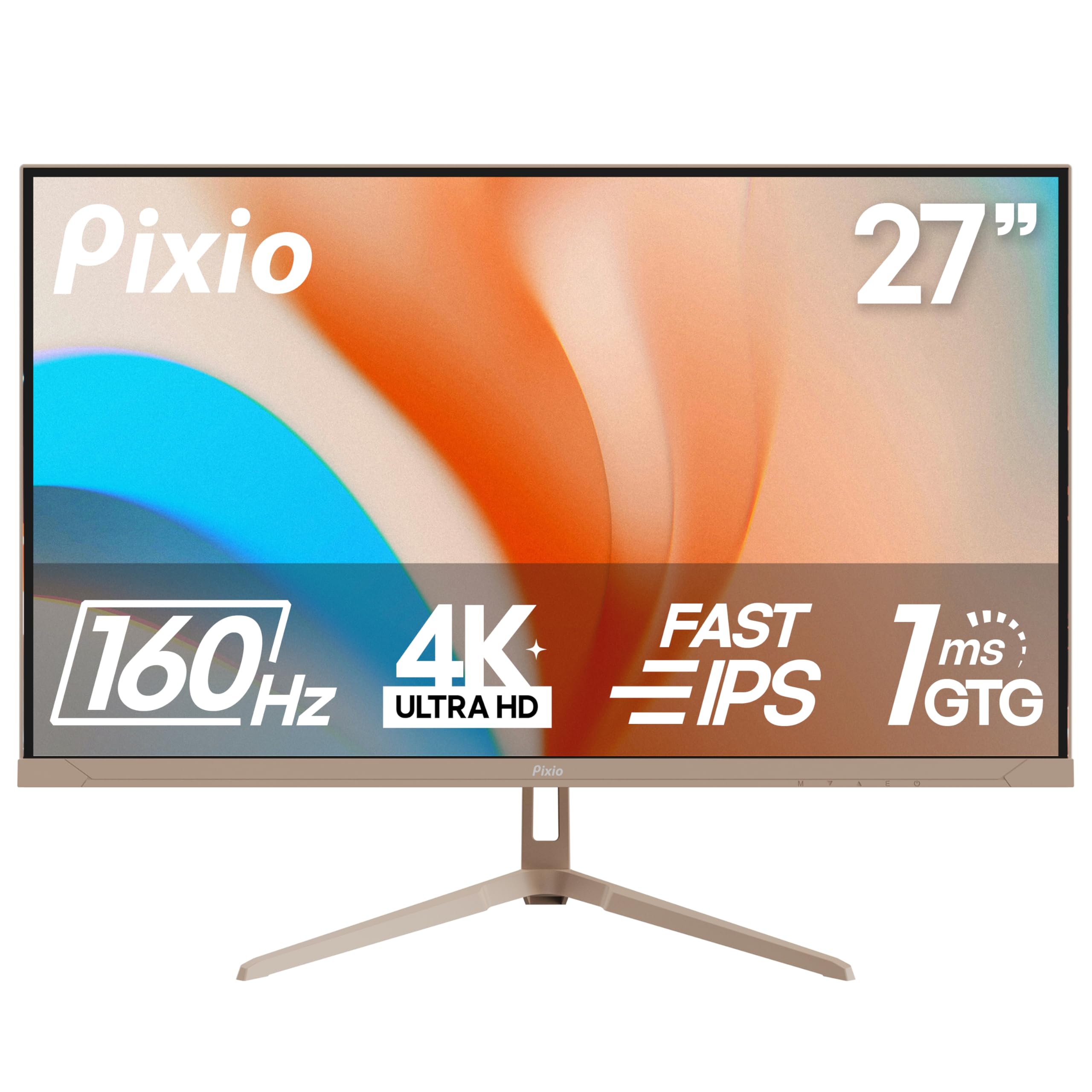
Image: The Pixio PX27U Wave Beige 27-inch 4K 160Hz Gaming Monitor, showcasing its sleek design and vibrant display.
Setup
1. Unboxing and Component Check
Carefully remove all components from the packaging. Ensure the following items are present:
- Pixio PX27U Wave Beige Monitor
- Monitor Stand (Base and Neck)
- Power Adapter and Cable
- HDMI Cable
- DisplayPort (DP) Cable
- User Manual (this document)
- VESA Mount Adapter (if included for alternative mounting)
2. Assembling the Stand
- Attach the stand neck to the monitor panel. Align the grooves and secure with the provided screws.
- Attach the stand base to the stand neck. Tighten the thumb screw or screws from the bottom of the base.
- Place the assembled monitor on a stable, flat surface.

Image: Unboxed Pixio PX27U Wave Beige monitor with its stand components and included cables laid out.
3. Connecting Cables
Connect the power adapter to the monitor's DC IN port and then to a power outlet. Use either the HDMI or DisplayPort cable to connect your computer or gaming console to the monitor.
- HDMI Connection: Use the provided HDMI cable to connect your device to one of the monitor's HDMI 2.1 ports. These ports support up to 4K@160Hz.
- DisplayPort Connection: Use the provided DisplayPort 1.4 cable to connect your device to one of the monitor's DP 1.4 ports. These ports also support up to 4K@160Hz.
- Earphone Jack: Connect your headphones or external speakers to the earphone jack for audio output.
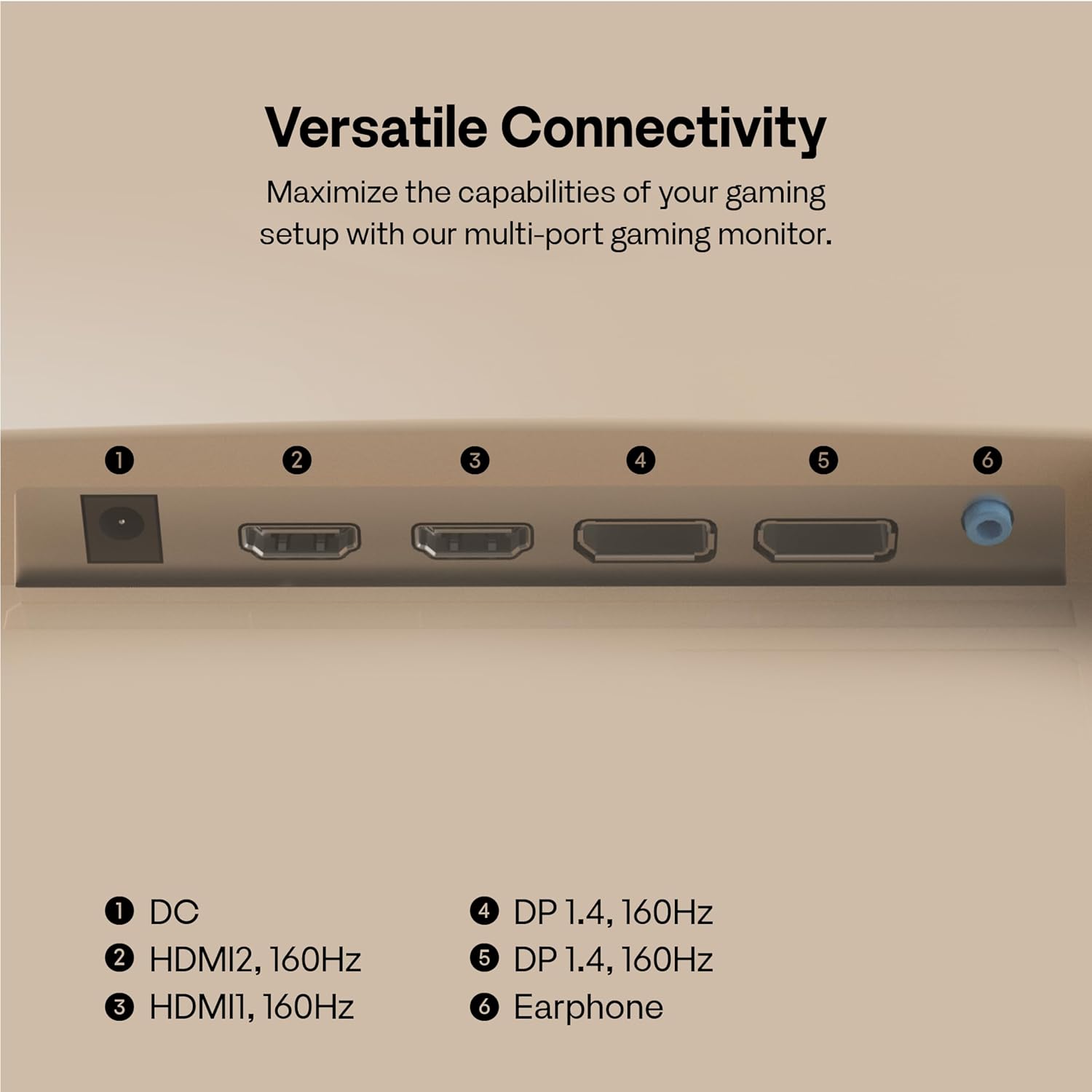
Image: A close-up of the monitor's rear panel, highlighting the DC IN, HDMI 2.1, DisplayPort 1.4, and Earphone Jack ports for versatile connectivity.
4. VESA Mounting (Optional)
If you prefer to mount your monitor using a VESA-compatible arm or wall mount, remove the stand and attach the VESA mount adapter (if applicable) to the monitor's VESA mounting holes (100x100mm). Follow the instructions provided with your VESA mount.
Video: An instructional video demonstrating the assembly of a VIVO STAND-V024 Dual Monitor Desk Mount, which is compatible with VESA mounting standards. This video illustrates how to attach monitors to a VESA mount, providing a visual guide for users opting for this setup.
Operating the Monitor
1. Power On/Off
Press the power button located on the back of the monitor to turn it on or off. The monitor will automatically detect the input signal.
2. On-Screen Display (OSD) Navigation
Use the 5-way joystick button on the back of the monitor to navigate the OSD menu. Push the joystick in to select an option, and move it up/down/left/right to browse through settings.
3. Adjusting Display Settings
- Resolution: The monitor supports 4K (3840x2160p) resolution. Ensure your connected device is configured to output at this resolution for optimal clarity.
- Refresh Rate: Experience ultra-smooth visuals with a 160Hz refresh rate. Verify your device's display settings are set to 160Hz.
- Response Time: The 1ms GTG (Gray-to-Gray) response time minimizes motion blur, crucial for fast-paced gaming.
- Adaptive Sync: Enable Adaptive Sync in your monitor's OSD and your graphics card settings to eliminate screen tearing and stuttering.
- HDR: The monitor is HDR compatible. For the best experience, ensure your content and source device support HDR.

Image: A visual comparison demonstrating the difference between a 60Hz and 160Hz refresh rate, highlighting the enhanced smoothness and precision offered by the higher refresh rate for gaming.

Image: The Pixio PX27U Wave Beige monitor showcasing vibrant and rich colors, emphasizing its 99.5% DCI-P3 color gamut for immersive visual experiences.
Video: An official Pixio video highlighting the key features of the PX27U Wave 27" 4K 160Hz Fast IPS 1ms GTG Gaming Monitor, including its high refresh rate, fast response time, and vibrant display.
Maintenance
1. Cleaning the Screen
To clean the screen, gently wipe it with a soft, lint-free cloth. For stubborn marks, lightly dampen the cloth with water or a screen-cleaning solution. Avoid using harsh chemicals or abrasive materials.
2. General Care
Keep the monitor away from direct sunlight, excessive heat, and moisture. Ensure proper ventilation around the monitor to prevent overheating. Avoid placing heavy objects on the monitor or its cables.
Troubleshooting
- No Power: Ensure the power cable is securely connected to both the monitor and the power outlet. Check if the power outlet is functioning.
- No Signal: Verify that the video cable (HDMI or DisplayPort) is correctly connected to both the monitor and your source device. Ensure the correct input source is selected in the OSD menu.
- Flickering Screen: Check the video cable for damage or loose connections. Ensure your graphics card drivers are up to date. Try enabling or disabling Adaptive Sync.
- Image Distortion/Blurry: Adjust the resolution and refresh rate settings on your computer to match the monitor's native resolution and refresh rate.
- Dead Pixels: While rare, a small number of dead or stuck pixels are within industry standards. If you suspect a significant issue, refer to the warranty information.
Specifications
| Feature | Specification |
|---|---|
| Screen Size | 27 Inches |
| Resolution | 4K UHD 3840 x 2160 Pixels |
| Refresh Rate | 160Hz |
| Response Time | 1ms GTG |
| Panel Type | Fast IPS |
| Adaptive Sync | Yes |
| HDR Compatibility | Yes (HDR content and compatible source required) |
| Aspect Ratio | 16:9 |
| Image Brightness | 400 Candela |
| Connectivity | 2x HDMI 2.1, 2x DisplayPort 1.4, Earphone Jack |
| Product Dimensions | 8.3 x 2.2 x 18.18 inches |
| Item Weight | 15 pounds |
| Manufacturer | Pixio |
Warranty Information
Your Pixio PX27U Wave Beige monitor comes with a manufacturer's warranty. Please refer to the warranty card included in your product packaging or visit the official Pixio website for detailed information regarding warranty terms, conditions, and registration procedures. Keep your proof of purchase for warranty claims.
Support
For technical assistance, troubleshooting, or any questions regarding your Pixio PX27U Wave Beige monitor, please contact Pixio customer support through their official website or the contact information provided in your warranty documentation. You may also find helpful resources, FAQs, and driver downloads on the Pixio support page.


