
1. Introduction
This manual provides essential information for the safe and efficient operation of your Nokia 43-inch QLED 4K UHD Smart Android TV, Model QNA43GV210. Please read this manual thoroughly before using the television and retain it for future reference.
2. Safety Information
Always observe the following safety precautions to prevent electric shock, fire, or injury:
- Do not expose the TV to rain or moisture.
- Do not open the TV casing; refer all servicing to qualified personnel.
- Ensure proper ventilation around the TV.
- Use only the power cord supplied with the TV.
- Keep batteries out of reach of children.
3. Package Contents
Verify that all items are present in the packaging:
- Nokia 43-inch QLED 4K UHD Smart Android TV
- Remote control with voice via Bluetooth
- 2x AAA batteries
- TV feet (stand)
- Quick Start Guide
4. Setup
4.1. Attaching the TV Stand
Carefully place the TV face down on a soft, clean surface. Attach the TV feet to the designated slots on the bottom of the TV using the provided screws. Ensure the stand is securely fastened before placing the TV upright.

Image: Front view of the Nokia 43-inch QLED 4K UHD Smart Android TV with a desert landscape on screen and app icons for Netflix, Prime Video, Disney+, YouTube, Spotify, and Apple TV.
4.2. Connecting Peripherals
Connect your external devices (e.g., cable box, Blu-ray player, gaming console) to the appropriate ports on the back of the TV. The TV features multiple HDMI ports, USB ports, and antenna/satellite inputs.

Image: Rear view of the Nokia TV illustrating the available input ports including LAN, 3x HDMI, Satellite, Antenna, Digital Optical Audio Out, Headphone Jack, 2x USB, and Common Interface slot.
4.3. Initial Power-On and Network Configuration
- Connect the power cord to the TV and a power outlet.
- Press the power button on the remote control or TV.
- Follow the on-screen instructions to select your language, country, and connect to your Wi-Fi network or via Ethernet.
- Sign in with your Google account to access Android TV features and the Google Play Store.
5. Operating Your TV
5.1. Remote Control Functions
The included remote control allows you to navigate the TV's interface, adjust settings, and access smart features. It features a backlit design for ease of use in low light conditions and supports voice commands via Bluetooth.
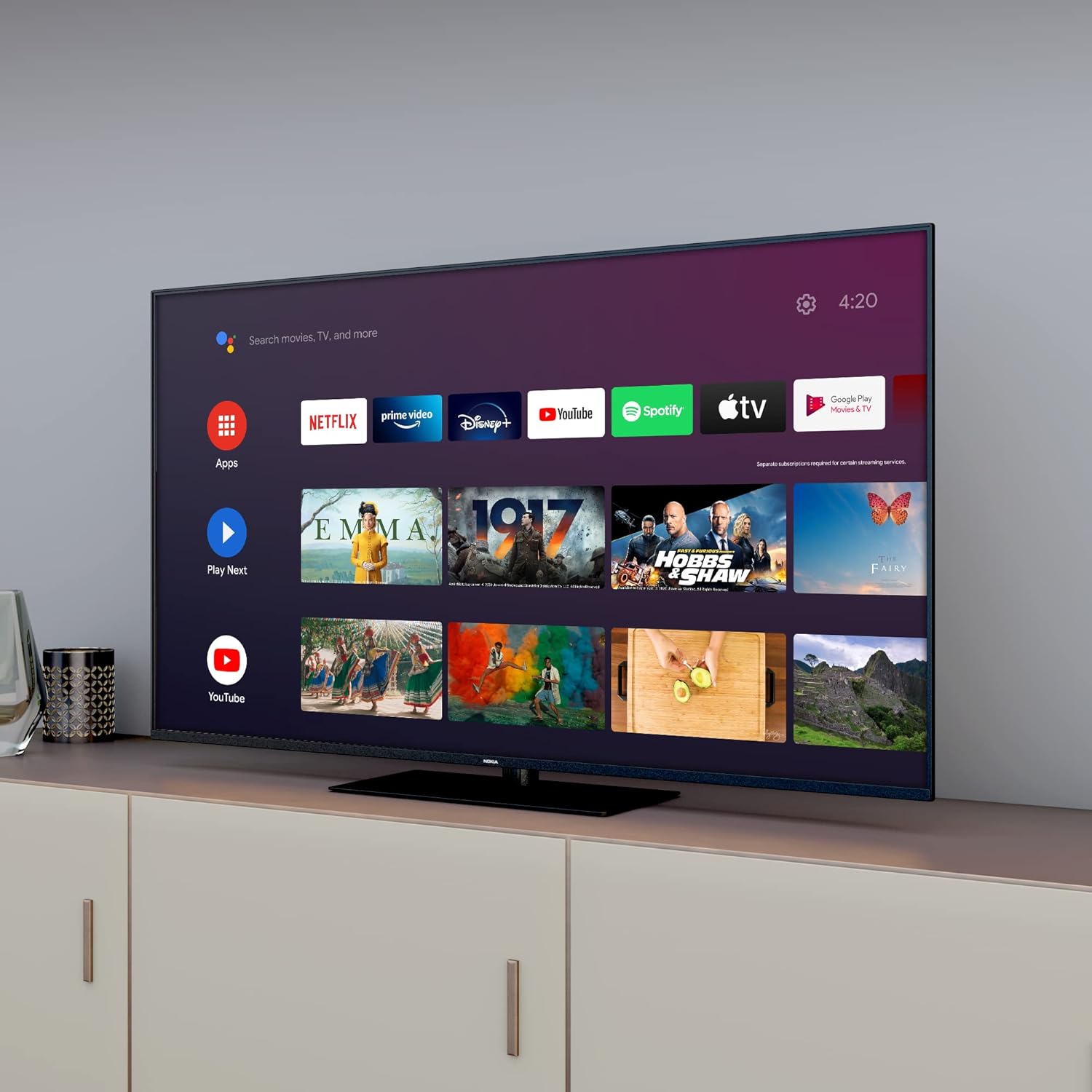
Image: The Nokia Smart TV remote control, featuring dedicated buttons for popular streaming services and a microphone button for voice commands.

Image: A hand holding the Nokia remote control, demonstrating its backlit feature in a dimly lit room, with the TV displaying the Android TV interface.
5.2. Android TV Interface
Your Nokia Smart TV runs on Android TV, providing access to a wide range of applications and services. The home screen displays recommended content, installed apps, and settings.

Image: The Android TV home screen interface, showing rows of applications such as Netflix, Prime Video, Disney+, YouTube, Spotify, and Apple TV, along with recommended content.
5.3. Voice Control with Google Assistant
Press the Google Assistant button on your remote control and speak into the microphone to search for content, control smart home devices, or get information.

Image: A person using the voice control feature on the Nokia TV remote, with speech bubbles indicating a command like "Play Top Hits on YouTube!" and the Google Assistant logo.
5.4. QLED and 4K UHD Display
The QLED technology enhances color vibrancy and contrast, while 4K UHD resolution provides exceptional detail and clarity for an immersive viewing experience.

Image: A diagram illustrating the QLED display technology, showing how a blue LED backlight passes through quantum dots to produce a wider range of colors.
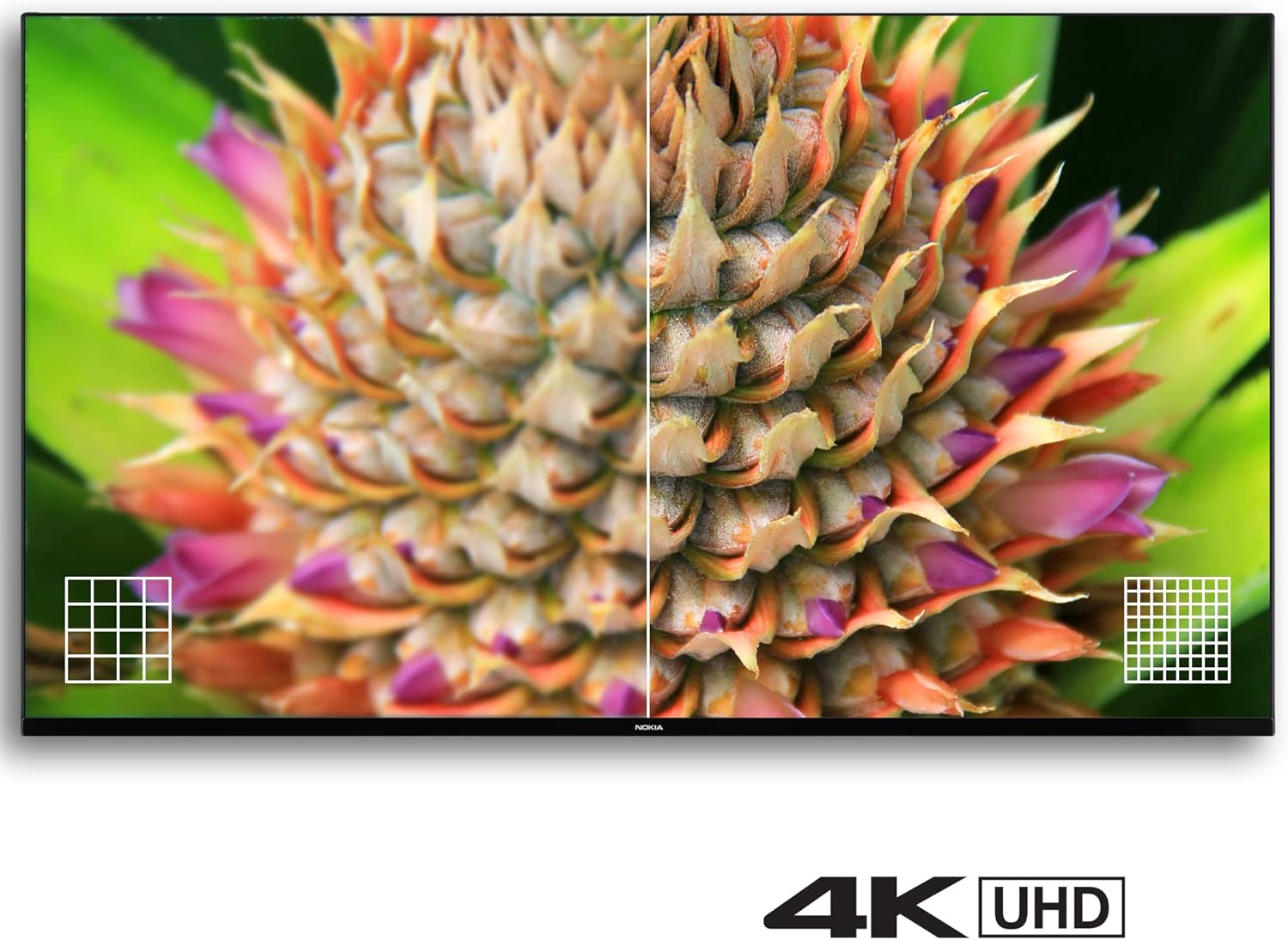
Image: A split-screen comparison on a TV, demonstrating the enhanced detail and clarity of 4K UHD resolution compared to a lower resolution image, focusing on a pineapple.
5.5. Dynamic Sound
The TV features dynamic sound capabilities, compatible with Dolby Digital 5.1, to deliver rich audio quality.

Image: A TV displaying a concert scene, with sound wave graphics emanating from the TV to illustrate its dynamic sound capabilities.
6. Maintenance
6.1. Cleaning the TV
To clean the screen, gently wipe it with a soft, lint-free cloth. For the TV body, use a soft, dry cloth. Do not use abrasive cleaners, waxes, or solvents.
6.2. Software Updates
Your Android TV may receive automatic software updates. Ensure your TV is connected to the internet to receive the latest features and security patches. You can also manually check for updates in the TV settings.
7. Troubleshooting
If you encounter issues with your TV, refer to the following common solutions:
- No Power: Check if the power cord is securely connected and the power outlet is functioning.
- No Picture/Sound: Verify that the correct input source is selected. Check all cable connections.
- Remote Control Not Working: Ensure batteries are correctly inserted and not depleted. Point the remote directly at the TV. For Bluetooth remote, ensure it is paired.
- Network Connection Issues: Restart your router and modem. Reconnect the TV to the Wi-Fi network in settings.
- Picture Quality Issues: Adjust picture settings (brightness, contrast, color) in the TV menu. Ensure the content source is high quality.
If problems persist, consider performing a factory reset via the TV settings (Settings > Device Preferences > About > Factory reset). Note that a factory reset will erase all personal data and settings.
8. Specifications

Image: Technical drawing providing precise dimensions of the Nokia 43-inch TV, including width, height, and depth with and without the stand.
| Feature | Detail |
|---|---|
| Model Number | QNA43GV210 |
| Screen Size | 43 inches (108 cm) |
| Display Technology | QLED |
| Resolution | 4K UHD (3840 x 2160) |
| Refresh Rate | 60 Hz |
| Operating System | Android TV |
| Special Features | WLAN, Internet, Bluetooth, Voice Control |
| Connectivity | 3x HDMI, 2x USB, LAN, Satellite, Antenna, Digital Optical Audio Out, Headphone Jack |
| Dimensions (with stand) | 96.4 cm (W) x 61.1 cm (H) x 23.5 cm (D) |
| Weight | 8 kg |
| Power Consumption (SDR/HDR) | 54.0 W |
| Standby Power Consumption | 0.5 W |
9. Warranty and Support
Your Nokia Smart TV is covered by a manufacturer's warranty. Please refer to the warranty card included in your package for specific terms and conditions. For technical support or service inquiries, please contact your retailer or the official Nokia support channels.


