
1. Introduction
Thank you for choosing the FOREVER Setty Webcam. This manual provides essential information for setting up, operating, and maintaining your webcam. Designed for remote work, conferences, online teaching, and video calls, this webcam offers clear image quality, an integrated microphone, and versatile 360-degree rotation.
2. What's in the Box
- FOREVER Setty Webcam
- USB Cable
- Audio Cable

Image 2.1: FOREVER Setty Webcam and its retail packaging, showing the webcam, USB cable, and audio cable.
3. Setup Instructions
3.1 Connecting the Webcam
- Positioning: The Setty webcam features an adjustable clip. You can securely attach it to any type of screen (PC monitor, laptop, TV) or place it stably on a desk, monitor stand, TV cabinet, or a circular lamp with a tripod.
- USB Connection: Connect the webcam directly to your computer using the provided USB cable. The computer will automatically detect the webcam without requiring additional drivers. The 140 cm cable length allows for flexible placement.
- Audio Connection: If your computer does not automatically detect the microphone or you prefer a separate audio input, connect the audio cable from the webcam to your computer's microphone input.

Image 3.1: The FOREVER Setty Webcam showing its integrated clip and the attached USB and audio cables, ready for connection to a computer.

Image 3.2: The FOREVER Setty Webcam securely mounted on top of a laptop screen, demonstrating its adjustable clip mechanism.
4. Operating the Webcam
4.1 Image and Video Quality
The Setty webcam features a CMOS sensor that delivers a clear image with a constant high resolution of 16 MPX. The dynamic resolution is 640 x 480 pixels. This ensures good visual quality for various applications.
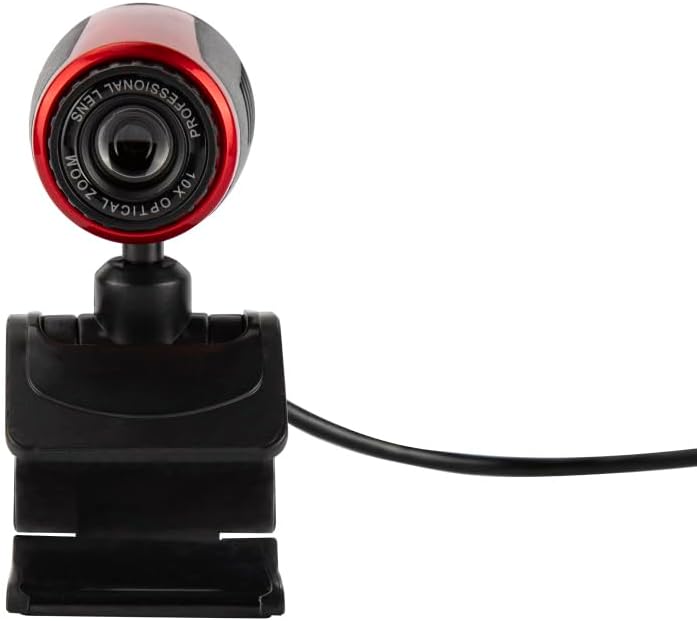
Image 4.1: A close-up front view of the FOREVER Setty Webcam, highlighting the lens and its compact design.
4.2 Integrated Microphone
The webcam includes an integrated microphone for clear and fluid video communications. This allows for natural audio recording, making it suitable for online classes, business meetings, and connecting with family and friends. You can also use the camera with wireless headsets, gaming headsets, or computer speakers.
4.3 360-Degree Rotation
The webcam's design allows for 360-degree rotation, enabling you to adjust the angle as needed. The stable clip ensures the camera remains in your desired position without damaging your screen.

Image 4.2: A side view of the FOREVER Setty Webcam, illustrating its adjustable stand and the ability to change the camera's angle.
4.4 Wide Range of Applications
The Setty Webcam is compatible with various operating systems, including Windows (Win10/Vista/Win7), Mac, and Android TV. It provides excellent video quality for popular communication platforms such as Skype, WhatsApp, Facetime, Zoom, Teams, Facebook, YouTube, and Twitch.
5. Maintenance
To ensure optimal performance and longevity of your webcam, follow these maintenance guidelines:
- Cleaning: Gently wipe the lens and body of the webcam with a soft, dry, lint-free cloth. Avoid using harsh chemicals or abrasive materials that could scratch the lens or damage the surface.
- Storage: When not in use, store the webcam in a cool, dry place away from direct sunlight and extreme temperatures.
- Cable Care: Avoid bending or twisting the USB and audio cables excessively to prevent internal damage.
6. Troubleshooting
If you encounter issues with your FOREVER Setty Webcam, try the following solutions:
- Webcam Not Detected:
- Ensure the USB cable is securely connected to both the webcam and your computer.
- Try connecting the webcam to a different USB port on your computer.
- Restart your computer.
- Check your computer's device manager (Windows) or System Information (Mac) to see if the webcam is listed.
- No Image/Poor Image Quality:
- Ensure the lens is clean and free from dust or smudges.
- Check the lighting conditions in your environment. Adequate lighting is crucial for good image quality.
- Verify that the correct webcam is selected in your video conferencing application's settings.
- Microphone Not Working/Poor Audio Quality:
- Ensure the audio cable (if used) is properly connected.
- Check your computer's sound settings to ensure the webcam's microphone is selected as the input device and its volume is not muted.
- Verify the microphone settings within your video conferencing application.
7. Specifications
| Feature | Detail |
|---|---|
| Brand | FOREVER |
| Model Number | 5900495902092 |
| Color | Black |
| Product Dimensions (L x W x H) | 3.2 x 3.1 x 3.2 cm |
| Item Weight | 90 grams |
| Connectivity Technology | USB |
| Effective Still Resolution | 16 Megapixels |
| Video Resolution | 480p |
| Image Sensor Technology | CMOS |
| Max Focal Length | 3.5 Millimeters |
| Max Aperture | 2.8 f |
| Digital Zoom | 3.6 x |
| Focus Type | Manual Focus |
| Special Features | Adjustable, Wireless (Note: 'Wireless' might be a mistranslation or refer to compatibility with wireless headsets, as the primary connection is USB) |
| Compatible Devices | Laptop, Personal Computer, Tablet |
8. Warranty and Support
For warranty information and technical support, please refer to the documentation provided with your purchase or contact FOREVER customer service. Keep your proof of purchase for any warranty claims.