
Introduction
This manual provides comprehensive instructions for the Doro 5860 4G mobile phone, designed for ease of use, especially for seniors. It covers everything from initial setup to advanced features, maintenance, and troubleshooting.
The Doro 5860 is a 4G feature phone with a large 2.4-inch color screen, large, well-spaced buttons, and a clear display. Key features include an assistance button for emergencies, a 2 MP camera, talking numbered keys, and compatibility with hearing aids (HAC).

Figure 1: Front view of the Doro 5860 4G Mobile Phone, showing the large screen, clear buttons, and simple interface.
Setup
1. Unpacking and Initial Inspection
Carefully unpack all components from the box. Ensure the phone, battery, charging cradle, and power adapter are present. Inspect the phone for any visible damage.
2. Inserting the Battery and SIM Card
Locate the battery compartment cover on the back of the phone. Gently remove it. Insert the provided Lithium-ion battery (1000 mAh) into its slot, ensuring the contacts align. If using a Micro SIM card, insert it into the designated SIM card slot. The phone also supports a Micro SD card up to 128 GB for additional storage.
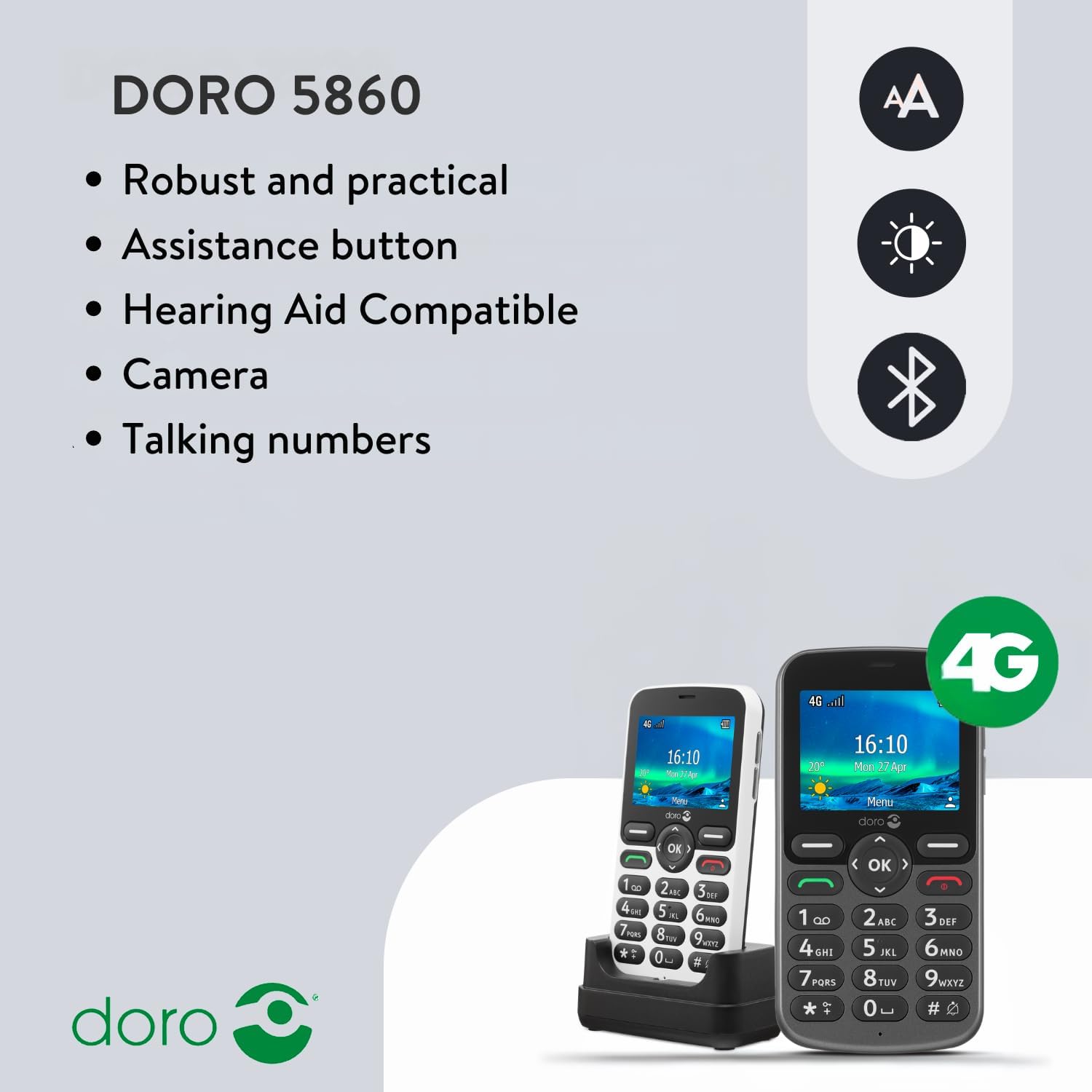
Figure 2: Rear view of the Doro 5860, illustrating the location of the battery compartment and SIM card slot.
3. Initial Charging
Before first use, fully charge the phone. Connect the power adapter to the charging cradle and place the phone in the cradle. The charging indicator on the phone will show charging status. A full charge provides up to 7 hours of talk time and up to 380 hours of standby time.
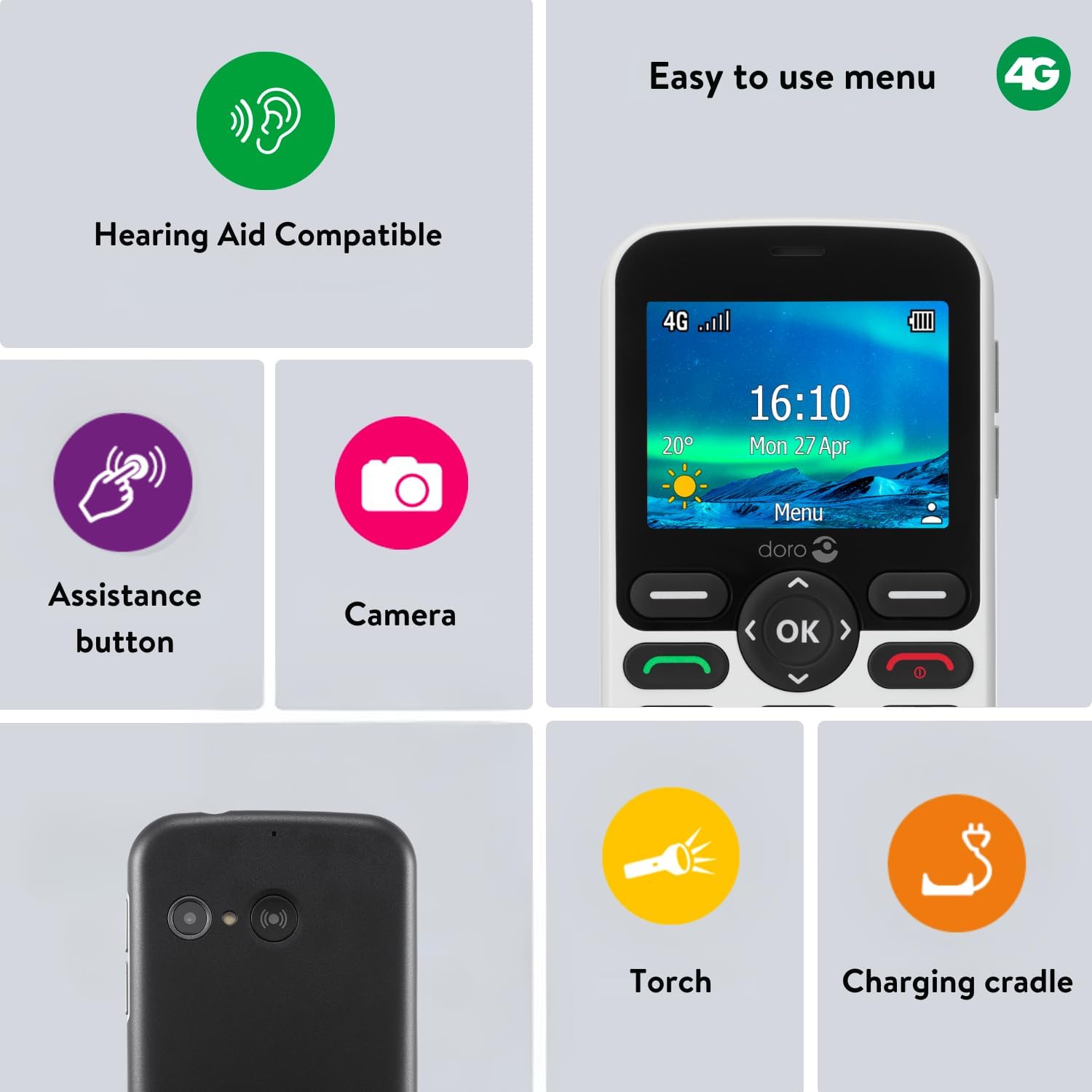
Figure 3: The Doro 5860 placed in its convenient charging cradle.
Operating Instructions
1. Powering On/Off
To power on, press and hold the red end call/power button until the screen lights up. To power off, press and hold the same button and follow the on-screen prompts.
2. Making and Receiving Calls
- Making a Call: Enter the phone number using the large, well-spaced numeric keys. The talking keys feature will announce each number as you press it. Press the green call button to initiate the call.
- Receiving a Call: When the phone rings, press the green call button to answer.
- Ending a Call: Press the red end call button.
- Hands-free Mode: During a call, activate hands-free mode for speakerphone functionality.
3. Sending Text Messages (SMS)
Navigate to the Messaging menu. Select "New Message" and enter your recipient's number and your message. The phone supports adjustable font sizes for better readability.
4. Using the Assistance Button
The Doro 5860 features a dedicated assistance button on the back. In case of an emergency, press and hold this button. The phone will automatically call and send an alarm SMS to your pre-selected emergency contacts. Ensure your emergency contacts are set up in the phone's settings.

Figure 4: The assistance button located on the rear of the Doro 5860, designed for quick access in emergencies.
5. Camera Functionality
The phone is equipped with a 2 MP camera with flash. Access the camera from the main menu to capture photos and record videos. Photos and videos can be stored on the phone's internal memory or on an inserted Micro SD card.
6. Other Features
- Talking Numeric Keys: Numbers are spoken aloud when pressed, aiding users with visual impairments.
- HD Voice: Ensures clear conversations even in noisy environments.
- Hearing Aid Compatibility (HAC): Rated T4/M4 for excellent compatibility with hearing aids.
- Blacklist: Block unwanted calls and SMS messages from specific numbers.
- Flashlight: A built-in flashlight for convenience.
- Daily Reminder: Set reminders for important tasks or appointments.
- Bluetooth: Connect to compatible Bluetooth devices.
- Games: Basic games are included for entertainment.
- LED Indicator: Provides visual notifications for calls, messages, and charging status.
Maintenance
To ensure the longevity and optimal performance of your Doro 5860, follow these maintenance guidelines:
- Cleaning: Use a soft, dry cloth to clean the phone's exterior. Avoid using liquid cleaners or abrasive materials.
- Storage: Store the phone in a cool, dry place away from direct sunlight and extreme temperatures.
- Battery Care: Avoid fully discharging the battery frequently. Charge the phone regularly, especially if it will not be used for an extended period.
- Protection: Consider using a protective case to prevent scratches and minor impacts.
Troubleshooting
If you encounter issues with your Doro 5860, try the following solutions before seeking professional assistance:
| Problem | Possible Cause | Solution |
|---|---|---|
| Phone does not turn on | Low battery; Battery not inserted correctly | Charge the battery; Re-insert the battery ensuring proper contact. |
| Cannot make/receive calls | No network signal; SIM card not inserted; SIM card faulty | Move to an area with better signal; Re-insert SIM card; Contact your service provider. |
| Poor call quality | Weak signal; Interference | Move to an area with stronger signal; Ensure no obstructions. |
| Assistance button not working | Emergency contacts not set up; Button malfunction | Verify emergency contact settings; If issue persists, contact support. |
Specifications
Detailed technical specifications for the Doro 5860 mobile phone:
| Feature | Detail |
|---|---|
| Brand | Doro |
| Model Name | Doro 5860 |
| Model Number | 8204 |
| Color | White |
| Product Type | Bar Phone |
| Operating System | Mocor |
| Screen Size | 2.4 Centimeters |
| Connectivity | Bluetooth, Cellular (4G) |
| Camera Resolution | 2 Megapixels |
| RAM Size | 32 MB |
| Storage Capacity | 128 MB (expandable up to 128 GB with Micro SD) |
| Battery Type | Lithium-ion (1000 mAh) |
| Talk Time | Up to 7 hours |
| Standby Time | Up to 380 hours |
| Hearing Aid Compatibility | T4/M4 |
| Special Features | 4G, 2 MP Camera, Bluetooth 5.0, SOS Button, Calculator, HAC, Speakerphone, Games, Flashlight, Blacklist, Daily Reminder, Talking Numbered Keys |
Warranty and Support
Information regarding product warranty and availability of spare parts was not provided in the available data. For specific warranty details or support inquiries, please refer to the documentation included with your product or visit the official Doro website.
For further assistance, you may also contact Doro customer service directly. Contact information is typically available on the manufacturer's website or in the product packaging.


