
Introduction
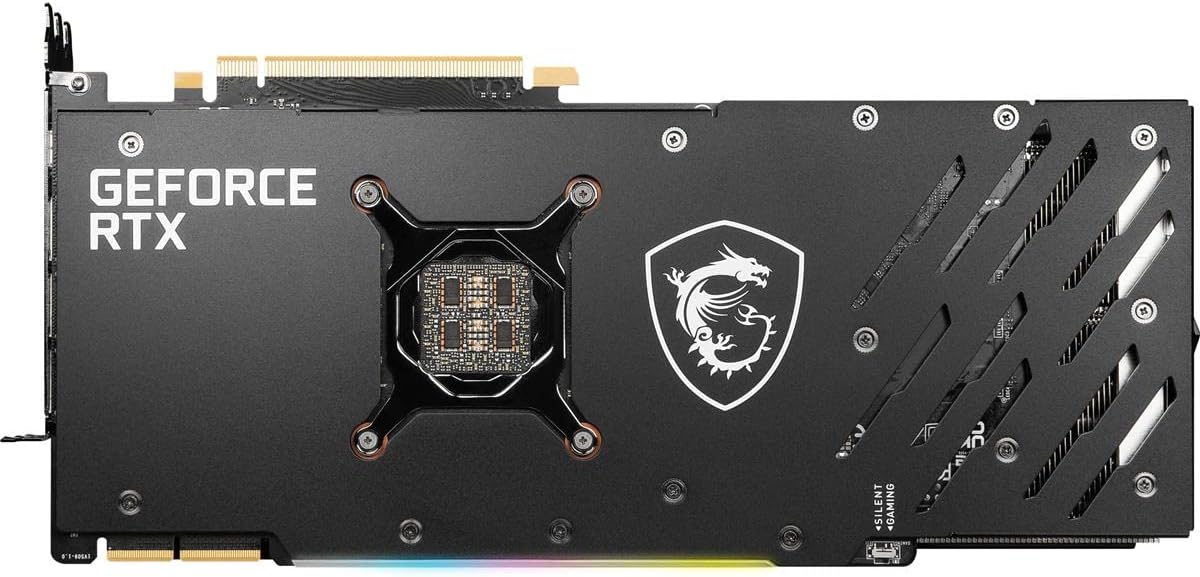
The MSI GeForce RTX 3090 Ti Gaming X Trio 24G is a high-performance graphics processing unit designed for demanding computing tasks and gaming. It is built on NVIDIA's Ampere architecture, featuring enhanced RT Cores, Tensor Cores, and new streaming multiprocessors for advanced ray tracing and AI capabilities. This model includes 24GB of GDDR6X memory with a 384-bit memory interface, supporting a digital maximum resolution of 7680 x 4320.
Key features include:
- Chipset: GeForce RTX 3090 Ti
- Video Memory: 24GB GDDR6X
- Memory Interface: 384-bit
- Output: DisplayPort x 3 (v1.4a) / HDMI 2.1 x 1
- Digital maximum resolution: 7680 x 4320
What's in the Box
Verify that all items are present in the package:
- MSI GeForce RTX 3090 Ti Gaming X Trio 24G Graphics Card
- Quick Setup Guide
Specifications
| Specification | Value |
|---|---|
| Chipset | NVIDIA GeForce RTX 3090 Ti |
| Video Memory | 24GB GDDR6X |
| Memory Interface | 384-bit |
| Max Screen Resolution | 7680x4320 |
| Memory Speed | 1860 MHz |
| Output Ports | 3x DisplayPort (v1.4a), 1x HDMI 2.1 |
| Item Weight | 5.81 pounds |
| Product Dimensions (LxWxH) | 13.2 x 2.4 x 5.5 inches |
Setup
Physical Installation
1. Prepare your system: Ensure your computer is powered off and unplugged. Open your PC case to access the motherboard's PCIe slots.
2. Install the graphics card: Carefully align the graphics card with an available PCIe x16 slot on your motherboard. Press down firmly until it is securely seated and the retention clip locks into place. Secure the card to the case with screws.
3. Connect power cables: This graphics card requires three 8-pin PCIe power connectors. Connect these directly from your power supply unit (PSU) to the corresponding ports on the graphics card. A PSU of at least 850W is recommended for stable operation.
4. Install support bracket: Due to the significant weight and size of the RTX 3090 Ti, it is highly recommended to use a graphics card support bracket to prevent GPU sag and potential damage to the PCIe slot. Follow the instructions provided with your support bracket for proper installation.
5. Close the PC case: Once the card is securely installed and all cables are connected, close your PC case.
Driver Installation
1. Connect to a display: Connect your monitor to one of the DisplayPort or HDMI ports on the graphics card.
2. Power on your system: Plug in and power on your computer.
3. Install NVIDIA drivers: Navigate to the official NVIDIA website and download the latest drivers for your GeForce RTX 3090 Ti. Follow the on-screen instructions to complete the driver installation. Restart your computer if prompted.


Operating
The MSI GeForce RTX 3090 Ti is designed to deliver exceptional performance for gaming, content creation, and other demanding applications. Once installed and drivers are updated, your system will automatically utilize the graphics card.
- Display Connectivity: Connect up to four displays simultaneously using the available DisplayPort and HDMI outputs.
- MSI Center / Afterburner: Utilize MSI's proprietary software like MSI Center or Afterburner to monitor GPU performance, adjust fan curves, and customize RGB lighting effects. These tools allow for fine-tuning your graphics card to match your specific needs.
- Gaming Performance: The card's Ampere architecture, RT Cores, and Tensor Cores provide advanced ray tracing and DLSS (Deep Learning Super Sampling) capabilities for enhanced visual fidelity and frame rates in supported games.
Maintenance
Proper maintenance ensures optimal performance and longevity of your graphics card:
- Keep it clean: Regularly clean dust from the graphics card fans and heatsink using compressed air. Ensure the PC case has good airflow to prevent dust buildup.
- Monitor temperatures: Use MSI Afterburner or similar software to monitor GPU temperatures during operation. High temperatures can indicate insufficient cooling or heavy workload.
- Driver updates: Keep your graphics drivers updated to the latest version from the NVIDIA website to ensure compatibility, performance improvements, and bug fixes.
- Avoid unofficial software: Only use official software and drivers from MSI and NVIDIA. Avoid using unofficial software that may interfere with the card's operation or void the warranty.
Troubleshooting
If you encounter issues with your graphics card, consider the following:
- No display output: Ensure the graphics card is properly seated in the PCIe slot and all power cables are securely connected. Verify that your monitor cable is connected to the graphics card, not the motherboard's integrated graphics port.
- System instability/crashes: Check your power supply unit (PSU) to ensure it meets the recommended wattage (850W or higher). Outdated or corrupted drivers can also cause instability; try reinstalling the latest drivers.
- Overheating: Ensure your PC case has adequate airflow and that the graphics card fans are spinning correctly. Clean any dust buildup on the heatsink and fans.
- GPU sag: If the graphics card appears to be bending or sagging, ensure a support bracket is properly installed to alleviate stress on the PCIe slot.
Warranty and Support
For warranty information, technical support, or service inquiries, please refer to the documentation included with your product or visit the official MSI website. Keep your proof of purchase for warranty claims.


