
Introduction
This manual provides essential information for the proper use and maintenance of your MakeID L1 E1 Q1 Label Maker Tape. This tape is designed for use with MakeID label makers, specifically models L1, E1, and Q1, offering a versatile and durable labeling solution for various applications.
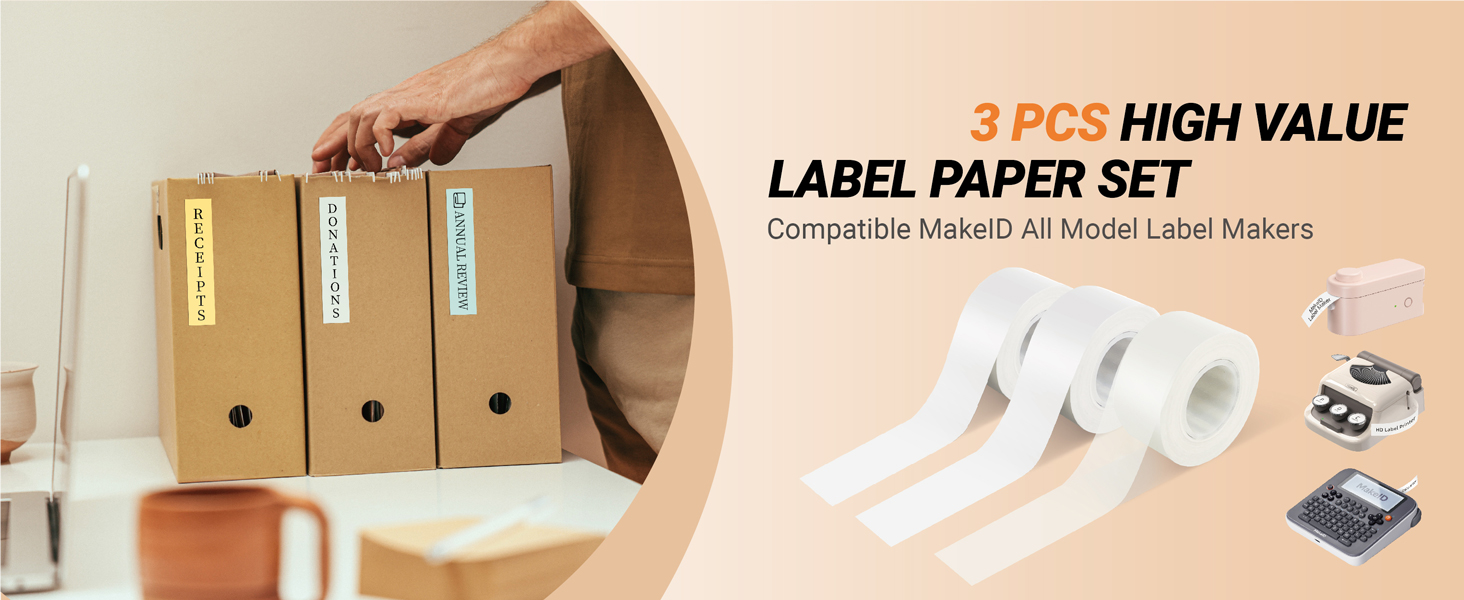
Image: MakeID L1, Q1, E1 Label Tape Compatibility. This image illustrates the compatibility of the label tape with MakeID L1, Q1, and E1 label makers, while indicating it is not adaptable for the S1 Pro model.
Product Features
- Strong Adhesive: The tape features a strong adhesive suitable for various surfaces including kraft paper, PVC, wood, glass, corrugated boxes, metal, and envelopes.
- Durability: Resistant to fading, water, grease, grime, and abrasion, ensuring long-lasting labels.
- Easy Application: Designed with a split-back for easy peeling and sticking, leaving no residue upon removal.
- Thermal Printing: Utilizes thermal printing technology, eliminating the need for ink or toner.
- Clear Print Quality: Provides crisp and clear text for easy readability.

Image: 6-Layer Laminated Label Tape Features. This image highlights the waterproof, scratch-resistant, anti-fading, and oil-proof properties of the 6-layer laminated tape.
Setup
1. Loading the Label Tape
To load the label tape into your MakeID label maker (L1, E1, or Q1 model), open the tape compartment. Insert the tape roll according to the diagram inside the compartment, ensuring the tape feeds correctly through the outlet. Extend the transparent leading tape approximately 15cm through the outlet before printing.
Video: MakeID Label Printer E1 Review. This video demonstrates the unboxing, charging, and tape loading process for the MakeID E1 label printer, which uses the L1 E1 Q1 label tape.
2. Charging the Device
Ensure your label maker is fully charged before use. Connect the provided USB-A to USB-C cable to the charging port on the device and a compatible USB power adapter (not included). The device display will indicate charging status.
3. Connecting to the App (Optional)
For enhanced functionality, download the MakeID Life app on your smartphone. Power on your label maker, then open the app. The app will guide you through connecting your device via Bluetooth. If connection issues occur, ensure the device is powered on before launching the app and try searching for devices again.
Operating Instructions
1. Printing Labels
You can create labels either directly on the label maker using its QWERTY keyboard and LCD screen, or through the MakeID Life app. The app offers various templates, fonts, stickers, and frames to customize your labels.

Image: Crystal Clear Print Quality. This image demonstrates the high-definition, clear print quality of the labels produced by the MakeID label maker.
2. Customizing Labels
The MakeID Life app provides extensive customization options:
- Text: Enter your desired text.
- Fonts: Choose from over 20 fonts.
- Stickers: Access over 300 stickers for decorative purposes.
- Frames: Apply various frame styles to your labels.
- Templates: Utilize pre-designed templates for common labeling needs, including holiday themes.

Image: MakeID App Interface for Customization. This image shows the various customization options available within the MakeID app, including fonts, stickers, and frames.
3. Cutting and Peeling Labels
After printing, use the integrated cutter on your label maker to cleanly cut the label. The labels feature a split-back design, making them easy to peel from the backing without leaving residue.

Image: Easy-to-Use Backing Removal. This image demonstrates the split-back design of the labels, allowing for easy peeling and application without residue.
Applications
MakeID L1 E1 Q1 Label Maker Tape is ideal for organizing various items and spaces:
- Home Organization: Label bins, containers, organizers, baskets, folders, drawers, boxes, and shelves in your kitchen, garage, nursery, pantry, and home office.
- Food Storage: Mark dates and contents on food containers to manage freshness.
- Office Labeling: Organize files, documents, and office supplies.
- Personal Items: Create name tags or labels for personal belongings.

Image: Various Labeling Applications. This image showcases diverse uses for the label tape, including household management, craft inspiration, food storage, file labeling, and name tags.
Video: MakeID Label Printer E1 Review. This video demonstrates practical applications of the label maker, such as date labeling for food and organizing cables, highlighting its versatility.
Maintenance
1. Cleaning Labels
Due to their water, grease, and grime resistance, labels can be easily wiped clean with a damp cloth if they become dirty.
2. Battery Care
The label maker features a built-in rechargeable lithium-ion battery. Charge the device using the provided USB cable when the battery indicator shows low power. A full charge ensures extended use without needing a power connection.
Troubleshooting
1. App Connection Issues
If the app fails to connect to the printer, ensure the label maker is powered on before opening the app. Try restarting both the app and the label maker, then attempt to connect again. The app includes a 'Search devices' function to help locate your printer.
2. Faded Print Quality
If the first few characters of a label appear faded, ensure there is sufficient leading tape (approximately 15cm) extended from the label maker's outlet before initiating the print job. This allows the thermal print head to properly engage.
Specifications
- Brand: MakeID
- Model Number: L T1W2
- Item Weight: 1.44 ounces
- Package Dimensions: 2.09 x 1.69 x 1.54 inches
- Color: White
- Material Type: Paper
- Size: 16mm x 4m (0.63 inch x 13 feet)
- Finish Type: Laminated
Warranty & Support
The MakeID label printer comes with a full three-year warranty from the manufacturer. For additional support, refer to the 'APP FAQs' section within the MakeID Life app or utilize the feedback option for direct assistance.


