
Introduction
This manual provides comprehensive instructions for the Lexar Professional USB 3.2 Type-C Dual-Slot Reader (Model: LRW470U-RNHNU). It covers product overview, setup, operation, maintenance, troubleshooting, and technical specifications. Please read this manual thoroughly before using the device to ensure proper functionality and longevity.
Product Overview
The Lexar Professional USB 3.2 Type-C Dual-Slot Reader is designed to facilitate fast data transfer from SD and microSD UHS-II memory cards to your computer. It features a compact design and a USB-C connector for broad compatibility.
Key Features
- High-Speed Data Transfer: Achieves read speeds up to 312MB/s for efficient workflow.
- Dual-Slot Design: Supports both SD and microSD UHS-II cards simultaneously.
- USB 3.2 Gen1 Type-C Connectivity: Ensures compatibility with modern USB-C equipped computers.
- Backward Compatibility: Fully compatible with UHS-I cards (up to 170MB/s) and USB 2.0/3.1 ports.
- LED Activity Light: Indicates data transfer status.
Package Contents
- Lexar Professional USB 3.2 Type-C Dual-Slot Reader (LRW470U-RNHNU)
- User Manual (this document)

Image: The Lexar Professional USB 3.2 Type-C Dual-Slot Reader, showcasing its compact design and USB-C connector.

Image: Lexar Quality Labs logo with text indicating rigorous testing for performance, quality, compatibility, and reliability.
Setup
- Connect the Reader: Plug the USB-C connector of the Lexar Dual-Slot Reader into an available USB-C port on your computer. The reader is designed for plug-and-play functionality and does not require additional drivers for most operating systems (Mac OS X 10.8+, Windows 10/8/7/Vista/XP).
- Insert Memory Card:
- For SD cards, insert the card into the larger slot labeled "SD" until it clicks into place.
- For microSD cards, insert the card into the smaller slot labeled "microSD" until it clicks into place.
Note: Ensure the card is inserted in the correct orientation to avoid damage.
- Verify Connection: The LED activity light on the reader will illuminate when connected and flash during data transfer, indicating active operation.

Image: The Lexar Dual-Slot Reader connected to a laptop's USB-C port, demonstrating its plug-and-play setup.
Operating Instructions
- Accessing Data: Once a memory card is inserted and the reader is connected to your computer, the card will appear as a removable drive in your operating system's file explorer (e.g., File Explorer on Windows, Finder on macOS).
- Transferring Files:
- To copy files from the card to your computer: Drag and drop files or folders from the card's drive to your desired location on your computer.
- To copy files to the card from your computer: Drag and drop files or folders from your computer to the card's drive.
The LED activity light will flash during data transfer.
- Ejecting the Card: Before removing the memory card or disconnecting the reader, always safely eject the drive from your operating system. This prevents data corruption.
- Windows: Right-click on the drive icon in File Explorer and select "Eject."
- macOS: Drag the drive icon to the Trash or click the Eject button next to the drive in Finder.
- Removing the Card: After safely ejecting, gently pull the memory card out of its slot.

Image: The Lexar Dual-Slot Reader connected to a laptop, with a microSD card inserted, illustrating high-speed data transfer.

Image: The Lexar Dual-Slot Reader with its LED activity light illuminated, indicating active operation or data transfer.
Maintenance
- Cleaning: Use a soft, dry, lint-free cloth to clean the exterior of the reader. Avoid using liquid cleaners or solvents.
- Storage: Store the reader in a cool, dry place away from direct sunlight and extreme temperatures.
- Handling: Avoid dropping the reader or subjecting it to strong impacts. Do not force memory cards into the slots.
- Firmware Updates: Periodically check the official Lexar website for any available firmware updates for your reader model.
Troubleshooting
| Problem | Possible Cause | Solution |
|---|---|---|
| Reader not recognized by computer. |
|
|
| Memory card not detected. |
|
|
| Slow data transfer speeds. |
|
|
| LED activity light not working. |
|
|
Specifications
| Feature | Detail |
|---|---|
| Brand | Lexar |
| Model Number | LRW470U-RNHNU |
| Series | LXLRW470U |
| Connectivity | USB 3.2 Gen1 Type-C (backward compatible with USB 3.1, 3.0, 2.0) |
| Supported Media | SD (UHS-II, UHS-I), microSD (UHS-II, UHS-I) |
| Max Read Speed | Up to 312MB/s (with UHS-II cards) |
| Operating System Compatibility | Mac OS X 10.8+, Windows 10/8/7/Vista/XP |
| Dimensions (LxWxH) | 4.74 x 3.9 x 1.02 inches |
| Weight | 0.96 ounces |
| Color | Black |
| Special Features | High-speed data transfer, Dual-slot design, LED activity light |
Warranty Information
The Lexar Professional USB 3.2 Type-C Dual-Slot Reader (LRW470U-RNHNU) comes with a two-year limited warranty from the date of purchase. This warranty covers defects in materials and workmanship under normal use. It does not cover damage caused by misuse, accident, modification, unauthorized repair, or external causes such as drops or liquid exposure.
For detailed warranty terms and conditions, please refer to the official Lexar warranty documentation available on their website or contact Lexar customer support.
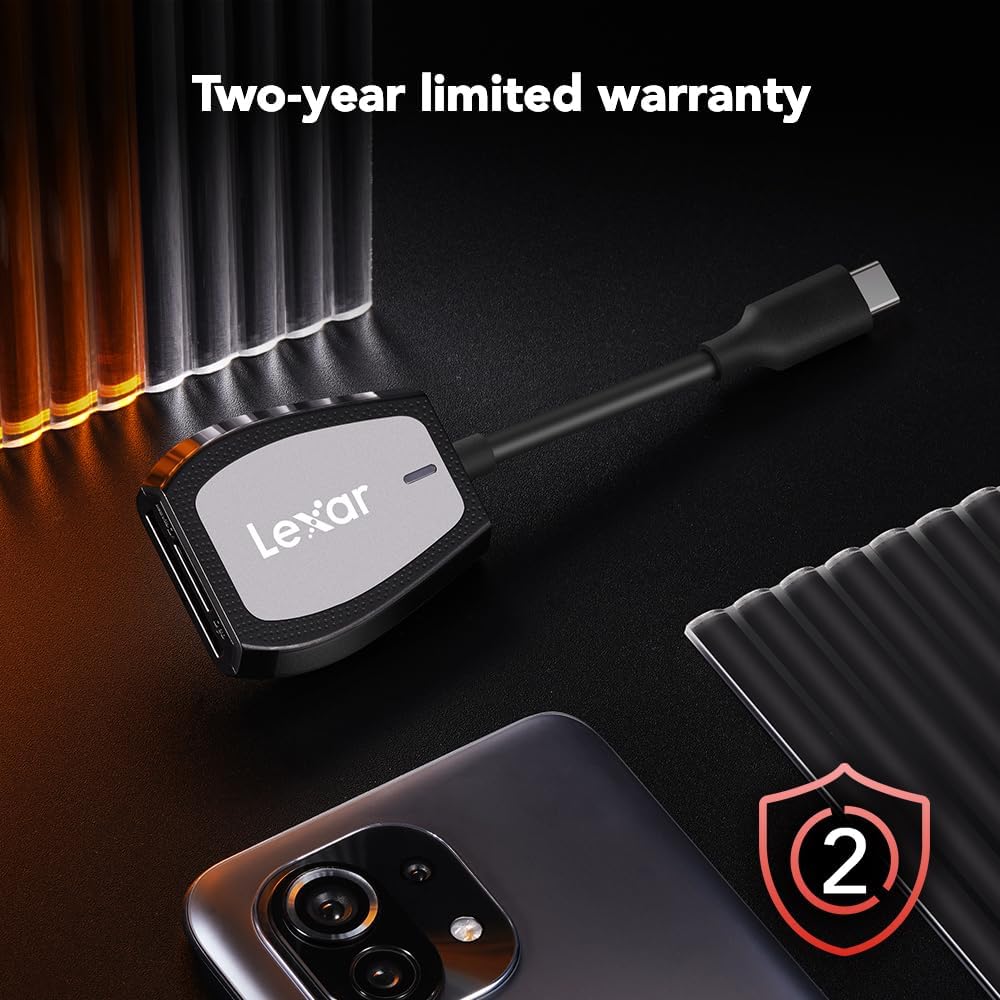
Image: The Lexar Dual-Slot Reader accompanied by a graphic indicating a two-year limited warranty.
Support
If you encounter any issues or have questions not addressed in this manual, please contact Lexar customer support. You can find contact information and additional resources on the official Lexar website:
Please have your product model number (LRW470U-RNHNU) and purchase information ready when contacting support.


